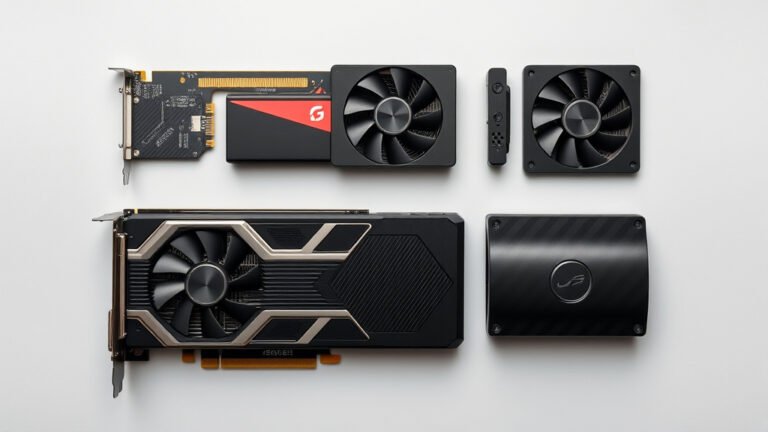
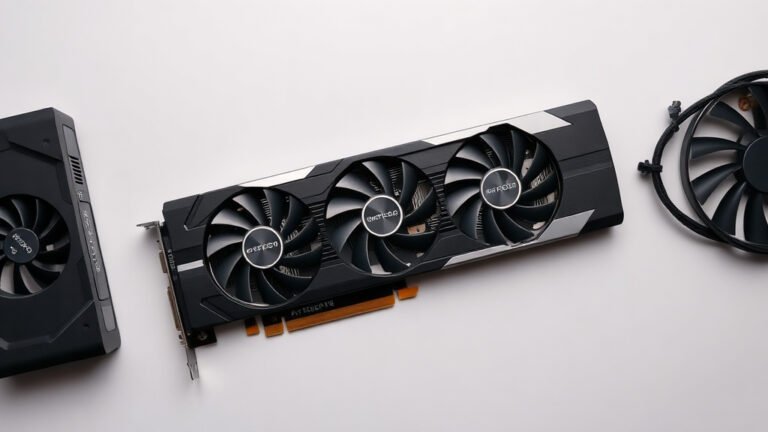
How to Fix GPU High Idle Temperature: Quick Fixes That Work
The easiest way to fix a high GPU idle temperature is to clean out dust, improve case airflow, and set a proper fan curve. Most idle temps should sit between 30 and 50°C. If yours is climbing toward 60°C or more while you’re just browsing, something needs fixing.
Why does this happen? Often it’s a clogged heatsink, poor airflow, or a background app quietly working your GPU. Sometimes it’s just a multi-monitor setup forcing your card to stay at high clock speeds. We researched the most common causes and found that a few simple tweaks make a big difference.
- Clean dust from your GPU and case fans
- Improve case airflow with better fan placement
- Set a custom fan curve so fans actually spin at idle
- Check for background apps pushing your GPU to work
- Adjust multi-monitor or refresh rate settings if needed
Below, we walk you through each fix step by step so you can get those idle temps back down to where they belong.
Fixing High GPU Idle Temps the Easy Way
Start with the basics before you panic-buy a new cooler. In our research, the biggest wins came from dust removal, smarter fan curves, and taming background apps. Most of these fixes take less than 30 minutes.
Think of your GPU like a car idling in traffic. It shouldn’t be sweating at a red light. If it is, something’s forcing it to work harder than it should.
Clean Dust Out of Your GPU and Case
Dust is the number one culprit we found. It acts like a blanket wrapped around your heatsink. Even a thin layer can trap heat and raise idle temps by several degrees.
How to Clean Your GPU Safely
Power down your PC and unplug it. Take the side panel off, then use compressed air to blow out the GPU fans and heatsink fins. Hold the fan blades still while you spray so they don’t spin too fast.
Do this outside or in a garage unless you enjoy sneezing. A quick blast every three to six months keeps things breathing easy.
Don’t Forget the Rest of the Case
Your GPU can only stay as cool as the air around it. Clean the intake fans, filters, and radiator if you have one. A clogged front filter chokes airflow like a dirty air filter chokes your car’s engine.
Set a Custom Fan Curve
Many modern GPUs keep fans off or barely spinning at idle. That’s called zero-RPM mode, and it’s great for silence but terrible for temps in a warm room. A custom fan curve tells your fans to spin up sooner.
Use MSI Afterburner or your GPU maker’s own software. Set fans to around 30 to 40 percent at 40°C, then ramp up from there. We found that this single tweak often drops idle temps by 5 to 10 degrees.
Find and Stop Background Apps Using Your GPU
Sometimes the problem isn’t dust at all. It’s an app quietly running your GPU behind your back. Browser tabs, wallpaper engines, RGB software, and crypto miners hiding in sketchy downloads are common offenders.
Check Task Manager First
Press Ctrl+Shift+Esc and open the Performance tab. Click GPU and watch the usage while you’re doing nothing. If it shows 20 to 50 percent at idle, something’s guilty.
Sort running apps by GPU usage and shut down anything suspicious. Uninstall programs you don’t recognize. Your GPU will thank you with cooler temps. For a fuller walkthrough, our guide to checking GPU usage covers every tool you can use.
Watch for Browser Hardware Acceleration
Hardware acceleration makes browsing smoother, but it can keep your GPU clocks high. Try turning it off in your browser settings and see if temps drop. It’s a one-minute test.
Improve Your Case Airflow
Hot air needs a way out. If your case has one lonely rear fan or none at all, you’re basically baking your components. Good airflow means cool air comes in the front and bottom, and hot air exits the top and back.
| Fan Position | Best Direction | Why It Helps |
|---|---|---|
| Front intake | Blowing in | Brings fresh cool air to the GPU |
| Bottom intake | Blowing in | Feeds air straight to the graphics card |
| Rear exhaust | Blowing out | Pushes warm air out fast |
| Top exhaust | Blowing out | Hot air rises, so let it escape |
Even one added intake fan can make a real difference. Many builders report 3 to 8 degrees of improvement from better airflow alone.
Cable Management Matters Too
A spaghetti nest of cables blocks airflow more than you’d think. Tuck extras behind the motherboard tray. It’s free performance for the price of ten minutes.

Fix Multi-Monitor and Refresh Rate Issues
Running two or more monitors can trap your GPU at high memory clocks even at idle. This is a well-known quirk, especially when one monitor runs a higher refresh rate than the other. The card refuses to drop into its low-power state.
Try setting both monitors to the same refresh rate in Windows display settings. If that’s not an option, setting the secondary monitor to 60 Hz usually solves it. It’s a strange fix, but we found it works surprisingly often.
Quick Checklist Before You Move On
- Blow out GPU and case dust with compressed air
- Set a custom fan curve that spins fans at idle
- Check Task Manager for sneaky GPU-hungry apps
- Add or reposition case fans for better airflow
- Match refresh rates across all your monitors
- Recheck temps after each fix so you know what worked
Know When Idle Temps Are Actually Normal
Not every warm reading is a problem. GPUs in a hot room, in a small case, or with passive cooling designs can idle in the 50s and still be fine. What matters more is the trend and the load temperature.
If your card stays under about 85°C during games, it’s healthy. If idle temps jumped suddenly from 35°C to 65°C, that’s your signal to investigate. Sudden changes tell you more than single numbers ever will.
When to Repaste or Worry
If cleaning and airflow fixes don’t help after a few years of ownership, the thermal paste between the chip and cooler may have dried out. Many experts say repasting is safe for most owners, but it can void some warranties. Check your manufacturer’s policy first.
And if you see temps above 90°C under light use, or your fans never spin at all, stop troubleshooting and contact support. Some problems deserve a professional, not a screwdriver and optimism.
Conclusion
High GPU idle temps usually come down to a handful of simple causes, and you now know how to handle every one of them. Clean out the dust, set a fan curve that actually kicks fans on, hunt down background apps, tidy your airflow, and match your monitor refresh rates. None of these require new parts or serious tech skills. In our research, most people saw meaningful drops after just one or two fixes.
Here’s your next step: grab a can of compressed air and check your current idle temp with a monitoring tool. Then work through the fixes one at a time so you know exactly what worked. Your GPU deserves to relax a little.
Frequently Asked Questions
Is 60°C too hot for a GPU at idle?
It’s on the warm side, but not automatically dangerous. If your card used to idle cooler and recently jumped to 60°C, that change is worth investigating. A GPU sitting at 55 to 60°C in a warm room can still be perfectly healthy.
Can high idle temperatures damage my graphics card?
Modern GPUs are built to handle far more heat than idle use produces. Short-term, you have nothing to fear. Long-term, consistently elevated temps can age thermal paste faster, so it’s worth fixing rather than ignoring.
Why does my GPU idle temp change between summer and winter?
Room temperature plays a bigger role than most people expect. Your cooler can only dump heat into the air around it, so a 78°F room means warmer components than a 68°F room. A few degrees of seasonal swing is completely normal.
Should I use MSI Afterburner just for fan control?
Yes, it’s one of the most trusted free tools for custom fan curves, and it works with almost every GPU brand. Just install it, set your curve, and let it run in the background. You can always uninstall it later if you don’t want it.
How often should I clean my GPU to keep idle temps low?
For most homes, a quick cleaning every three to six months does the job. If you have pets, carpet, or smoke in the house, dust builds up faster and monthly checks make sense. Watch your temps and let them tell you when it’s time.