Understanding GPU Utilization: What It Means for Performance
GPU utilization tells you how busy your graphics card is. It measures the percentage of your GPU’s processing power that’s currently being used. High GPU utilization means your graphics card is working hard, often during demanding tasks like gaming or video editing. Keeping an eye on this helps you understand your system’s performance.
Think of your GPU as a powerful engine. GPU utilization shows you how much of that engine’s horsepower you’re actually using at any given moment. When this number is low, your GPU might be waiting for other parts of your computer to catch up. Understanding this helps you optimize your setup for smoother experiences.
- GPU utilization is the percentage of your graphics card’s power being used.
- High utilization means your GPU is working hard.
- Low utilization can mean other components are slowing things down.
- Monitoring it helps you improve performance.
- It’s key for gamers and content creators.
Let’s break down what GPU utilization really means for you and your PC. We’ll cover why it matters and what to do about it.
Understanding Your Graphics Card’s Workload
So, you’ve heard about GPU utilization, and you’re probably wondering what it really means for your computer. Think of your graphics card, or GPU, as the artist of your PC. It’s responsible for drawing everything you see on your screen, from dazzling game worlds to crisp text. GPU utilization is simply a measurement. It tells you how much of your GPU’s artistic talent is being called upon right now. A higher percentage means your GPU is busy. A lower percentage means it’s taking a break.
What Does a High GPU Utilization Percentage Mean?
When your GPU utilization is high, often near 100%, it means your graphics card is working its hardest. This is a good sign during demanding tasks. It shows that your GPU is the primary factor limiting your performance. You’re getting the most out of the hardware you have. This is typically what you want to see when you’re gaming at high settings or rendering a complex video project. It means your GPU is fully engaged in the task at hand. It’s like an artist with a very detailed canvas – they’re using all their brushes and colors.
What Does a Low GPU Utilization Percentage Mean?
Conversely, low GPU utilization suggests something else might be holding your system back. If your GPU isn’t being fully used, it might be waiting for other components. Your CPU, for example, might not be feeding it data fast enough. This is often called a CPU bottleneck. Imagine our artist is ready to paint a masterpiece, but they’re constantly waiting for someone else to prepare their paints. The artist is idle, not because they can’t paint, but because their supplies aren’t ready. This can lead to choppy frame rates in games or slower rendering times than expected.
Why Tracking GPU Utilization Matters to You
Keeping an eye on your GPU’s workload is more than just a techy statistic. It’s about optimizing your computing experience. Whether you’re a hardcore gamer, a creative professional, or just someone who wants their computer to run smoothly, understanding utilization is key. It helps you diagnose performance issues and make informed decisions about your hardware.
For Gamers: Smooth Gameplay is the Goal
If you love gaming, you’ve probably experienced the frustration of choppy gameplay. High GPU utilization (around 90-100%) is often ideal for gaming. It means your GPU is working hard to render those beautiful graphics. If you see low GPU utilization during a game, it could indicate a bottleneck elsewhere. This is why many gamers tweak their in-game settings. They aim to maximize GPU load to get the smoothest possible experience. You want your GPU to be the star performer, not waiting in the wings.
For Content Creators: Faster Renders and Smoother Editing
Video editors, 3D modelers, and graphic designers rely heavily on their GPUs. Tasks like rendering video footage, creating complex animations, or applying intensive visual effects are very GPU-intensive. High utilization during these processes means your hardware is being used effectively. If your renders are taking longer than you expect, checking GPU utilization can be the first step to figuring out why. It might point to bottlenecks or suggest that your current GPU is simply not powerful enough for your workflow. Many professionals recommend having a GPU that can maintain high utilization during rendering (Adobe Systems acknowledges GPU acceleration for many tasks).
How to Check Your GPU Utilization
Fortunately, checking your GPU utilization is quite straightforward. You don’t need a degree in computer science. There are several tools available. These tools give you real-time feedback on your graphics card’s performance. They are usually built right into your operating system or available as free downloads. Knowing how to access these can be a real lifesaver for troubleshooting.
Using Built-in Tools (Windows)
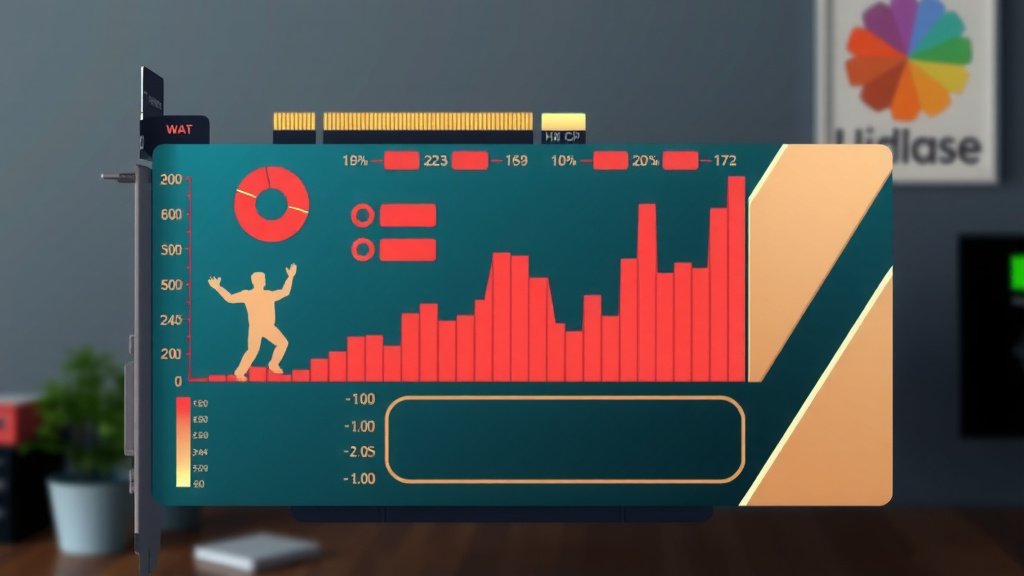
Windows Task Manager is your first stop. It’s a powerful tool that’s been around for ages. It gives you a quick overview of what your system is doing. To open it, just press Ctrl+Shift+Esc. You’ll see a list of running applications and their resource usage. Look for the “GPU” column. You can also go to the “Performance” tab. There, you’ll find a dedicated graph for your GPU. This shows you detailed utilization percentages. It’s easy to see if your GPU is redlining or taking it easy.
Using Third-Party Software
For more in-depth information, many users turn to third-party software. MSI Afterburner is a very popular choice among gamers and overclockers. It provides extensive monitoring capabilities. You can track GPU utilization, temperature, clock speeds, and more. You can even set it up to display this information in-game. Other tools like HWMonitor offer a comprehensive look at all your hardware components. These programs are great if you want to understand the full picture of your system’s health and performance.
Common Scenarios and What They Mean
Understanding what different utilization percentages mean in practice can be very helpful. It takes the guesswork out of performance monitoring. Let’s look at a few common situations you might encounter. This can help you interpret the numbers you see on your screen.
Scenario 1: Gaming at 95-100% GPU Utilization
This is generally the ideal scenario for gamers. It means your GPU is working as hard as it possibly can to deliver the best possible frame rates. If you’re getting smooth gameplay, this is exactly what you want. If you’re not getting the frame rates you expected, you might need to lower some graphical settings to reduce the load. This ensures your GPU doesn’t overheat or experience performance dips.
Scenario 2: Gaming at 50-70% GPU Utilization
If your GPU utilization is this low during gaming, and your frame rates aren’t as high as you’d like, it’s a strong indicator of a CPU bottleneck. Your CPU can’t keep up with the GPU. You might see your CPU usage very high (near 100%) in these cases. To fix this, you might need to upgrade your CPU or adjust game settings that are more CPU-intensive. Some research suggests that certain game engines are also more prone to bottlenecks (Gamer’s Nexus has detailed analysis on this).
Scenario 3: Low Utilization During Everyday Tasks
For basic tasks like browsing the web, checking email, or using a word processor, your GPU utilization should be very low, often under 20%. These tasks don’t require much graphical power. If you see unexpectedly high GPU utilization during these activities, it could signal a background process. Malware or a demanding background application might be using your GPU resources without your knowledge. It’s worth investigating if this happens.
When to Seek More Help
Most of the time, understanding GPU utilization is about knowing what’s normal for your system. However, if you’re consistently seeing issues or your performance is significantly worse than it should be, it might be time to look deeper. Don’t hesitate to consult online communities or professional repair services if you’re unsure. Your PC should work for you, not against you!
Quick Checklist for Performance Monitoring
- Check GPU utilization regularly during demanding tasks.
- Aim for high GPU usage during gaming for best results.
- Watch out for low GPU usage with high CPU usage – that’s a bottleneck.
- Ensure background applications aren’t hogging GPU resources.
- Monitor GPU temperatures alongside utilization.
- If performance is poor, analyze both CPU and GPU load.
Conclusion
You’ve now got a solid grasp on GPU utilization, understanding that it’s the measure of your graphics card’s current workload. Knowing whether your GPU is running at full steam during demanding tasks or resting during lighter ones is key to optimizing your PC’s performance. This knowledge is your best tool for diagnosing issues, whether you’re a gamer chasing smoother frames or a creator needing faster renders. Your next step is simple: open up Task Manager or your preferred monitoring tool and see what your GPU is up to right now. Start actively monitoring, and you’ll be well on your way to a better computing experience.
Frequently Asked Questions
What’s the ideal GPU utilization percentage for gaming?
For the best gaming experience, you generally want your GPU utilization to be between 90-100%. This indicates that your graphics card is working its hardest to produce the smoothest frame rates possible. If it’s lower, you might be experiencing a bottleneck from another component.
Can my CPU cause low GPU utilization?
Yes, absolutely. If your CPU can’t process information fast enough to keep your GPU fed with tasks, it creates a CPU bottleneck. Your GPU will end up waiting, resulting in lower utilization and potentially lower frame rates than your GPU is capable of.
Is high GPU utilization always good?
High GPU utilization is usually good during demanding tasks like gaming or rendering, as it means your hardware is being fully used. However, if you see very high utilization during simple tasks like web browsing, it could indicate a background process or even malware hogging your GPU resources.
How often should I check my GPU utilization?
You should check your GPU utilization whenever you notice performance issues in demanding applications, or when you’re tweaking game settings or rendering projects. Regularly monitoring it during your primary heavy-use scenarios will give you the best understanding of your system’s behavior.
Can I improve performance by lowering GPU utilization?
In most cases, you aim for high GPU utilization for better performance. However, if your GPU utilization is at 100% and you’re experiencing stuttering or overheating, you might need to lower your graphics settings. This reduces the GPU’s workload, leading to more stable performance and preventing issues.

![10 Best Amd Card On The Market [2026]](https://spsolutionscare.com/wp-content/uploads/2026/08/10-best-amd-card-on-the-market-2026-featured-768x432.jpg)
![10 Best 2d Video Card [2026]](https://spsolutionscare.com/wp-content/uploads/2026/08/10-best-2d-video-card-2026-featured-768x432.jpg)