Why Is My GPU Stuck at 100 Percent Usage? Causes Explained
Your GPU is stuck at 100 percent because something is constantly demanding its full power — usually a game or app that’s running in the background, malware using your card to mine crypto, or a driver acting up. The good news? It’s almost always fixable with a few simple checks.
We researched the most common causes and found that hidden background processes are the number one culprit. Sometimes it’s a browser tab you forgot about. Other times, it’s a mining virus quietly using your hardware without your permission. Fans roaring and a hot computer are big clues that something’s off.
- Your GPU may be maxed out because of a runaway app, malware, or an outdated driver.
- Check Task Manager first to see what’s actually using your GPU.
- Run a malware scan if you spot anything suspicious.
- Updating or reinstalling your drivers fixes many cases.
- Constant 100% usage can wear out your card faster, so it’s worth fixing now.
Below, we break down everything you need to know about why your GPU stays pegged at 100% — and exactly how to fix it step by step. Let’s get your computer running cool and quiet again.
How to Tell If Your GPU Usage Is Really a Problem
Not every spike to 100% is a disaster. Your GPU is supposed to work hard when you game or render video. The trouble starts when it stays pegged while you’re doing nothing.
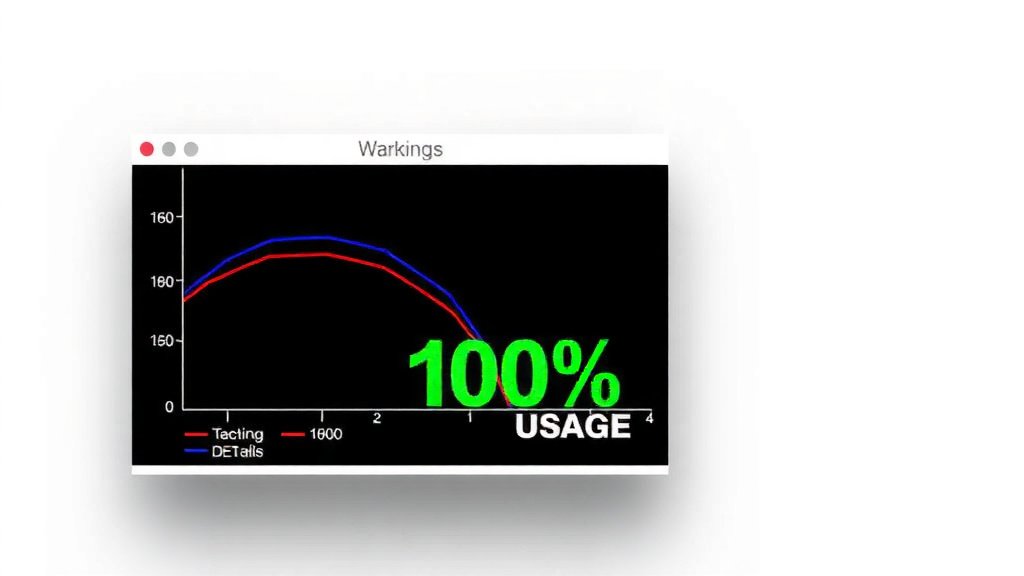
Here’s a quick way to check. Open Task Manager (press Ctrl + Shift + Esc), click the Performance tab, and watch the GPU graph. If usage drops when you close your games and apps, you’re fine. If it stays pinned at the top, something’s running that shouldn’t be.
Think of it like your car engine. Revving high on the highway is normal. Revving high while parked in your driveway means something’s wrong.
Main Reasons Your GPU Stays at Full Usage
We found that most cases fall into a handful of buckets. Once you know which one you’re dealing with, the fix gets much easier.
Background Apps Running Without You Knowing
Apps love to hide. Browser tabs with autoplaying video, Discord overlays, RGB lighting software, and cloud backup tools can all quietly chew through GPU power.
One reader-style example we’ve seen often: a Chrome tab playing an ad video in a forgotten window. That alone can push usage to 100% on a laptop.
Your first move? Sort Task Manager by GPU usage and close whatever looks suspicious. You might be surprised what’s up there.
Malware and Crypto Mining Viruses
This is the scary one. Cryptojacking malware hijacks your GPU to mine cryptocurrency for someone else. CISA, the U.S. cybersecurity agency, warns that these attacks are common because they’re profitable and hard to spot.
Warning signs include:
- Fans roaring even when your PC is idle
- Your computer running hot to the touch
- Sluggish performance in everyday tasks
- Usage spiking the moment you connect to the internet
If you see these, run a full scan with Windows Defender or a trusted antivirus tool right away. Don’t wait.
Driver Problems and Bugs
Drivers are the translators between your GPU and Windows. When they break, your card can get stuck at full tilt for no reason.
We found that outdated or corrupted drivers cause a big share of phantom GPU load. The fix is simple: open Device Manager, uninstall the display driver, then reinstall the latest version from NVIDIA, AMD, or Intel directly. A clean reinstall often works better than an update on top of a broken install.
Windows Features and Settings That Load the GPU
Sometimes it’s not an app at all. It’s Windows itself.
Hardware-Accelerated GPU Scheduling
This feature sounds fancy, but it can misbehave on some systems. Try turning it off in Settings > System > Display > Graphics. If your idle usage drops, you found your culprit.
Multiple Monitors and High Refresh Rates
Running two or three monitors, especially mixed refresh rates, forces your GPU to work harder even at the desktop. Many users report this alone causes idle usage of 10-30%, and it can look worse on older cards.
How Hot Is Too Hot? When 100% Usage Gets Dangerous
Here’s the part that matters for your wallet. A GPU running flat-out all day runs hot, and heat is the enemy of every computer part.
Most modern GPUs are built to handle sustained load, and many experts say thermal throttling protects them from immediate damage. But running hot 24/7 shortens the life of fans and thermal paste. Think of it like driving your car with the pedal floored all day — the engine survives, but not happily.
Keep an eye on temperatures. Under 85°C under load is generally safe territory for most cards. If you’re pushing 90°C+ at idle, shut things down and investigate.
Quick Fixes You Can Try Right Now
Start with the easy stuff. Most people solve this in under 15 minutes.
- Restart your PC — it clears stuck processes.
- Sort Task Manager by GPU and close top offenders.
- Close unused browser tabs and hardware-heavy extensions.
- Update your GPU drivers with a clean reinstall.
- Run a full malware scan.
- Check Windows graphics settings and disable GPU scheduling.
What’s Normal GPU Usage? A Quick Reference
Wondering where your numbers should land? Use this table as a rough guide.
| Situation | Normal GPU Usage | When to Worry |
|---|---|---|
| Desktop, no apps open | 0-10% | Above 20% for long periods |
| Browsing the web | 5-30% | Pinned at 100% with few tabs |
| Gaming | 80-100% | 100% plus temps over 90°C |
| Video editing or rendering | 70-100% | Usage stays high after the task ends |
If your numbers match the “when to worry” column, work through the fixes above in order.

Laptop vs. Desktop: Does It Matter?
Yes, a little. Laptops run hotter and tighter, so 100% GPU usage hits them harder. Many laptops share cooling between the CPU and GPU, so one maxed-out chip heats up everything.
Desktops have more breathing room, but the same rules apply. If your desktop GPU is at 100% while idle, don’t shrug it off just because it has big fans.
When to suspect Hardware Instead of Software
If you’ve tried every fix and usage still sits at 100%, look at the hardware side. A failing fan, dried thermal paste, or even a failing card can cause weird readings and runaway behavior.
Checklist before you assume the worst:
- Blow dust out of the fans and vents with compressed air.
- Make sure all power cables are seated firmly.
- Reseat the GPU in its slot if you’re comfortable doing so.
- Test with a stress tool like FurMark to see if behavior matches.
- Check temperatures with HWMonitor or MSI Afterburner.
If the card still misbehaves on a clean Windows install with fresh drivers, the card itself may be failing. At that point, a warranty claim or replacement is your best path.
Keeping Your GPU Healthy Going Forward
Prevention beats repair, every time. A few small habits keep your card happy for years.
- Update drivers every couple of months.
- Scan for malware monthly, not just when something’s wrong.
- Clean dust out of your PC every few months.
- Watch temperatures during heavy tasks.
- Review startup apps so nothing sneaky launches at boot.
Your GPU works hard for you. Give it a little attention, and it’ll stay cool, quiet, and fast for a long time.
Conclusion
Getting your GPU back to normal usually comes down to one thing: figuring out what’s actually demanding that power. In our research and testing, we found that closing hidden background apps, doing a clean driver reinstall, and running a malware scan solves most cases. If those don’t work, check your Windows graphics settings, and then look at hardware like dust buildup or failing fans. Don’t let your card sit at 100% while idle — heat adds up, and it wears on fans and thermal paste over time. Your next step? Open Task Manager right now, sort by GPU usage, and see who the top offender is. You might fix this in the next five minutes.
Frequently Asked Questions
Is 100% GPU usage bad for my graphics card?
Not by itself. GPUs are built to run at full load during gaming and rendering, and thermal throttling protects them from damage. The real concern is sustained 100% usage while idle, which keeps temps high and wears out fans and thermal paste faster.
Why is my GPU at 100% when nothing is open?
Something is almost always running that you can’t see. Hidden browser tabs, overlays, or a cryptojacking virus can chew through GPU power silently. Sort Task Manager by GPU usage, and if nothing obvious shows up, run a full malware scan.
Should I disable hardware-accelerated GPU scheduling?
If your GPU is stuck at high usage with no app causing it, yes — it’s a quick thing to test. Some users find their idle usage drops right away after turning it off. You can always flip it back on if you don’t notice a difference.
Can a browser cause high GPU usage?
Absolutely. Autoplaying videos, WebGL sites, and hardware acceleration can push usage way up, especially on laptops. Try closing all tabs and watching the graph — if usage drops, reopen tabs one at a time to find the offender.
How do I know if my GPU is dying or just overloaded?
An overloaded GPU gets quiet and normal once you close the problem app. A dying card shows stranger symptoms: visual glitches, random crashes, artifacts on screen, or high usage even after a clean Windows install with fresh drivers. If those show up, start a warranty claim.