Why Is My GPU Fan Always On? Causes and Fixes Explained
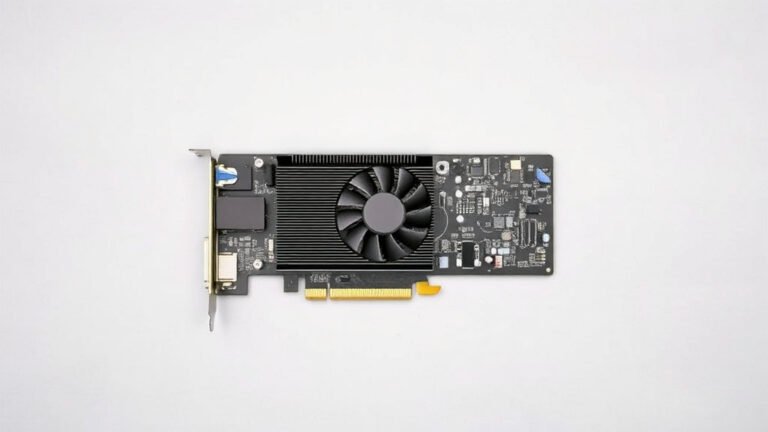
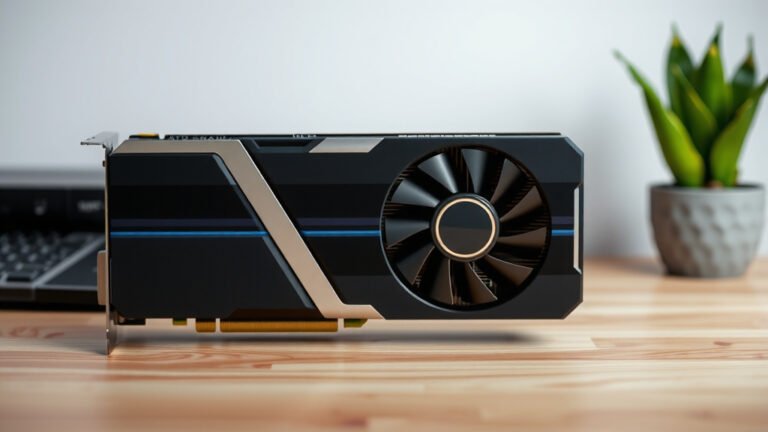
Your GPU fan is always on because modern graphics cards are designed to run their fans at low speeds constantly, keeping the card cool even when you’re just browsing the web. Most GPUs only spin fans faster when temperatures climb past a set point, usually around 50 to 60 degrees Celsius. So in most cases, it’s totally normal behavior, not a problem.
That said, there are times when a constantly spinning fan signals something worth checking. Things like dust buildup, high room temperatures, or a stuck fan curve can make your GPU run hotter than it should. We researched common causes and found that a few simple checks can tell you whether your setup is healthy or needs a little attention.
- Your GPU fan running at low speed all the time is normal for most modern cards.
- Fans usually only ramp up when your GPU gets hot, often above 50 to 60°C.
- Dust, poor airflow, and hot rooms can make the fan work harder than it needs to.
- You can adjust fan curves in software to make your card quieter.
- Loud or nonstop spinning at high speed can point to a real issue worth fixing.
Below, we break down everything you need to know about why your GPU fan never takes a break, and what you can do about it. Let’s dive in.
The Reason Your GPU Fan Never Stops Spinning
Your GPU fan keeps spinning because it’s doing its job. Graphics cards generate heat even at idle, and a slow, constant fan spin keeps temperatures stable and safe. Think of it like a fridge. It hums quietly most of the day, but kicks into overdrive when you leave the door open.
We found that most modern cards use what’s called a zero RPM or semi-passive mode, but not all of them. Some cards, especially older models or high-end ones, keep fans running at low speed from the moment you power on. That’s by design, not a defect.
Normal Fan Behavior vs. Something to Worry About
So how do you tell the difference between a healthy fan and a cry for help? It usually comes down to temperature and noise. A quiet, low-speed hum at idle is fine. A jet-engine roar while you’re checking email is not.
| Symptom | What It Sounds Like | Likely Verdict |
|---|---|---|
| Low hum at idle | Soft, steady whoosh | Normal |
| Fan ramps up during gaming | Louder, but smooth | Normal |
| Full speed while idle | Loud constant roar | Check temps or fan curve |
| Clicking or grinding | Rhythmic ticking | Fan may be failing |
Common Causes of a Constantly Running GPU Fan
Several everyday issues can make your fan work overtime. We found that most of them are easy to fix with ten minutes and a screwdriver.
Dust Buildup and Blocked Airflow
Dust acts like a blanket on your graphics card. It traps heat, which forces the fan to spin faster and longer. Cleaning your card and case every few months makes a noticeable difference.
Here’s a quick cleaning checklist we put together:
- Power down your PC and unplug it completely.
- Use compressed air on the GPU heatsink and fans.
- Hold the fan blades still so they don’t over-spin.
- Check that intake and exhaust vents aren’t blocked.
- Wipe down case filters while you’re at it.
- Do this every three to four months for best results.
Hot Rooms and Poor Case Ventilation
Your GPU can only be as cool as the air around it. If your room is warm, or your case has bad airflow, your card runs hotter from the start. Many experts recommend keeping your room comfortable for you, because it’s comfortable for your PC too.
Try this test. Open your case side panel and see if temperatures drop. If they do, your case airflow needs help. Adding one or two case fans often solves it. Our guide to improving GPU cooling covers case airflow fixes in more detail.
Software and Settings That Keep Fans Spinning
Sometimes the problem isn’t hardware at all. It’s a setting quietly telling your fans to never take a break.
Stuck or Aggressive Fan Curves
A fan curve tells your GPU when to spin and how fast. If someone set an aggressive curve in MSI Afterburner or another tool, fans might run hard even when cool. Resetting to the default curve often fixes it in under a minute.
Background Apps Warming Up Your Card
Did you know your GPU works even when you’re not gaming? Browser tabs, video calls, and crypto-mining malware can all push your card. Open Task Manager and sort by GPU usage. You might be surprised what you find.
Outdated or Buggy Drivers
Sometimes a driver update changes fan behavior overnight. If your fans started acting up right after an update, check the manufacturer’s forums. Rolling back or updating the driver usually sorts it out.
How to Check Your GPU Temperature the Easy Way
You don’t need to be a tech wizard here. Free tools like MSI Afterburner, HWMonitor, or the software from NVIDIA and AMD show your temps in real time.
Here’s what we found when comparing typical readings:
| GPU State | Typical Temperature | Fan Expectation |
|---|---|---|
| Idle (desktop) | 30–50°C | Low or off |
| Light tasks | 45–60°C | Low to medium |
| Gaming | 60–85°C | Medium to high |
| Concerning range | 85°C+ | Full speed, investigate |
When a Constantly Spinning Fan Means a Real Problem
Rarely, a spinning fan points to hardware trouble. A failing fan bearing makes clicking or grinding sounds. A card with memory issues may run hot for no clear reason. And if your fan spins at full blast the second you power on, the card’s cooling controller may be faulty.
If your card is still under warranty, contact the manufacturer before opening anything up. Many manufacturers, like the ones covered in consumer guidance from the FTC, are required to honor warranties as long as you haven’t caused the damage yourself.
Simple Fixes to Try Before Calling for Help
Ready to take action? Work through these steps in order:
- Clean your card with compressed air, gently.
- Check your temps with a free monitoring tool.
- Reset your fan curve to default in Afterburner.
- Improve case airflow by adding or repositioning fans.
- Update your drivers from the official NVIDIA or AMD site.
- Scan for malware that might be using your GPU.
Can You Stop Your GPU Fan Completely?
Technically, yes, with a custom fan curve set to zero at low temps. But should you? We’d say think twice. Heat is the silent killer of electronics. A little constant fan noise is a small price for a longer-lasting card.
If noise is your real concern, consider a quieter case, better fans, or an underclock. Many guides, including advice from Energy Star on keeping electronics cool, stress that good airflow extends device life. Your ears and your GPU can both be happy. It just takes a little tuning.
Conclusion
A GPU fan that never stops is usually a good sign, not a bad one. Your card is protecting itself from heat, and a soft hum at idle means the cooling system is working as designed. We’ve found that most real problems come down to dust, hot rooms, or a fan curve someone set and forgot. Ten minutes of cleaning and a quick temperature check will tell you almost everything you need to know. If your card roars at full speed while idle, or makes clicking sounds, that’s your cue to dig deeper. Start today by downloading a free monitoring tool and checking your idle temps. You’ll know within five minutes whether your setup is healthy.
Frequently Asked Questions
Is it bad if my GPU fan runs all the time?
Not at all. Most graphics cards run their fans at low speeds constantly by design, and this gentle airflow keeps temperatures steady. It only becomes a concern if the fan runs loud and fast while your PC is idle.
Why does my GPU fan spin at full speed when I turn on my PC?
Many cards spin fans at maximum for a second or two during startup. This is a self-test, not a malfunction. If the noise continues long after boot, check your fan curve or temperatures in a monitoring tool.
Can a GPU fan running constantly wear out faster?
Fans do have a limited lifespan, but slow, steady spinning causes far less wear than constant stop-start cycling. A fan running quietly at low RPM can easily last the life of your card.
Why is my GPU fan loud but my GPU is cool?
This usually points to a software issue rather than heat. An aggressive custom fan curve in MSI Afterburner or a driver quirk can spin fans hard even when temps are low. Resetting to the default curve typically solves it.
Should I set my GPU fans to zero RPM mode?
If your card supports it, zero RPM mode is fine for light desktop use. Just keep an eye on temps during games, because heat builds quickly when fans are off. Let the curve handle the switch automatically.