
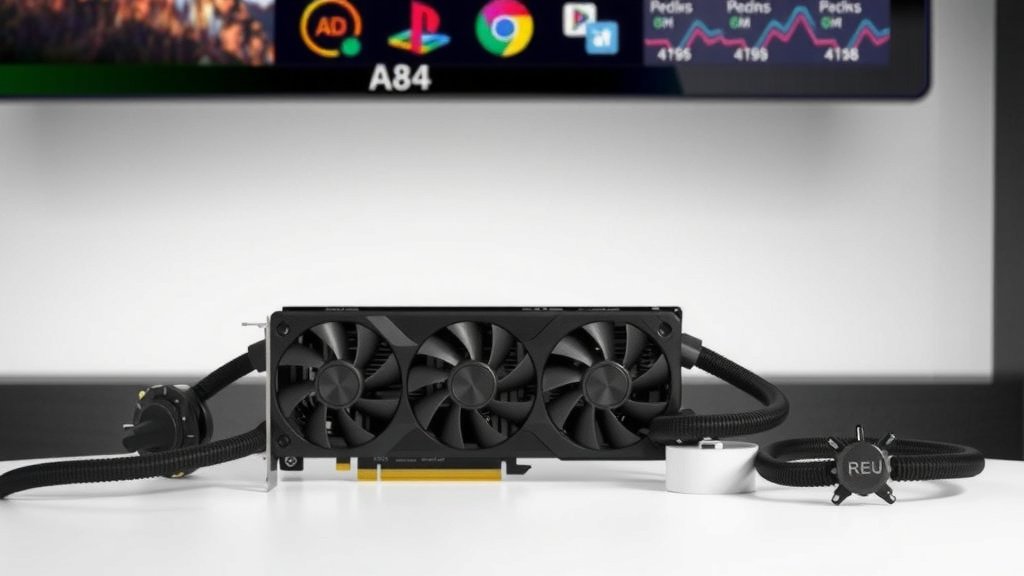
Boost Your GPU Cooling: Essential Tips for Better Performance
Improving your GPU cooling is totally doable and can make a big difference. You can boost your graphics card’s performance and lifespan by ensuring it stays nice and cool. This involves a few simple steps, like cleaning out dust and making sure your case has good airflow. We’ll show you how to keep your GPU running at optimal temperatures, preventing those annoying slowdowns and potential damage from overheating.
When your GPU runs too hot, it can lead to serious performance drops and even hardware failure. That’s why paying attention to your GPU’s temperature is so important. Good cooling isn’t just about playing games smoothly; it’s about protecting your investment. We found that even minor adjustments can lead to noticeable temperature drops and a more stable gaming experience.
- Clean out dust regularly.
- Improve your PC case airflow.
- Consider better cooling hardware.
- Monitor your GPU temperatures.
Ready to give your graphics card the cool treatment it deserves? Let’s walk through some easy ways to improve your GPU cooling step by step.
Keeping Your Graphics Card Cool: A Step-by-Step Guide
Your graphics card works hard, especially when you’re gaming or tackling demanding tasks. Keeping it cool is key to smooth performance and a longer lifespan. Overheating can cause serious problems, like stuttering gameplay and even permanent damage to your GPU. Thankfully, improving your GPU’s cooling isn’t rocket science. You can often see noticeable improvements with a few simple adjustments.
The Dust Bunnies: Your GPU’s Worst Enemy
Dust is like a cozy blanket for your components, but not in a good way. It insulates them, trapping heat and preventing your fans from doing their job effectively. Regularly cleaning out dust is the first and most important step to better GPU cooling.
How to Tackle Dust Buildup
You’ll want to get inside your PC for this. First, power down your computer completely and unplug it from the wall. It’s also a good idea to touch a metal part of your case before you start to discharge any static electricity. Static can harm your components. You can use a can of compressed air. Hold the can upright and give short bursts to dislodge the dust. Focus on the GPU’s heatsink and fans. Don’t forget about the case fans and other components, as they all contribute to overall airflow.
Cleaning Your GPU Fans
Gently hold the fan blades in place with your finger while you spray. This stops them from spinning too fast from the compressed air. Over-spinning can damage the fan bearings. If your GPU is really dusty, you might even consider carefully removing it to clean it more thoroughly. Just be sure to handle it by the edges and keep track of any screws.
Boosting Your PC Case Airflow
Your GPU needs a steady supply of cool air entering the case and hot air to be expelled. This is where good case airflow comes into play. Think of your PC case like a lung; it needs to breathe efficiently.
Fan Configuration Matters
Most PC cases have mounts for fans. The standard setup is to have intake fans at the front and bottom, pulling cool air in. Then, exhaust fans are placed at the rear and top, pushing hot air out. Many experts say this is the most effective airflow pattern. If you have more fan mounts, adding more fans can further improve air circulation. Just ensure you maintain a balanced setup. Too many intake fans can create positive pressure, forcing air out of every opening, while too many exhaust fans create negative pressure, pulling dust in through unfiltered gaps.
Cable Management for Better Airflow
Tangled cables can act like little speed bumps for your airflow. They create dead zones where air can get trapped. Taking the time to tidy up your cables can make a surprising difference. Route cables behind the motherboard tray or use zip ties to keep them neat. This simple step can significantly improve air movement inside your case.
Choosing the Right Case
Not all PC cases are created equal when it comes to airflow. Cases with solid front panels can restrict the amount of air that gets in. Look for cases with mesh front panels or plenty of ventilation openings. A case designed for good airflow will have better cooling potential right out of the box. We found that mesh front panels generally offer superior airflow compared to solid ones.
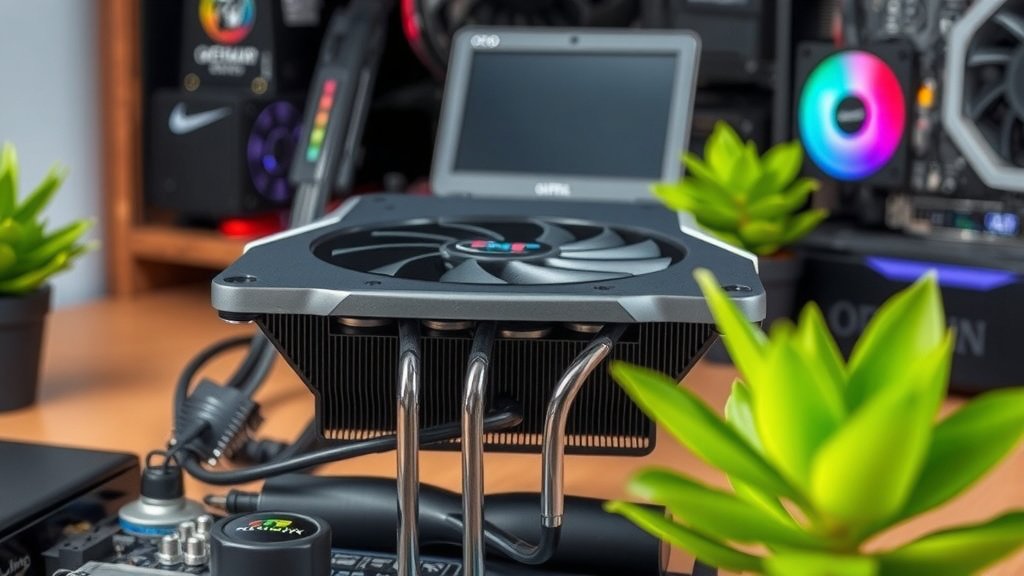
Considering Hardware Upgrades for Serious Cooling
If cleaning and airflow tweaks aren’t enough, or if you’re pushing your GPU to its absolute limits, you might need to consider hardware upgrades. These can offer substantial improvements in cooling performance.
Aftermarket GPU Coolers
Some GPUs come with basic stock coolers. These are often designed to be cost-effective rather than provide top-tier cooling. Aftermarket coolers, like larger heatsinks with more powerful fans or even liquid cooling solutions, can drastically lower your GPU temperatures. Many enthusiasts find that upgrading to an aftermarket cooler can reduce temps by 10-20 degrees Celsius.
Thermal Paste Replacement
Thermal paste is a compound applied between your GPU’s chip and its heatsink. It helps to transfer heat efficiently. Over time, this paste can dry out and become less effective. Replacing the old thermal paste with a fresh, high-quality compound can improve heat transfer and lower temperatures. This is a more advanced task, so if you’re not comfortable opening up your GPU, it might be best left to a professional or saved for when you’re ready to learn.
Monitoring Your GPU Temperatures
You can’t manage what you don’t measure. Keeping an eye on your GPU’s temperature is essential. This helps you understand if your cooling efforts are working and when your GPU might be getting too hot.
Recommended Temperature Ranges
Most modern GPUs are designed to operate safely up to around 85°C. However, for optimal performance and longevity, it’s generally recommended to keep your GPU temperatures below 75°C during demanding tasks like gaming. If you consistently see temperatures above 80°C, it’s a clear sign that you need to improve your cooling. Many guidelines from manufacturers suggest that sustained high temperatures can shorten a component’s lifespan (Nvidia, AMD).
Tools for Temperature Monitoring
There are several free software tools you can use. MSI Afterburner is a popular choice that not only lets you monitor temperatures but also adjust fan speeds and even overclock your GPU safely. HWMonitor is another excellent tool that shows you detailed information about all your system’s components, including GPU temperatures. Just open the software before you start a demanding application and keep an eye on the readings.
To recap and make it easy to remember, here’s a quick checklist:
- Clean dust from your GPU and PC case regularly.
- Ensure your case fans are configured for good airflow.
- Tidy up your internal cables for unobstructed air movement.
- Consider an aftermarket cooler if temps remain high.
- Monitor your GPU temps using free software tools.
Conclusion
You’ve learned that keeping your GPU cool is within your reach. Simple steps like cleaning out dust and optimizing case airflow can make a real difference. Even more advanced techniques like replacing thermal paste or upgrading coolers can keep your graphics card running smoothly. Remember, consistent monitoring is your best friend for ensuring your GPU stays in its optimal temperature range. Take these steps, and you’ll enjoy better performance and a longer-lasting graphics card. Your next step is to grab that compressed air can and start with the dust!
Frequently Asked Questions
How often should I clean dust from my GPU?
You should aim to clean dust from your GPU and PC case at least every 3-6 months. If you live in a dusty environment or have pets, you might need to do it more frequently. Regular cleaning prevents heat buildup and keeps your fans running efficiently.
Can I improve GPU cooling without opening my PC?
Yes, you can improve GPU cooling without opening your PC by focusing on external airflow. Ensure your PC case has plenty of space around it for air intake and exhaust. You can also use software like MSI Afterburner to increase fan speeds, though this may create more noise.
What’s the difference between air cooling and liquid cooling for GPUs?
Air cooling uses heatsinks and fans attached directly to the GPU. Liquid cooling, often called AIO (All-In-One) coolers, uses a pump, radiator, and fans to circulate liquid for more efficient heat dissipation. Liquid cooling generally offers superior temperature drops but is more complex and expensive.
Will overclocking my GPU make it run hotter?
Yes, overclocking your GPU will almost always increase its temperature. Pushing your GPU beyond its factory settings requires more power and generates more heat. It’s essential to have robust cooling solutions in place if you plan to overclock to prevent overheating.
Is it normal for my GPU to be loud when gaming?
It’s normal for your GPU fans to spin faster and become audible when your GPU is under heavy load, like during gaming. However, if the noise is excessively loud or sounds like grinding, it could indicate a fan issue or dust buildup that needs attention. Monitoring temperatures is key to understanding fan behavior.

![10 Best Budget Gpu With 12gb Vram [2026]](https://spsolutionscare.com/wp-content/uploads/2026/09/10-best-budget-gpu-with-12gb-vram-2026-featured-768x432.jpg)