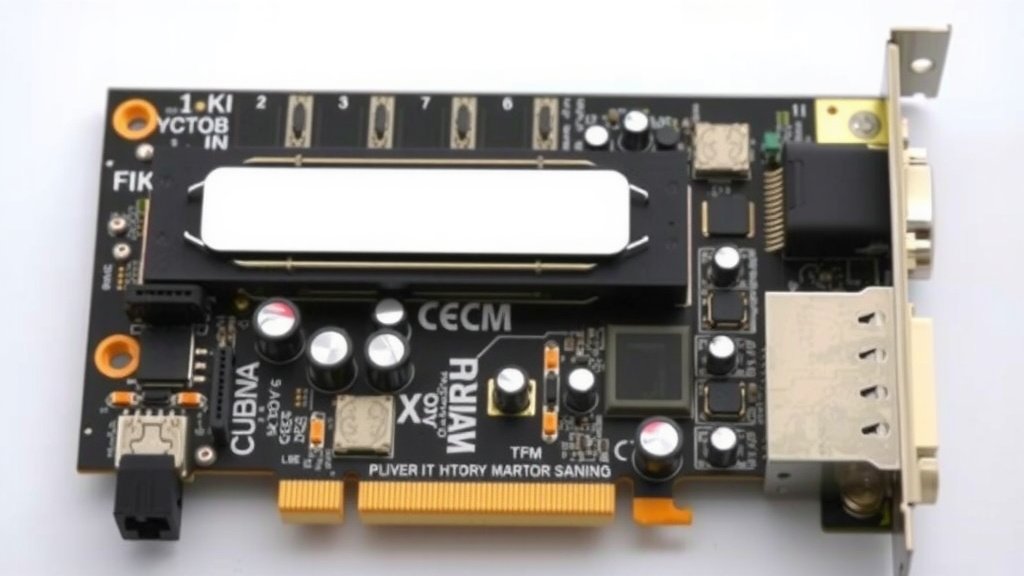
Understanding PCIe Lanes: What They Are and Why They Matter
PCIe lanes are essentially high-speed data highways that connect your computer’s core components, like your CPU and graphics card. Think of them as tiny, dedicated roads allowing data to travel quickly between parts. The more lanes a device can use, the faster its communication can be. Understanding PCIe lanes helps you know how components perform together.
These lanes are grouped into different configurations, such as x1, x4, x8, and x16. A device like a graphics card typically uses x16 lanes for maximum performance. Other devices, like sound cards or Wi-Fi adapters, might only need x1 or x4 lanes. We found that matching a device’s needs to available lanes is key for optimal system speed.
- PCIe lanes are data highways for your computer.
- They connect components like the CPU and graphics card.
- More lanes mean faster data transfer for devices.
- Common lane counts are x1, x4, x8, and x16.
- Graphics cards usually need the most lanes (x16).
Now that you have a basic idea, let’s dive into what PCIe lanes really mean for your PC’s performance.
“`htmlUnderstanding How PCIe Lanes Work
So, what exactly are these PCIe lanes, and how do they make your computer tick faster? Think of them as tiny, super-fast express lanes on a highway. Your CPU is like the main city, and your graphics card, SSD, or network card are like other important destinations. PCIe lanes are the roads connecting them.
The speed of these lanes determines how much information can travel between your components. More lanes mean a wider highway. This allows for more data to flow simultaneously. It’s all about efficient communication between the “brain” (CPU) and the “limbs” (other parts).
The Basics of PCIe Lane Configurations
You’ll often see PCIe lanes referred to by their configuration, like x1, x4, x8, and x16. The ‘x’ just means “by,” and the number tells you how many lanes are bundled together for a specific slot or device. A x16 slot, for example, uses 16 lanes. This is the widest, fastest connection available.
Why Different Lane Counts Matter
Different devices have different “appetites” for data. A high-end graphics card needs a massive amount of data to render games smoothly. It needs that wide x16 highway. A simple sound card or a Wi-Fi adapter, on the other hand, doesn’t move nearly as much data.
These less demanding components can function perfectly well with fewer lanes. Using a smaller x1 or x4 lane connection is usually sufficient. This is smart because it saves the faster, wider lanes for the components that truly need them. It’s like not using a 16-lane freeway to deliver a single letter.
How Lanes Are Allocated
Your motherboard is designed with these lanes in mind. The CPU is connected to certain PCIe slots directly. These are typically the slots for your graphics card. Other lanes might be routed through a chipset on the motherboard. This allows for more connectivity.
Many modern motherboards allow for some flexibility. You might be able to configure how certain slots operate. For instance, a slot labeled x8 might sometimes run at x4 if you’re using another slot that shares its bandwidth. We found that checking your motherboard’s manual is always a good idea.
PCIe Versions and Their Impact
PCIe technology isn’t static; it evolves. Each new generation offers faster speeds. This means your data can travel even quicker. Think of it as upgrading from a well-maintained road to a brand-new, high-speed train track.
Understanding Speed Differences
Currently, PCIe 5.0 is the latest mainstream standard. It offers double the bandwidth of PCIe 4.0. PCIe 4.0 was double the speed of PCIe 3.0, and so on. This speed boost is important for components that process huge amounts of data.
For example, a PCIe 5.0 x16 slot can theoretically transfer data as fast as a PCIe 4.0 x32 slot. This is why newer graphics cards and SSDs are designed to take advantage of these faster versions. We found that backward compatibility is usually excellent, though. A PCIe 4.0 card will work in a PCIe 5.0 slot, but it will run at PCIe 4.0 speeds.
| PCIe Version | Speed per Lane (GT/s) | Approx. Bandwidth per Lane (GB/s) |
|---|---|---|
| PCIe 1.0 | 2.5 | 0.25 |
| PCIe 2.0 | 5.0 | 0.50 |
| PCIe 3.0 | 8.0 | 0.99 |
| PCIe 4.0 | 16.0 | 1.97 |
| PCIe 5.0 | 32.0 | 3.94 |
| PCIe 6.0 | 64.0 | 7.88 |
This table shows how much faster each generation gets. Many experts suggest that for everyday use, the difference between PCIe 3.0 and 4.0 might not be drastically noticeable. However, for tasks like heavy video editing or high-end gaming, the extra speed really counts.
How PCIe Lanes Affect Your PC Components
So, how do these lanes actually influence the performance you experience? It comes down to providing enough “highway” for your components to do their jobs without getting stuck in traffic.
Graphics Cards (GPUs)
Your graphics card is the biggest consumer of PCIe lanes. Most gaming graphics cards are designed for an x16 PCIe slot. This gives them the widest possible connection to the CPU. This ensures smooth frame rates and detailed graphics.
If you put a powerful GPU in a smaller x8 or x4 slot, it could become a bottleneck. The card might be capable of more, but it can’t get the data fast enough. Many motherboard manuals show which x16 slots are directly connected to the CPU for best performance.
Storage Devices (SSDs)
Solid-State Drives (SSDs) have also become very dependent on PCIe lanes. NVMe SSDs, in particular, are designed for much higher speeds than older SATA drives. They often use an M.2 slot, which connects via PCIe.
Most M.2 NVMe SSDs use either x2 or x4 PCIe lanes. A PCIe 4.0 x4 NVMe SSD can achieve speeds of around 7,000 MB/s. If it’s in a slot that only offers x2 lanes, its speed will be cut in half. We found that ensuring your M.2 slot supports the number of lanes your SSD needs is important for getting advertised speeds.
Other Expansion Cards
Devices like sound cards, network cards (Wi-Fi or Ethernet), and capture cards also use PCIe slots. These typically use fewer lanes, often x1 or x4. They don’t usually demand the massive bandwidth that a GPU or high-end SSD does.
Even though they use fewer lanes, the version of PCIe still matters. A newer PCIe 4.0 x1 network card will be faster than a PCIe 3.0 x1 network card. For these components, the difference might be less dramatic, but it’s still there. Many users find that simply using the available slots correctly is enough.
Key Takeaways for Your Build
Understanding PCIe lanes helps you make informed decisions when building or upgrading your PC. Here’s a quick checklist to keep in mind:
- Match your GPU to an x16 slot.
- Check NVMe SSD lane requirements (usually x4).
- Know your motherboard’s PCIe slot configurations.
- Consider the PCIe version for speed.
- Don’t expect top performance from a high-end device in a low-lane slot.
- Refer to your motherboard manual for specifics.
Conclusion
Understanding PCIe lanes means you’re looking at the highways that make your PC components talk to each other. You’ve learned how configurations like x1, x4, x8, and x16 affect device speeds and why matching a component’s needs to its slot is important. Newer PCIe versions offer faster speeds, benefiting hungry parts like GPUs and NVMe SSDs. Don’t forget that your motherboard manual is your best friend for slot specifics. Now you can build or upgrade your PC with more confidence!
Frequently Asked Questions
What’s the difference between a PCIe slot and a PCIe lane?
A PCIe slot is the physical connector on your motherboard where you plug in a component. PCIe lanes are the actual data paths that run between that slot, your CPU, or chipset. Think of the slot as the doorway and the lanes as the hallway leading away from it.
Can I put a PCIe 4.0 SSD in a PCIe 3.0 slot?
Yes, you can, thanks to backward compatibility. However, your fast PCIe 4.0 SSD will only operate at PCIe 3.0 speeds. You won’t get the maximum performance it’s capable of. We found this is common for many components.
How do I know how many lanes my motherboard’s M.2 slot uses?
You’ll typically find this information in your motherboard’s manual. It will specify if the M.2 slot supports NVMe SSDs and how many PCIe lanes (usually x2 or x4) it’s wired for. Some slots might share bandwidth, so checking the manual is key.
Will a high-end graphics card work if it doesn’t fit in an x16 slot?
A high-end graphics card designed for an x16 slot will still function in an x8 or x4 slot, but its performance will be limited. It can’t receive data as quickly, potentially causing a bottleneck. We recommend always using an x16 slot for your primary GPU if possible.
Does the PCIe version matter for basic components like Wi-Fi cards?
Yes, the PCIe version can still matter, though the impact is less dramatic than with graphics cards or SSDs. A newer PCIe 4.0 Wi-Fi card will offer faster data transfer rates than a PCIe 3.0 version, even if both use only x1 lanes. For most users, though, older versions are usually perfectly adequate.
![10 Slot Gpu [2026]](https://spsolutionscare.com/wp-content/uploads/2026/08/10-slot-gpu-2026-featured-768x432.jpg)
![10 Series Gpu [2026]](https://spsolutionscare.com/wp-content/uploads/2026/08/10-series-gpu-2026-featured-1-768x432.jpg)