How to Clean GPU Fans for Peak Performance
The easiest way to clean your GPU fans is with a can of compressed air and a soft brush. You want to gently remove the dust build-up. This simple process will help keep your graphics card running cool and performing at its best. Don’t let dust bunnies win the battle for your GPU’s health!
Over time, dust can clog your GPU fans, hindering their ability to cool your powerful graphics card. This leads to overheating and can even shorten its lifespan. Regular cleaning is a small effort that yields big results for your gaming rig. It’s about keeping your components in top condition.
- Turn off and unplug your PC completely.
- Use compressed air to blow out dust.
- A soft brush can help dislodge stubborn dust.
- Be gentle with fan blades.
- Consider removing the GPU for a deeper clean.
Ready to give your GPU some much-needed TLC? Let’s walk through exactly how to get those fans sparkling clean.
Keeping Your GPU Fans Dust-Free and Happy
Over time, your graphics card’s fans can become a magnet for dust bunnies. This build-up isn’t just unsightly; it can really hurt your GPU’s performance. We’re going to walk you through how to clean them effectively. It’s a simple process that can save you from overheating headaches.
Why Cleaning Your GPU Fans Matters
Your GPU works hard, especially when you’re gaming or running demanding applications. Its fans are essential for keeping things cool. When dust accumulates, it acts like a blanket. This prevents heat from escaping properly. Studies show that even a thin layer of dust can significantly reduce cooling efficiency (Journal of Thermal Management).
A GPU that runs too hot can experience performance throttling. This means it deliberately slows itself down to prevent damage. In worse cases, prolonged overheating can lead to permanent component damage. Cleaning your fans is a small preventative measure that pays off big time for your PC’s health.
Gathering Your Cleaning Supplies
Before you begin, make sure you have the right tools. You don’t need a lot of fancy equipment. Most of what you need is probably already around your home or easily obtainable.
Essential Cleaning Tools
- Compressed Air Can: This is your primary tool. Look for cans with a straw attachment for better precision.
- Soft Bristle Brush: An old, clean paintbrush or a soft makeup brush works well. Avoid anything stiff.
- Anti-Static Wrist Strap: Highly recommended to prevent static discharge, which can damage components.
- Phillips Head Screwdriver: You might need this if you decide to remove the GPU.
- Small Container: To hold any screws you remove.
- Microfiber Cloth: For wiping down surfaces.
Preparing Your PC for Cleaning
Safety first! It’s critical to ensure your PC is completely powered down before you start. You don’t want any accidental shorts or electrical hazards.
Step-by-Step Power Down
- Shut Down Your Computer: Go through the normal Windows shutdown process.
- Turn Off the Power Supply: Locate the switch on the back of your power supply unit (PSU) and flip it to the “O” (off) position.
- Unplug the Power Cable: Disconnect the main power cord from the back of your PC.
- Ground Yourself: Attach your anti-static wrist strap to a metal part of your PC case. If you don’t have one, touch a metal object frequently to discharge static.
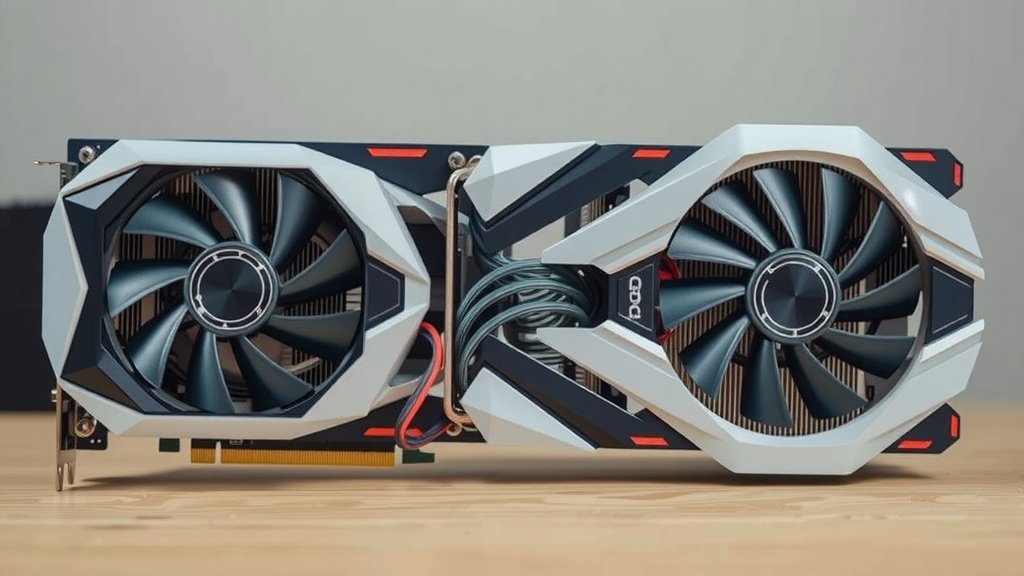
Cleaning the GPU Fans: The Process
Now for the main event! This is where you’ll get those fans looking and working like new again. We’ll cover two main methods: cleaning without removing the GPU and a more thorough clean with GPU removal.
Method 1: Cleaning Without Removing the GPU
This is the quicker and simpler method. It’s great for regular maintenance.
Blowing Away the Dust
Hold the compressed air can upright. Give the can a short shake. Aim the straw at the fan blades and heatsink fins. Use short, controlled bursts of air. Blow the dust away from the fan and out of the case. Work in sections to get all the angles.
Important Tip: As you spray, you might notice the fan blades spinning rapidly. This can be bad! It can over-spin the fan bearings or even cause damage. Many experts suggest gently holding the fan blades still with a finger or a non-conductive tool (like a plastic toothpick) while you blow air. Be very gentle.
Using a Soft Brush
For stubborn dust that the air didn’t dislodge, a soft brush is your next best friend. Gently sweep dust away from the fan blades and housing. Again, be careful not to bend or damage the delicate fan blades. You can brush the dust towards the compressed air exit points.
Sometimes, a combination of air and brushing works best. You might need to go back and forth a few times. It’s like cleaning a delicate piece of artwork – patience is key!
Method 2: Deep Cleaning with GPU Removal
This method offers a more thorough clean. It allows you to access the fans and heatsink from all angles. It’s ideal if your GPU is heavily soiled or you haven’t cleaned it in a long time.
Safely Removing the Graphics Card
Locate your GPU in the PC case. It’s usually a large card plugged into a long slot on the motherboard. Unscrew the card from the back of the case where it meets the expansion slots. You’ll likely need to press a small latch on the PCIe slot on the motherboard to release the card. Gently pull the GPU straight up and out of the slot. Remember where you placed those screws!
Detailed Fan and Heatsink Cleaning
With the GPU out of the case, you have better access. Use compressed air and your soft brush on the fans and heatsink fins. You can hold the fans more securely now. Blow air through the heatsink fins from multiple directions. This ensures you remove all the dust trapped inside. You can also use a microfiber cloth to wipe down the fan shroud and other external parts of the card.
For really tough grime, you might consider using a cotton swab lightly dampened with isopropyl alcohol (90% or higher). Ensure the alcohol evaporates completely before reinserting the GPU. Many guides recommend this for stubborn residues.
Reinstalling Your Clean GPU
Once everything is clean and dry, carefully align the GPU with the PCIe slot. Gently push it straight down until it clicks into place. Secure it with the screw you removed earlier. Reconnect any necessary power cables. Then, close up your PC case and reconnect the power cord.
Quick Cleaning Checklist
Here’s a handy checklist to keep the process simple:
- PC completely powered off and unplugged.
- Anti-static wrist strap worn or grounded.
- Compressed air can ready and upright.
- Soft brush or paintbrush available.
- Fans gently held while blowing air.
- Dust blown away from the components.
Following these steps should have your GPU fans running smoothly and efficiently in no time! A clean system is a happy system, and your graphics card will thank you for it with better performance and a longer life.
Conclusion
You’ve now got the know-how to keep your GPU fans clean and your system running cool. Remember, regular dusting prevents overheating and performance drops. It’s a simple maintenance task that significantly boosts your PC’s health and longevity. Don’t let dust build-up be the reason your rig slows down. Take a few minutes, grab your compressed air, and give your GPU the care it deserves. Your gaming sessions will thank you for it!
Frequently Asked Questions
How often should I clean my GPU fans?
For most users, cleaning your GPU fans once every 3-6 months is a good rule of thumb. If you live in a dusty environment or have pets, you might want to increase this frequency to every 1-3 months to prevent excessive build-up.
Can I use a vacuum cleaner to clean my GPU fans?
It’s generally not recommended to use a regular vacuum cleaner. Vacuums can create a lot of static electricity, which can easily damage sensitive electronic components like your GPU. Compressed air is a much safer alternative.
Do I really need an anti-static wrist strap?
While not strictly mandatory for a quick compressed air dusting, an anti-static wrist strap is highly recommended, especially if you plan on removing the GPU. It provides an extra layer of protection against static discharge, which can permanently harm your components.
What’s the best way to hold the fan still while using compressed air?
The safest method is to gently hold the fan blade with a fingertip or a non-conductive tool, like a plastic toothpick or a cotton swab. This prevents the fan from over-spinning, which can damage the motor bearings or even cause the blade to detach.
Can I use water or cleaning solutions on my GPU fans?
Avoid using water or liquid cleaners directly on the fans unless specified by the manufacturer. If you must use a liquid for stubborn grime on the shroud, use a cotton swab lightly dampened with isopropyl alcohol (90% or higher) and ensure it’s completely dry before powering up.



![10 Gpu [2026]](https://spsolutionscare.com/wp-content/uploads/2026/08/10-gpu-2026-featured-768x432.jpg)