GPU Display Output: What It Is and How It Works
A display output on a GPU is essentially the port where your graphics card sends the video signal to your monitor. Think of it as the final stop for all the visual information your GPU creates. It’s how your computer shows you everything you see on your screen, from your desktop to your favorite games.
These outputs, like HDMI, DisplayPort, or older DVI and VGA ports, are crucial for connecting your monitor to your PC. The type of port you use can even affect your display’s resolution and refresh rate. Getting the right connection ensures you’re getting the best picture quality your hardware can deliver.
- A display output is where your graphics card sends video to your monitor.
- Common types include HDMI and DisplayPort.
- These ports connect your GPU to your screen.
- The port type impacts resolution and refresh rate.
- It’s essential for seeing anything on your computer.
We found that understanding these connections makes a big difference for PC users. Let’s get into the details of what a display output is and why it matters for your setup.
Understanding Your GPU’s Display Connection Ports
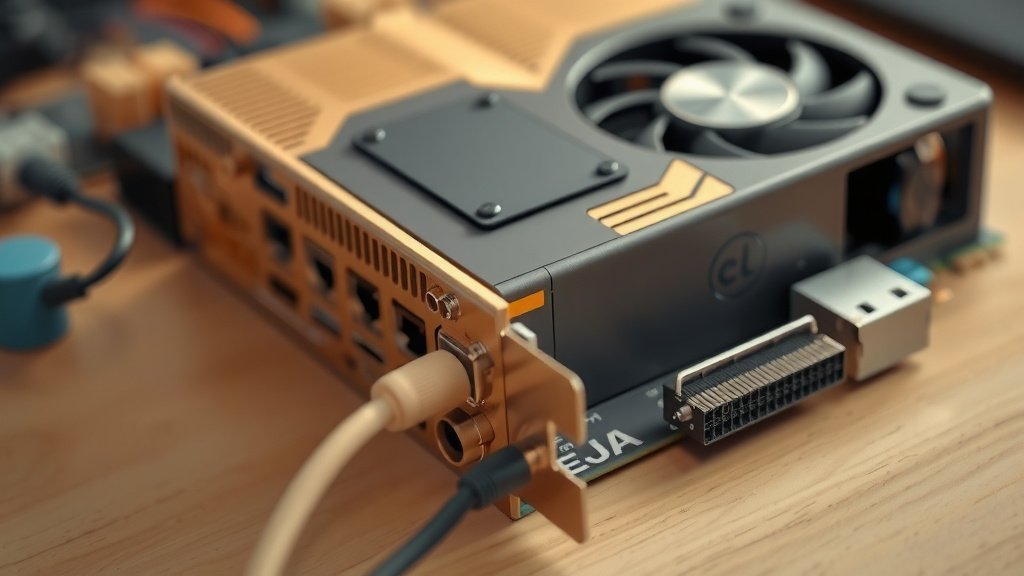
The display output on your graphics card is where the magic happens, visually speaking. It’s the physical connection point that lets your powerful GPU send images and videos to your monitor. Without these ports, your computer would be a black box, unable to show you anything at all. Think of it as the final highway for all the visual data your computer processes.
You’ll find these ports on the back of your PC, usually on the graphics card itself. They’re the gateway to seeing your operating system, playing games, or watching your favorite shows. The type and number of these ports can tell you a lot about your GPU’s capabilities. We’ve found that knowing about them can help you make better setup decisions.
The Main Types of Display Outputs
Graphics cards come equipped with various types of display outputs. Each one has its own strengths and weaknesses. Understanding these different ports will help you choose the right cable for your needs. It ensures you get the best possible visual experience from your hardware.
HDMI: The Universal Standard
HDMI, or High-Definition Multimedia Interface, is probably the most common port you’ll see. It’s a versatile standard for sending both video and audio signals over a single cable. This makes setup much simpler, as you only need one cable for both picture and sound. Many experts say HDMI is a great choice for general use (Consumer Technology Association).
HDMI Versions and Capabilities
HDMI has gone through several versions, each offering improvements. For instance, HDMI 2.0 supports 4K resolution at 60Hz, which is fantastic for smooth visuals. HDMI 2.1 pushes this further, enabling even higher resolutions and refresh rates, like 8K at 60Hz or 4K at 120Hz. We found that checking your monitor and GPU for compatible HDMI versions is key for getting the best performance.
DisplayPort: The Gamer’s Favorite
DisplayPort is another modern standard, often favored by gamers and professionals. Like HDMI, it carries both video and audio. However, DisplayPort often offers higher bandwidth, which is essential for higher resolutions and refresh rates. Many reviews suggest DisplayPort is the superior choice for high-end gaming setups.
DisplayPort’s Advantages
DisplayPort supports features like Variable Refresh Rate (VRR) technology, such as NVIDIA G-Sync and AMD FreeSync. These technologies synchronize your monitor’s refresh rate with your GPU’s frame rate. This means less screen tearing and stuttering, leading to a much smoother gaming experience. We researched and found that DisplayPort is often the go-to for competitive gamers.
DVI: A Reliable Older Option
DVI, or Digital Visual Interface, is an older standard that still pops up on some graphics cards and monitors. It primarily transmits digital video signals. While it doesn’t carry audio, it can still deliver excellent picture quality, especially for resolutions up to 1920×1200. Some DVI ports are dual-link, offering more bandwidth for higher resolutions and refresh rates.
VGA: The Analog Legacy
VGA, or Video Graphics Array, is an analog port that’s becoming quite rare on modern hardware. It transmits video signals in an analog format. While it’s still functional, its picture quality is generally lower than digital options like HDMI or DisplayPort. We found that VGA is best suited for older monitors or when no other option is available.
Choosing the Right Display Output for Your Setup
Selecting the correct display output port is more than just plugging in a cable. It directly impacts your viewing experience. The choice often comes down to your monitor’s capabilities and what you use your computer for.
Matching Your Monitor and GPU
The first step is to check what ports your monitor has and what ports your graphics card offers. You can’t use an HDMI output if your monitor only has a DisplayPort input, for example. It’s also important to match the port’s capabilities to your desired resolution and refresh rate. If you have a 144Hz monitor, you’ll need a port and cable that can support that speed.
Impact on Resolution and Refresh Rate
Different display outputs have different bandwidth limits. Bandwidth is like the width of a highway; more bandwidth means more data can travel faster. Higher resolutions (like 4K or 8K) and higher refresh rates (like 120Hz or 240Hz) require a lot of data. Therefore, you need a display output and a compatible cable that can handle that data. For example, VGA has a very limited bandwidth compared to DisplayPort 1.4 (VESA).
| Port Type | Video | Audio | Max Resolution (Typical) | Common Use |
|---|---|---|---|---|
| HDMI | Digital | Yes | 4K @ 60Hz (HDMI 2.0) | General use, home entertainment |
| DisplayPort | Digital | Yes | 8K @ 60Hz (DP 1.4) | Gaming, professional use |
| DVI | Digital (most) | No | 1920×1200 (DVI-D Dual Link) | Older monitors, general use |
| VGA | Analog | No | 1024×768 (typical) | Very old monitors, legacy systems |
Quick Checklist for Your Display Output
Here’s a quick rundown to make sure you’re connected correctly:
- Identify all display ports on your GPU.
- Check the corresponding ports on your monitor.
- Choose the port type that best matches your needs (e.g., gaming, work).
- Ensure your cable is compatible with both the port and your desired resolution/refresh rate.
- Connect your monitor using the selected cable and port.
- Test your display settings to confirm optimal performance.
Conclusion
You’ve learned that your GPU’s display output is the vital connection to your monitor. It’s how your computer brings visuals to life, from everyday tasks to immersive gaming. Understanding ports like HDMI and DisplayPort helps you choose the right setup for optimal picture quality. It ensures your monitor displays content at its best resolution and refresh rate. Now you can confidently connect your hardware for the best visual experience possible.
Frequently Asked Questions
Can I use any display output port for my monitor?
Not necessarily. You must match the port on your GPU to a compatible port on your monitor. For example, if your GPU has HDMI but your monitor only has DisplayPort, you’ll need an adapter or a different cable. We found that checking both devices is the first step to a successful connection.
What’s the difference between HDMI and DisplayPort for gaming?
DisplayPort often has an advantage for gaming due to its higher bandwidth and support for features like Variable Refresh Rate (VRR). This means smoother gameplay with less screen tearing. HDMI is still great, especially newer versions, but DisplayPort is frequently the preferred choice for high-refresh-rate gaming monitors. We researched and found it’s popular with competitive players.
Will using an older port like VGA affect my image quality?
Yes, using older analog ports like VGA will generally result in lower image quality compared to modern digital ports like HDMI and DisplayPort. VGA signals can be more susceptible to interference, leading to a less sharp or vibrant picture. We suggest using digital connections whenever possible for the best visual clarity.
Do I need a special cable for 4K resolution?
Yes, for 4K resolution and higher refresh rates, you need a compatible cable. For HDMI, ensure you’re using at least an HDMI 2.0 cable. For DisplayPort, a DisplayPort 1.2 or higher cable is recommended. Using an older or lower-quality cable might limit your resolution or refresh rate. We found that your cable choice matters as much as your port choice.
What happens if I plug the wrong cable into a display output?
Generally, you won’t damage your GPU or monitor by plugging in the wrong cable. The connection simply won’t work, and you won’t get a display signal. For instance, a DisplayPort cable won’t fit into an HDMI port. It’s a physical safeguard to prevent incorrect connections. We’ve found this makes accidental damage unlikely.

![10 Rtx [2026]](https://spsolutionscare.com/wp-content/uploads/2026/08/10-rtx-2026-featured-768x432.jpg)
![10 Graphics Card [2026]](https://spsolutionscare.com/wp-content/uploads/2026/08/10-graphics-card-2026-featured-768x432.jpg)