What is a PCIe Slot? Your Ultimate Guide Explained
A PCIe slot is a connector on your computer’s motherboard that allows you to add new hardware. Think of it as a high-speed highway for data. This highway lets components like graphics cards and sound cards communicate quickly with your CPU. PCIe stands for Peripheral Component Interconnect Express.
These slots come in different sizes, like x1, x4, x8, and x16. The number indicates the bandwidth or how much data can flow. A larger number means more lanes and faster speeds. You’ll commonly find them on desktops and servers, powering everything from gaming to professional workstations.
TL;DR:
- PCIe slots connect hardware to your computer’s motherboard.
- They are high-speed data connectors.
- Different sizes (x1, x4, x8, x16) offer varying speeds.
- Larger slots provide faster data transfer.
- Commonly used for graphics cards and other expansion cards.
Ready to learn more about what makes these slots tick and how they can boost your PC’s performance? Let’s dive in!
Understanding Your PC’s Expansion Ports
You’ve got this cool computer, and you want to make it even cooler, right? Maybe you need a better graphics card for gaming, or perhaps a sound card for audiophile-grade sound. This is where PCIe slots come into play. They are the connection points on your motherboard that make these upgrades possible.
Think of your motherboard as a busy city. The CPU is the mayor, and everything else needs to talk to the mayor. PCIe slots are like super-fast highways connecting different districts of the city directly to the mayor’s office. They allow your new hardware to send and receive data very quickly.
What Exactly Does PCIe Mean?
PCIe stands for Peripheral Component Interconnect Express. It’s a standard for connecting high-speed components to your computer. This standard has been around for a while, constantly improving its speed and efficiency. It replaced older standards like PCI and AGP because it’s just so much faster.
The “Express” part is key here. It really signifies that this connection is designed for speed. It’s like upgrading from a regular road to a bullet train for your data. This means less waiting and more doing, whether that’s playing games or editing videos.
The Different Sizes and Speeds of PCIe Slots
You’ll notice that PCIe slots aren’t all the same size. This is a really important detail. The size of the slot directly relates to how much data can travel through it at any given moment. This is often referred to as bandwidth.
Understanding the Lane System
PCIe slots use something called “lanes.” You can think of these lanes as individual highways. A single lane (x1) is like a one-way street. Two lanes (x2) are like a two-way street. The more lanes a slot has, the more traffic can flow simultaneously.
The most common designations you’ll see are x1, x4, x8, and x16. The number after the ‘x’ tells you how many lanes that slot has. So, an x16 slot has 16 lanes, making it the widest and fastest option available. This is why high-end graphics cards almost always use an x16 slot.
Matching Your Hardware to the Right Slot
Not all hardware needs a super-wide highway. A simple Wi-Fi card might only need an x1 slot. A sound card could use an x1 or x4 slot. But a powerful graphics card, which processes a massive amount of visual data, truly benefits from the speed of an x16 slot.
It’s also good to know that a larger slot can often accommodate smaller cards. For example, you can usually plug an x1 card into an x16 slot. However, it will only run at x1 speed because it only has one lane to use. The opposite isn’t true; you can’t plug an x16 card into an x1 slot. It physically won’t fit, and even if it did, it wouldn’t have enough lanes to work correctly.
| Slot Type | Number of Lanes | Typical Bandwidth (Approximate per direction) | Commonly Used For |
|---|---|---|---|
| PCIe x1 | 1 | ~1 GB/s | Wi-Fi cards, sound cards, network cards |
| PCIe x4 | 4 | ~4 GB/s | High-speed SSDs (NVMe), capture cards |
| PCIe x8 | 8 | ~8 GB/s | Some high-end network cards, RAID controllers |
| PCIe x16 | 16 | ~16 GB/s | Graphics cards (GPUs), high-performance computing |
As you can see from the table, the bandwidth increases with the number of lanes. This is essential for components that need to move a lot of data very quickly.
What Can You Install in a PCIe Slot?
So, what kind of magic can you add to your computer using these slots? Lots of things! PCIe slots are your gateway to expanding your computer’s capabilities beyond what it came with.
Graphics Cards (GPUs) – The Big Kahunas
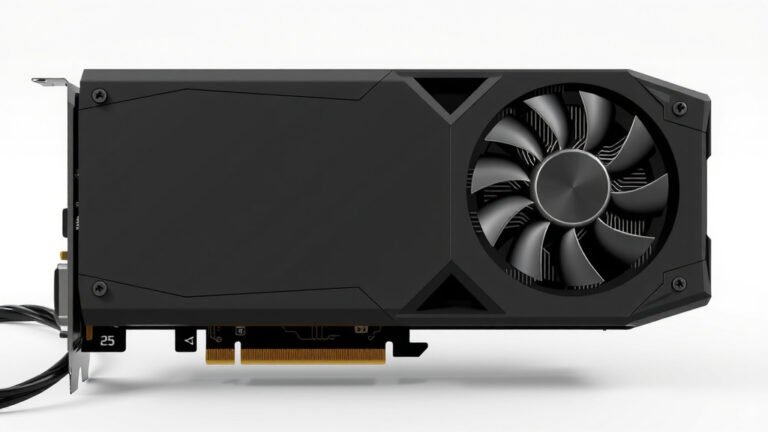
This is probably the most common reason people upgrade their PCIe slots. Graphics cards, or GPUs, are responsible for rendering all the images you see on your screen. For gaming, video editing, or 3D modeling, a powerful GPU is a must.
Most modern GPUs use the PCIe x16 slot because they need all those lanes for maximum performance. A faster GPU means smoother gameplay and quicker rendering times. Many gaming PCs are built with this in mind.
Storage Solutions – Speeding Up Your Data
You might have heard of M.2 SSDs. Many of these use the NVMe protocol, which is designed to take advantage of the high speeds offered by PCIe. While some M.2 drives plug directly into a motherboard slot, others might use a PCIe adapter card.
These NVMe SSDs can be incredibly fast, offering boot times and file transfer speeds that blow traditional SATA SSDs out of the water. If you’re looking to speed up your PC’s storage, a PCIe NVMe SSD can be a game-changer.
Other Expansion Cards
The list doesn’t stop there! You can find all sorts of specialized cards that use PCIe slots:
- Sound Cards: For professional audio recording or a superior listening experience.
- Network Cards: To add faster Ethernet ports or Wi-Fi capabilities beyond what’s built-in.
- Capture Cards: Essential for streamers who want to record or broadcast gameplay from consoles or other PCs.
- USB Expansion Cards: If you need more USB ports, especially faster USB 3.0 or 3.1 types.
Basically, if you can imagine a computer component that needs a direct, high-speed connection to your system, there’s likely a PCIe card for it.
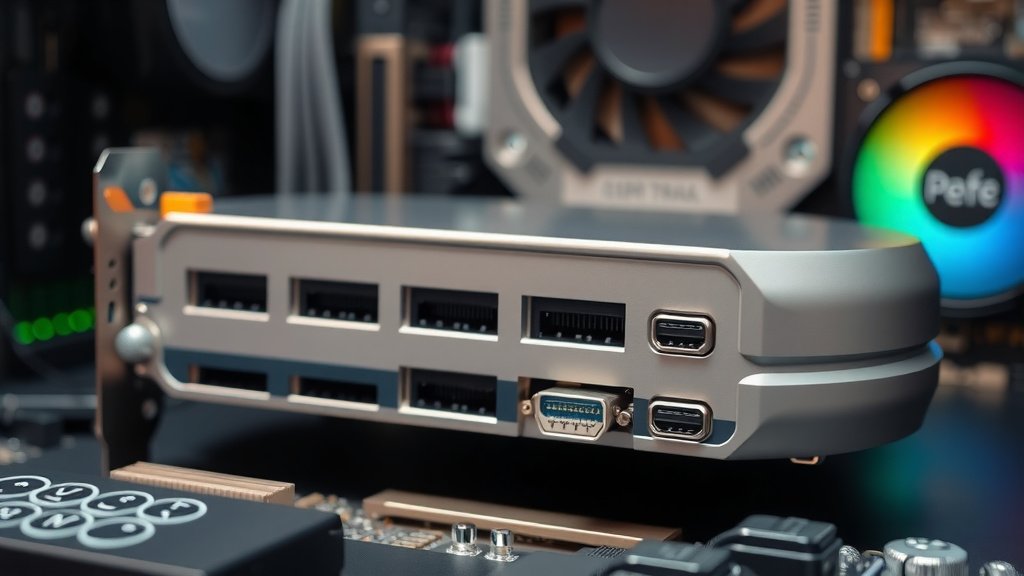
PCIe Generations: Faster and Faster
Like many technologies, PCIe has gone through several generations. Each new generation brings improved speeds and efficiency. You’ll often see terms like PCIe Gen 3, Gen 4, or Gen 5. What does this mean for you?
Bandwidth Increases with Each Generation
Think of it like upgrading your internet plan. A newer generation of PCIe offers more data per second. For example, PCIe Gen 4 doubles the bandwidth of PCIe Gen 3. PCIe Gen 5 doubles it again!
This matters most for your highest-bandwidth components, like your graphics card and NVMe SSD. If you have a newer graphics card that supports PCIe Gen 4 or Gen 5, you’ll want a motherboard with those slots to get the full performance potential. Research and found that using a Gen 4 card in a Gen 3 slot will limit its speed (TechTarget).
Backward and Forward Compatibility
Here’s some good news: PCIe is generally backward and forward compatible. This means:
- A newer PCIe card (like Gen 4) can usually work in an older slot (like Gen 3), but it will run at the slower Gen 3 speed.
- An older PCIe card (like Gen 3) can usually work in a newer slot (like Gen 4), and it will run at its native Gen 3 speed.
This gives you flexibility when upgrading your system over time.
Checking Your Motherboard for PCIe Slots
So, how do you know what you have? You can check your motherboard’s manual, which is always the best resource. Alternatively, you can often find this information by looking at your motherboard itself.
Visual Identification on the Motherboard
PCIe slots are usually long and slender. They will be labeled with “PCIe” and possibly the number of lanes (x1, x16). The longest slots are almost always your x16 slots, perfect for graphics cards.
If you’re buying a new motherboard, the product description will clearly state how many of each type of PCIe slot it has. Many experts suggest looking for a motherboard with at least one PCIe x16 slot for future graphics card upgrades (PCMag).
Quick Checklist for Your System
Want to quickly assess your PCIe situation? Here’s what to look for:
- Identify the number and size of your PCIe slots.
- Note the generation (Gen 3, Gen 4, etc.) if possible.
- Check which slots are currently occupied.
- Determine if you have free slots for upgrades.
- Consider what type of hardware you want to add.
- Ensure your desired hardware is compatible with your motherboard’s slots.
Conclusion
You’ve learned that PCIe slots are the high-speed highways connecting your computer’s hardware. They come in various sizes, like x1, x4, x8, and x16, with more lanes meaning faster data transfer. Understanding these slots helps you make informed decisions when upgrading components like your graphics card or adding fast storage. You can expand your PC’s capabilities significantly with the right PCIe card. Your next step should be to identify the PCIe slots on your current motherboard to see what upgrades are possible for your system!
Frequently Asked Questions
Can I put any PCIe card into any PCIe slot?
Generally, yes, you can physically fit smaller PCIe cards into larger slots (e.g., an x1 card in an x16 slot). However, the card will only operate at its own speed, not the slot’s maximum potential. You cannot fit larger cards into smaller slots.
What’s the difference between PCIe Gen 3, Gen 4, and Gen 5?
Each new PCIe generation doubles the bandwidth of the previous one. This means newer generations (like Gen 4 and Gen 5) allow for much faster data transfer rates, which is especially beneficial for high-performance components like graphics cards and NVMe SSDs.
Do I need a specific PCIe slot for my graphics card?
Most modern graphics cards require a PCIe x16 slot to achieve their full performance potential. This is because GPUs need a wide highway to transfer the large amounts of visual data they process quickly.
Will a newer PCIe card work in an older motherboard?
Yes, PCIe technology is designed to be backward compatible. A newer PCIe card (e.g., Gen 4) can work in an older slot (e.g., Gen 3), but it will be limited to the speed of the older slot.
How do I know if I have free PCIe slots for upgrades?
You can visually inspect your motherboard to see how many slots are available and their sizes. Checking your motherboard’s manual or its specifications online will provide the most accurate information about the number and type of PCIe slots you have.
![10 Best Amd Video Card Brand [2026]](https://spsolutionscare.com/wp-content/uploads/2026/08/10-best-amd-video-card-brand-2026-featured-768x432.jpg)