What is a Texture Unit? A Deep Dive
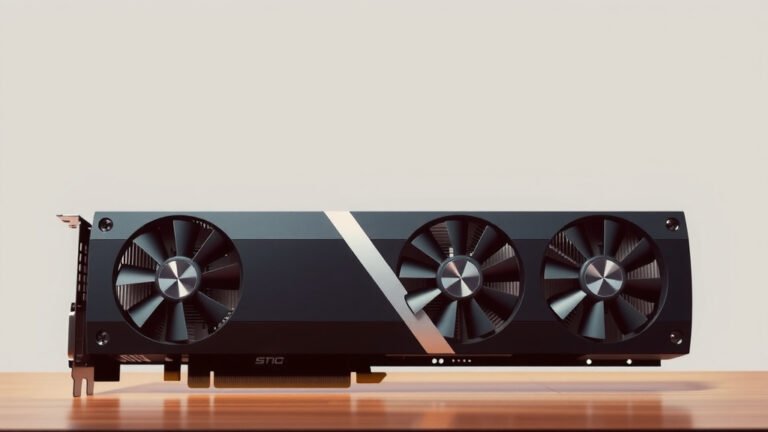
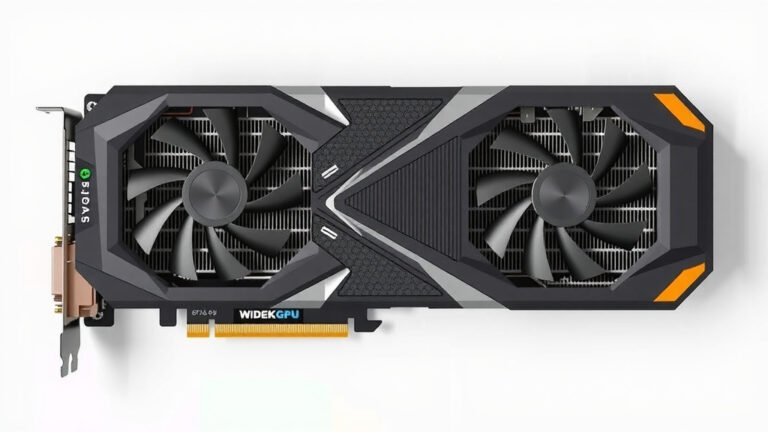
A texture unit, often called a texel unit or shader unit, is a specialized component within your computer’s graphics processing unit (GPU). It’s responsible for applying textures to 3D models. Think of it as the artist’s brush in your computer’s graphics engine.
These units are crucial for making video games and other visuals look realistic. They handle the complex task of mapping 2D images onto 3D surfaces. Without them, everything would appear flat and uninteresting, like a plain colored block. They add detail and visual depth.
- Texture units apply images (textures) to 3D models.
- They are part of your GPU, the graphics brain.
- They make graphics look detailed and realistic.
- Essential for modern gaming and visual applications.
Let’s dive into what makes these texture units tick and why they matter for your gaming and visual experience.
Understanding Your GPU’s Texture Units
So, what exactly is a texture unit doing for you? Think of it as a tiny, specialized worker inside your graphics card. Its main job is to grab a piece of a 2D image and wrap it around a 3D object. This image is what we call a texture. Without texture units, your favorite game characters would look like they were made of plain, solid colors. That’s why they’re so important for visual appeal.
These units are fundamental to how your GPU renders graphics. They’re not just about making things look pretty; they’re about adding realism and detail. From the rough bark on a tree to the worn leather of a character’s jacket, texture units bring these surfaces to life.
How Texture Units Work: The Basics
At its core, a texture unit fetches pixel data from a texture map. This map is just a 2D image. Then, it figures out which part of that image should be applied to a specific point on your 3D model. This process is called texture mapping. It’s like applying wallpaper to a curved wall.
The GPU has many of these texture units working together. The more units your GPU has, the faster it can process these texture operations. This means smoother graphics and higher frame rates, especially in visually demanding games. It’s all about parallel processing.
The Texture Mapping Process
Imagine you have a cube in a 3D scene. This cube has six sides. A texture unit needs to take a 2D image and stretch or shrink it to perfectly fit each of those sides. It uses coordinates to know exactly where each pixel of the texture should go.
This isn’t as simple as just slapping a picture on. The texture unit has to handle different perspectives and distances. It needs to decide which part of the texture to show if the 3D object is far away versus up close. This is where things get a bit more technical, but the result is visual consistency.
UV Coordinates: The Mapping Keys
To achieve this, 3D models use something called UV coordinates. Think of them as a 2D blueprint of your 3D model. Each vertex (corner) of the 3D model has a corresponding point on the 2D texture image. The texture unit uses these UV coordinates to find the right color from the texture for each pixel it needs to draw.
We often use ‘U’ for the horizontal axis and ‘V’ for the vertical axis, hence UV. This system is what allows a single 2D image to be applied to a complex, three-dimensional surface without distortion. It’s a clever way to flatten out 3D information for a 2D image.
Different Types of Textures
Texture units aren’t just applying one type of image. They handle a variety of textures that add different visual properties. Some of these include:
- Diffuse Maps (Albedo Maps): These are the basic color maps, like the paint on a wall. They define the object’s fundamental color.
- Normal Maps: These don’t add color, but they fake surface detail. They tell the light how to bounce off the surface, making it look bumpy or smooth.
- Specular Maps: These control how shiny or reflective a surface is. They determine where highlights appear.
- Roughness Maps: Similar to specular maps, these define how rough or smooth a surface is, affecting light reflection.
- Metallic Maps: These tell the renderer whether a surface is metallic or non-metallic.
By combining these different maps, developers can create incredibly lifelike materials. A texture unit is responsible for fetching and processing data from all these different sources to create the final look.
The Role of Texture Units in Modern Graphics
In today’s advanced graphics, texture units are more vital than ever. Games and professional 3D applications are pushing the boundaries of realism. This requires sophisticated texture work.
Consider modern video games. The characters and environments you see are covered in layers of textures. These aren’t just simple images anymore. They often include multiple textures layered together to simulate complex materials like skin, metal, fabric, and wood. Texture units have to manage this complex data processing.
Performance and Texture Units
The number and speed of texture units directly impact your system’s graphics performance. If your GPU doesn’t have enough powerful texture units, it can become a bottleneck. This means your system might struggle to render detailed scenes at high speeds.
We found that GPUs with more texture units can handle higher resolutions and more complex texture effects. This leads to a smoother and more immersive gaming experience. Developers often optimize their games based on the typical hardware found in gaming PCs and consoles. That’s why a stronger GPU often means better visuals.
Texture Filtering: Smoothing Out the Pixels
When a texture is applied to a 3D surface, especially when viewed at an angle, you might see jagged edges or pixelated patterns. Texture units employ techniques called texture filtering to combat this. These methods blend nearby texels (texture pixels) to create a smoother appearance.
Common filtering methods include:
- Point Sampling: The simplest method, which just picks the nearest texel. Can look blocky.
- Bilinear Filtering: Blends four neighboring texels to create a smoother transition.
- Trilinear Filtering: Blends between two bilinear-filtered mipmaps for even smoother results.
- Anisotropic Filtering (AF): The most advanced, which accounts for the viewing angle and texture stretching, providing very sharp and clear textures even at oblique angles.
Texture units are responsible for performing these calculations very rapidly. This makes distant objects or surfaces viewed at sharp angles look much cleaner. Many games offer settings to adjust the level of anisotropic filtering for a balance between visual quality and performance.
Texture Units vs. Other GPU Components
Your GPU is a complex chip with many specialized parts. Texture units are just one piece of the puzzle. They work alongside other components like shader cores and render output units (ROPs).
Here’s a quick look at how they differ:
| Component | Primary Function | Role in Graphics |
|---|---|---|
| Texture Unit | Fetches and processes texture data (images) from memory. | Applies surface details, colors, and materials to 3D models. |
| Shader Core (CUDA Core/Stream Processor) | Performs mathematical calculations for lighting, effects, and pixel coloring. | Determines how light interacts with surfaces and applies final pixel colors based on textures and other data. |
| Render Output Unit (ROP) | Handles final image output, including blending, anti-aliasing, and depth testing. | Writes the finished pixels to the screen buffer, ensuring correct image composition. |
Texture units provide the raw visual information (the image data), while shader cores use that data to calculate how light affects it and what color each pixel should be. ROPs then finalize that pixel and prepare it to be displayed.
A Checklist for Understanding Texture Units
Let’s quickly recap what we’ve covered:
- Texture units are specialized GPU components for applying images (textures) to 3D models.
- They use UV coordinates to map 2D texture images onto 3D surfaces accurately.
- They handle various texture types, like color, bumpiness, and shininess maps, for realistic materials.
- Texture filtering techniques, managed by texture units, ensure smooth and clear visuals.
- More texture units generally mean better graphics performance and detail.
- They work in conjunction with shader cores and ROPs to create the final image you see.
Understanding the role of texture units helps you appreciate the technology behind your favorite games and graphics applications. It’s fascinating how these small units contribute so much to the visual richness we experience!
Conclusion
You’ve now seen how texture units are the unsung heroes behind the stunning visuals you enjoy. They are the artists within your GPU, meticulously applying images and material properties to 3D objects. From basic colors to complex surface details, these units work tirelessly. They ensure that the virtual worlds you explore feel rich and believable. Understanding their role highlights the sophistication of modern graphics. Next time you play a game or view a detailed render, you’ll appreciate the work these specialized components do.
Frequently Asked Questions
How do texture units affect my game’s performance?
The number and speed of texture units in your GPU directly influence how well your games run. More powerful texture units allow for more complex textures and effects to be rendered smoothly. If your GPU has too few or slow texture units, it can become a bottleneck, leading to lower frame rates.
What’s the difference between a texture and a texel?
A texture is the entire 2D image file that you see, like a picture of wood grain or brick. A texel (texture element) is a single pixel within that texture image. Texture units fetch these individual texels and map them onto your 3D models.
Can I upgrade just my texture units?
No, texture units are integrated components of your GPU. You cannot upgrade them individually. If you want better texture processing capabilities, you would need to upgrade your entire graphics card.
Why do some games let me choose texture quality settings?
Texture quality settings, like “Low,” “Medium,” or “High,” control how detailed the texture maps are and how many of them your GPU needs to process. Higher settings use larger, more detailed textures, which require more processing power from your texture units and more video memory.
Are texture units the same as shaders?
No, they are different but work together. Texture units fetch the image data (textures), while shader cores use that data along with other information to calculate lighting, color, and special effects for each pixel on your screen.