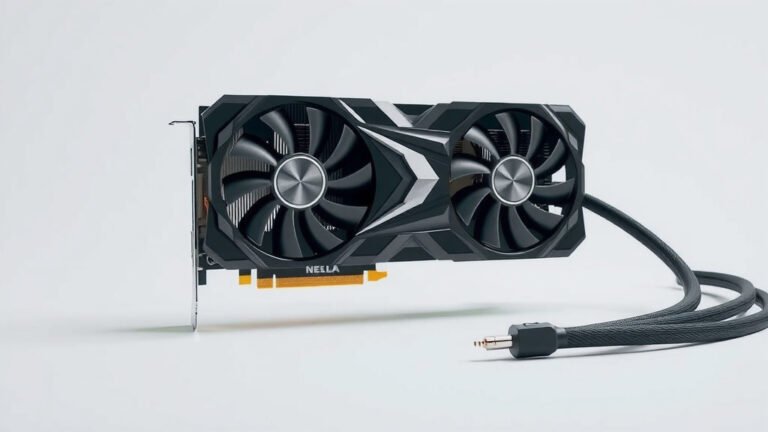
Why is My GPU Crashing? Troubleshooting Your Graphics Card
Your GPU crashing can happen for a few reasons. It’s often due to overheating, outdated or corrupt drivers, or sometimes a power supply issue. Don’t worry, most of the time it’s fixable!
A crashing GPU can really mess up your gaming or work. We’ve seen many users struggle with this. It’s a common problem that often comes down to a few key areas that need attention. Let’s get your graphics card running smoothly again.
- Overheating is a top cause.
- Driver problems are very common.
- Your power supply might be weak.
- Check for software conflicts.
Let’s walk through exactly why your GPU might be crashing and how to fix it step by step.
Troubleshooting Your Crashing Graphics Card
It’s frustrating when your graphics card decides to take an unexpected break. You might be in the middle of an intense gaming session or a critical work task. Suddenly, your screen goes black, you see an error message, or your whole system freezes. This is a clear sign your GPU is crashing. Let’s figure out why this happens and how you can get back to smooth sailing. We’ve found the most common culprits are usually fixable with a little patience.
Common Reasons for GPU Instability
Is Your GPU Overheating?
Overheating is one of the biggest villains behind GPU crashes. When your graphics card works hard, it generates a lot of heat. If your cooling system can’t keep up, the GPU gets too hot. This forces it to shut down to prevent permanent damage. It’s like an engine overheating on a hot day – it needs to cool off before it breaks.
Signs of Overheating
You might notice your PC fans running at maximum speed constantly. Your system may also become very loud. Sometimes, you’ll experience visual glitches on your screen before a crash. These can look like strange colors or flickering textures. Checking your GPU’s temperature is a good first step.
How to Monitor GPU Temperatures
You can easily check your GPU temperature using free software. Tools like MSI Afterburner or HWMonitor are popular choices. Simply download one, run it, and start a demanding application like a game. Keep an eye on the temperature readings. Many experts suggest keeping your GPU below 80-85 degrees Celsius during heavy loads. If it’s consistently higher, you’ve likely found your problem.
Solutions for Overheating
If your GPU is running too hot, there are several things you can do. First, ensure your PC case has good airflow. Clean out any dust bunnies that might be blocking vents. You might need to add more case fans. Sometimes, reapplying thermal paste to the GPU cooler can help. This is a more advanced step, but it can significantly improve cooling.
The Importance of Graphics Drivers
Your graphics drivers are the communication link between your GPU and your operating system. If these drivers are outdated, corrupt, or incompatible, they can cause all sorts of problems, including crashes. Think of drivers as translators. If the translator is faulty, the message gets garbled, and things break. If your drivers are corrupt, a clean GPU driver install can resolve issues.
Outdated Drivers
Manufacturers like NVIDIA and AMD regularly release driver updates. These updates often include performance improvements and bug fixes. Running old drivers can mean missing out on these crucial fixes. This can leave your GPU vulnerable to instability.
Corrupt or Incorrect Drivers
Sometimes, a driver installation can go wrong. This can happen if the installation was interrupted or if files became corrupted. Installing the wrong driver for your specific GPU model can also cause issues. These problems often lead to crashes when the system tries to use the faulty driver.
How to Update or Reinstall Drivers
The best way to handle driver issues is usually a clean installation. First, download the latest driver package for your specific GPU from the manufacturer’s website. Then, use a tool like Display Driver Uninstaller (DDU) in Safe Mode to completely remove your current drivers. After that, restart your PC and install the new drivers you downloaded. We found this method often resolves persistent driver-related issues. Using Display Driver Uninstaller (DDU) can help remove problematic driver files.
Power Supply Unit (PSU) Concerns
Your GPU is a power-hungry component. If your Power Supply Unit (PSU) isn’t strong enough to handle the demands of your GPU, especially under load, it can lead to crashes. A weak PSU might not be able to deliver the consistent power your GPU needs.
Is Your PSU Sufficient?
Check the recommended PSU wattage for your specific GPU model. This information is usually available on the manufacturer’s website or the product packaging. If your PSU is below the recommended wattage, it’s a likely cause of your problems. Also, consider the age of your PSU. Older units can become less efficient over time.
Signs of a Struggling PSU
Besides GPU crashes, a struggling PSU can cause other system instability. You might experience random shutdowns or reboots. Lights on your PC might flicker. If you recently upgraded your GPU to a more powerful model, your PSU might be the first thing to suspect if you start experiencing crashes.
When to Consider a New PSU
If your PSU is consistently under the recommended wattage for your components, it’s time for an upgrade. We recommend choosing a PSU from a reputable brand that provides a bit of headroom above the minimum requirement. This ensures stable power delivery and can prevent future issues.
Software Conflicts and Other Factors
Conflicting Software
Sometimes, other software on your system can interfere with your GPU. This could be background applications, overlay programs, or even certain antivirus software. These conflicts can cause instability and lead to crashes.
Overlays and Background Apps
Programs like Discord, GeForce Experience overlays, or Xbox Game Bar can sometimes cause problems. Try disabling these overlays one by one to see if it resolves the crashing. Also, close any unnecessary background applications before launching demanding software.
Overclocking Instability
If you’ve overclocked your GPU, meaning you’ve pushed its performance beyond factory settings, this can lead to instability. Overclocking increases heat and power draw, making your GPU more prone to crashing if not done carefully. Many sources suggest reverting to stock clock speeds to test if the crashes stop. If they do, your overclock was likely too aggressive.
Hardware Issues
In rare cases, the GPU itself might have a hardware defect. This could be a faulty component on the graphics card. If you’ve tried all the software and power-related solutions and your GPU still crashes, it might be time to consider hardware failure. Testing the GPU in another compatible system can help diagnose this.
Let’s Quick Check Your Fixes:
- Have you cleaned dust from your PC case and GPU fans?
- Are your GPU drivers up-to-date and cleanly installed?
- Is your Power Supply Unit (PSU) wattage sufficient for your GPU?
- Did you check your GPU’s temperature under load?
- Are you running any overclocking software or potentially conflicting overlays?
- Have you tried testing the GPU in another computer, if possible?
Conclusion
We’ve explored the most common reasons your GPU might be crashing, from overheating and driver issues to power supply limitations and software conflicts. The good news is that most of these problems are fixable with a little troubleshooting. Don’t get discouraged if the first step doesn’t solve it. You’ve learned how to monitor temperatures, update drivers properly, and check your power situation.
Your next step? Methodically work through the solutions we’ve discussed. Start with the easiest fixes like cleaning your PC and updating drivers. If your GPU keeps crashing, remember to systematically test each potential cause. You can get your system running smoothly again!
Frequently Asked Questions
How often should I clean my PC for GPU stability?
You should aim to clean dust from your PC and GPU fans at least every 3-6 months. Accumulated dust is a major contributor to overheating, which we found is a top cause of GPU crashes. Regular cleaning ensures your cooling system works effectively.
What’s the best way to update graphics drivers?
For the best results, we recommend using Display Driver Uninstaller (DDU) in Safe Mode to completely remove old drivers before installing the latest ones. Download the newest drivers directly from NVIDIA or AMD’s website. This clean installation method often resolves driver-related instability.
Can my monitor cause my GPU to crash?
While your monitor itself typically doesn’t directly cause a GPU to crash, a faulty cable or connection could potentially lead to display issues that mimic a GPU problem. However, actual GPU crashes are more likely due to the GPU’s hardware, drivers, or power delivery.
Is it safe to run my GPU at high temperatures?
It’s generally not safe or recommended to run your GPU at consistently high temperatures, especially above 85 degrees Celsius under load. Prolonged exposure to excessive heat can reduce the lifespan of your GPU and cause crashes as a protective measure. Monitor your temps and address overheating issues promptly.
My GPU crashes only when I play specific games. What does that mean?
If your GPU crashes only in certain games, it often points to a game-specific software conflict or optimization issue rather than a general hardware problem. It could be related to the game’s demanding graphics settings, a bug in the game itself, or an incompatibility with your current drivers. Try updating your drivers and lowering in-game graphics settings.
![10 Best 4k Budget Graphics Card [2026]](https://spsolutionscare.com/wp-content/uploads/2026/08/10-best-4k-budget-graphics-card-2026-featured-768x432.jpg)