How to Ensure Your New GPU Fits Your PC Case
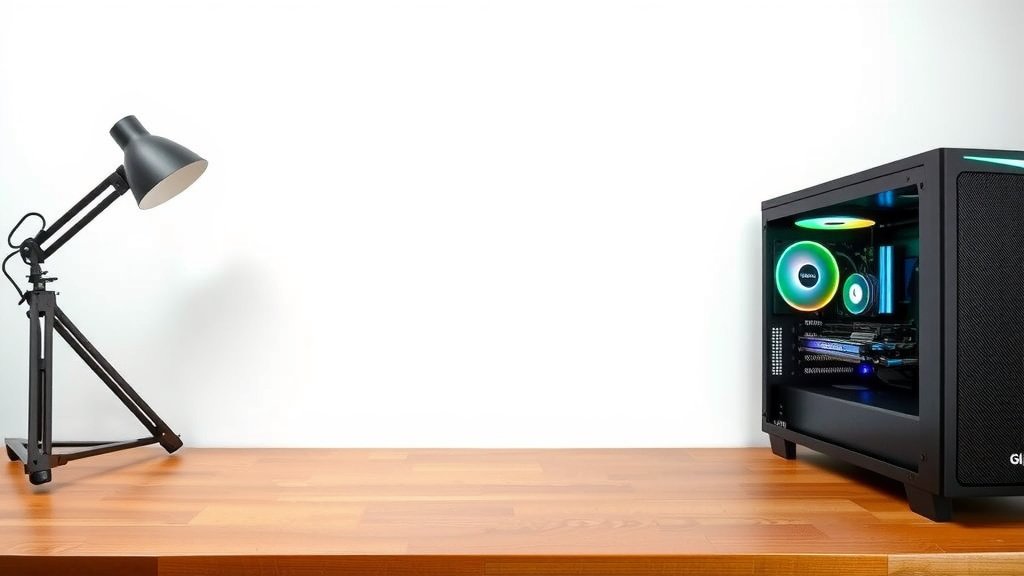
Checking if a GPU will fit your PC case involves comparing its dimensions to your case’s maximum supported graphics card length. You can easily check this by measuring your case’s interior space or looking up its specifications online. Always measure from the back expansion slots to the front drive bays or any obstructions. This ensures your new powerful graphics card has enough room to slide right in without any fuss.
Finding the right fit prevents a world of trouble. A GPU that’s too long can block cables, fans, or even the motherboard itself. We found that many PC builders overlook this simple step, leading to frustration or even the need for a new case. Knowing your case’s maximum GPU clearance is key to a smooth upgrade. It also helps you avoid buying a card that simply won’t work.
- Measure your PC case’s interior space.
- Look up your case’s specifications online.
- Compare GPU length to case clearance.
- Check for obstructions inside the case.
- Ensure good airflow after installation.
Let’s walk through exactly how to measure and compare to make sure your new GPU is a perfect fit.
Making Sure Your New GPU Fits Your PC Case
So, you’ve picked out a shiny new graphics card, and you’re ready to boost your PC’s gaming power. That’s exciting! But before you hit that ‘buy’ button, you need to do one super important thing: make sure it’ll actually fit inside your computer case. It sounds simple, but a GPU that’s too long can cause a world of headaches. We found that many people skip this step, only to find out their new card is a no-go when it arrives.
Understanding GPU and Case Dimensions
Your graphics card has three main dimensions: length, height, and width (or thickness). Your PC case has specific limits for each of these. The one that causes the most trouble is usually the length. Think of it like trying to put a king-size mattress into a twin-size bed frame; it just won’t fit!
What is GPU Length?
The length of your GPU is measured from the metal bracket that screws into your PC’s back panel to the very end of the card’s cooler or shroud. This is the most critical measurement for case compatibility. Graphics cards come in all sorts of lengths, from compact single-fan models to massive triple-fan behemoths.
What is Case GPU Clearance?
Your PC case has a maximum GPU length it can accommodate. This is the space available inside your case, measured from the expansion slot area (where the GPU’s ports stick out) to the inside of the front panel or any obstructions, like drive cages or fans. Many case manufacturers list this as “Max GPU Length” or “Graphics Card Clearance” in their specifications.
How to Find Your Case’s Maximum GPU Length
There are a couple of easy ways to figure this out. Don’t worry, it’s not rocket science!
Method 1: Check Your Case Manual or Manufacturer Website
This is the easiest and most accurate method. If you still have the original manual for your PC case, flip to the specifications section. If you don’t have the manual, search online for your case’s model number. The manufacturer’s website will almost certainly have detailed specs, including the maximum supported GPU length. We found this to be the most reliable way to get the exact number.
Look for terms like “Max GPU Length,” “VGA Clearance,” or “Graphics Card Support.” The number will usually be in millimeters (mm).
Method 2: Measure Your Case Manually
If you can’t find the specs online, or you’re just a hands-on kind of person, you can measure it yourself! It’s best to do this with the side panel of your case off so you can see clearly.
The Measurement Process
Grab a tape measure. Start at the back of your case, right where the GPU’s expansion slots will go. Extend the tape measure straight across the motherboard area towards the front of the case. You need to measure to the point where a GPU would end. This usually means measuring to the inside of the front fan mounts or the hard drive bays, whichever is closer. Be sure to measure in a straight line. We found that using a flexible tape measure can help navigate any minor curves.
It’s also a good idea to note down any obstructions. Sometimes, a front-mounted radiator or a drive cage might block a longer card. You need to account for these, too. Remember to measure from the slots to the *furthest point* of obstruction in a straight line.
How to Find Your GPU’s Actual Length
Once you know how much space you have, you need to know the size of the card you want. This information is readily available for any GPU model.
Check the GPU Product Page
Go back to the website where you found the GPU you want to buy. The product page will list the dimensions of the graphics card. Look for “Dimensions” or “Specifications.” The length will be listed, usually in millimeters (mm).
Pay attention to the exact model. Different versions of the same GPU (e.g., Founders Edition vs. an overclocked model from ASUS or Gigabyte) can have slightly different lengths. Always check the specific model you are interested in.
Consider the Number of Slots it Takes Up
While length is the main concern, also think about how many expansion slots the GPU occupies. Most modern GPUs are dual-slot or triple-slot cards. Your case needs enough of these physical slots available and unblocked at the back. While not usually an issue for standard ATX cases, it’s worth a quick check if you have a very compact or specialized case.
Comparing GPU Length to Case Clearance
This is the moment of truth! Compare the numbers you found.
The Simple Comparison
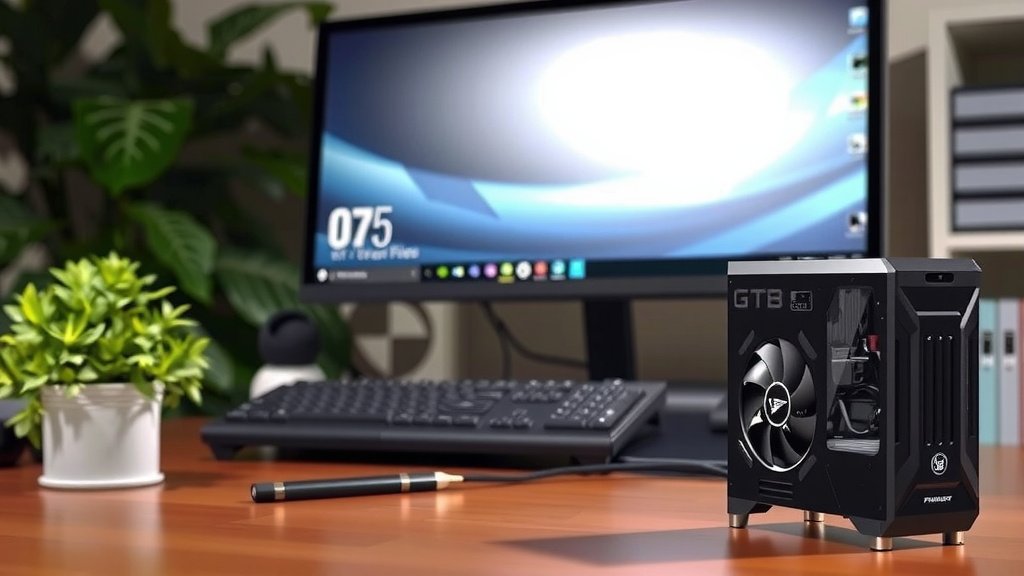
Take the maximum GPU length your case supports and compare it to the actual length of the GPU you want. If the GPU length is less than or equal to your case’s maximum GPU length, you’re golden!
If the GPU length is longer than your case’s clearance, then unfortunately, that card won’t fit without modifications. Modifications are generally not recommended as they can void warranties and cause issues.
What About Height and Width?
While length is the most common hurdle, don’t forget about height and width (thickness). Some very wide GPUs might interfere with cable management options on the right side of your case or touch the side panel. We found that looking at product images and user reviews can often reveal if a card is unusually bulky.
A Quick Checklist Before You Buy
To make sure everything goes smoothly, use this quick checklist:
- Case Specs Found? Verified your case’s max GPU length (online or manual).
- GPU Specs Found? Noted the exact length of the GPU you want.
- Comparison Made? Confirmed GPU length <= Case Clearance.
- Obstructions Checked? Looked for internal parts blocking the GPU slot.
- Slot Count OK? Ensured enough physical expansion slots are available.
- Physical Fit visualised? Imagined or measured the actual space for the card.
When In Doubt, Err on the Side of Caution
Building a PC should be fun, not frustrating. If you’re on the fence between two GPUs, or if your measurements are very close, it’s often best to choose the shorter option. You don’t want to be stuck with a beautiful, powerful GPU that you can’t even install! Many builders recommend leaving at least 10-20mm of extra space just to be safe for cable routing and airflow. We found that leaving a little buffer room makes the installation process much smoother.
Conclusion
You’ve learned the essential steps to ensure your new GPU fits perfectly in your PC case. We found that a little bit of planning goes a long way. Always double-check your case’s maximum GPU length and compare it directly to the card’s dimensions. Measuring manually or finding specs online are both reliable methods. Don’t forget to account for any internal obstructions. Your goal is a smooth installation, not a frustrating puzzle. Now, confidently pick out that graphics card, knowing you’ve got the fit covered!
Frequently Asked Questions
What if my GPU is slightly longer than my case’s maximum clearance?
If your GPU is only a tiny bit longer, and you’ve checked for obstructions, you might get away with it. We found that leaving even a centimeter of extra space is ideal for cable management and airflow. If it’s significantly longer, it’s safer to choose a different, shorter GPU to avoid potential damage or a forced, problematic fit.
Do I need to worry about GPU height and width, not just length?
Yes, while length is the most common issue, height and width (thickness) can also cause problems. A very thick GPU might interfere with side panel cables or even block other components. We recommend looking at product photos and user reviews for any warnings about unusual card bulkiness.
How do I check GPU dimensions if I’m buying online and can’t measure?
All reputable GPU manufacturers list the exact dimensions on their product pages. Look for a “Specifications” or “Dimensions” section. We found this information to be readily available and accurate for most cards. Always check the specific model you’re interested in, as variations exist.
What’s the best way to measure internal case space accurately?
Use a tape measure with the PC case’s side panel removed. Start from the edge of the expansion slot bracket where the GPU screws in. Extend the tape measure in a straight line to the inside of the front panel or any front-mounted fans or drive cages. We found that a flexible tape measure can help navigate subtle curves.
Is it okay if the GPU touches the side panel of my case?
Generally, no, it’s not ideal if your GPU touches the side panel. This can restrict airflow, potentially leading to higher temperatures. It can also put stress on the GPU and motherboard. We recommend leaving at least a small gap for optimal performance and to avoid potential damage.
![10 Best 8gb Graphics Card [2026]](https://spsolutionscare.com/wp-content/uploads/2026/08/10-best-8gb-graphics-card-2026-featured-768x432.jpg)
![10 Best 3060 [2026]](https://spsolutionscare.com/wp-content/uploads/2026/08/10-best-3060-2026-featured-768x432.jpg)