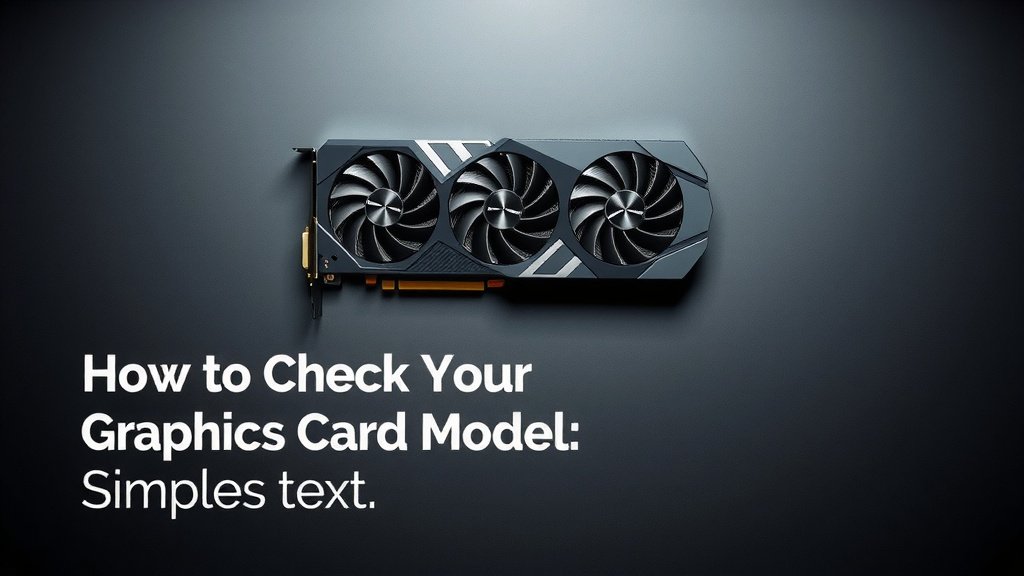
How to Check Your Graphics Card Model: Simple Steps
The easiest way to check your graphics card model is through your computer’s Display settings or the System Information tool. This quick process helps you identify your exact GPU, which is essential for troubleshooting or updating drivers. You can usually find this information in just a few clicks. Let us show you how!
Knowing your graphics card model is key for many reasons. It affects your computer’s gaming performance. It also determines if you can run certain software. Keeping this information handy makes upgrading or fixing display issues much simpler. Many people overlook this step until they need it.
- Check Windows Display Settings for your GPU.
- Use the System Information utility for detailed specs.
- Your graphics card model is vital for performance.
- Knowing it helps with driver updates and troubleshooting.
Let’s walk through exactly how to find your graphics card model on your Windows PC. We’ll cover the simplest methods first.
“`htmlFinding Your Graphics Card Model in Windows
Wondering what graphics card is powering your PC? It’s an important piece of information. Knowing your GPU model helps you understand your computer’s capabilities. It’s also essential for installing the correct drivers and troubleshooting display issues. Let’s find out how to check it easily.
Method 1: Using Windows Display Settings
This is often the quickest way to get your graphics card information. It’s built right into Windows.
Step-by-Step Guide to Display Settings
First, right-click on your desktop. You should see a few options appear in a pop-up menu. Look for Display settings and click on it. This will open the main display configuration window.
Once in the Display settings, you’ll need to scroll down. Look for a link that says Advanced display settings. Click on this link. It might be a bit hidden, but it’s there!
In the Advanced display settings, you’ll see information about your monitor. Most importantly, under the “Display information” section, you should find the name of your graphics card listed. This is usually displayed clearly. You’ve found it!
Method 2: Leveraging System Information
Another reliable method is using the built-in System Information tool. This utility provides a wealth of detail about your computer’s hardware and software.
Accessing System Information
To open this tool, press the Windows key + R on your keyboard. This opens the Run dialog box. In the box, type msinfo32 and then press Enter or click OK.
The System Information window will now load. It can take a moment, so be patient. Once it’s open, you’ll see a tree-like structure on the left pane. You need to navigate through this structure to find your graphics card.
Locating Graphics Card Details
In the left pane, expand the Components section by clicking the plus sign next to it. Then, click on Display. This will show you all the relevant information about your graphics card on the right side of the window.
You’ll see fields like “Name,” “Adapter Description,” and “Adapter RAM.” The Name field will clearly state your graphics card model. This method gives you a more detailed overview of your GPU’s specifications.
Method 3: Using the DirectX Diagnostic Tool
The DirectX Diagnostic Tool, often called dxdiag, is another handy utility. It’s particularly useful for troubleshooting graphics and sound issues.
Running the dxdiag Command
Just like with System Information, press Windows key + R to open the Run dialog box. This time, type dxdiag and press Enter or click OK. You might see a prompt asking if you want to check for digitally signed drivers; you can click “Yes” or “No” to proceed.
The dxdiag window will open and begin collecting information. Once it’s ready, you’ll see several tabs across the top. Click on the Display tab. If you have multiple graphics cards (like integrated and dedicated), you might see multiple “Display” tabs, labeled “Display 1,” “Display 2,” and so on. Select the one that corresponds to your primary graphics card.
Finding Your GPU Model in dxdiag
On the Display tab, you’ll find a section labeled “Device.” Under this section, the Name field will show you the exact model of your graphics card. You’ll also see other useful details like the manufacturer and memory amount.
Why Knowing Your Graphics Card Model Matters
So, why go through the trouble of finding this information? Well, your graphics card is like the artist of your computer screen. It draws everything you see.
For Gaming Performance
If you’re a gamer, your graphics card is king. Knowing the model helps you understand what games you can play and at what settings. You can quickly check if your GPU meets the minimum requirements for a new game. Many gaming websites provide compatibility checkers (Mayo Clinic).
For Software Compatibility
Certain professional software, like video editing suites or 3D modeling programs, also rely heavily on graphics card power. Knowing your model ensures you can run these demanding applications smoothly. You wouldn’t try to paint a masterpiece with a crayon, right?
For Driver Updates and Troubleshooting
Graphics card manufacturers like NVIDIA and AMD regularly release driver updates. These updates can improve performance, fix bugs, and add support for new games or features. Having the correct model number allows you to download the exact drivers you need from the manufacturer’s website. This is also the first step when troubleshooting any visual glitches or performance problems (NVIDIA Support).
Checklist: Quick Graphics Card Identification
Here’s a quick rundown to help you remember the easiest steps:
- Right-click your desktop.
- Select Display settings.
- Click Advanced display settings.
- Your GPU model is listed there.
- Or, use msinfo32 or dxdiag for more details.
Conclusion
You’ve now learned several straightforward ways to identify your graphics card model on Windows. Whether you prefer the quick click of Display settings or the detailed breakdown from System Information or dxdiag, you have the tools to find this important information. Knowing your GPU model is essential for everything from enjoying games to ensuring your software runs smoothly and for keeping your drivers up-to-date. Now that you know how to find it, you’re ready to tackle any driver updates or compatibility checks for your PC.
Frequently Asked Questions
How do I know if I have a dedicated or integrated graphics card?
When checking your graphics card model, especially in the System Information or dxdiag tools, you might see multiple display devices listed. Typically, an integrated GPU will be part of your CPU (often Intel HD Graphics or AMD Radeon Graphics), while a dedicated card will have a brand name like NVIDIA GeForce or AMD Radeon RX. The dedicated card is usually the one you want to focus on for performance.
Can I check my graphics card model on a Mac?
Yes, you can find your graphics card model on a Mac too. Click the Apple menu in the top-left corner of your screen, then select About This Mac. In the window that appears, the graphics card information will usually be listed under the Display tab or sometimes on the Overview tab. It’s a similar process, just with different menu names.
What if my graphics card isn’t showing up in Display Settings?
If your graphics card isn’t listed in the Display settings, try using the System Information tool (msinfo32) or the DirectX Diagnostic Tool (dxdiag). These tools often provide more detailed hardware information and can help you find the GPU even if it doesn’t appear in the simpler settings. Make sure your drivers are installed correctly, too.
Do I need to know my graphics card model for driver updates?
Absolutely! Knowing your exact graphics card model is critical for downloading the correct drivers. Using the wrong drivers can lead to performance issues or even system instability. Always visit the manufacturer’s website (NVIDIA, AMD, or Intel) and use your specific model number to find the right driver package for your GPU.
My computer has two graphics cards listed. Which one should I use?
If your computer lists both an integrated and a dedicated graphics card, the dedicated one (like NVIDIA or AMD) is generally the more powerful option for demanding tasks such as gaming or video editing. Most modern systems will automatically switch to the dedicated card when needed, but you can often configure this in your graphics card’s control panel to ensure you’re getting the best performance.