How to Identify Your Graphics Card: A Simple Guide
Knowing your graphics card model is often simpler than you think. You can easily find your graphics card model using built-in Windows tools. This helps you understand your PC’s gaming power or troubleshoot issues. We’ll show you the quickest ways to get this important info.
Your graphics card, or GPU, is key for tasks like gaming and video editing. Knowing its exact name and specs lets you compare performance. It also helps when looking for driver updates. Don’t worry if you’re not tech-savvy; we found simple methods for everyone.
- Use Windows Settings or Task Manager.
- Check Device Manager for GPU details.
- Look for physical labels if needed.
- Third-party software offers more in-depth info.
Ready to find out exactly which graphics card is powering your machine? Let’s walk through the easiest steps to identify your GPU right now.
Understanding Your Graphics Card: A Quick Guide
Your graphics card, often called the GPU, is super important for anything visual on your computer. Think gaming, editing videos, or even just browsing smoothly. Knowing which one you have helps you understand what your PC can do. It’s also key for getting the latest drivers. We’ll help you figure it out with easy steps.
How to Find Your GPU Model in Windows
Using Windows Settings (The Easiest Way)
This is often the fastest way to find your graphics card. It uses built-in Windows tools. You don’t need to download anything extra. Let’s get to it!
Step-by-Step Through Settings
- Click the Start button in the bottom-left corner of your screen.
- Type “Settings” and select the gear icon that pops up.
- In the Settings window, click on “System.”
- Scroll down the left-hand menu and click on “Display.”
- On the right side, scroll down again and click “Advanced display settings.”
- Look for the “Display information” section. Your graphics card model will be listed under “Display adapter properties.”
You should see the name of your graphics card clearly listed here. It’s usually something like “NVIDIA GeForce RTX 3070” or “AMD Radeon RX 6800.” You’ve likely found it!
Checking Through Task Manager
Task Manager is another handy tool. It shows you what’s running on your PC. You can find your GPU here too. It’s great for a quick peek.
Accessing Task Manager
- Right-click on your taskbar (the bar at the bottom of your screen).
- Select “Task Manager” from the menu.
- If you see a simple view, click “More details” at the bottom.
- Click on the “Performance” tab at the top.
- On the left side, you’ll see a list of components. Click on “GPU.”
At the top of the GPU section, you’ll see the name of your graphics card. This is a very straightforward method. Many users find this incredibly useful for quick checks.
Using Device Manager for Detailed Information
Device Manager gives you a more in-depth look at all your computer’s hardware. It’s like a digital inventory. This is a solid option if the other methods aren’t showing what you need.
Navigating Device Manager
- Click the Start button.
- Type “Device Manager” and select it from the search results.
- In the Device Manager window, look for “Display adapters.”
- Click the small arrow next to “Display adapters” to expand the category.
Underneath “Display adapters,” you will see your graphics card listed. Sometimes, if you have multiple GPUs (like an integrated chip and a dedicated card), you might see more than one. The one you’re likely looking for is the more powerful, discrete card. This method provides a clear identification. Many users prefer this for its directness.
When Software Won’t Tell the Whole Story: Checking Physically
Sometimes, especially with older PCs or if there’s a driver issue, software might not show the exact model. In these cases, you might need to look at the card itself. This sounds a bit more involved, but it’s not too tricky.
Finding the Card Inside Your PC
- Turn off your computer completely and unplug it from the wall.
- Open your computer’s case. This usually involves unscrewing a side panel. You might need a screwdriver. Be gentle!
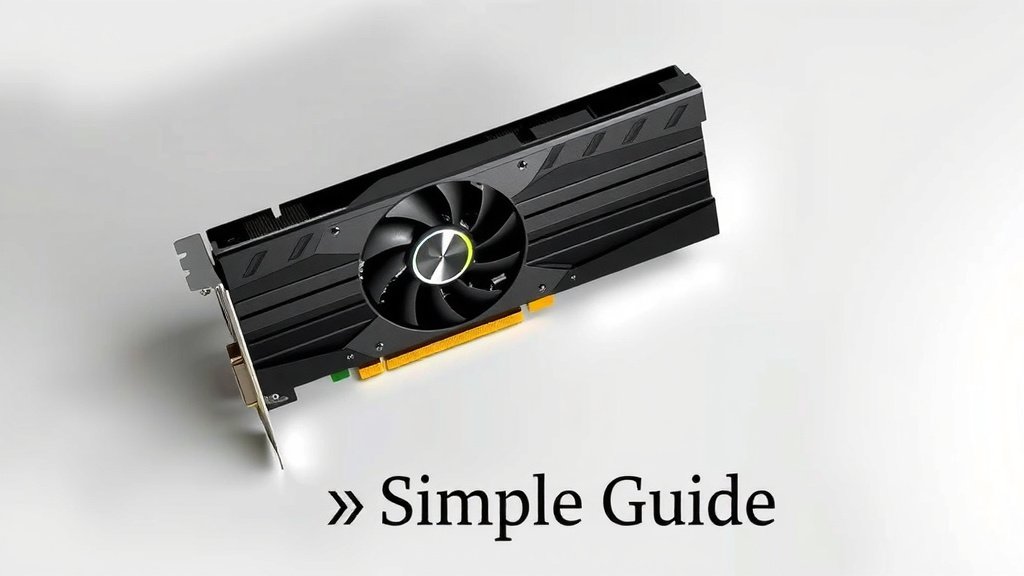
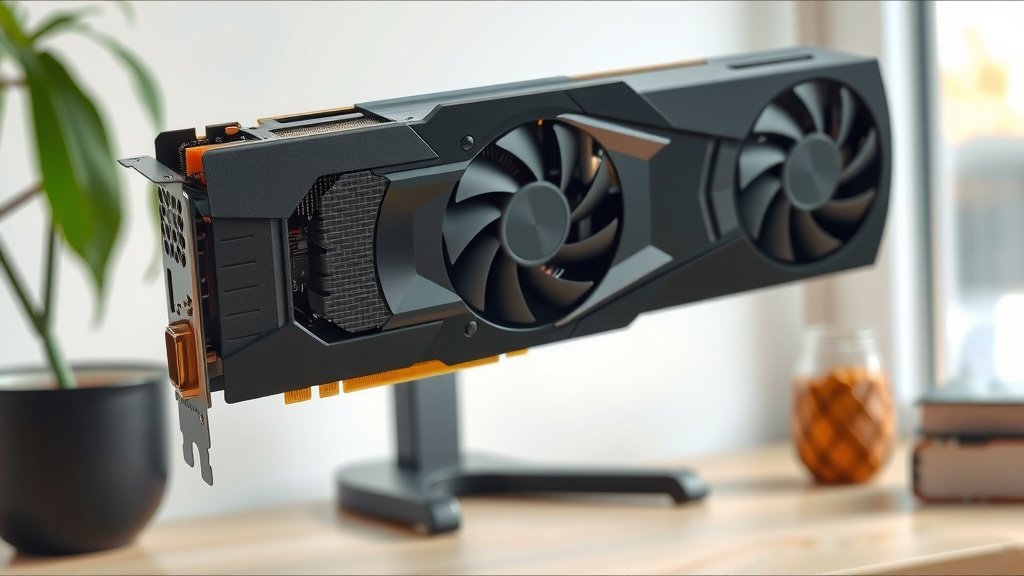
- Locate the graphics card. It’s typically a large card plugged into a slot on the motherboard, often with fans on it.
- Look for a sticker or label on the card itself. This label often has the manufacturer’s name (like NVIDIA or AMD) and the specific model number.
Be careful when touching components inside your PC. It’s a good idea to touch a metal part of the case first to discharge any static electricity. This helps protect your hardware. Many people find this a reliable fallback. You can often find model numbers like “RTX 3070” or “RX 6800 XT” on these labels.
Using Third-Party Software for More Data
If you want to know more than just the model name, like memory size, clock speeds, or temperature, third-party tools are your best bet. These programs offer a deeper dive into your GPU’s capabilities. They are excellent for gamers and enthusiasts.
Popular Software Options
Several free programs can give you all the details about your graphics card. Here are a few we often see mentioned:
- GPU-Z: This is a lightweight, free utility that provides a ton of information about your graphics card. It’s very popular for detailed specs.
- Speccy: From the makers of CCleaner, Speccy offers a comprehensive overview of your entire system, including detailed graphics card information.
- CPU-Z: While it focuses on your CPU, the GPU tab in CPU-Z can also show you important details about your graphics card.
Just download and run one of these programs. They usually present the information in an easy-to-read format. You can find everything from the exact memory type to the number of stream processors. We found these tools to be very accurate.
Quick Checklist: Your Graphics Card Identification Summary
Feeling a bit more confident? Here’s a quick rundown to ensure you’ve got the info you need:
- You know how to access your GPU model via Windows Settings.
- You can find your graphics card name using Task Manager.
- You understand how to use Device Manager for more detail.
- You know when and how to check for a physical label on the card itself.
- You’re aware of useful third-party tools for advanced specs.
Conclusion
You’ve now learned several straightforward methods to identify your graphics card. Whether you prefer the quick checks within Windows Settings or Task Manager, or need the deeper dive from Device Manager, you have the tools. Don’t forget that physical inspection or third-party software can offer even more specific details if needed. Knowing your GPU empowers you to make informed decisions about upgrades, driver updates, and software compatibility. Your next step is to use one of these methods to find your graphics card model and take control of your PC’s visual performance.
Frequently Asked Questions
What if I see two graphics cards listed?
This often means you have both an integrated GPU (built into your CPU) and a dedicated graphics card. The dedicated card, like an NVIDIA GeForce or AMD Radeon, is usually the more powerful one and the one you’re likely interested in for gaming or demanding tasks. Focus on the one with the brand name that matches your gaming expectations.
Why do I need to know my graphics card model?
Knowing your graphics card model is essential for several reasons. It helps you download the correct drivers, which improve performance and fix bugs. It also lets you check if your card meets the system requirements for new games or software. Plus, it’s helpful for troubleshooting if you experience graphical issues.
Can I find my graphics card model without opening my computer?
Yes, absolutely! We’ve covered multiple ways to find your graphics card model using built-in Windows tools like Settings, Task Manager, and Device Manager. You can also use free third-party software. Opening your computer is only necessary if these software methods don’t provide the information you need.
How do I know if my graphics card is outdated?
Once you know your graphics card model, you can easily search for it online. Look for reviews and performance benchmarks for that specific card. Comparing its specs and performance to newer models will give you a clear idea of whether it’s keeping up with current demands or if it’s time to consider an upgrade.
Is it safe to download third-party software to check my GPU?
Generally, yes, it is safe to download reputable third-party software like GPU-Z or Speccy from their official websites. These tools are designed for information gathering. Just ensure you are downloading from the official source to avoid any malware. They are a great way to get detailed specs beyond what Windows shows.
![10 Best 2060 [2026]](https://spsolutionscare.com/wp-content/uploads/2026/08/10-best-2060-2026-featured-768x432.jpg)