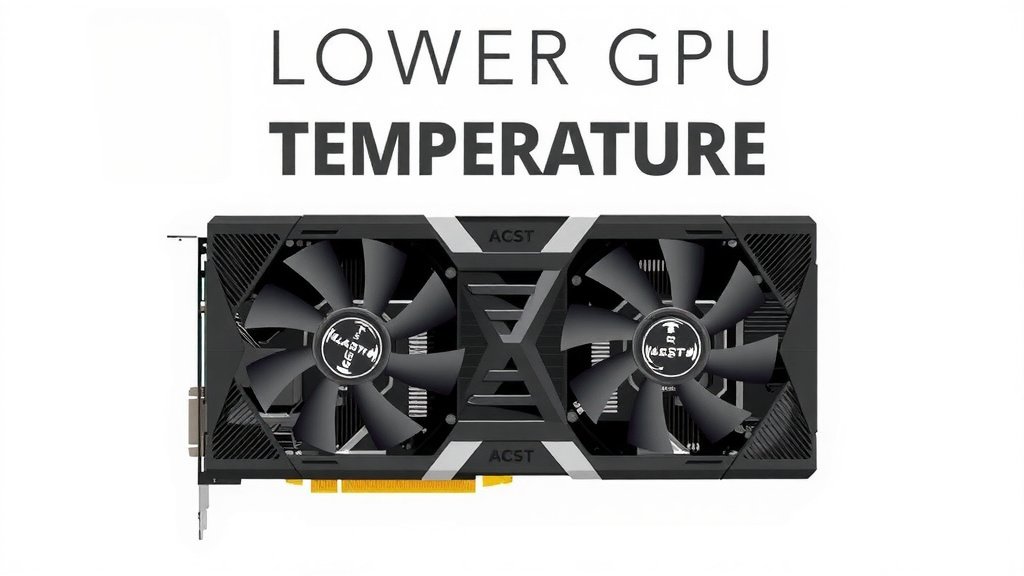
Lower GPU Temperature: Essential Tips and Tricks
Lowering your GPU temperature is key for better performance and longevity. You can often reduce GPU temps by improving airflow, cleaning dust, and adjusting fan speeds. Sometimes, repasting the GPU thermal paste can also make a big difference.
High GPU temperatures can lead to performance throttling, where your graphics card slows itself down to prevent overheating. This means fewer frames per second in games and longer rendering times for creative tasks. Keeping your GPU cool is also essential for its overall lifespan.
- Improve PC case airflow.
- Clean out dust buildup regularly.
- Adjust GPU fan curves.
- Consider reapplying thermal paste.
Ready to get your GPU running cooler? Let’s walk through exactly how you can achieve that.
Keeping Your Graphics Card Cool: Practical Solutions
You’re looking for ways to keep your GPU running cooler. That’s a smart move! Lower temperatures mean better performance and can help your expensive hardware last longer.
Improving Airflow: Giving Your GPU Room to Breathe
Think of your PC case like a tiny house for your components. If it’s packed too tightly with no ventilation, things get stuffy and hot. Good airflow is the foundation of a cool system.
Optimize Your PC Case Fans
Your PC likely has case fans. These are responsible for bringing cool air in and pushing hot air out. You want a good balance.
- Intake fans should pull fresh air from the outside into your case.
- Exhaust fans should push the hot air generated by your components out of the case.
Many people find that having more intake fans than exhaust fans can create a slight positive pressure. This helps reduce dust buildup because air is always being pushed *out* of any tiny cracks, rather than being sucked *in*. We found that a 3-intake, 2-exhaust setup often works well for many common PC builds.
Strategic Fan Placement
Where you put these fans matters. Usually, front-mounted fans are best for intake. Rear and top-mounted fans are great for exhaust. If you have space, side-mounted fans can also help. Consider what’s blocking your fans. Are they choked by cables or other components?
Cable Management is Your Friend
Messy cables can really get in the way of airflow. They create “dead zones” where air can’t circulate freely. Taking some time to neatly tie up and route your cables can make a noticeable difference. You don’t need to be a professional builder, just try to tuck them away behind the motherboard tray or use zip ties to bundle them. It’s like tidying up your room; it just feels better and works better.
Consider Your PC Case Itself
Not all cases are created equal when it comes to airflow. Some are designed for quietness and have solid front panels, which can restrict airflow. Others have mesh fronts and ample fan mounts, designed from the ground up for maximum cooling. If your current case is an older model or one that sacrifices airflow for aesthetics, you might consider an upgrade down the line. We found research pointing to mesh-fronted cases offering superior thermal performance in most scenarios (Gamers Nexus). This isn’t always the cheapest solution, but it’s a long-term fix.
The Power of a Clean System: Dust Be Gone!
Dust is the silent killer of good airflow. It acts like a blanket, insulating your components and trapping heat. Cleaning is one of the easiest and most effective ways to lower GPU temperatures.
Regular Dusting Schedule
How often should you clean? It really depends on your environment. If you have pets or live in a dusty area, you might need to do it monthly. For most people, a good cleaning every 3-6 months is sufficient. You can often see dust buildup on fans and heatsinks, giving you a visual cue.
Tools for the Job
You don’t need a specialized clean room. A can of compressed air is your best friend here. For more stubborn dust, a soft brush (like a paintbrush or makeup brush) can help dislodge it before you blow it away. Make sure your PC is powered off and unplugged before you start. It’s also a good idea to ground yourself to prevent static discharge.
Focus on Key Areas
Pay special attention to your GPU’s fans and heatsink fins. Dust loves to collect here. Also, clean your CPU heatsink, case fans, and power supply. Anywhere air moves is a place dust can settle.
Tuning Your GPU Fans: Getting Them to Work Harder
Your GPU has its own fans designed to cool it directly. These fans are usually controlled by software. You can often adjust their speed and behavior.
Understanding Fan Curves
A “fan curve” is a profile that dictates how fast your GPU fans spin at different temperature levels. By default, they might be set to be very quiet at low temperatures, which is fine for general use. However, for gaming or heavy loads, you might want them to ramp up sooner.
Using GPU Software to Adjust Fan Speeds
Most major GPU manufacturers provide software to control fan speeds. NVIDIA’s is called GeForce Experience, and AMD’s is Adrenalin Software. You can also use third-party tools like MSI Afterburner, which is widely compatible. Within these programs, you can often create custom fan curves. You’ll want to set fans to spin faster at lower temperatures than the default. This means a bit more noise, but a cooler GPU.
Here’s a simple comparison of default vs. custom fan curves:
| Temperature (°C) | Default Fan Speed (%) | Aggressive Custom Fan Speed (%) |
|---|---|---|
| 30 | 0-10 | 20-30 |
| 50 | 20-30 | 40-50 |
| 70 | 50-60 | 70-80 |
| 80+ | 70-80 | 90-100 |
This table shows a hypothetical aggressive custom curve. You’ll need to find what works best for your specific card and noise tolerance. Many experts suggest keeping GPU temperatures below 80°C for optimal longevity (TechPowerUp). Setting your fans to ramp up earlier can help achieve this.
When to Consider Reapplying Thermal Paste
Thermal paste is a material that sits between your GPU’s processor (the chip) and its heatsink. Its job is to fill microscopic gaps, ensuring efficient heat transfer. Over time, this paste can dry out and become less effective.
Signs Your Thermal Paste Might Need Replacing
If you’ve tried all the other steps and your GPU is still running hotter than it should, especially under load, it might be time for new paste. A GPU that’s suddenly running much hotter than it used to, even with good airflow and clean fans, is another clue. We found reports indicating that thermal paste can degrade significantly after 5-7 years of use (Hardware Unboxed). If your GPU is older, this is a strong possibility.
The Reapplication Process
This is a more advanced step. It involves carefully disassembling your GPU cooler, cleaning off the old paste, and applying a fresh, high-quality thermal compound. We recommend watching detailed video guides from reputable tech channels before attempting this. It requires patience and a gentle touch. If you’re not comfortable with hardware disassembly, it might be worth paying a local computer shop to do it for you. A small tube of good thermal paste costs around $10-$20 and can make a huge difference.
Quick Checklist for a Cooler GPU
- Check your case fan setup: Ensure good intake and exhaust.
- Clean out dust: Use compressed air regularly.
- Tidy up cables: Improve internal airflow.
- Adjust GPU fan curve: Let fans spin faster when needed.
- Monitor temperatures: Use software to see the results.
- Consider thermal paste: If temps remain high, it might be time for a refresh.
Conclusion
You’ve got the tools now to keep your GPU running cooler and performing its best. We covered improving your case airflow, giving your rig a good clean from dust, and tweaking your GPU’s own fans. Even more advanced steps like reapplying thermal paste can make a big difference if needed.
Don’t let a hot GPU hold you back. Start with the easiest steps, like cleaning and adjusting fan speeds, and monitor your temperatures. Taking these actions will help your graphics card last longer and perform better.
Frequently Asked Questions
How often should I clean the dust from my GPU?
For most users, cleaning your GPU and PC’s dust buildup every 3 to 6 months is sufficient. If you have pets or live in a dusty environment, you might need to clean it more frequently, perhaps monthly. You can usually see when dust is accumulating on the fans and heatsink.
Can I overclock my GPU if I keep it cool?
Keeping your GPU cool certainly provides more thermal headroom, which can be beneficial if you plan to overclock. Lower temperatures reduce the risk of performance throttling and hardware damage. However, always proceed with caution when overclocking, even with good cooling.
Is a noisy GPU fan bad for my graphics card?
A noisy GPU fan usually means it’s spinning faster to keep temperatures down. While the noise itself isn’t harmful, it indicates your GPU is working hard to cool itself. If your fans are constantly running at high speeds and your GPU is still getting hot, you might need to improve your overall case airflow or consider reapplying thermal paste.
What is a “good” GPU temperature while gaming?
Generally, a good target temperature for your GPU while gaming is below 80°C. Many modern GPUs can safely operate at higher temperatures, but sustained heat above 80°C can potentially shorten the lifespan of your components. Aiming for cooler temperatures means better longevity.
Will changing my case fans help my GPU temperature?
Yes, absolutely! Improving your PC case’s overall airflow is one of the most effective ways to help your GPU run cooler. Ensuring you have a good balance of intake and exhaust fans, and that they are clean and unobstructed, will push cooler air over your GPU’s heatsink.