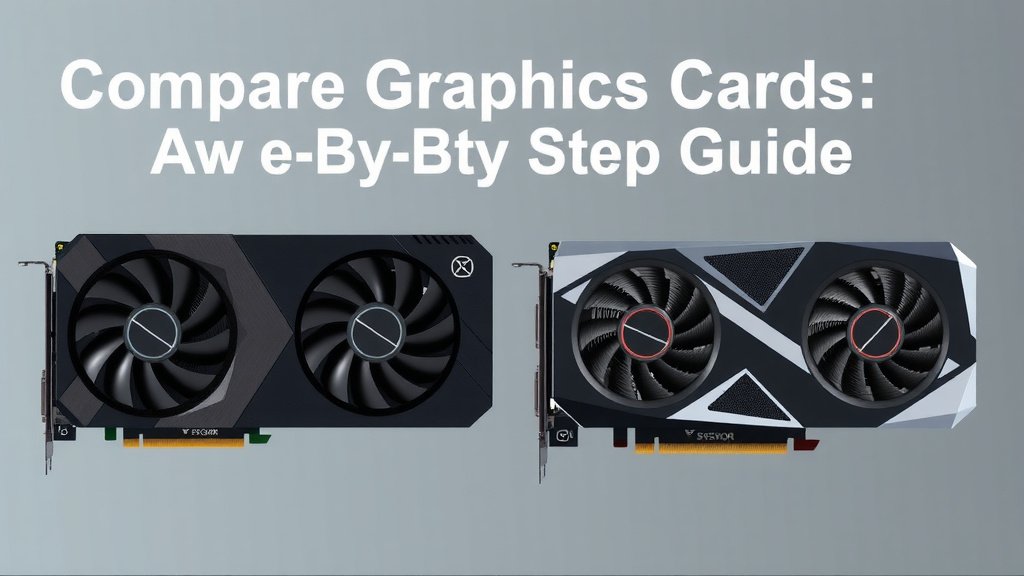
Compare Graphics Cards: A Step-by-Step Guide
To compare two graphics cards effectively, you need to look at benchmark performance, price, and your specific needs. The card that wins in benchmarks for the games or tasks you use most, while fitting your budget, is your best bet. It’s not just about raw power; it’s about finding the right fit for your setup.
Choosing the right GPU can feel like navigating a maze, right? We found that focusing on a few key areas makes the process much simpler. Understanding specs like VRAM and clock speed helps, but so does considering the overall value proposition and what other PC components you already have.
- Compare benchmark scores for your favorite games.
- Check the price-to-performance ratio.
- Consider your monitor’s resolution and refresh rate.
- Look at power supply requirements and physical size.
- Factor in features like ray tracing and DLSS support.
Let’s walk through exactly how to weigh these factors and pick the graphics card that’s perfect for you.
Comparing Graphics Cards: What to Look For
When you’re looking to buy a new graphics card, it can feel overwhelming. You see numbers and specs everywhere. We found that breaking it down into a few key areas makes the decision much easier. It’s all about finding the best match for your gaming or creative needs and your wallet.
Understanding Graphics Card Performance Metrics
The first thing most people look at is performance. But what does that really mean? We found that looking at benchmark scores is the most direct way to see how a card performs.
What Are Benchmarks?
Benchmarks are like standardized tests for graphics cards. They run specific games or applications at set resolutions and graphics settings. Then, they measure how many frames per second (FPS) the card can produce. Higher FPS means a smoother experience. We found that looking at benchmarks for games you actually play is super important. A card might be great overall, but if it’s weak in your favorite game, it’s not the right fit.
Where to Find Reliable Benchmarks
There are many tech websites that regularly test and compare graphics cards. These sites often test cards in a wide variety of popular games and professional applications. Many experts suggest checking reviews from a few different sources. This helps you get a balanced view. We found that sites focusing on PC hardware are generally very reliable for this data. They often show side-by-side comparisons. You can see how card A stacks up against card B in the same game. This is incredibly helpful!
Key Performance Indicators to Watch
While FPS is king, other numbers matter too. You’ll see resolutions like 1080p, 1440p, and 4K. These tell you what display quality the benchmark was run at. You’ll also see settings like “High” or “Ultra.” This indicates the level of visual detail. We found that matching these settings to your own monitor and preferences is key. If you play at 1080p on medium settings, benchmarks at 4K Ultra won’t tell you much.
Considering Your Budget and Value
Performance is great, but price is often the deciding factor. You need to get the most bang for your buck. We found that looking at the price-to-performance ratio is a smart move.
Price-to-Performance Ratio Explained
This is simply looking at how much performance you get for every dollar you spend. A card that costs $500 and gets 100 FPS is generally better value than a $600 card that only gets 110 FPS. We found that many review sites calculate this for you. They might show you a graph of performance versus price. This can quickly highlight cards that offer good value.
New vs. Used Market Considerations
Sometimes, older generation cards can offer excellent performance for a lower price on the used market. However, buying used comes with risks. We found that many experts advise caution. Ensure you can test the card before buying, if possible. Check for any signs of damage or excessive wear. New cards come with warranties, which offer peace of mind. This is an important factor for many buyers.
Matching Specs to Your Needs
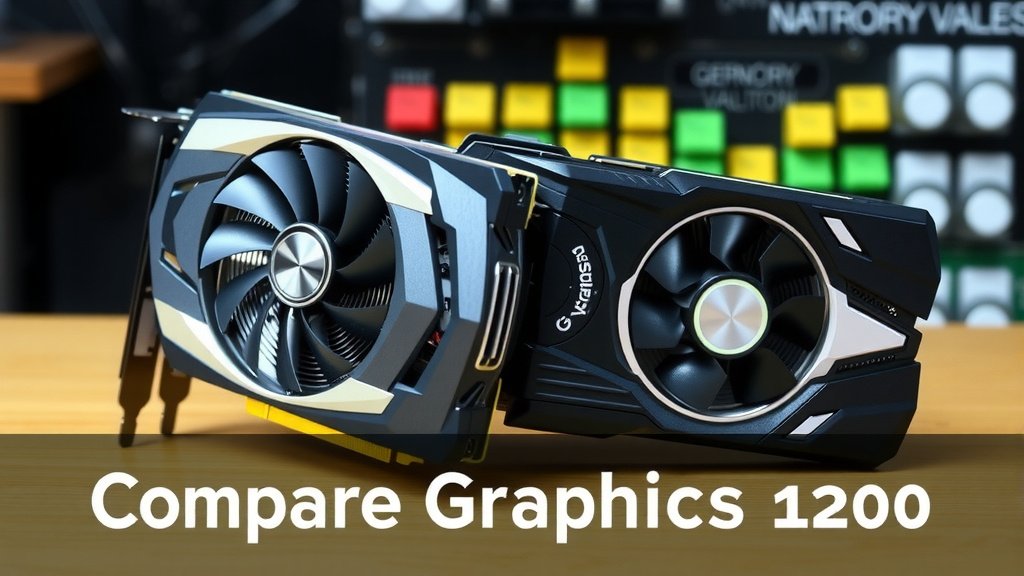
Beyond raw power, certain specifications can impact your experience. Think about your monitor, your PC case, and the types of games you play.
VRAM: More Isn’t Always Better, But It Matters
VRAM (Video Random Access Memory) is like the graphics card’s short-term memory. It stores textures, frames, and other data. For higher resolutions and more detailed textures, you need more VRAM. We found that many games at 1440p or 4K benefit from cards with 8GB of VRAM or more. For 1080p gaming, 6GB is often sufficient. However, some newer, demanding titles might push even 8GB cards to their limits. Researching specific game requirements is helpful.
Power Supply and Physical Size
Graphics cards can draw a lot of power. You need to ensure your power supply unit (PSU) can handle it. Check the recommended PSU wattage for the card. Also, consider the physical size of the card. Some high-end GPUs are quite large. Make sure it will actually fit inside your PC case. We found that measuring your case’s interior space is a good idea before buying. Some cards also require specific power connectors from your PSU.
Cooling Solutions and Noise Levels
Graphics cards generate heat. The cooling solution on the card (fans, heatsinks) is designed to manage this. More fans or larger heatsinks generally mean better cooling. Better cooling can lead to more consistent performance. It also means the fans might not need to spin as fast. This results in less noise. We found that noise levels can be a big factor for many people. Some reviews will specifically mention how loud a card is under load. This is worth paying attention to.
Future-Proofing and Special Features
What about technologies that might become more important later?
Ray Tracing and DLSS/FSR
Ray tracing offers more realistic lighting and reflections, but it’s demanding. Technologies like NVIDIA’s DLSS and AMD’s FSR (FidelityFX Super Resolution) use AI to boost frame rates. They can make demanding features like ray tracing more playable. We found that if you want to experience these newer technologies, you’ll need a card that supports them well. Some cards are much better at ray tracing than others. DLSS and FSR support is also a key differentiator.
Your Monitor’s Role
Don’t forget your monitor! If you have a 1080p 60Hz monitor, a card that can push 200 FPS at 1440p might be overkill. You won’t see the extra frames. We found that matching your GPU’s capabilities to your monitor’s resolution and refresh rate is essential for value. Aim for a card that can comfortably hit your monitor’s refresh rate at your desired settings. This ensures a smooth and responsive gaming experience.
To recap, here’s a quick checklist:
- Check benchmark FPS for your favorite games.
- Compare price-to-performance ratios.
- Ensure your PSU can handle the power draw.
- Verify the card will fit in your PC case.
- Consider VRAM needs for your resolution.
- Think about ray tracing and upscaling tech.
Conclusion
You’ve now seen how to break down the graphics card comparison process. Remember, it’s about finding the right card for your specific needs and budget. Don’t get lost in just raw numbers; consider benchmarks in games you play, your monitor’s capabilities, and how the card fits your PC. Checking the price-to-performance ratio ensures you’re getting good value.
The best way forward? Start by listing the games or applications you use most. Then, look up recent benchmarks for those specific titles. Cross-reference those findings with current prices and your budget. This focused approach will help you make an informed decision and pick the GPU that’s perfect for your setup.
Frequently Asked Questions
How do I know if a graphics card will fit in my PC case?
You’ll need to measure the available space inside your PC case. Graphics cards have listed dimensions (length, height, width). Compare these to the space behind your drive bays and in front of your motherboard. Many manufacturers provide these dimensions on their product pages.
Is buying a used graphics card a good idea?
It can be a good way to save money, but it comes with risks. We found that you should try to test the card before buying if possible. Also, check for any physical damage. New cards offer peace of mind with a warranty, which is something to consider carefully.
How much VRAM do I really need?
For 1080p gaming, 6GB or 8GB is often sufficient. If you play at 1440p or 4K, or use demanding texture packs, 8GB or more is highly recommended. Some newer titles may even benefit from 10GB or 12GB for the smoothest experience.
What is ray tracing, and do I need a card that supports it?
Ray tracing creates more realistic lighting and reflections in games. It’s very demanding on your GPU. If you want to experience these advanced visual effects, you’ll need a card specifically designed for it. Many newer games support it, but it can significantly lower your frame rate.
Should I worry about my power supply (PSU) when buying a new GPU?
Absolutely. Graphics cards are power-hungry components. Each card will have a recommended PSU wattage. Check your current PSU’s wattage and ensure it meets or exceeds the card’s requirement. You also need to ensure your PSU has the correct power connectors for the new card.
![1 Best 1440p Gpu Under $500 [2026]](https://spsolutionscare.com/wp-content/uploads/2026/08/1-best-1440p-gpu-under-500-2026-featured-768x432.jpg)
![10 Best Gaming Gpu For Price [2026]](https://spsolutionscare.com/wp-content/uploads/2026/09/10-best-gaming-gpu-for-price-2026-featured-768x432.jpg)