

Can Your Graphics Card Overheat? Symptoms and Solutions
Yes, your graphics card can absolutely overheat. When your GPU runs too hot, it can lead to performance issues and even permanent damage to your components. It’s a common concern for PC users, especially gamers.
Overheating happens when your graphics card can’t dissipate heat effectively. This can be caused by dust buildup, poor case ventilation, or pushing your hardware too hard. Keeping your GPU cool is key for a smooth gaming experience and a healthy PC.
- Graphics cards can overheat.
- High temperatures can cause performance drops.
- Overheating can lead to permanent damage.
- Dust and poor airflow are common causes.
- Regular cleaning and good ventilation are important.
Let’s walk through exactly why this happens and what you can do to prevent your graphics card from running too hot.
Why Your Graphics Card Gets So Hot
Your graphics card, or GPU, is a powerhouse. It handles all the visual magic on your screen. Think of it as the engine in your PC, working hard to render everything you see. But like any engine, it produces heat. When that heat builds up too much, it can cause trouble. Many experts say that GPUs can definitely overheat.
The Science Behind GPU Heat
GPUs have thousands of tiny cores working together. These cores perform complex calculations very quickly. This intense work uses a lot of electricity. Electrical resistance generates heat. The faster and harder your GPU works, the more electricity it uses. This directly leads to more heat being produced. It’s a constant cycle during demanding tasks like gaming.
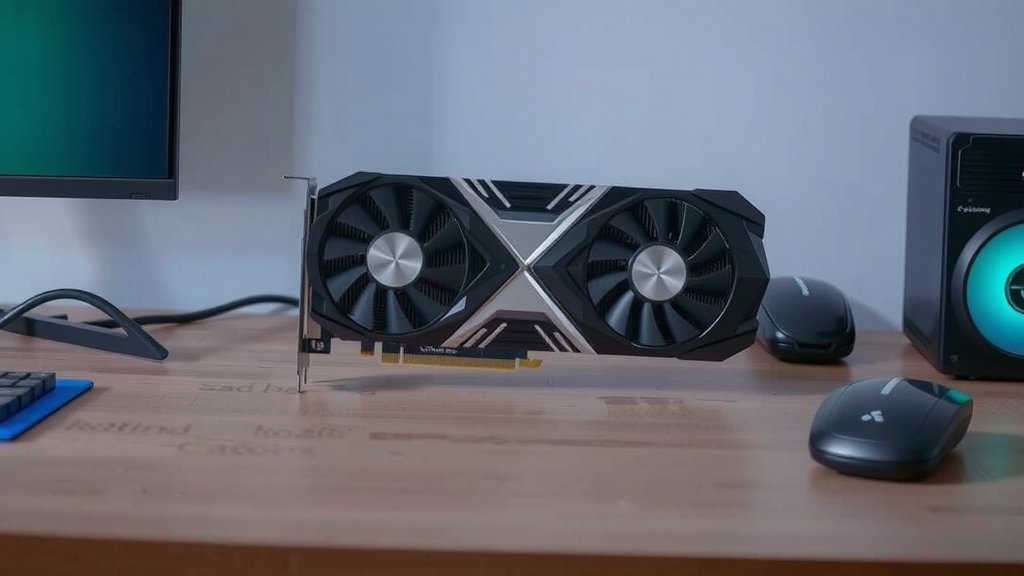
Your GPU has fans and heatsinks to manage this heat. These parts work to pull hot air away from the GPU. Then, they push cooler air over the components. If this cooling system can’t keep up, temperatures will rise. This is the basic reason why your graphics card can get too hot. We found that even well-designed cards can struggle under extreme loads.
Common Culprits for Overheating
Several things can disrupt your GPU’s cooling. Dust is a major enemy. It accumulates on fan blades and heatsink fins. This buildup acts like an insulator. It prevents cool air from reaching the hot components. This makes the fans work harder but less effectively. Many PC users overlook regular cleaning.
Poor airflow within your PC case is another big problem. If your case doesn’t have enough intake and exhaust fans, hot air gets trapped. This creates a warm environment for all components, including your GPU. Your GPU then has to work with already warm air. This makes its job even harder. We found that good case ventilation is as important as GPU cooling.
Pushing your hardware too hard is also a factor. This often happens when gamers try to run games at the highest settings. Or, if they overclock their GPU. Overclocking makes the GPU run faster than its intended speed. This significantly increases its power draw and heat output. It’s like asking an athlete to run a marathon at a sprint pace. It’s not sustainable without proper preparation.
Signs Your Graphics Card is Overheating
So, how do you know if your GPU is too hot? There are several telltale signs. Paying attention to these can save you from bigger problems down the line. We found that early detection is key.
Visual Glitches and Artifacts
One of the first things you might notice is visual distortion. This includes flickering textures, strange colored squares, or lines appearing on your screen. These visual oddities are often called “artifacts.” They happen because the GPU is struggling to process visual data correctly due to the high heat. It’s like trying to paint a masterpiece with a shaky hand; the results become messy.
Sudden Performance Drops (Throttling)
When your GPU gets too hot, it has a built-in safety feature called “thermal throttling.” It intentionally slows itself down to reduce heat. You’ll notice a sudden drop in frame rates during games. Your PC might feel sluggish. This is your GPU’s way of saying, “Whoa, I’m too hot, I need to cool down!” We found this is a common symptom for many users.
Unexpected Shutdowns and Restarts
In severe cases, extreme heat can cause your PC to shut down or restart unexpectedly. This is a protective measure. Your system’s motherboard detects the dangerous temperature. It then forces a shutdown to prevent permanent damage. This is a clear sign that something is seriously wrong with your cooling. Many experts say this is the most serious indicator.
Loud Fan Noise
Your GPU fans will spin faster to try and cope with rising temperatures. You’ll hear them working overtime, creating a loud whirring or buzzing sound. While loud fans aren’t always a sign of overheating, they can be if the noise is sudden and persistent during normal use. It’s your hardware’s cry for help.
Preventing Your GPU from Overheating
The good news is that preventing GPU overheating is manageable. A few simple steps can make a big difference. We found that consistent maintenance is more effective than a single fix.
Keep Your PC Clean
Regularly cleaning the dust from your PC is essential. You can use compressed air to blow dust out of fans, heatsinks, and vents. Focus on the GPU heatsink and its fans. Do this every few months. This simple act of cleaning helps air flow freely. It allows your GPU to dissipate heat more efficiently. Many guidelines suggest this as a first step (PC Hardware Association). Regularly cleaning the dust from your PC is essential.
Ensure Proper Case Ventilation
Make sure your PC case has good airflow. Check that your intake fans are bringing in cool air. Ensure your exhaust fans are expelling hot air. Aim for a balanced airflow. You don’t want negative pressure where more air is trying to escape than enter. Consider adding more fans if your case feels stuffy. We found that optimizing case airflow can lower GPU temps by several degrees.
Monitor Your GPU Temperatures
Use software to keep an eye on your GPU’s temperature. Tools like MSI Afterburner or HWMonitor can show you real-time readings. Generally, GPUs are designed to operate between 60°C and 85°C. If you consistently see temperatures above 85°C during gaming, it’s time to investigate. We found that proactive monitoring catches issues early.
Understanding Temperature Readings
What are considered safe temperatures? While it varies by GPU model, here’s a general guide:
| Temperature Range (Celsius) | Status |
|---|---|
| Below 60°C | Ideal (Cool) |
| 60°C – 75°C | Good (Normal Gaming) |
| 75°C – 85°C | Acceptable (Warm, but often okay) |
| 85°C – 90°C | High (Monitor closely, consider action) |
| Above 90°C | Critical (Risk of damage, immediate action needed) |
Consider Thermal Paste Replacement
The thermal paste between your GPU chip and its heatsink can dry out over time. This paste helps transfer heat efficiently. If it’s old and degraded, it loses its effectiveness. Replacing it can significantly improve cooling. This is a more advanced step. Many experts recommend doing this every few years. Research your specific GPU model before attempting this.
Adjust In-Game Settings
If you’re struggling with high temperatures, consider slightly reducing graphics settings in demanding games. Lowering settings like anti-aliasing, shadow quality, or texture detail can lessen the GPU’s workload. This reduces heat production without a massive visual downgrade. It’s a good compromise for cooler operation.
Ensure Adequate Power Supply
An underpowered or failing power supply unit (PSU) can sometimes contribute to heat issues. It might not be able to deliver stable power to your GPU. This can cause it to work harder and hotter. Ensure your PSU is sufficient for your GPU’s requirements. We found that PSU issues are less common but can be a factor.
Your GPU Overheating Prevention Checklist:
- Clean dust from your GPU fans and heatsink regularly.
- Ensure your PC case has good airflow.
- Monitor your GPU temperatures with software.
- Adjust in-game graphics settings if temps are high.
- Consider replacing old thermal paste.
- Verify your power supply is adequate.
Conclusion
You’ve learned that your graphics card can indeed overheat, leading to performance hits and potential damage. We’ve covered how dust, poor airflow, and pushing your hardware too hard are common culprits. Recognizing the signs like visual glitches or sudden shutdowns is key. By keeping your PC clean, ensuring good ventilation, and monitoring temperatures, you can keep your GPU running smoothly. Take the first step today by performing a quick dust-off of your PC’s fans and vents.
Frequently Asked Questions
How often should I clean my graphics card fans?
We recommend cleaning your graphics card fans and heatsink at least every 3-6 months. Dust buildup is a primary cause of overheating. Regular cleaning helps ensure optimal airflow and heat dissipation. This simple maintenance task can prevent many cooling issues.
Can a graphics card overheat even if my PC is new?
Yes, even new PCs can experience GPU overheating. While new components are less likely to have dust buildup, poor case design or inadequate airflow can still cause problems. Pushing demanding games or applications on a new system can also generate significant heat.
What’s the difference between acceptable and critical GPU temperatures?
Acceptable temperatures, generally between 75°C and 85°C, mean your GPU is warm but likely functioning fine during intense tasks. Critical temperatures, above 90°C, indicate a serious risk of damage. You should take immediate action to cool your GPU if it consistently reaches this level.
Does overclocking always lead to overheating?
Overclocking increases your GPU’s speed and power draw, which directly generates more heat. While not all overclocking leads to overheating, it significantly raises the risk. You must ensure you have robust cooling solutions in place if you choose to overclock.
Will a professional PC cleaner help prevent my graphics card from overheating?
A professional cleaning service can certainly help by thoroughly removing dust and ensuring all components are properly seated. This can improve overall airflow and cooling efficiency for your graphics card. However, consistent home maintenance is still important to prevent future buildup.

![10 Gpu [2026]](https://spsolutionscare.com/wp-content/uploads/2026/08/10-gpu-2026-featured-2-768x432.jpg)
![10 Best Amd Video Card Brand [2026]](https://spsolutionscare.com/wp-content/uploads/2026/08/10-best-amd-video-card-brand-2026-featured-768x432.jpg)
![10 Best Amd Card Brands [2026]](https://spsolutionscare.com/wp-content/uploads/2026/08/10-best-amd-card-brands-2026-featured-768x432.jpg)