

Do Graphics Cards Need Drivers? A Simple Explanation
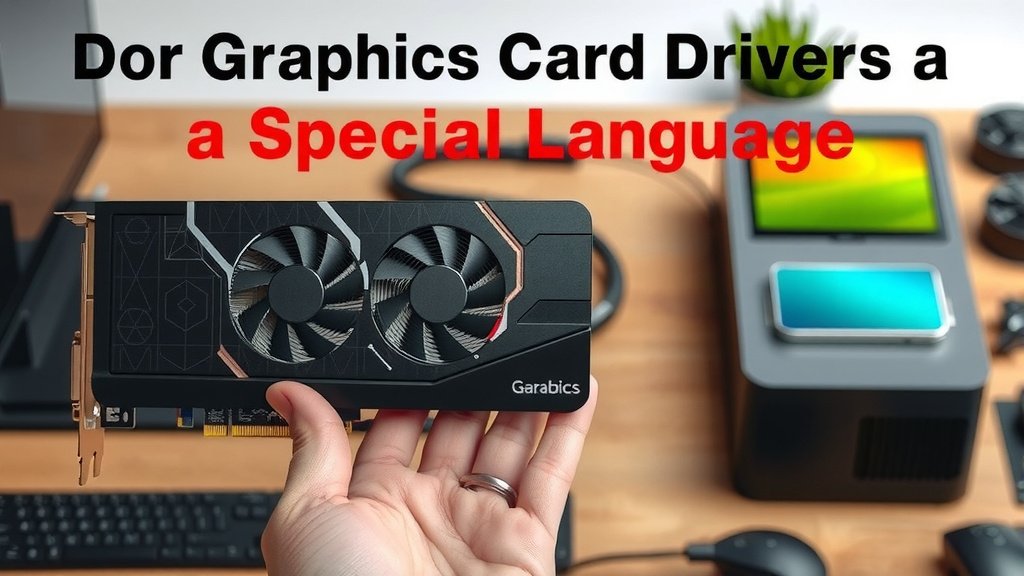
Yes, your graphics card absolutely needs drivers to work correctly. Without the right drivers, your graphics card can’t communicate with your computer’s operating system. This means you might see poor performance or even a blank screen. It’s like giving your graphics card a special language translator so it can understand your PC.
Think of drivers as tiny instruction manuals. They tell your graphics card exactly how to display images, videos, and games. Different graphics cards need different drivers. Keeping them updated is key to smooth operation and getting the best possible performance from your hardware. Without them, things can get pretty choppy.
- Yes, graphics cards need drivers.
- Drivers let your graphics card talk to your computer.
- They help your PC display images and run games.
- Keeping drivers updated is important.
- Outdated drivers cause performance issues.
We found that understanding this is the first step to ensuring your gaming and visual experiences are as good as they can be. Let’s walk through exactly why this is the case and what you can do about it.
Why Your Graphics Card Needs a Special Language
So, do graphics cards need drivers? The short answer is a resounding yes. Think of your graphics card, often called a GPU (Graphics Processing Unit), as a brilliant artist. This artist can create amazing visuals. But, to do that, it needs instructions from your computer. Without drivers, your computer’s operating system (like Windows or macOS) and the graphics card are basically speaking different languages. It’s like trying to have a conversation when one person only speaks French and the other only speaks Japanese.
Drivers act as the universal translator. They take the general commands from your operating system and turn them into specific instructions that your particular graphics card can understand and execute. We found that without this translation layer, your computer wouldn’t know how to ask the graphics card to draw a window, play a video, or render a complex 3D scene in a game. It’s a fundamental piece of software that bridges the gap.
The Driver-Hardware Connection Explained
Your graphics card is a sophisticated piece of hardware. It has its own processor, memory, and specialized circuits. These components are designed to handle the heavy lifting of image creation. However, the operating system doesn’t have built-in knowledge of every single graphics card model ever made by companies like NVIDIA, AMD, or Intel. That would be an impossible task!
How Drivers Enable Communication
Instead, when you install a driver, you’re essentially installing a custom-made instruction manual for your specific graphics card. This manual tells the operating system: “Here’s how you talk to *this* card. Here are the commands it understands, and here’s what each command will make it do.” This allows your computer to send tasks like “render this pixel with this color” or “display this 3D model” directly to the GPU.
We found that this communication is vital for everything you see on your screen. From the simple icons on your desktop to the most demanding video games, the driver is the unsung hero making it all happen. It ensures that the graphics card performs its intended functions efficiently and accurately.
What Happens Without Drivers?
If your graphics card doesn’t have the correct drivers installed, your computer will usually try to use a generic, basic display driver. This is like giving that brilliant artist a crayon and a napkin instead of their full palette and canvas. What can you expect?
- Poor Resolution: Your screen might only support very low resolutions. It will look blurry or blocky.
- Limited Colors: You might be stuck with a limited color palette, making images look dull.
- No 3D Acceleration: Forget about smooth video playback or gaming. 3D graphics won’t work correctly.
- Performance Issues: Even basic tasks might feel sluggish and slow.
- Potential for No Display: In some cases, especially with newer hardware, the computer might not display anything at all, showing a blank screen.
We found that running without proper drivers is not a sustainable way to use your computer. It severely limits what your hardware can do and leads to a frustrating user experience.
The Role of Drivers in Performance and Features
Drivers aren’t just about making things appear on your screen. They are also critical for unlocking the full potential of your graphics card. Companies like NVIDIA and AMD are constantly working to improve their hardware’s performance and add new features.
Optimizing for Games and Applications
Game developers and software creators often work closely with hardware manufacturers. They figure out the most efficient ways to use the graphics card’s capabilities. These optimizations are then incorporated into the graphics drivers. When a new game comes out, a driver update often follows. This update is specifically tuned to make that game run better on your hardware. We found that this is why keeping drivers updated is often recommended by gamers and professionals alike.
Performance Boosts
New driver releases can sometimes provide a noticeable performance boost in popular games or applications. This can mean higher frame rates (FPS), smoother gameplay, and reduced stuttering. It’s like fine-tuning a race car engine for a specific track.
New Features and Fixes
Drivers also introduce new features. These could be new graphical settings, support for new technologies like ray tracing, or improved power management. Furthermore, drivers are software, and software can have bugs. Driver updates frequently include bug fixes These bug fixes are crucial for resolving glitches and ensuring your graphics card operates without issues. for issues that users have reported. These fixes can resolve glitches, crashes, or graphical anomalies you might have encountered.
Compatibility and Stability
Drivers also ensure that your graphics card works correctly with your operating system and other hardware components. An outdated driver might cause conflicts, leading to system instability or crashes. We found that ensuring driver compatibility is a key part of maintaining a stable computing environment.
Types of Graphics Card Drivers
When we talk about graphics card drivers, it’s important to know that there are generally two main types provided by the manufacturers:
- Game Ready Drivers: These are drivers optimized and tested for the latest games. They often release right around major game launches to ensure the best possible experience.
- Studio Drivers: These are optimized for stability and performance in creative applications like video editing software, 3D rendering programs, and graphic design tools.
We found that choosing the right type of driver depends on your primary use. Most users, especially gamers, will benefit most from the Game Ready drivers. If you do a lot of creative work, the Studio drivers might offer better stability.
The Importance of Keeping Drivers Updated
We’ve touched on this, but it’s worth repeating: keeping your graphics card drivers up-to-date is crucial. It’s not just about getting the latest performance enhancements; it’s about ensuring your hardware works as intended.
Think of it like maintaining your car. You wouldn’t skip oil changes and expect it to run perfectly forever. Drivers need regular attention. Manufacturers release updates frequently, sometimes weekly, to address new issues and optimize for new software. Many experts say that checking for driver updates monthly is a good habit.
How to Check for Updates
Fortunately, updating your drivers is usually quite straightforward. Most manufacturers provide user-friendly software that makes the process simple:
- NVIDIA: Use the NVIDIA GeForce Experience application.
- AMD: Use the AMD Software: Adrenalin Edition.
- Intel: Use the Intel Driver & Support Assistant.
These applications will scan your system, detect your graphics card, and inform you if new drivers are available. You can typically download and install them with just a few clicks. We found that this ease of use removes a major barrier to keeping your system running smoothly.
Your Graphics Card Driver Checklist
To wrap up, let’s make sure you’re on the right track. Here’s a quick rundown of what you should remember:
- Confirm you have the right drivers installed for your specific graphics card model.
- Know which manufacturer your card is from (NVIDIA, AMD, or Intel).
- Download the official software from that manufacturer’s website.
- Check for updates regularly, especially before playing new games.
- Install updates through the manufacturer’s software for best results.
- Don’t ignore driver warnings or update notifications.
We found that a little attention to your graphics drivers can go a long way in ensuring your computer performs its best for all your visual needs.
Conclusion
You’ve learned that your graphics card absolutely needs drivers to function. Drivers act as the essential translator between your operating system and your GPU. Without them, you’d face serious performance issues and limited visual capabilities. We found that keeping these drivers updated is the best way to ensure smooth gameplay, vibrant visuals, and access to the latest features. It’s a simple step that makes a huge difference in your computer’s performance. Don’t forget to check for updates through your manufacturer’s official software regularly!
Frequently Asked Questions
How do I know if my graphics card drivers are outdated?
You’ll often notice performance drops, visual glitches, or games/applications not running as expected. Your manufacturer’s driver software, like NVIDIA GeForce Experience or AMD Software Adrenalin Edition, will also notify you when new drivers are available.
Can I use a generic driver if I don’t install specific ones?
Yes, your operating system will likely install a basic, generic driver. We found this allows for minimal display functionality, but it severely limits your graphics card’s potential, leading to poor resolution and no 3D acceleration.
Do I need to uninstall old drivers before installing new ones?
Generally, the manufacturer’s driver installer will handle this for you. However, for troubleshooting or to ensure a clean install, you can use a utility like Display Driver Uninstaller (DDU) to remove old drivers completely before installing new ones.
Will updating my drivers improve my game performance?
Often, yes! Game Ready drivers are specifically tuned for the latest game releases. We found that updates can provide performance boosts, fix bugs, and add support for new in-game features, leading to smoother and faster gameplay.
What’s the difference between Game Ready and Studio Drivers?
Game Ready drivers are optimized for the latest games and often released with major game launches. Studio drivers, on the other hand, are optimized for stability and performance in creative applications like video editing and 3D rendering software.

![10 Best 8gb Graphics Card [2026]](https://spsolutionscare.com/wp-content/uploads/2026/08/10-best-8gb-graphics-card-2026-featured-768x432.jpg)