
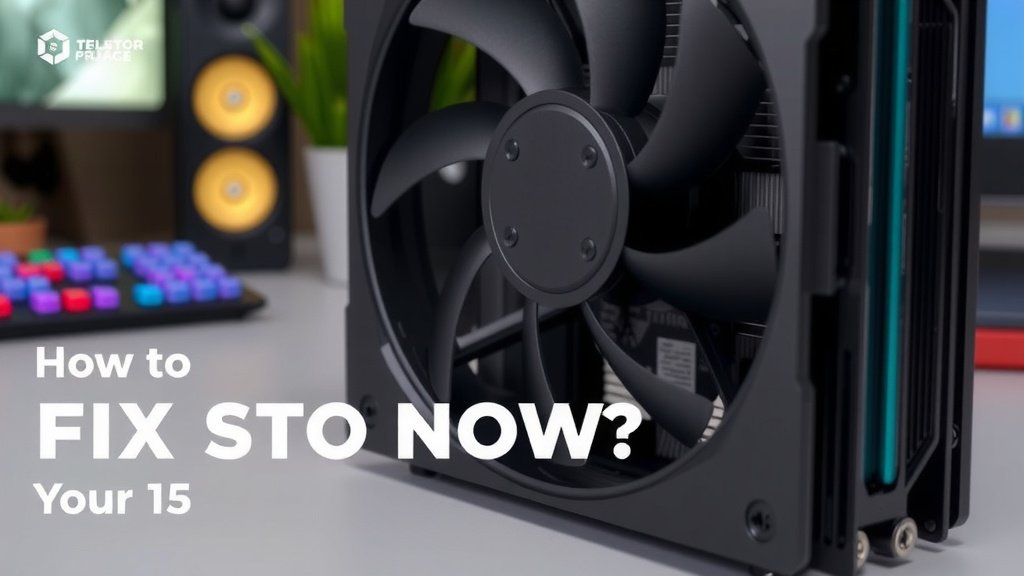
GPU Fan Not Spinning? Fix It Now
If your GPU fan isn’t spinning, don’t panic! You can often fix this with a few simple troubleshooting steps. The most common culprit is a dust buildup or a loose fan cable. Sometimes, it’s just a temporary software glitch.
A spinning GPU fan is essential for keeping your graphics card cool. When it stops, your GPU can quickly overheat. This can lead to poor performance and even permanent damage. We found that checking the connection and cleaning are usually the first things to try.
- Check fan cable connections to the motherboard and GPU.
- Clean dust from the fan blades and heatsink.
- Restart your computer to clear temporary glitches.
- Update your GPU drivers.
- Test fan speed with monitoring software.
Let’s walk through how to get that GPU fan spinning again. We’ll cover the easiest fixes first.
Troubleshooting Your GPU Fan Not Spinning
So, your GPU fan has decided to take a break. That’s never good news. A non-spinning GPU fan means your graphics card could overheat, leading to slowdowns or even damage. But don’t worry, many times this is a fixable problem. We’ll start with the simplest checks you can do yourself.
Checking the Simple Stuff First
A Quick Physical Inspection
Before we dive into anything technical, let’s just take a good, honest look. Sometimes the simplest explanation is the right one. You might see a stray cable or some dust bunnies acting as tiny roadblocks.
Is the GPU Fan Blocked?
Carefully look at the fan blades. Are they obstructed by anything? A stray wire from your case, a zip tie, or even a bit of packaging material could be wedged in there. If something is physically blocking it, gently remove the obstruction. Make sure your computer is completely powered off and unplugged before you do this. Safety first, always!
Listen for Any Sounds
When you first boot up your PC, do you hear any whirring or grinding noises from the GPU area? Sometimes a fan is trying to spin but can’t. This could point to a bearing issue or something more serious. If you hear unusual noises, it might be time to consider replacing the fan or the entire GPU. Many experts suggest that unusual sounds are a strong indicator of a failing part (TechRadar).
Ensuring Proper Connections
A loose connection is a surprisingly common reason for a GPU fan to stop working. Think of it like a loose plug on your phone charger – no power, no function. We need to make sure everything is snug and secure.
The GPU Fan Cable
Most GPU fans connect directly to the GPU board itself. Sometimes, this small connector can become dislodged, especially if the card has been moved or handled recently. You’ll need to open your computer case to check this. Locate the GPU fan cable and gently press it back into its socket on the GPU. It should click or feel firmly seated. If you’re unsure where it is, consult your GPU’s manual.
Motherboard Fan Headers (Less Common for GPU Fans)
While most GPU fans are self-contained, some older or specialized cards might have a fan header that plugs into the motherboard. It’s less likely, but worth a quick glance if the direct GPU connection seems fine. Ensure any such cable is plugged into the correct motherboard header. Again, check your motherboard and GPU manuals if you’re not sure.
Cleaning for Optimal Performance
Dust is the silent killer of computer components. It acts like a blanket, trapping heat and making everything work harder. A dusty fan isn’t just unsightly; it can also impede the fan’s ability to spin freely.
Dust Buildup on Fan Blades and Heatsink
Dust can accumulate on the fan blades, making them heavier and potentially unbalanced. It can also clog the heatsink fins, which is the metal part behind the fan designed to dissipate heat. If airflow is blocked, the GPU will get hot, and the fan might eventually stop trying altogether.
How to Safely Clean Your GPU Fan
First, power down your PC completely and unplug it from the wall. Ground yourself by touching a metal part of the case before touching any components to discharge static electricity. Use a can of compressed air to blow the dust away. Hold the can upright and spray in short bursts. You might need to hold the fan blades gently with your finger to prevent them from spinning too fast from the air, which can damage the bearings. If the dust is stubborn, a soft brush or an anti-static cleaning cloth can help. Many PC building guides recommend this gentle approach (PCGamer).
Software Solutions to Get Things Spinning
Sometimes, the issue isn’t hardware at all. A simple software glitch or an outdated driver can cause your GPU fan to behave strangely.
Restart Your Computer
It sounds almost too simple, but a quick reboot can resolve many temporary software hiccups. Your computer’s operating system manages fan speeds, and sometimes it just needs a refresh. If your fan was spinning before and suddenly stopped, a restart is often the first software step you should take.
Update Your Graphics Drivers
Outdated or corrupt graphics drivers are a frequent cause of hardware acting up. Drivers are the software that allows your operating system to communicate with your GPU. Keeping them updated is vital.
- Visit the website of your GPU manufacturer (NVIDIA, AMD, or Intel).
- Navigate to their support or downloads section.
- Download the latest drivers specifically for your graphics card model and operating system.
- Run the installer and follow the on-screen prompts. A clean installation is often recommended.
We found that updating drivers often resolves unexpected fan behavior (Tom’s Hardware). This process ensures your GPU is receiving the correct commands for fan operation.
Checking Fan Speed with Software
You can use monitoring software to check if your GPU fan is actually running, even if you can’t see it clearly, and to see its reported speed. Programs like MSI Afterburner, HWMonitor, or the software provided by your GPU manufacturer can display fan RPM (revolutions per minute).
What to Look For
If the software shows a speed of 0 RPM, it confirms the fan isn’t spinning. If it shows a speed, but you still can’t hear or see it, the fan itself might have failed physically. If the software shows an RPM, but the fan isn’t spinning, it could be a connection issue or a dead fan motor. If the fan speed is unusually low, it might struggle to cool the GPU effectively, leading to performance issues.
Here’s a quick checklist to get you back on track:
- Power off and unplug your PC.
- Visually inspect for any physical obstructions.
- Gently clean dust from fan blades and heatsink.
- Check fan cable connection to the GPU board.
- Restart your computer to clear software glitches.
- Update GPU drivers from the manufacturer’s website.
Conclusion
You’ve now explored the common reasons why your GPU fan might not be spinning and learned practical steps to fix it. We started with simple physical checks like ensuring no obstructions and checking connections. Then, we moved to cleaning out dust, a frequent performance killer. Don’t forget the power of software, from simple restarts to updating your drivers, which can often resolve fan behavior issues. If these steps don’t solve the problem, it’s a good sign you might need to consider replacing the fan or the GPU itself.
Your next step is to systematically work through the troubleshooting list we covered. If you’re comfortable, power off your PC, double-check those connections, and give the fan a good clean. See if that gets things spinning again!
Frequently Asked Questions
Will a GPU fan that isn’t spinning damage my computer?
Yes, a GPU fan that doesn’t spin can lead to overheating. This can cause performance issues like stuttering or crashes. Prolonged overheating can potentially cause permanent damage to your graphics card over time.
How often should I clean my GPU fan?
You should aim to clean your GPU fan at least every six months, or more frequently if you live in a dusty environment or have pets. Regular cleaning prevents dust buildup, which is a major cause of fan issues and overheating.
Can I manually force my GPU fan to spin?
Generally, no. You shouldn’t try to force a GPU fan to spin manually. If it’s not spinning on its own, there’s likely an underlying issue, such as a connection problem, dust obstruction, or a faulty motor that needs to be addressed.
Is it normal for my GPU fan to not spin sometimes?
Yes, many modern GPUs have a “zero RPM” mode. This means the fan won’t spin at all during low-demand tasks like browsing or watching videos to save power and reduce noise. The fan should automatically spin up when the GPU temperature increases under load.
What if cleaning and checking connections don’t fix the GPU fan?
If you’ve performed physical checks, cleaning, and software updates without success, the fan motor itself might have failed. In this case, you might need to replace the entire GPU fan assembly or consider replacing the graphics card if it’s no longer under warranty.
![10 Gpu [2026]](https://spsolutionscare.com/wp-content/uploads/2026/08/10-gpu-2026-featured-3-768x432.jpg)
![10 Best Amd Card For The Money [2026]](https://spsolutionscare.com/wp-content/uploads/2026/08/10-best-amd-card-for-the-money-2026-featured-768x432.jpg)
![10 Variant [2026]](https://spsolutionscare.com/wp-content/uploads/2026/08/10-variant-2026-featured-1-768x432.jpg)