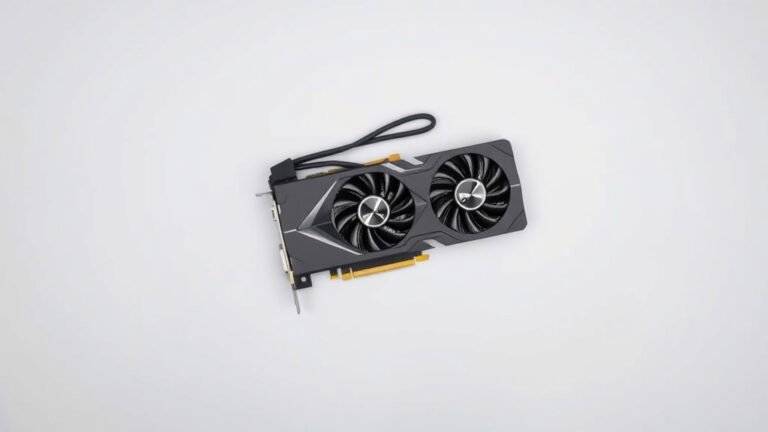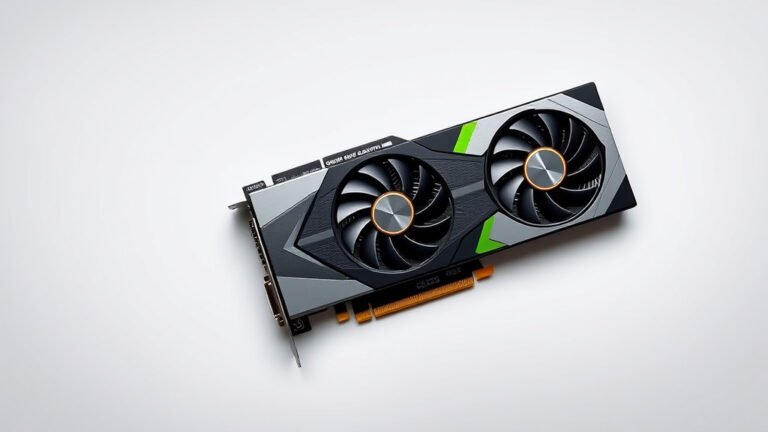
Why Does My GPU Have High Idle Power Draw? Causes and Fixes
Your GPU draws high idle power mainly because of high refresh rate monitors, multi-monitor setups, and factory settings that keep memory clocks boosted. Modern graphics cards also skip aggressive power saving when they detect a display running above 60Hz. The good news? You can often fix this in minutes without opening your PC.
We researched this topic and found that most idle power waste comes from settings, not broken hardware. Things like multimonitor configurations, RGB software running in the background, and outdated drivers all play a role. Some cards, like certain high-end models, are just designed to sip more power at idle than you’d expect.
- High refresh rate monitors are the number one cause of high idle power draw.
- Multi-monitor setups force your GPU to keep memory clocks high.
- Outdated drivers and background apps can quietly add extra watts.
- Simple settings tweaks can cut idle draw by half or more.
- Some GPUs naturally idle higher than others, and that’s normal.
Below, we break down every common cause and show you how to fix each one, step by step. Let’s get your power bill and your GPU back under control.
What Causes Your Graphics Card to Waste Power at Idle
Your GPU wastes power at idle when something keeps its memory and core clocks from dropping to low-power states. Think of it like a car that never shifts out of third gear. The engine works fine, but you’re burning fuel for no reason.
We found that most idle power problems trace back to a handful of culprits. Once you know what to look for, the fixes are usually quick and free.
How GPU Power States Work
Graphics cards have power states called P0 through P8. P0 is full throttle for gaming. Lower states are for light tasks like browsing. When everything works right, your card slips into a low state within seconds of you closing a game.
Many users never see this happen because something keeps waking the GPU up. The card never gets a chance to relax.
Memory Clocks That Refuse to Slow Down
Here’s the sneaky part. Your GPU might drop its core clock just fine, but keep memory clocks maxed out. Some cards bump memory speed to maximum when a display connects, and they stay there. This is a known quirk on several GPU families, and driver updates have improved it over the years.
Ask yourself: have you ever checked GPU clocks while just browsing the web? Most people haven’t, and that’s where the watts hide.
High Refresh Rate Monitors and Idle Power Draw
High refresh rate monitors are the biggest cause we found. When your display runs at 120Hz, 144Hz, or higher, many GPUs refuse to enter their lowest power state. The card assumes you might start gaming any second, so it stays半 awake.
One reader described it perfectly: “My PC idles like it’s about to run a marathon.” If that sounds familiar, your monitor’s refresh rate is likely the reason.
Why 144Hz Changes GPU Behavior
At 60Hz, most cards idle around 20 to 40 watts. Push that same card to a 144Hz or 240Hz display, and idle draw can jump much higher. The GPU keeps memory clocks boosted to feed the display pipeline.
Quick Fix: Drop to 60Hz When You Don’t Need It
You can test this in under a minute. Open your display settings, set the refresh rate to 60Hz, and watch idle power fall. If you mostly browse or work, this costs you nothing. Flip back to 144Hz for gaming sessions.
Multi-Monitor Setups That Keep Your GPU Busy
Adding a second monitor is like giving your GPU a second job. It has to keep two display pipelines fed, and that prevents deep sleep states. Mixed refresh rates make it worse. A 60Hz screen paired with a 165Hz screen is a classic recipe for high idle draw.
We found that even a second monitor showing a static spreadsheet can add watts. The GPU doesn’t care what’s on screen. It just knows it’s working.
Matching Refresh Rates Helps
Try setting both monitors to the same refresh rate. This alone has cut idle draw noticeably for many users. If one monitor is old and stuck at 60Hz, consider whether you really need both running all day.
Software and Settings That Add Idle Watts
Not all power waste comes from hardware quirks. Background software plays a bigger role than most people expect.
Browser Hardware Acceleration
Your browser can quietly keep the GPU awake. Hardware acceleration hands video decoding and animations to the graphics card. That’s great for smooth playback, but it means even YouTube tabs keep your GPU out of low power states.
When to Turn It Off
If you mostly read and write online, disabling hardware acceleration is an easy win. If you stream a lot of video, you may want to leave it on and accept a few extra watts.
RGB Software and Background Apps
RGB lighting suites, overlay tools, and monitoring apps poll your GPU constantly. Each check is a tiny wake-up call. We found that closing these apps sometimes improves idle behavior, especially when several run at once.
- Close RGB utilities when you’re not changing colors.
- Skip overlays for games you’re not currently playing.
- Uninstall monitoring tools you never actually open.
- Check your task manager for mystery apps talking to your GPU.
Outdated Drivers and Firmware
Driver updates matter more here than in almost any other area. GPU makers regularly patch idle power behavior. A driver from two years ago may hold memory clocks high where the current one lets them drop.
Many experts say a clean driver install is one of the first steps worth trying (NVIDIA and AMD support documentation). Do a clean install if you’ve jumped between driver versions a lot.
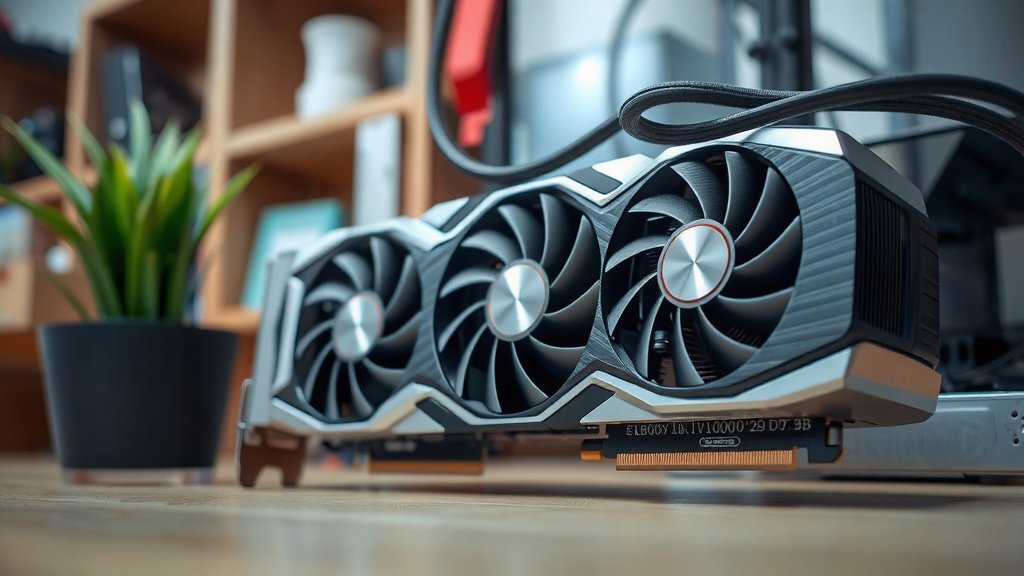
How to Check Your GPU’s Idle Power Draw
You can’t fix what you can’t measure. Here’s a simple checklist to find your real numbers.
- Download a monitoring tool that logs GPU power over time.
- Close all games and heavy apps first.
- Let the PC sit idle for five full minutes.
- Write down the average power draw, not the peaks.
- Note your monitor refresh rate and how many screens are connected.
- Repeat after each fix to see what actually helped.
Idle Power Draw: What’s Normal and What’s Not
Not every high reading means something is broken. Some cards are simply designed to idle warmer. Big, powerful GPUs have more circuits to keep alive, and that costs energy even at rest.
| GPU Class | Typical Idle Range | When to Investigate |
|---|---|---|
| Entry-level card | 5 to 15 watts | Above 30 watts |
| Mainstream card | 10 to 30 watts | Above 50 watts |
| High-end card | 20 to 60 watts | Above 80 watts |
| Any card, 4K or high refresh | Add 10 to 40 watts | Sudden jumps from baseline |
These ranges are ballpark figures based on common user reports and manufacturer specs. Your setup will vary. What matters most is your own baseline. If idle draw suddenly doubles after a driver update or hardware change, that’s your clue.
When High Idle Power Means a Real Problem
Sometimes high idle draw points to actual trouble. A stuck fan curve, a failing power supply, or a card stuck in performance mode can all look like an idle problem. If power draw stays high even with one 60Hz monitor and fresh drivers, dig deeper.
Signs It’s More Than Just Settings
- Idle draw stays high no matter what settings you change.
- Your GPU fans spin constantly at the desktop.
- The card runs hot even when you’re not gaming.
- Power draw spikes randomly without any app running.
Does High Idle Power Actually Cost You Money?
Let’s do simple math. If your GPU wastes an extra 50 watts around the clock, that’s about 1.2 kilowatt-hours per day. Depending on your electric rate, this could add up to tens of dollars per year. Not life-changing, but why pay for nothing?
There’s also heat to consider. Every wasted watt becomes warmth inside your case, which your fans then have to push out. Many experts point out that extra heat shortens component lifespan over time (consumer electronics reliability guidance from government energy resources).
Quick Wins Worth Trying Today
Ready to trim the fat? Start with the easiest fixes first.
- Lower your secondary monitor’s refresh rate to match your main one.
- Update your GPU drivers with a clean install.
- Disable browser hardware acceleration if you don’t stream much.
- Close RGB and overlay software you’re not using.
- Drop to 60Hz during work hours and switch back for games.
Try one change at a time and re-measure. That way you’ll know exactly which fix did the heavy lifting. Your GPU, your fans, and your electric bill will all thank you.
Conclusion
High idle power draw usually isn’t a sign your GPU is broken. In our research, the biggest culprits were high refresh rate monitors, multi-monitor setups, stale drivers, and background software quietly poking your card all day. Every one of those fixes costs nothing but a few minutes of your time.
Start simple. Drop your refresh rate while you work, update your drivers with a clean install, and close the apps you don’t need. Then measure your idle draw again and compare it to your baseline. If the numbers still look wrong after all that, that’s when you start worrying about hardware. Pick one fix from the list above and try it today.
Frequently Asked Questions
Why is my GPU memory clock maxed out at idle?
This is a common quirk tied to your display setup. When a monitor runs at a high refresh rate, many cards keep memory clocks boosted to feed the display pipeline. Try lowering your refresh rate to 60Hz and see if the clock drops within a few minutes.
Can a high idle power draw damage my graphics card?
Not directly. Your card is designed to handle its rated power range. The real downsides are wasted electricity, extra heat inside your case, and fans that may run more often than they need to.
Does vertical alignment or monitor orientation affect GPU idle power?
Orientation itself doesn’t matter. What matters is the refresh rate and resolution of each connected display. A 4K or high refresh rate panel in any position will demand more from your GPU at idle than a basic 60Hz screen.
Should I worry if my idle power draw changes after a driver update?
A small change is normal, since drivers adjust power management behavior. But if idle draw suddenly doubles and stays there, something’s off. Do a clean driver install first, then re-test with a single 60Hz monitor connected.
Why does my GPU idle hot even when I’m not gaming?
Heat at the desktop usually means your card never entered a low power state, or your fan curve is too passive. Check your clocks first. If they’re sitting at high values, work through the display and software fixes. If clocks are low but temps stay high, check your case airflow and fan settings.