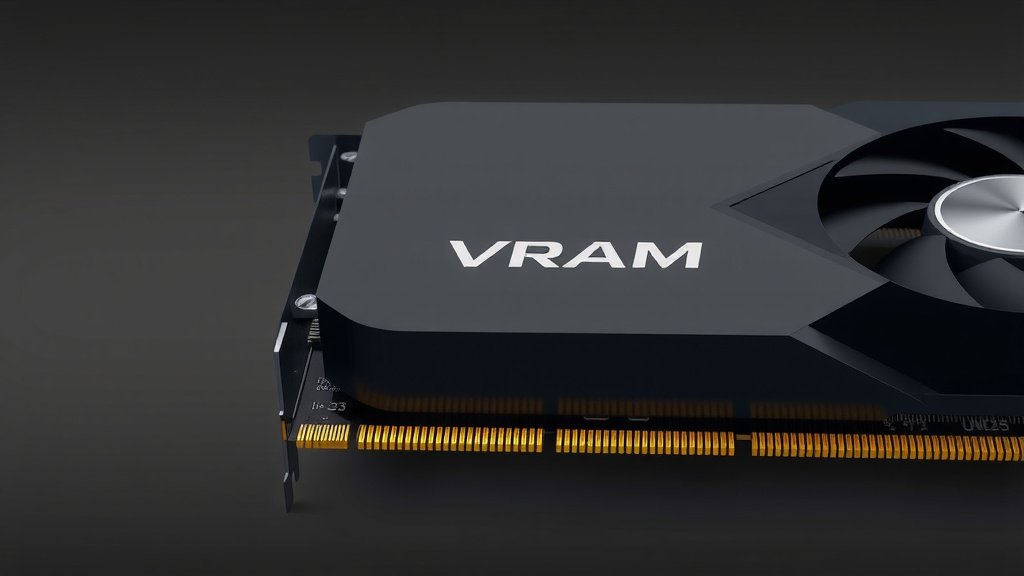
Understanding VRAM Usage: What It Means for Your PC
VRAM usage refers to how much of your graphics card’s dedicated memory your computer applications are actively using. Think of it as your graphics card’s personal workspace. When games or demanding programs run, they load textures, models, and other visual data into VRAM for quick access. High VRAM usage means your graphics card is working hard and needs that memory space. It’s a key factor in understanding your PC’s gaming performance.
Understanding your VRAM usage helps you troubleshoot performance issues. If your applications need more VRAM than your graphics card has, you’ll likely experience stuttering or slower frame rates. We found that keeping an eye on this metric can help you decide if you need to adjust game settings or consider a hardware upgrade. It’s also important for tasks like video editing or 3D rendering. Monitoring it ensures your hardware is being used efficiently.
- VRAM usage is the memory your graphics card actively uses.
- It stores textures, models, and visual data for quick access.
- High usage can impact gaming performance and stability.
- Monitoring VRAM helps optimize game settings and hardware use.
Let’s dive into what VRAM usage really means for your computer and how you can keep track of it.
Understanding Your Graphics Card’s Memory Usage
So, what exactly is VRAM usage, and why should you care? Think of your graphics card, or GPU, as the artist of your computer. VRAM is its dedicated canvas. The bigger and more detailed the picture, the more canvas space it needs. When you’re gaming, editing photos, or watching high-resolution videos, your GPU needs to store all the visual information it’s working with. This information includes things like textures, models, and shaders.
VRAM usage simply means how much of that specialized memory your GPU is currently using. It’s like looking at your easel and seeing how much paint you’ve spread across it. If you’re painting a small, simple landscape, you won’t use much canvas. But if you’re creating a massive, detailed mural, you’ll need a lot more space. The same idea applies to your GPU and its VRAM.
How VRAM Fuels Your Visual Experience
Your graphics card needs fast access to visual data. It can’t wait for that data to travel from your main system memory (RAM) all the time. That’s where VRAM comes in. It’s much faster than your system RAM, specifically designed for the rapid transfer of graphics information. When your applications request visual elements, the GPU fetches them from VRAM. This speed is what allows for smooth animations, detailed textures, and quick loading times.
We found that without enough VRAM, your GPU has to do extra work. It might have to swap data back and forth with your slower system RAM. This process is often called “paging” or “swapping.” It’s like the artist having to constantly clean brushes and mix new colors on a tiny palette because the main easel is too small. This swapping causes noticeable performance dips. You might experience stuttering, frame drops, or even application crashes.
What Affects VRAM Consumption?
Several factors influence how much VRAM your computer uses. The most common culprits are the visuals in the applications you’re running. This includes things like resolution, texture quality, and graphical effects.
Resolution Matters a Lot
Running games or applications at higher resolutions, like 4K, requires significantly more VRAM. Imagine needing to draw more tiny dots for each inch of your screen. Higher resolutions mean more pixels to fill with detail. We found that simply dropping your screen resolution can sometimes be a quick fix for VRAM issues.
Texture Quality: The Devil is in the Details
Textures are the images that wrap around 3D models, giving them their appearance. High-resolution textures make characters and environments look incredibly realistic. However, these detailed textures take up a lot of space in VRAM. Many experts say that reducing texture quality is one of the most effective ways to lower VRAM usage without drastically impacting the overall look and feel of a game (Nvidia).
Graphical Effects and Settings
Other visual settings also contribute to VRAM usage. Things like anti-aliasing (which smooths jagged edges), shadows, reflections, and post-processing effects all require memory. The more complex and visually rich these effects are, the more VRAM they demand. We observed that turning down settings like “Ultra” or “High” presets can free up a substantial amount of VRAM.
Other Applications and Background Processes
It’s not just the application you’re actively using that consumes VRAM. Your operating system and any background programs also take up a small portion of it. While usually minimal, in some cases, these can add up. We found that closing unnecessary applications before launching a demanding game can help ensure your GPU has enough dedicated memory.
Monitoring Your VRAM Usage: Tools and Techniques
Knowing how much VRAM you’re using is key to managing performance. Fortunately, there are several easy ways to check this. Keeping an eye on these numbers helps you make informed decisions about your settings.
Using Built-in Graphics Card Software
Most modern graphics card manufacturers provide software that allows you to monitor system performance, including VRAM usage. For Nvidia cards, the GeForce Experience overlay or Nvidia Control Panel can show this information. For AMD users, the AMD Radeon Software offers similar monitoring tools. These are often the most accurate and accessible ways to check.
Nvidia’s Tools
With Nvidia cards, you can often enable an in-game overlay using GeForce Experience. This overlay can display real-time VRAM usage, frame rates, and other useful metrics. Many users find this incredibly helpful for tuning performance on the fly.
AMD’s Software
Similarly, AMD’s Radeon Software provides performance monitoring features. You can usually access this through the overlay or the software itself. It gives you a clear picture of your GPU’s memory consumption. We found that these built-in tools are generally reliable.
Third-Party Monitoring Software
Besides manufacturer software, several third-party tools offer even more detailed performance monitoring. Programs like MSI Afterburner or HWMonitor are popular choices. They can track VRAM usage along with many other hardware statistics.
MSI Afterburner
MSI Afterburner is a widely used free tool. It allows extensive customization of your GPU’s performance. You can configure it to display VRAM usage on-screen during gameplay. It’s a favorite among many PC enthusiasts for its detailed reporting.
HWMonitor
HWMonitor provides a comprehensive overview of your system’s hardware sensors. It shows voltages, temperatures, fan speeds, and memory usage for your GPU. It’s a great tool for a quick check of overall system health and VRAM status.
In-Game Performance Overlays
Many PC games today include their own built-in performance overlays. These often allow you to display VRAM usage directly within the game’s interface. Check your game’s graphics or display settings to see if this option is available. This can be the most convenient way to monitor VRAM usage for a specific game.
When Is VRAM Usage Too High?
So, how do you know if your VRAM usage is a problem? Generally, if your VRAM usage is consistently at or near 100% of your graphics card’s capacity, you’re likely to encounter performance issues. Your graphics card is working as hard as it can, and there’s no room for extra data.
If you’re experiencing stuttering, frame drops, or textures that load slowly or look blurry, it’s a strong indicator that your VRAM is maxed out. Many experts suggest that ideally, you want to keep your VRAM usage a bit below the maximum. This gives your GPU some breathing room. A buffer of 10-15% is often recommended (TechRadar).
Signs of VRAM Bottlenecking
A VRAM bottleneck occurs when your graphics card doesn’t have enough memory to store all the necessary visual data. This leads to a situation where the GPU is waiting for data, slowing down the entire system’s performance. You might notice:
- Sudden and severe frame rate drops, especially in demanding scenes.
- Stuttering or “hitching” where the game momentarily freezes.
- Textures appearing blurry or not loading in properly.
- Longer loading times for game assets.
- Graphical artifacts or visual glitches appearing on screen.
How Much VRAM Do You Actually Need?
The amount of VRAM you need depends heavily on what you do with your computer. For basic tasks like web browsing and office work, even a few gigabytes (GB) are usually sufficient. However, for gaming and creative workloads, more is definitely better.
We found that for 1080p gaming at high settings, 6GB to 8GB of VRAM is generally a good starting point. For 1440p gaming, 8GB to 12GB is often recommended. And for 4K gaming or professional work like 3D rendering and high-resolution video editing, 12GB, 16GB, or even more might be necessary. Keeping your target resolution and graphical settings in mind is key.
Tips for Managing VRAM Usage
If you’re finding that your VRAM is constantly maxed out, there are several adjustments you can make to improve performance. These are often simple tweaks that can make a big difference.
Adjust In-Game Graphics Settings
This is often the most direct approach. Lowering settings like texture quality, resolution, and anti-aliasing can significantly reduce VRAM demand. Start by lowering the most VRAM-intensive settings first.
Close Unnecessary Background Applications
As mentioned earlier, ensure no other programs are hogging your GPU’s memory. Close down web browsers, streaming apps, or any other non-essential software before launching your game or demanding application.
Consider a Hardware Upgrade
If you’ve tried all the software tweaks and are still struggling, it might be time to consider a hardware upgrade. A graphics card with more VRAM will allow you to run games and applications at higher settings without hitting memory limits.
Keep Your Drivers Updated
Graphics card drivers are software that allows your operating system to communicate with your GPU. Manufacturers often release updates that improve performance and memory management. We found that keeping these drivers up-to-date is good practice.
Quick VRAM Management Checklist:
- Monitor your VRAM usage regularly.
- Lower texture quality in games if needed.
- Reduce your screen resolution for less demand.
- Close background applications before gaming.
- Update your graphics card drivers.
- Consider a GPU with more VRAM if you consistently max out.
Conclusion
Understanding VRAM usage is your secret weapon for a smoother PC experience. You’ve learned that VRAM is your graphics card’s workspace, and how much it’s being used directly impacts your games and applications. By monitoring it and making smart adjustments – like tweaking texture quality or closing background apps – you can prevent performance hiccups. Think of VRAM management as giving your GPU the best environment to perform. Now, go check your VRAM levels and optimize your setup for better visuals and framerates!
Frequently Asked Questions
Does VRAM usage affect my PC if I’m not gaming?
Yes, absolutely. While gaming is a major consumer of VRAM, other demanding applications like video editing software, 3D rendering programs, and even some complex graphic design tools also use significant amounts. If you’re working with high-resolution media or complex projects, monitoring your VRAM is just as important.
What’s the difference between VRAM and regular RAM?
Think of VRAM as your graphics card’s dedicated workspace, built for speed in handling visual data like textures and models. Regular RAM (system memory) is the computer’s general-purpose workspace for the CPU, handling everything else. VRAM is much faster for graphics tasks, and without enough of it, your GPU has to rely on slower system RAM, causing performance issues.
How can I tell if my VRAM is full without special software?
You’ll usually see clear signs like extreme stuttering, sudden frame rate drops, blurry or slow-loading textures, and occasional graphical glitches. If your games or applications feel sluggish, and visuals aren’t loading properly, it’s a strong indicator that your VRAM might be maxed out.
Will closing browser tabs really help my VRAM usage?
While closing browser tabs primarily frees up your system’s main RAM, some web browsers and their associated processes can still consume a small amount of VRAM, especially if you have hardware acceleration enabled. Closing unnecessary applications, including many browser tabs, is a good general practice to free up all system resources for your primary task.
Is it okay if my VRAM usage hits 90% sometimes?
Hitting 90% VRAM usage occasionally, especially during intense moments in games, is often acceptable. It means your graphics card is working hard to deliver the visuals you’re seeing. However, if you consistently see usage at or very near 100%, or if you experience performance drops when it gets that high, it’s a sign you might need to lower settings or consider an upgrade.
![10 Best Budget Gaming Pc Video Card [2026]](https://spsolutionscare.com/wp-content/uploads/2026/09/10-best-budget-gaming-pc-video-card-2026-featured-768x432.jpg)
![10 Card [2026]](https://spsolutionscare.com/wp-content/uploads/2026/08/10-card-2026-featured-768x432.jpg)