Check Your PSU for Graphics Card Compatibility: A Guide
Yes, you absolutely can and should check your power supply unit (PSU) for your graphics card. A properly functioning PSU ensures your GPU gets the stable power it needs. Without it, you risk performance issues or even damage to your components. It’s a vital step for PC builders and upgraders.
Your PSU is the heart of your PC’s power delivery system. It converts wall power into usable electricity for all your parts. Making sure it’s up to the task, especially for a power-hungry graphics card, is smart PC maintenance. Many common PC problems stem from an inadequate or failing power supply.
- Check PSU wattage against your graphics card’s requirements.
- Inspect PSU cables for damage or loose connections.
- Understand PSU efficiency ratings (e.g., 80 Plus Bronze, Gold).
- Test PSU voltage outputs if you suspect issues.
Let’s walk through how to make sure your PSU is ready to power your graphics card without any headaches. We’ll cover the key things to look for.
“`htmlEnsuring Your PSU Can Handle Your Graphics Card
Your graphics card is often the most power-hungry component in your PC. It needs a stable and sufficient power supply to perform at its best. Simply put, your PSU needs to be ready for the job. We’ll walk you through how to check if your power supply unit is up to par for your GPU.
Think of your PSU as the heart of your PC. It pumps the necessary energy to all your components. If it’s weak or faltering, your GPU might not get the power it needs. This can lead to a host of frustrating issues. Let’s make sure your heart is strong!
Understanding PSU Wattage and Your GPU’s Needs
The first and most critical step is to check your PSU’s wattage. This is the maximum amount of power it can deliver. Your graphics card will have a specific recommended PSU wattage. This is usually listed on the manufacturer’s website or the product packaging.
Where to Find Your Graphics Card’s Wattage Recommendation
You can easily find this information by searching online for your specific graphics card model. For example, if you have an NVIDIA GeForce RTX 3070, a quick search will show you its recommended PSU wattage. Many experts suggest aiming for a PSU with at least 100 watts more than the minimum recommended by the GPU manufacturer. This provides a nice buffer and ensures your PSU isn’t constantly running at its limit.
How to Find Your PSU’s Wattage
Your PSU’s wattage rating is usually printed on a sticker on the side of the unit itself. You can often see this by looking into your PC case. If you can’t easily see it, check your PSU’s original box or its manual. If you bought a pre-built PC, the specifications sheet or the manufacturer’s website should have this detail.
Why a Wattage Buffer is Important
Why the extra headroom? Your GPU and CPU can have power spikes, especially during intense gaming sessions or demanding tasks. A PSU with ample wattage can handle these spikes without issue. Running a PSU too close to its maximum capacity can lead to instability, unexpected shutdowns, and even shorten the PSU’s lifespan (Tom’s Hardware).
Inspecting Your PSU Cables and Connections
Beyond just wattage, the physical condition of your PSU and its cables matters. Loose or damaged cables are a common cause of power delivery problems. You need to make sure everything is securely connected.
Visual Inspection of Cables
Carefully look at all the cables coming from your PSU. Are there any visible signs of damage? Look for fraying, cuts, or burnt spots. If you see any damage, it’s a strong sign that you need to replace your PSU. Don’t take chances with damaged power cables!
Checking for Secure Connections
Ensure all the cables are firmly plugged in. This includes the main motherboard power connector (24-pin), the CPU power connector (4-pin or 8-pin), and, most importantly, the PCIe power connectors for your graphics card. These are usually 6-pin or 8-pin connectors. They should click into place securely. A loose connection here is a prime suspect for GPU problems.
The Importance of PCIe Power Connectors
Graphics cards draw a lot of power directly through these PCIe connectors. If they aren’t seated correctly, your GPU won’t receive stable power. This can result in graphical glitches, reduced performance, or even the system failing to boot altogether. Make sure you’re using the correct PCIe cables that came with your PSU, not cables from a different PSU model (Antec).
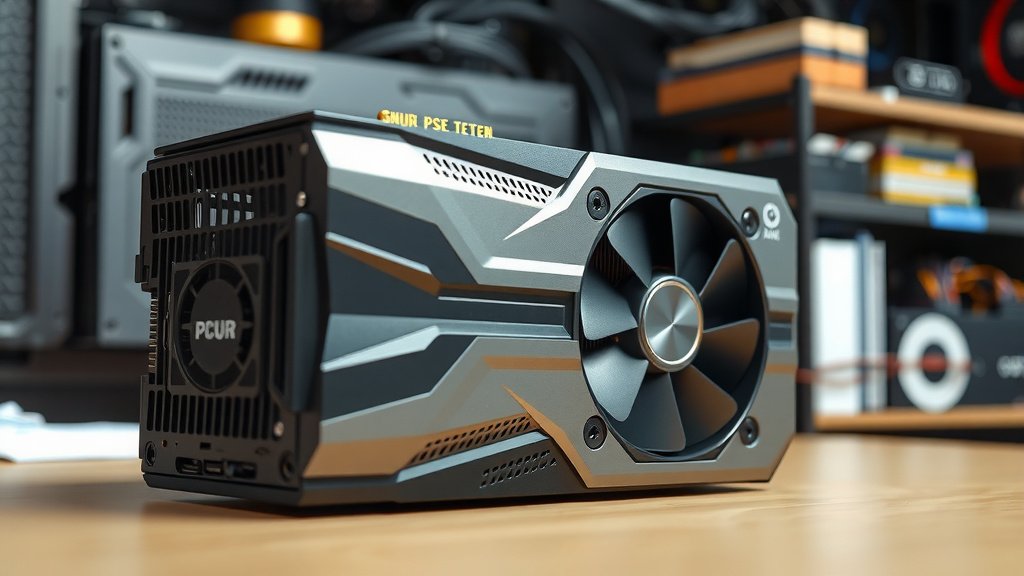
Understanding PSU Efficiency Ratings (80 Plus)
You might see ratings like 80 Plus Bronze, Silver, Gold, Platinum, or Titanium on your PSU. These ratings indicate how efficiently the PSU converts AC power from the wall into DC power for your components. Higher ratings mean less energy is wasted as heat.
What Efficiency Means for You
While efficiency doesn’t directly impact whether your PSU can power your GPU, a more efficient PSU runs cooler and can be more stable. This is because less energy is lost as heat. A higher-efficiency PSU generally indicates better build quality. Many manufacturers also use higher-quality components in their more efficient units.
Do You Need a High-Efficiency PSU?
For most users, an 80 Plus Bronze or Gold rated PSU is perfectly sufficient. These offer a good balance between cost and efficiency. If you’re running a very high-end system or want to reduce your electricity bill, a Platinum or Titanium rated PSU might be worth considering. But for ensuring your GPU gets enough power, focus on wattage and reliability first.
| Rating | 20% Load | 50% Load | 100% Load |
|---|---|---|---|
| 80 Plus Bronze | 82% | 85% | 82% |
| 80 Plus Gold | 87% | 90% | 87% |
| 80 Plus Platinum | 90% | 92% | 89% |
Note: Efficiency percentages are typical minimums at specified loads.
Testing PSU Voltages (For the More Advanced User)
If you suspect your PSU is failing or not delivering stable power, you can test its voltage outputs. This requires a bit more technical know-how and a multimeter. You’ll be measuring the DC voltages your PSU provides on various pins. Incorrect voltage can cause serious problems.
What Voltages Should You Check?
The most important rails to check are the +12V, +5V, and +3.3V rails. Your motherboard and GPU primarily use the +12V rail. The acceptable voltage range for these rails is typically within +/- 5% of the stated value. For example, the +12V rail should ideally be between 11.4V and 12.6V.
How to Perform the Test (Caution Advised)
You’ll need to carefully insert the multimeter probes into the back of the PSU connectors (while the PSU is plugged in and turned on, but be extremely cautious). Many online guides provide detailed pinouts for ATX connectors. If you’re not comfortable with this, it’s best to seek professional help or replace the PSU. Unstable or incorrect voltages are a clear sign of a failing PSU (Cooler Master).
Quick PSU Check Checklist:
- Verify Wattage: Does your PSU meet or exceed your GPU’s recommendation?
- Inspect Cables: Are all PSU cables free from damage?
- Secure Connections: Are all power cables firmly plugged into the motherboard, GPU, and PSU?
- Check PCIe Connectors: Are the specific GPU power cables seated correctly?
- Note Efficiency Rating: Is it at least 80 Plus Bronze or better?
- Listen for Noise: Any unusual buzzing or whining from the PSU?
Conclusion
You’ve now learned the essential steps to ensure your power supply unit is ready to handle your graphics card. Checking your PSU’s wattage against your GPU’s needs is the most critical first step. Don’t forget to physically inspect your cables and connections for any signs of wear or looseness, especially the PCIe power connectors. While efficiency ratings like 80 Plus Bronze are good indicators of quality, focus on sufficient wattage and stable power delivery for your GPU.
If you’re still unsure or suspect an issue, consider a PSU tester or consulting a professional for voltage checks. Taking these checks seriously will help prevent performance problems and protect your valuable PC components. Your next step should be to verify your PSU’s wattage against your specific graphics card requirements right now.
Frequently Asked Questions
What happens if my PSU wattage is too low for my graphics card?
If your PSU’s wattage is insufficient, your PC may experience instability. You might notice random shutdowns, especially during demanding tasks like gaming, or your system might fail to boot entirely. In severe cases, it can potentially stress and damage your components over time.
Can I use cables from a different PSU with my current one?
It’s strongly advised not to mix PSU cables from different brands or models, even if they look identical. PSU manufacturers often use different pinouts, and using the wrong cables can lead to short circuits and damage to your components, including your graphics card.
How often should I check my PSU and its cables?
You should check your PSU and cables at least once a year as part of general PC maintenance. It’s also a good idea to perform a quick visual check whenever you open your PC case for cleaning or upgrading other components.
My graphics card has two 8-pin power connectors. Does my PSU need two separate cables?
Yes, for graphics cards with multiple power connectors, it’s best practice to use separate cables from the PSU for each connector if your PSU allows. Some PSUs use a single cable with two connectors, which might be acceptable for less power-hungry cards, but separate cables generally offer more stable power delivery.
Is an old PSU still safe to use if it has enough wattage?
While an older PSU might have sufficient wattage on paper, component degradation over time can affect its performance and stability. Older PSUs may also lack modern safety features. If your PSU is more than 5-7 years old, consider testing its output or replacing it for peace of mind, especially with a new, power-hungry graphics card.