How to Choose the Right PSU for Your GPU
Figuring out what PSU you need for a GPU is all about matching power. Your graphics card is the biggest power user in your PC. You need a power supply that can handle its demands, plus everything else. A PSU that’s too weak can cause crashes or damage. Getting this right is super important for smooth gaming.
Many gamers overlook their power supply. They focus on the GPU and CPU. But your PSU is the heart of your system. It keeps all your components running. We found that a properly sized PSU ensures system stability. It also helps prevent future upgrade headaches.
- Check your GPU’s recommended PSU wattage.
- Add wattage for your CPU and other parts.
- Consider PSU efficiency ratings (like 80+ Bronze).
- Don’t forget about connectors and cable types.
- It’s often best to have a little extra headroom.
Let’s walk through how to find the right PSU for your new graphics card without any guesswork.
Choosing the Right PSU Wattage for Your Graphics Card
So, you’ve picked out a shiny new GPU. Awesome! Now, let’s make sure your PC can actually power it without throwing a fit. Picking the right power supply unit (PSU) is like choosing the right engine for your car. It needs to be strong enough for the job, but you don’t need a monster truck engine for a compact car, right?
Where to Find Your GPU’s Power Needs
The easiest place to start is your graphics card’s official specifications. The manufacturer, like NVIDIA or AMD, will tell you the minimum recommended PSU wattage for that specific card. Think of this as the bare minimum your PC needs to operate safely with that GPU. You’ll usually find this on the product page of the retailer or on the GPU maker’s website. They often list it under “System Requirements” or “Recommended PSU.”
Calculating Your Total System Power Draw
Your GPU isn’t the only thing hogging power. Your CPU is another big energy user. Other components like RAM, hard drives (SSD or HDD), cooling fans, and any extra peripherals plugged in also draw power. You need a PSU that can handle the GPU’s needs PLUS all those other parts running at the same time. So, how do you add it all up?
Estimating Power for Other Components
Don’t stress about getting an exact number for every single component. Most CPUs have a Thermal Design Power (TDP) listed, which gives a good idea of their power consumption. For other parts, like RAM and storage, their power draw is relatively small, often just a few watts. We found that for most typical builds, adding an extra 100-150 watts for your CPU and other components on top of the GPU’s recommendation is a safe bet. If you have a super high-end CPU or a lot of extra drives and fans, you might want to add a bit more.
Using Online PSU Calculators
Many websites offer free PSU calculators. These tools are super handy! You select your CPU, GPU, motherboard, RAM, storage, and other components. The calculator then estimates the total wattage your system will likely use. We found these calculators to be quite accurate and a great way to get a solid ballpark figure. Just type “PSU calculator” into your search engine, and you’ll find plenty. Remember to be honest when entering your components for the best results.
The Importance of PSU Efficiency Ratings
Have you seen those stickers on PSUs that say “80 Plus Bronze,” “Gold,” or “Platinum”? Those are efficiency ratings. They tell you how much power the PSU actually delivers to your components versus how much it pulls from the wall. A PSU isn’t 100% efficient; some energy is lost as heat. An 80 Plus Bronze PSU, for example, is at least 80% efficient at various load levels. This means less wasted electricity and less heat generated.
Why Higher Efficiency Matters
While a higher efficiency rating doesn’t directly mean more *power* for your GPU, it means your PSU will run cooler and more quietly. It also means you’ll save a little on your electricity bill over time. For most gamers, an 80 Plus Bronze or Gold rating is a great sweet spot for performance and value. Platinum and Titanium are excellent but often come with a higher price tag that might not be necessary for everyone.
Don’t Forget About Connectors and Cable Types
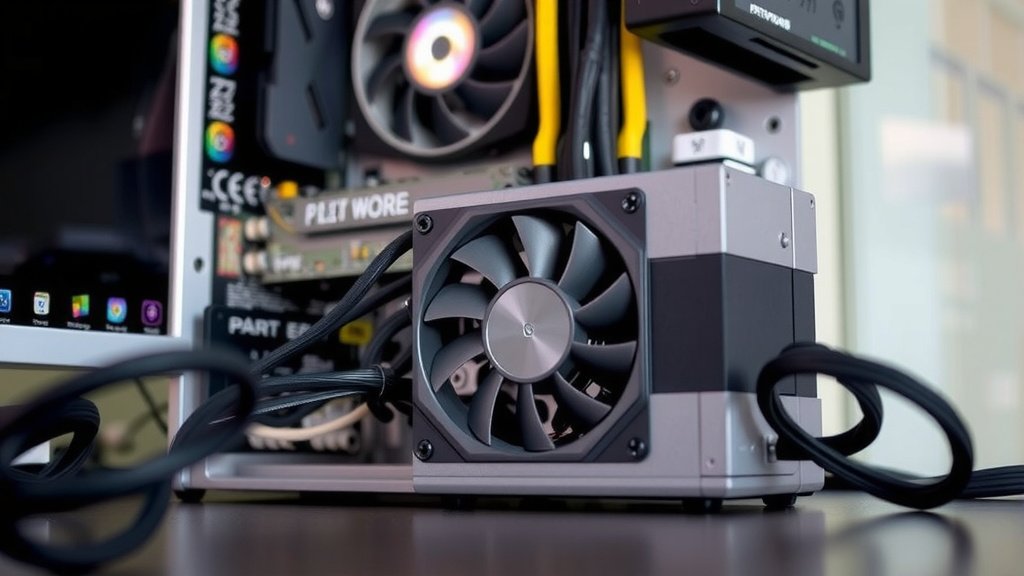
Once you know the wattage you need, you also need to check the connectors. Modern GPUs, especially high-end ones, often require specific power connectors from the PSU. These are typically PCIe power connectors (often labeled as 6-pin or 8-pin). Check your GPU’s requirements carefully. Does it need one 8-pin connector? Two? Your PSU must have the right number and type of these cables. Also, consider if you want a modular PSU. Modular PSUs let you attach only the cables you need, which really cleans up your PC build and improves airflow.
Should You Get Extra Headroom? Absolutely!
It’s almost always a good idea to choose a PSU with a higher wattage than your calculated minimum. This is what we call “headroom.” Why? Well, PSUs are often most efficient when they’re running at about 50-70% of their maximum load. Running a PSU constantly at its absolute limit can shorten its lifespan and lead to instability. Plus, if you plan on upgrading your GPU or other components down the line, having extra wattage means you won’t need to buy a new PSU right away.
How Much Headroom is Enough?
A common recommendation is to add about 100-200 watts of headroom. So, if your calculations show you need 550 watts, a 650 or 750-watt PSU would be a fantastic choice. We found that this amount of buffer provides excellent stability and future-proofing without breaking the bank. It ensures your system runs smoothly even during demanding tasks.
A Quick Checklist for Your PSU Decision
Here’s a simple rundown to make sure you’re on the right track:
- Check GPU Specs: Always start with your graphics card’s recommended PSU wattage.
- Calculate Total Draw: Add wattage for your CPU and other core components.
- Use a Calculator: Online PSU calculators are your best friend for estimating total needs.
- Consider Efficiency: Aim for at least an 80 Plus Bronze or Gold rated PSU.
- Verify Connectors: Make sure the PSU has the right PCIe power cables for your GPU.
- Add Headroom: Get a PSU with about 100-200 watts more than your calculated need.
Conclusion
You’ve learned that picking the right PSU is crucial for your GPU’s performance. It’s not just about raw wattage; it’s about smart choices. We’ve seen how checking your GPU’s needs and adding up other components is key. Remember to look at efficiency ratings like 80 Plus Bronze for cooler operation. Don’t forget essential connectors and the benefits of having extra wattage headroom. Taking these steps ensures your system runs smoothly and reliably, preventing headaches down the road. Your next step? Use what you’ve learned to confidently choose the perfect PSU for your new graphics card!
Frequently Asked Questions
Do I need to buy a brand new PSU for every GPU upgrade?
Not always! If your current PSU has enough wattage and the correct connectors for your new GPU, you might not need an upgrade. We recommend checking your current PSU’s capacity and comparing it to the new GPU’s requirements plus your system’s total power draw. Often, a good quality PSU can last through a couple of GPU generations.
What’s the biggest mistake people make when choosing a PSU for their GPU?
The most common mistake is underestimating the total power your system needs. People often only look at the GPU’s recommended wattage and forget about the CPU and other components. We found that this can lead to system instability or even component damage. Always account for your entire PC’s power consumption.
Can a PSU that’s too powerful hurt my components?
No, a PSU that’s too powerful won’t directly harm your components. Your PC components only draw the amount of power they need. Think of it like having a really big gas tank in your car; you don’t have to use all the gas. However, an overly large PSU might be less efficient at lower loads, and they often cost more.
How much difference does an 80 Plus Gold PSU make compared to Bronze?
An 80 Plus Gold PSU is more efficient than an 80 Plus Bronze one. This means it wastes less electricity as heat and can lead to slightly lower electricity bills over time. While both are good choices, Gold offers better efficiency and often runs cooler and quieter, especially under heavy load.
Are modular PSUs really worth the extra cost for my GPU build?
Modular PSUs allow you to connect only the cables you need. This can greatly improve airflow inside your PC case by reducing cable clutter. We found this makes builds much cleaner and easier to manage. For most builds, especially those with side-panel windows, the aesthetic and airflow benefits often justify the slightly higher cost.
![10 Best 1440p Gaming Gpu [2026]](https://spsolutionscare.com/wp-content/uploads/2026/08/10-best-1440p-gaming-gpu-2026-featured-768x432.jpg)
![10 Best Affordable Gaming Video Card [2026]](https://spsolutionscare.com/wp-content/uploads/2026/08/10-best-affordable-gaming-video-card-2026-featured-768x432.jpg)