How Your GPU Connects to a Monitor: A Simple Guide
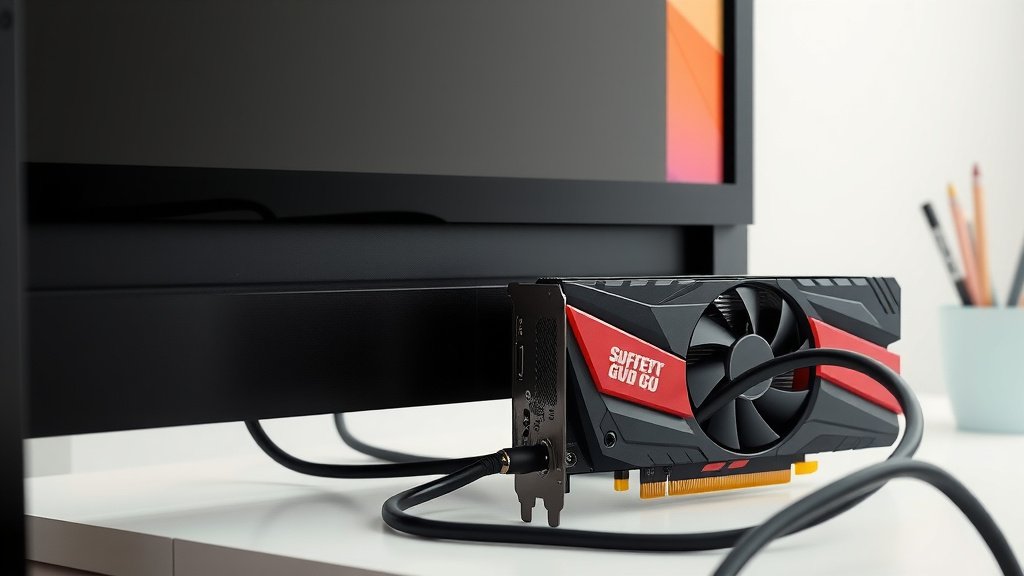
Your GPU, or graphics processing unit, connects to your monitor through specific cables and ports. This connection is how your computer sends visual information to your screen. The most common connections you’ll find are HDMI and DisplayPort, which are designed for high-resolution and high-refresh-rate displays. Understanding these ports ensures you get the best visual experience possible from your setup.
You might be wondering why there are different types of cables. Different cables and ports offer varying levels of bandwidth and features. For instance, DisplayPort often supports higher refresh rates and resolutions than older HDMI versions. Many people find that using the correct cable can make a noticeable difference in how smooth your games look or how clear your videos are.
- Your GPU sends images to your monitor via cables.
- HDMI and DisplayPort are the most common connections.
- Different ports support different resolutions and refresh rates.
- Using the right cable can improve your visual experience.
Let’s walk through exactly how your GPU talks to your monitor, step by step.
How Your Graphics Card Sends Images to Your Screen
Your graphics card, or GPU, is the powerhouse behind everything you see on your monitor. It creates the images, from your desktop wallpaper to the most intense gaming action. But how does that amazing visual data actually get from the GPU to your screen? It all comes down to the physical connection you make between the two devices.
Think of it like a highway. Your GPU builds the cars (the image data), and the cable is the highway that transports them directly to your monitor, which is the city receiving the traffic. Without that highway, the cars can’t get where they need to go. Let’s break down the common ways this connection happens.
The Role of Ports and Cables
Your GPU has specific output ports, and your monitor has corresponding input ports. You’ll need a cable that fits snugly into both. These ports are designed to carry digital signals, which are the language computers understand.
The type of port and cable you use matters. Different standards have different capabilities. This means not all connections are created equal when it comes to resolution, refresh rate, and color depth. We’ll look at the most popular ones so you can pick the right highway for your data.
HDMI: The All-Around Connector
HDMI, which stands for High-Definition Multimedia Interface, is probably the most common connection you’ll see. It’s versatile and can carry both video and audio signals down a single cable. This makes it super convenient for connecting to TVs and many monitors.
HDMI Versions and Their Capabilities
HDMI has evolved over the years, with newer versions offering better performance. For example, HDMI 2.0 can handle 4K resolution at 60Hz, which is great for most modern displays. If you have a super high-end monitor with an even higher refresh rate or resolution, you might need HDMI 2.1.
Many experts recommend using the latest HDMI version supported by both your GPU and monitor for the best results (Consumer Technology Association).
When to Choose HDMI
HDMI is a fantastic choice for general use, watching movies, and even gaming, especially if your monitor doesn’t support DisplayPort or if you need to transmit audio. It’s often the easiest plug-and-play option for many users.
DisplayPort: The Gamer’s Favorite
DisplayPort is another very popular digital interface, and it’s often favored by PC gamers and professionals. It was designed with computer displays in mind and generally offers higher bandwidth than older HDMI versions.
DisplayPort’s Advantages
DisplayPort excels at supporting high refresh rates and resolutions. This means you can get incredibly smooth motion in games and handle complex visual tasks with ease. Many advanced features, like Variable Refresh Rate (VRR) technologies (like NVIDIA G-Sync and AMD FreeSync), work best or exclusively over DisplayPort. Research suggests DisplayPort is often the preferred connection for gaming performance (PC Gamer).
DisplayPort Versions and Features
Like HDMI, DisplayPort has different versions. DisplayPort 1.4 is very common and supports high resolutions and refresh rates. The newer DisplayPort 2.0 offers even more bandwidth, ready for future ultra-high-resolution and high-refresh-rate displays. You’ll often find DisplayPort cables are a bit more rigid than HDMI cables, which is sometimes a sign of their robust design.
When to Choose DisplayPort
If you’re serious about gaming with high refresh rates, or if your monitor has features like adaptive sync that you want to fully utilize, DisplayPort is usually your go-to. It’s also great for connecting multiple monitors from a single port using daisy-chaining, if your hardware supports it.
USB-C: The Modern Multi-Tasker
You might be seeing USB-C ports more and more. While primarily known for data transfer and charging, USB-C can also carry video signals, especially when it supports DisplayPort Alternate Mode (DP Alt Mode).
USB-C Video Capabilities
Not all USB-C ports can output video. You need to check your device specifications. If it supports DP Alt Mode, you can use a USB-C to DisplayPort cable, a USB-C to HDMI cable, or even a USB-C monitor directly.
This is super handy for laptops or devices with fewer dedicated video ports. It allows for a single cable solution for power, data, and video. We found that many newer GPUs are starting to include USB-C ports that function as DisplayPort outputs.
Older Connections: VGA and DVI (Less Common Now)
You might still encounter older ports like VGA (Video Graphics Array) and DVI (Digital Visual Interface). VGA is an analog connection, while DVI can be digital, analog, or both.
Why They’re Less Used Today
These older standards generally don’t support the high resolutions and refresh rates of modern displays. They also don’t carry audio. While they might work for basic needs, they won’t give you the best visual experience. Most new GPUs have moved away from these ports.
Making the Physical Connection
Connecting your GPU to your monitor is usually straightforward. First, make sure both your computer and monitor are turned off and unplugged for safety. Then, identify the correct ports on both your GPU and monitor. Look for the HDMI, DisplayPort, or USB-C icons.
Choose a cable that has the matching connectors on both ends. Gently plug one end into your GPU and the other into your monitor. Ensure the connections are snug and secure. Once plugged in, you can power everything back on. Your operating system should automatically detect the monitor.
Troubleshooting Common Connection Issues
Sometimes, you might plug everything in and still get no signal. Don’t panic! Here are a few quick checks:
- Double-check the cable: Is it fully inserted on both ends?
- Try a different cable: Cables can go bad.
- Ensure the correct input is selected on your monitor.
- Update your GPU drivers: Outdated drivers can cause display problems.
- Restart your computer: A simple reboot often fixes temporary glitches.
These steps cover most common issues and help ensure your visual connection is solid.
Choosing the Right Cable Matters
Using the right cable is more than just plugging something in. It’s about enabling your GPU and monitor to communicate at their fullest potential. For instance, using an older, low-bandwidth HDMI cable on a 4K 144Hz monitor will prevent you from experiencing those high refresh rates.
We found that investing in a certified cable that matches the standard of your ports (like HDMI 2.1 or DisplayPort 1.4) can make a real difference in picture quality and smoothness, especially for demanding tasks like gaming or video editing.
| Connection Type | Primary Use | Video/Audio | Best For |
|---|---|---|---|
| HDMI | General Purpose, Home Entertainment | Video & Audio | Versatility, ease of use, consoles |
| DisplayPort | PC Gaming, Professional Workstations | Video & Audio | High refresh rates, adaptive sync, multiple monitors |
| USB-C (DP Alt Mode) | Laptops, Modern Devices | Video & Audio (if supported) | Single-cable solutions, portability |
| VGA/DVI | Older Displays, Basic Use | Video only | Legacy devices (not recommended for new setups) |
Your Connection Checklist
To make sure you’ve got the best connection for your setup, run through this quick checklist:
- Verified GPU has output ports.
- Verified monitor has input ports.
- Selected the correct cable type (HDMI, DisplayPort, USB-C).
- Ensured cable supports desired resolution/refresh rate.
- Checked that the cable is securely connected on both ends.
- Selected the correct input source on your monitor.
Conclusion
Connecting your GPU to your monitor is a straightforward but important step. You’ve learned that HDMI and DisplayPort are your main go-to options, each with its own strengths for gaming or general use. Even USB-C offers a modern, versatile solution. Understanding the different ports and choosing the right cable ensures you’re getting the best possible visuals from your setup.
Don’t hesitate to check your device’s specifications and invest in a quality cable. Make sure your connections are secure and your monitor’s input is set correctly. Now you’re ready to enjoy crisp, smooth visuals!
Frequently Asked Questions
Can I use any HDMI cable for my gaming PC?
Not all HDMI cables are created equal. For modern gaming with high resolutions and refresh rates, you’ll want an HDMI 2.0 or ideally an HDMI 2.1 certified cable. Older versions might limit your performance, so check what your GPU and monitor support.
Does it matter if I use a DisplayPort cable or an HDMI cable for my monitor?
Yes, it can matter, especially for gaming. DisplayPort generally offers higher bandwidth, which is better for high refresh rates and features like G-Sync or FreeSync. HDMI is still great and often handles audio, but DisplayPort is usually preferred for top-tier PC gaming performance.
My monitor has a USB-C port. Can I connect my GPU to it directly?
You might be able to, but only if your GPU’s USB-C port supports DisplayPort Alternate Mode (DP Alt Mode) and your monitor supports receiving video over USB-C. Check your device manuals to confirm compatibility for a video signal.
I’m getting no signal. What’s the first thing I should check?
The most common culprit is a loose connection. Ensure your video cable is firmly plugged into both your GPU’s output port and your monitor’s input port. Also, verify that you’ve selected the correct input source (like HDMI 1, DisplayPort, etc.) on your monitor itself.
Will an older DVI or VGA connection still work with my new graphics card?
Some newer GPUs might still have DVI ports, but VGA is very rare now. While they might technically work for a basic display, they won’t support modern resolutions or high refresh rates and don’t carry audio. You’ll miss out on the best visual quality.