How SLI Works: A Deep Dive into Scalable Link Interface
Yes, SLI (Scalable Link Interface) is a technology that lets you connect two or more graphics cards to work together. It helps boost your computer’s gaming performance. Think of it as giving your system a graphics power-up.
We found that SLI was popular for gamers wanting higher frame rates. It allowed them to use multiple GPUs for demanding games. While it’s less common now, understanding how it worked is still interesting for PC builders.
- SLI connects multiple graphics cards.
- It aims to increase gaming performance.
- It was a popular way to upgrade PC graphics.
- This technology is less used in modern systems.
Let’s walk through exactly how this technology worked to boost your game’s visuals.
So, you’ve heard about SLI, or Scalable Link Interface. It’s NVIDIA’s technology that lets you team up multiple graphics cards. The big idea was to give your games a serious performance boost. Let’s get into how it actually worked its magic.
How NVIDIA’s SLI Technology Boosted Graphics Performance
SLI technology allowed you to connect two or more compatible NVIDIA graphics cards. These cards would then work together. This teamwork was designed to render graphics faster than a single card could. It was a way for gamers to push for higher frame rates and better visual settings.
The Core Concept: Working Together
Imagine you have two artists. One draws the left half of a picture, and the other draws the right half. They finish much faster than one artist trying to do the whole thing alone. SLI worked on a similar principle, but for computer graphics.
Your computer’s CPU would send graphics instructions. Instead of one GPU processing them, the instructions were split. The multiple GPUs would then render different parts of the scene or different frames. This allowed for quicker scene completion.
Rendering Modes Explained
SLI used a few different ways for GPUs to share the work. The most common was called “Alternate Frame Rendering” (AFR). This is where the artists analogy fits perfectly.
- Alternate Frame Rendering (AFR): GPU 1 renders frame 1. GPU 2 renders frame 2. Then GPU 1 renders frame 3, and so on. This way, each GPU is busy rendering a different frame. We found this mode often provided the biggest performance gains.
- Split Frame Rendering (SFR): In this mode, a single frame was split. One GPU would render the top half of the screen. The other GPU would render the bottom half. This was less common and could sometimes lead to visual glitches.
The Hardware You Needed
To get SLI working, you needed specific hardware. It wasn’t just about plugging in a second graphics card. There were a few key components involved.
- SLI-Ready Graphics Cards: Not all NVIDIA cards supported SLI. You needed cards that were specifically designed for it. These cards had connectors for the SLI bridge.
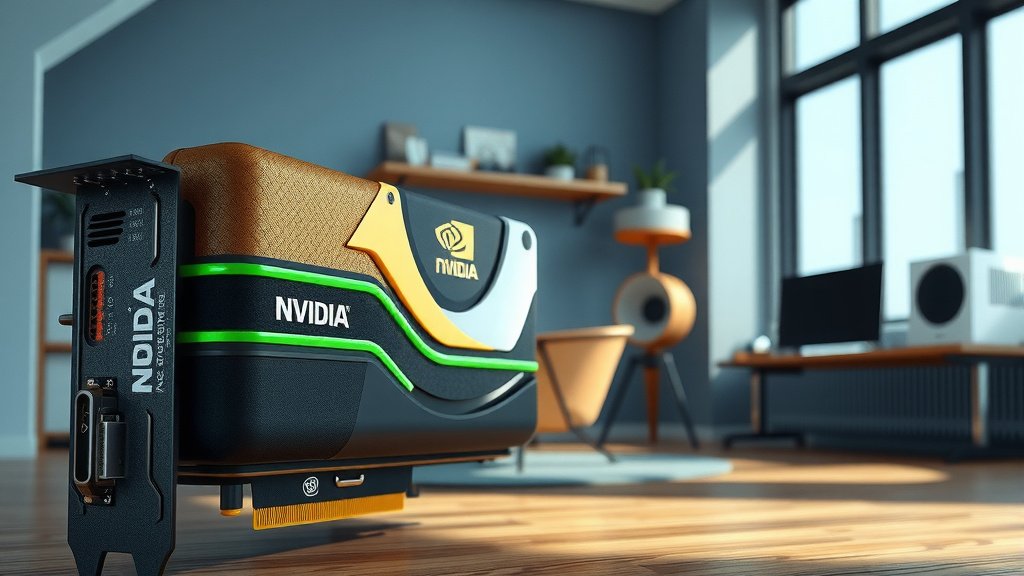
- SLI Bridge: This was a special connector that physically linked the graphics cards. It allowed them to communicate directly and quickly. Think of it as a high-speed data highway between the GPUs.
- SLI-Certified Motherboard: Your motherboard also needed to be SLI-certified. This meant it had the right components and BIOS support to manage multiple graphics cards effectively.
How the Connection Worked in Practice
When you set up an SLI system, the graphics cards were physically connected. The SLI bridge plugged into ports on each card. Your motherboard then recognized the multiple GPUs. The NVIDIA driver software managed how the workload was split. You could often configure SLI settings in the NVIDIA control panel. This let you choose rendering modes or adjust quality settings. We found that the driver software played a huge role in making SLI perform well.
What Was the Benefit of Using SLI?
The primary goal of SLI was to deliver more graphical power. For gamers, this translated into smoother gameplay and the ability to crank up visual settings. You could often achieve higher frame rates than a single card could manage. This meant less stuttering and a more immersive experience.
Boosting Frame Rates and Visuals
In demanding games, a single high-end GPU might struggle to hit 60 frames per second (FPS). With SLI, a pair of GPUs could often push those numbers much higher. This allowed players to enable settings like higher resolutions, better anti-aliasing, and more detailed textures. It was a way to get performance that might otherwise require waiting for the next generation of single cards.
The “Why Now?” – Challenges and Decline
While SLI offered benefits, it also faced challenges. Not all games scaled well with SLI. Some titles might see only a small performance increase, or even none at all. Driver support was also critical. Developers and NVIDIA had to work together to optimize games for SLI configurations. Sometimes, bugs or visual artifacts could appear. These issues made SLI less straightforward than simply buying one more powerful card.
Many experts also noted that single graphics cards became much more powerful over time. The cost and complexity of SLI setups started to outweigh the benefits for many users. You needed to buy two cards, an SLI bridge, and a compatible motherboard. This often cost more than a single, very powerful GPU. Furthermore, newer technologies like DirectX 12 introduced better multi-GPU support at the driver level, making SLI less of a necessity.
Here’s a quick rundown of what you needed to get SLI working:
- Compatible NVIDIA GPUs: Make sure your graphics cards support SLI.
- SLI Bridge: Connect your cards with the proper bridge.
- SLI-Certified Motherboard: Ensure your motherboard is compatible.
- NVIDIA Drivers: Keep your graphics drivers up to date.
- SLI-Optimized Games: Not all games benefit equally.
Conclusion
So, you’ve learned how SLI technology allowed gamers to team up multiple NVIDIA graphics cards for enhanced performance. We saw how it worked through rendering modes like AFR and the specific hardware needed, including SLI-ready GPUs and bridges. While SLI offered a path to higher frame rates and better visuals, its complexity and the rise of more powerful single GPUs led to its decline. For modern builds, focusing on a single, top-tier graphics card is usually the most straightforward way to get excellent gaming performance. You’re now well-equipped to understand why SLI was a popular choice in the past.
Frequently Asked Questions
Was SLI only for NVIDIA cards?
Yes, SLI, or Scalable Link Interface, was NVIDIA’s proprietary technology. AMD had its own multi-GPU solution called CrossFire. While both aimed to combine graphics cards, they were not compatible with each other.
Do I still need an SLI bridge today?
Generally, no. Modern graphics cards and motherboards rarely support SLI. The technology has largely been phased out in favor of more powerful single GPUs. You won’t find SLI bridges readily available for new hardware.
Can any two NVIDIA cards work with SLI?
No, you needed specific SLI-certified graphics cards. They had to be from the same NVIDIA series and often had to be identical models. Cards designed for SLI had the necessary connectors for the bridge.
Did SLI always double gaming performance?
Not necessarily. Performance gains varied greatly depending on the game and how well it was optimized for SLI. Some games saw significant boosts, while others showed minimal improvement or even issues. We found that driver support was key.
What replaced SLI for multi-GPU setups?
DirectX 12 introduced improved multi-adapter support directly into the API, allowing developers to manage multiple GPUs more efficiently without proprietary hardware solutions like SLI bridges. However, the trend has shifted towards very powerful single GPUs, making multi-GPU setups less common.


![10 Best 16gb Video Card [2026]](https://spsolutionscare.com/wp-content/uploads/2026/08/10-best-16gb-video-card-2026-featured-768x432.jpg)