How to Check Your PCIe Slot Version: A Quick Guide
Checking your PCIe slot version is quite straightforward. You can easily find this information by looking at your motherboard’s manual or using a free software tool. Knowing your PCIe version helps you understand your system’s capabilities for components like graphics cards and NVMe SSDs.
Understanding your PCIe version ensures you’re getting the best performance from your hardware. PCIe, or Peripheral Component Interconnect Express, dictates how fast data can travel between your motherboard and connected devices. We found that older versions can bottleneck newer hardware, so it’s good to know what you’re working with.
- Motherboard manual is key.
- Software tools offer an easy way.
- Know your PCIe version.
- It impacts hardware speed.
Let’s walk through the simplest ways to check your PCIe slot version so you can make informed hardware decisions.
“`htmlFinding Out Your PCIe Slot Version
Knowing your PCIe slot version is essential for PC builders and upgraders. It tells you how fast your motherboard can communicate with add-in cards. This includes graphics cards, network cards, and high-speed storage. We found that older versions can limit the performance of newer hardware. Let’s look at the easiest ways to find this information.
Checking Your Motherboard Manual
Your motherboard manual is often the most accurate source for PCIe slot information. It details every slot on your board. You’ll find specifications for each one. This includes the version and how many lanes it supports.
Where to Find Your Manual
Most new motherboards come with a physical manual. If you’ve lost it, don’t worry! You can usually find a digital copy on the manufacturer’s website. Just search for your specific motherboard model. Download the PDF version to your computer.
What to Look For in the Manual
Open the manual and look for a section on specifications or hardware layout. You’ll likely see a diagram of the motherboard. This diagram usually labels each PCIe slot. Next to each label, you’ll find details like “PCIe 4.0 x16” or “PCIe 3.0 x1”. The first number is the version, and the “x” number indicates the number of lanes.
Using Free Software Tools
If you prefer not to dig through manuals, software tools can help. These programs scan your system hardware. They then display detailed information about your components. We found these tools to be very convenient.
CPU-Z: A Popular Choice
CPU-Z is a free utility that provides extensive system information. After downloading and installing it, launch the program. Look for the “Mainboard” tab. This tab often lists the chipset, which is directly related to your PCIe version. It may also show information about your CPU’s integrated PCIe controller.
Understanding CPU-Z’s PCIe Information
While CPU-Z is excellent, it might not directly tell you the PCIe version of each *slot*. It’s more focused on your CPU’s capabilities and motherboard chipset. However, knowing your chipset and CPU generation can give you a strong indication of your supported PCIe version. For example, a modern CPU and chipset will support newer PCIe versions.
GPU-Z for Graphics Card Details
GPU-Z is another free tool, specifically designed for graphics cards. It’s incredibly useful if you want to check the PCIe version your graphics card is using. Install and run GPU-Z. On the main screen, you’ll see a field labeled “Bus Interface.” This will tell you the PCIe version and the number of lanes your graphics card is currently operating at (e.g., “x16 4.0”).
What GPU-Z Tells You
GPU-Z is great because it shows the *actual* speed the card is running at. It will also tell you the maximum speed it supports. If your graphics card is in a PCIe 4.0 slot but is only rated for PCIe 3.0, it will likely run at PCIe 3.0 speeds. Conversely, a PCIe 4.0 card in a PCIe 3.0 slot will be limited to PCIe 3.0 speeds.
Speccy: An All-in-One System Scanner
Speccy, from the creators of CCleaner, offers a comprehensive overview of your PC. After running it, navigate to the “Motherboard” section. Here, you can often find details about your chipset and its supported PCIe standards. It provides a user-friendly interface. We found its layout very easy to understand.
Understanding PCIe Versions and Speeds
PCIe versions have evolved over time, offering increased bandwidth. Think of it like a highway. Newer versions are like adding more lanes or increasing the speed limit.
PCIe Generations and Bandwidth
Each generation roughly doubles the bandwidth per lane compared to the previous one. Here’s a quick look:
| PCIe Version | Bandwidth per Lane (GB/s) | Relative Speed |
|---|---|---|
| PCIe 1.0 | 0.25 | 1x |
| PCIe 2.0 | 0.50 | 2x |
| PCIe 3.0 | 0.985 | 3.9x |
| PCIe 4.0 | 1.969 | 7.9x |
| PCIe 5.0 | 3.938 | 15.8x |
Note: Speeds are approximate and per lane.
Lanes Matter Too!
The “x” number in a PCIe slot (like x1, x4, x8, or x16) refers to the number of data lanes. A PCIe x16 slot has 16 lanes. It can carry more data than a PCIe x1 slot. A PCIe 4.0 x16 slot is much faster than a PCIe 4.0 x1 slot. Most graphics cards use x16 slots. High-speed NVMe SSDs often use x4 slots.
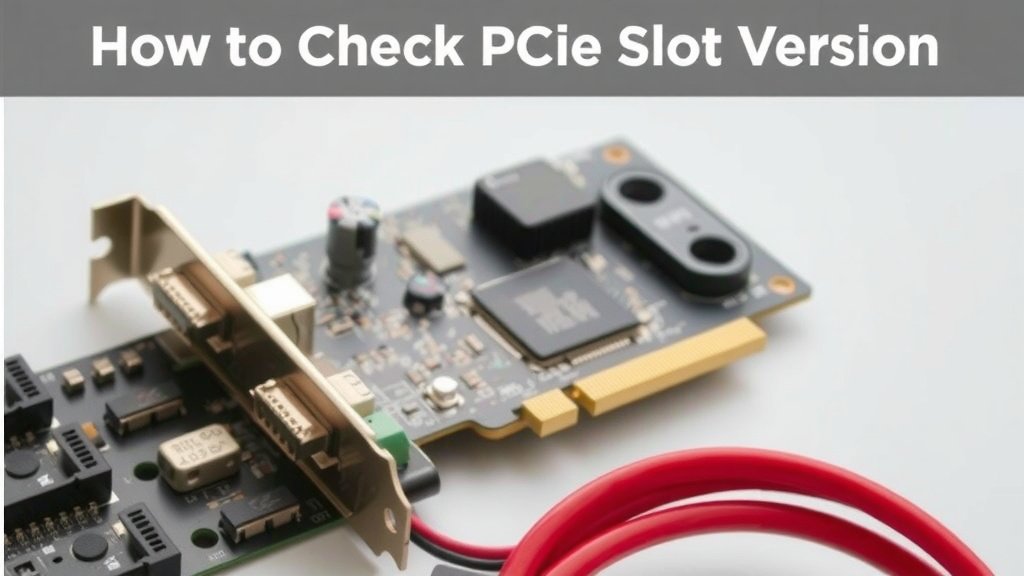
Why Knowing Your PCIe Version is Important
Understanding your PCIe version helps you avoid performance bottlenecks. A high-end graphics card designed for PCIe 4.0 will perform better in a PCIe 4.0 slot. If you put it in a PCIe 3.0 slot, it won’t reach its full potential. Many experts suggest matching your hardware to your motherboard’s capabilities (TechRadar).
Graphics Card Performance
For graphics cards, especially high-end ones, PCIe 3.0 is usually sufficient. However, PCIe 4.0 and newer offer more bandwidth. This can benefit certain games or professional applications. It’s less about the version and more about matching the card to the slot.
NVMe SSD Speeds
NVMe SSDs benefit greatly from newer PCIe versions. A PCIe 4.0 NVMe SSD in a PCIe 4.0 slot can offer dramatically faster read/write speeds than in a PCIe 3.0 slot. This means quicker game loading times and faster file transfers. You want to ensure your SSD is in a slot that supports its maximum speed.
Quick Checklist for Checking Your PCIe Version
- Locate your motherboard model number.
- Search for the official manual online.
- Open the manual and find the specifications.
- Or, download and run CPU-Z or Speccy.
- Check the “Mainboard” or “Motherboard” sections.
- Use GPU-Z to see your graphics card’s specific connection.
Conclusion
You’ve learned how to easily check your PCIe slot version using your motherboard manual or free software. Knowing this detail is key to ensuring your components, like graphics cards and NVMe SSDs, perform at their best. Don’t let an older PCIe version bottleneck your newer hardware. Now that you have this information, you can confidently plan any upgrades or build your next PC with the right knowledge. Your next step is to use this information to ensure your hardware is matched appropriately for optimal performance.
Frequently Asked Questions
Will my graphics card work if it’s a newer PCIe version than my slot?
Yes, your graphics card will likely work. However, it will be limited to the speed of the older PCIe slot. For example, a PCIe 4.0 card in a PCIe 3.0 slot will run at PCIe 3.0 speeds, potentially reducing its maximum performance.
Do all PCIe slots on a motherboard have the same version?
Not necessarily. Motherboards often have multiple PCIe slots, and they can vary in version and number of lanes. Your motherboard manual or software tools will show the specifications for each individual slot.
Can a PCIe slot be too fast for my older hardware?
Generally, no. Older hardware is designed to work with older PCIe standards. You can usually put older components into newer slots without issue, but they will operate at their own maximum supported speed.
Is it important to know the number of PCIe lanes (x1, x4, x16)?
Yes, it is very important. The number of lanes determines the total bandwidth available to the slot. A PCIe 4.0 x16 slot is much faster than a PCIe 4.0 x1 slot, and matching the lanes to your component’s needs (like an x16 for a GPU or x4 for an NVMe SSD) ensures you get the full performance.
Does checking the motherboard BIOS show PCIe slot versions?
Some motherboard BIOS/UEFI interfaces may display information about PCIe configurations. However, it’s not always a straightforward display of the slot version itself. Typically, the manual or dedicated software tools provide clearer and more direct information.
![10 Series Gpu [2026]](https://spsolutionscare.com/wp-content/uploads/2026/08/10-series-gpu-2026-featured-768x432.jpg)

![10 Build [2026]](https://spsolutionscare.com/wp-content/uploads/2026/08/10-build-2026-featured-768x432.jpg)