GPU Temperature Limits: How Hot Is Too Hot for Your Graphics Card
Generally, a GPU is considered too hot when it consistently runs above Understanding your GPU temperature is key to keeping your computer running smoothly.85 degrees Celsius (185°F). While GPUs are built to handle high temperatures, sustained operation at this level can lead to performance issues and potentially shorten your GPU’s lifespan. Keeping your graphics card cooler ensures it runs smoothly during gaming or heavy tasks.
Understanding your GPU’s temperature is vital for maintaining your PC’s health. High temps aren’t just about performance drops; they can affect your entire system’s stability. We’ve found that many users overlook this, leading to unexpected problems down the line. Keeping it within safe limits means better longevity and a smoother experience for your most demanding applications.
- The danger zone for most GPUs starts around 85°C.
- Consistently high temps can hurt performance and lifespan.
- Monitoring your GPU temp is key for PC health.
- Keeping it cool means better gaming and stability.
Below, we’ll help you understand just how hot your GPU can get and what to do about it.
Understanding Your GPU’s Temperature Limits
So, how hot is too hot for your graphics card? Most experts agree that consistently running your GPU above 85 degrees Celsius (185°F) is venturing into risky territory. While GPUs are designed to operate under load, prolonged exposure to extreme heat can be detrimental.
Why Temperature Matters So Much
Think of your GPU like an athlete. If they push too hard for too long without rest, they risk injury. Your GPU is similar. High temperatures can lead to several issues that impact your gaming and computing experience. We’ve seen many users experience problems that could have been avoided with a little temperature awareness.
Performance Throttling Explained
One of the first things you might notice when your GPU gets too hot is a sudden drop in performance. This is called “thermal throttling.” Your GPU is smart; it senses the excessive heat and intentionally slows itself down to prevent permanent damage. This means your frame rates in games will dip, and your applications might feel sluggish, even if your hardware should be more than capable.
Reduced Lifespan
The most serious concern with consistently high GPU temperatures is the potential for **reduced lifespan**. Heat is the enemy of electronics. Over time, extreme heat can degrade the components within your GPU, making them more prone to failure. Many users don’t realize that a slightly hotter system today could mean a dead GPU tomorrow.
Normal vs. Dangerous GPU Temperatures
It’s helpful to know what numbers to look for. While it varies slightly between different models and manufacturers, here’s a general guideline we often see:
| Temperature Range | What It Means |
|---|---|
| Below 60°C (140°F) | Ideal: Your GPU is running cool and happy. |
| 60°C – 75°C (140°F – 167°F) | Good: Normal operating temperatures during moderate to heavy use. |
| 75°C – 85°C (167°F – 185°F) | Acceptable, but Watchful: Getting warmer. Keep an eye on this range. Some demanding tasks might push your GPU here. |
| Above 85°C (185°F) | Too Hot: Danger zone. Performance throttling likely. Risk of component degradation. |
As you can see, the 80-85°C range is where you should start paying closer attention. Consistently hitting 85°C or more is a clear signal that something needs adjustment.
Common Causes of GPU Overheating
Why does a GPU get too hot in the first place? Usually, it comes down to a few common culprits. Thankfully, most of these are quite fixable.
Poor Airflow in Your PC Case
Your computer needs to breathe! If your PC case is crammed full of components without adequate space for air to circulate, heat can get trapped inside. This is especially true if your case fans aren’t positioned correctly or aren’t powerful enough to move air efficiently.
Dust Buildup
Oh, dust. It’s the silent assassin of PC performance. Dust acts like a cozy blanket, insulating your components and preventing heat from escaping. A thick layer of dust on your GPU’s heatsink and fans is a surefire way to increase temperatures. We’ve found that regular cleaning can make a huge difference.
Failing or Inadequate Cooling Hardware
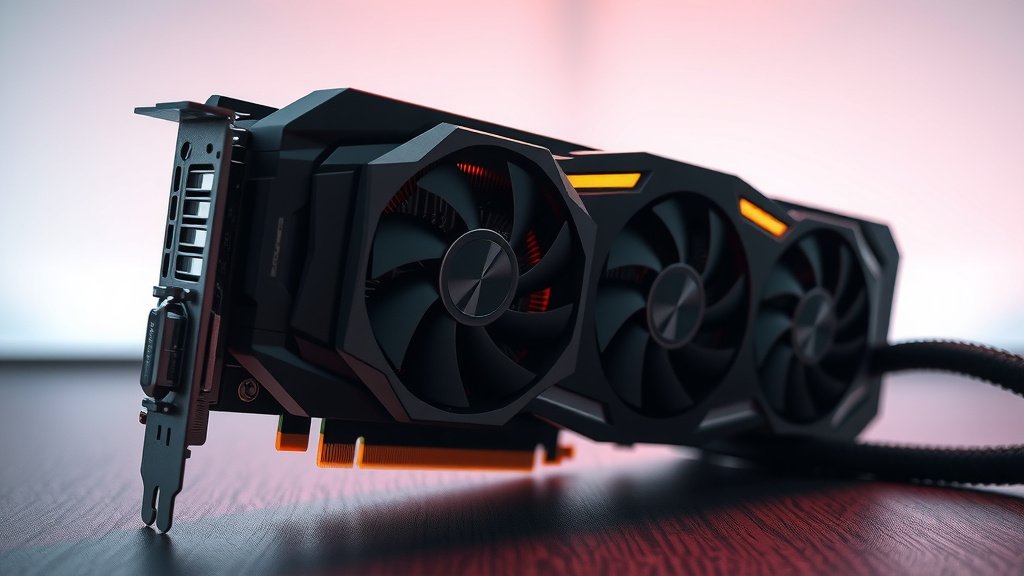
Your GPU has its own cooling system, usually consisting of fans and a heatsink. If these fans are clogged with dust, are spinning too slowly, or have failed entirely, your GPU won’t be able to dissipate heat effectively. Sometimes, the stock cooler that comes with a GPU might not be sufficient for the most demanding tasks or overclocking.
Environmental Factors
Where you keep your computer matters too! A PC running in a hot room, direct sunlight, or in an enclosed space without ventilation will naturally run hotter. It’s like trying to cool yourself down in a sauna – not very effective!
How to Monitor Your GPU Temperature
You can’t fix what you don’t measure, right? Thankfully, checking your GPU’s temperature is quite straightforward. There are several free software tools available that make this super easy.
Using Software Tools
Many graphics card manufacturers provide their own software suites that include temperature monitoring. Beyond that, popular third-party tools like MSI Afterburner, HWMonitor, or even the built-in features of some game launchers can show you real-time GPU temps. We recommend checking your temps during idle, normal use, and especially during intensive gaming sessions to get a full picture.
Interpreting the Readings
Once you have a monitoring tool open, you’ll see a temperature reading for your GPU. Look for the core temperature. Remember the guidelines we discussed earlier. If you’re consistently seeing temperatures creep towards and above 80°C, it’s time to investigate the cause.
To ensure you’re getting accurate readings, monitor your GPU temperature while it’s under load. Playing a demanding game for 15-30 minutes is a good way to simulate real-world stress. This will give you the most accurate idea of its thermal performance.
Simple Steps to Keep Your GPU Cool
Ready to take action? Here are some practical, easy-to-implement steps that can help lower your GPU temperatures and keep it running smoothly.
Improve PC Case Airflow
This is often the biggest win for the least effort. Make sure your PC case has good airflow. Ensure intake fans are bringing cool air in and exhaust fans are pushing hot air out. Cable management can also play a surprising role by clearing paths for air to travel.
Regular Cleaning is Key
Don’t underestimate the power of a good dusting! Turn off your PC, unplug it, and open the case. Use compressed air to blow dust out of your GPU’s fans and heatsink, as well as other components and case fans. We recommend doing this every 3-6 months, depending on how dusty your environment is.
Consider Fan Curve Adjustments
Some monitoring software, like MSI Afterburner, allows you to adjust your GPU fan curve. This means you can tell the fans to spin faster at lower temperatures, providing more cooling. Finding the right balance can help keep temps down without making your PC sound like a jet engine.
Environmental Controls
Ensure your PC is in a well-ventilated area. Avoid placing it in enclosed cabinets or in direct sunlight. A cooler room temperature will always help your PC components stay cooler.
Here’s a quick checklist to help you keep your GPU happy:
- Check GPU temps regularly.
- Clean dust from fans and heatsinks.
- Ensure good PC case airflow.
- Keep your room cooler if possible.
- Adjust fan curves if comfortable.
Conclusion
Keeping your GPU within safe temperature limits is essential for a smooth and long-lasting PC experience. We’ve found that consistently exceeding 85°C can lead to performance throttling and shorten your GPU’s lifespan. By understanding normal operating ranges, identifying common causes of overheating like dust and poor airflow, and regularly monitoring your temps, you can easily prevent these issues. Take a few minutes today to check your GPU’s temperature. Implement simple cleaning and airflow improvements to ensure your graphics card runs cool and performs at its best for years to come.
Frequently Asked Questions
What’s the absolute maximum temperature my GPU can handle?
While GPUs are built tough, consistently running above 85°C (185°F) is pushing it. Your GPU has built-in protections that will throttle performance to prevent immediate damage. However, sustained heat in this range can degrade components over time.
How often should I check my GPU temperature?
We recommend checking your GPU temperature at least once a month, especially if you game or use demanding applications. If you notice any performance drops or sudden fan noises, check them immediately.
Does ambient room temperature really affect my GPU temps?
Yes, it absolutely does. If your PC is in a hot room, it has to work harder to cool itself. Keeping your gaming space cooler, even by a few degrees, can make a noticeable difference in your GPU’s operating temperatures.
Can cleaning my PC actually lower my GPU temperature?
Definitely. Dust acts as an insulator, trapping heat. Regularly cleaning the dust from your GPU’s fans and heatsink, as well as your PC case, allows for much better airflow and heat dissipation, often leading to significantly lower temperatures.
If my GPU hits 80°C, should I be worried?
Hitting 80°C occasionally during very demanding tasks isn’t usually a cause for alarm. However, if your GPU *consistently* runs at or above 80°C during normal gaming sessions, it’s a good idea to investigate. This suggests your cooling might not be optimal, and you should check airflow and dust levels.