GPU Throttling Explained: Causes and Fixes
Your GPU might be throttling to protect itself from overheating. When your graphics card gets too hot, it automatically slows down its performance. This is called thermal throttling. It’s a built-in safety feature designed to prevent permanent damage to your expensive hardware. So, if your frame rates are suddenly dropping, your GPU is likely getting too warm.
This slowdown can feel frustrating, especially when you’re in the middle of an intense gaming session. It’s your GPU’s way of saying, “Whoa there, I need to cool off!” We found that many users experience this issue. Understanding why it happens is the first step to fixing it and getting your PC running smoothly again. Let’s look at what’s going on.
- GPU throttling means your graphics card is slowing down.
- This usually happens because the GPU is getting too hot.
- It’s a safety feature to prevent damage.
- Performance drops are the main sign.
- Cooling solutions can help fix it.
Below, we’ll explain the common reasons your GPU might be overheating and throttling. We’ll also guide you through simple steps to cool it down and keep your games running at their best.
Understanding Why Your GPU Might Be Slowing Down
So, your computer’s graphics card is acting sluggish. It’s not giving you the smooth performance you expect. This slowdown, or throttling, is usually a warning sign. It means your GPU is working too hard. It’s trying to protect itself from damage.
Let’s get to the bottom of this. We’ll look at the common culprits. You’ll learn what’s causing your GPU to overheat. Then, we can figure out how to fix it.
Common Causes for GPU Overheating and Throttling
Think of your GPU like an engine. When it runs too hot, it needs to cool down. This can happen for several reasons. We’ve found that dust buildup is a major player. We’ve found that dust buildup is a major player.
Dust: The Silent Performance Killer
Over time, dust settles everywhere inside your PC. It’s especially drawn to fans and heatsinks. These are the parts responsible for cooling your GPU. A thick layer of dust acts like a blanket. It traps heat. This prevents the GPU from dissipating it effectively.
When the cooling system can’t do its job, temperatures rise. Your GPU will start to throttle to avoid overheating. It’s like trying to run a marathon in a wool sweater. You’d overheat quickly!
Poor Airflow: The Unsung Hero of Cooling
Even with clean fans, poor airflow can be a problem. Your PC case needs good ventilation. It needs to pull in cool air and push out hot air. If your case is stuffed with cables. Or if it’s in a tight, enclosed space. Air can’t move freely. This traps heat inside.
We found that proper cable management is key. Keeping vents clear is also essential. Your GPU needs a constant supply of fresh, cool air. Without it, temperatures climb.
Failing or Inadequate Cooling Components
Your GPU has its own cooling system. This includes fans and a heatsink. Sometimes, these components can fail. A fan might start making strange noises or stop spinning altogether. The thermal paste that connects the GPU chip to the heatsink can also dry out over time.
When thermal paste dries, it loses its ability to transfer heat. This creates a gap. Heat can’t move efficiently to the heatsink. Many experts suggest reapplying thermal paste every few years. This is especially true for older cards (NVIDIA).
Overclocking Gone Too Far
Many PC enthusiasts like to overclock their GPUs. This means pushing the card beyond its factory settings. You can get more performance this way. But it also generates more heat. If you push it too hard. Or if your cooling isn’t sufficient. You’ll definitely run into throttling issues.
Overclocking increases the voltage and clock speeds. This directly leads to higher temperatures. If you’re experiencing throttling and you’ve overclocked, this is a prime suspect. It’s important to monitor your temps closely when overclocking.
How to Identify GPU Throttling
How do you know for sure that your GPU is throttling? There are a few tell-tale signs. Performance drops are the most obvious. You might notice sudden frame rate dips during gaming. Your game might stutter or freeze for a moment.
Performance Drops and Stuttering
If your gaming performance suddenly tanks. And it happens even when you’re not running demanding tasks. It’s a strong indicator. Your GPU is likely reducing its speed to cool down. This directly impacts your frame rates.
We’ve seen this happen frequently. A game that ran smoothly yesterday. Now feels choppy and slow today. Often, the culprit is a warmer GPU.
Monitoring Your GPU Temperatures
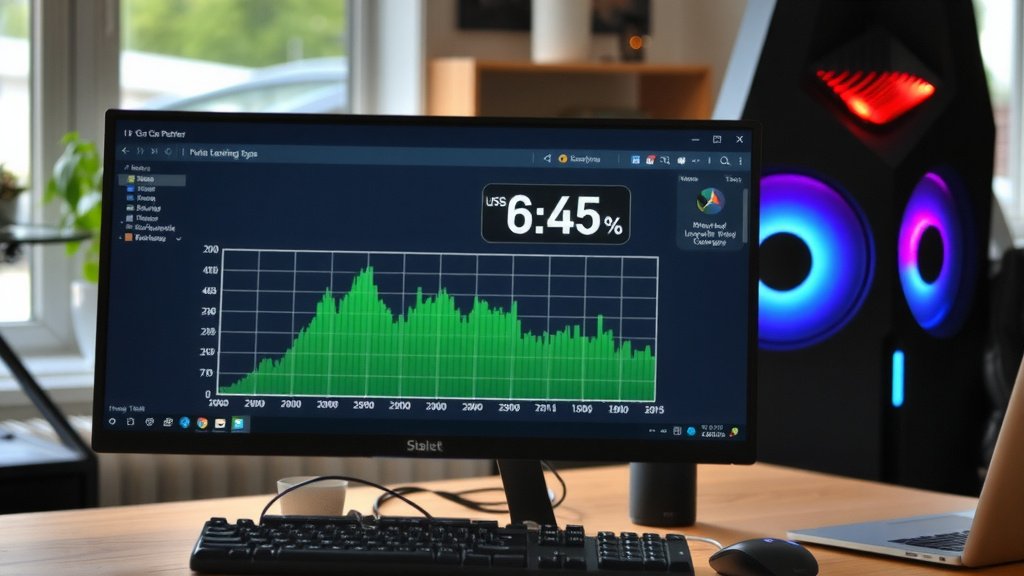
The best way to confirm throttling is to monitor your GPU’s temperature. There are many free software tools for this. MSI Afterburner is a popular choice. HWMonitor is another excellent option. You can see your GPU’s temperature in real-time. The best way to confirm throttling is to monitor your GPU’s temperature.
When your GPU is under load, like when gaming, check its temperature. If it’s consistently hitting 80°C or higher. It’s getting too hot. Many GPUs have a thermal limit around 85-90°C. Exceeding this will cause throttling (AMD).
| Load Condition | Ideal Temperature | Concerning Temperature |
|---|---|---|
| Idle (Not running anything demanding) | 30°C – 50°C | 50°C+ |
| Under Load (Gaming, video editing) | 60°C – 75°C | 80°C+ |
This table shows what normal temperatures look like. And when you should start to worry.
Using Performance Monitoring Tools
Beyond just temperature, you can also monitor clock speeds. Tools like MSI Afterburner can display your GPU’s clock speed. If you see the clock speed dropping significantly. While your GPU is under load. This is a clear sign of thermal throttling.
Your GPU tries to maintain a certain clock speed. When it gets too hot, it can’t. So it dials back the speed. This is its way of managing the heat. You’ll see a corresponding drop in performance.
Quick Fixes for a Cooler GPU
Don’t worry, you can usually fix GPU throttling. It often comes down to improving cooling. Here are some steps you can take:
- Clean your PC: Use compressed air to remove dust. Focus on fans and heatsinks.
- Improve Case Airflow: Ensure good ventilation. Tidy up cables. Don’t block vents.
- Check Fan Speeds: Make sure GPU fans are spinning. Adjust fan curves if needed.
- Reapply Thermal Paste: If your card is old, consider this. It can make a big difference.
- Reduce Overclocking: If you’ve overclocked, dial it back. Find a stable setting.
These simple steps can often resolve overheating issues. They help your GPU run at its best. And prevent those frustrating slowdowns.
Conclusion
Your GPU throttling is often a signal that it’s working too hard and needs to cool down. We’ve seen that dust buildup, poor case airflow, failing components, or aggressive overclocking can all lead to this performance drop. Think of it as your graphics card’s way of protecting itself from damage. By taking simple steps like cleaning your PC and improving ventilation, you can help your GPU run cooler. This means smoother gameplay and a more enjoyable experience. Don’t let throttling slow you down – take control of your PC’s cooling today!
Frequently Asked Questions
Will cleaning my PC actually fix GPU throttling?
Yes, cleaning your PC is often the first and most effective step. Dust buildup acts like an insulator, trapping heat on your GPU’s fans and heatsink. Removing this dust allows the cooling system to work properly, bringing temperatures down and preventing throttling.
How often should I reapply thermal paste to my GPU?
For most users, reapplying thermal paste every 3-5 years is a good idea, especially for older cards or if you’re experiencing persistent heat issues. If your GPU is constantly running hot despite cleaning and good airflow, dried-out thermal paste could be the culprit.
Is it okay if my GPU reaches 80°C while gaming?
While some GPUs can operate at 80°C under heavy load without immediate damage, it’s certainly in the “concerning” temperature range. Consistently hitting 80°C or higher means your GPU is likely throttling to prevent further heat buildup. Aiming for cooler temperatures (ideally below 75°C) will ensure better performance and longevity.
Can I overclock my GPU safely if I’m worried about throttling?
You can overclock safely, but you must be mindful of your GPU’s temperatures. Start with small increments and use monitoring software to watch your temps and clock speeds. If you notice any throttling or temps climbing too high, reduce your overclock settings. Good cooling is essential for stable overclocking.
What’s the difference between thermal throttling and power throttling?
Thermal throttling occurs when your GPU gets too hot and reduces its performance to cool down. Power throttling happens when the GPU isn’t receiving enough power from your power supply or motherboard. While both reduce performance, they have different causes and solutions; this article focuses on thermal throttling.
![10 Dollar Graphics Card [2026]](https://spsolutionscare.com/wp-content/uploads/2026/08/10-dollar-graphics-card-2026-featured-768x432.jpg)
![10 Best 1440p Gaming Gpu [2026]](https://spsolutionscare.com/wp-content/uploads/2026/08/10-best-1440p-gaming-gpu-2026-featured-768x432.jpg)
![10 Best 16gb Video Card [2026]](https://spsolutionscare.com/wp-content/uploads/2026/08/10-best-16gb-video-card-2026-featured-768x432.jpg)