How VRAM Impacts FPS: A Detailed Explanation
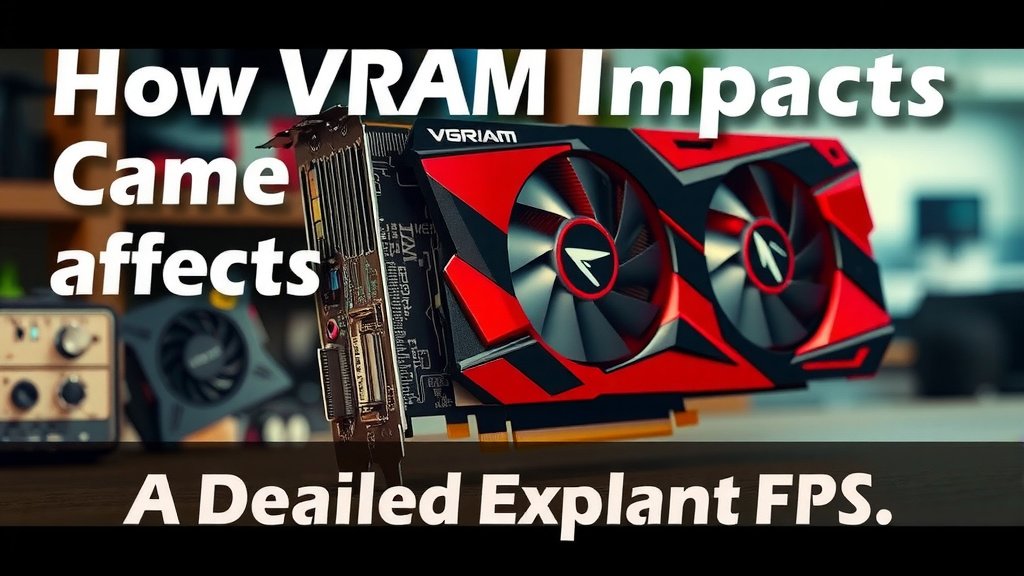
Yes, VRAM absolutely affects FPS in video games. Not having enough VRAM can cause your game to stutter or even crash, leading to a much lower frame rate. It’s like trying to fit a huge puzzle into a tiny box; it just won’t work well. Not having enough VRAM can cause your game to stutter or crash, impacting performance.
When your graphics card runs out of VRAM, it has to use your system’s slower RAM. This causes major performance bottlenecks, turning smooth gameplay into a choppy mess. Think of VRAM as your graphics card’s personal workspace; more space means it can handle more textures and higher resolutions without breaking a sweat.
- VRAM is your graphics card’s dedicated memory.
- More VRAM helps handle higher resolutions and textures.
- Running out of VRAM severely impacts FPS.
- It can lead to stuttering and longer load times.
Let’s dive into exactly how VRAM impacts your gaming performance and what you can do about it. Let’s dive into exactly how VRAM impacts your gaming performance and what you can do about it.
How Your Graphics Card’s Memory Affects Game Speed
So, how much does VRAM really matter for your frame rates? Think of VRAM as your graphics card’s personal workspace. The more VRAM you have, the more information your graphics card can hold there. This includes textures, game models, and other visual data. Having enough space means your graphics card can access this data quickly.
When a game needs to load a high-resolution texture or a complex model, it pulls that information from your storage drive into VRAM. If there’s plenty of VRAM, this happens fast. If VRAM is full, your graphics card has to go find more space. It might have to dump something else out of VRAM. Or worse, it might need to use your system’s main RAM, which is much slower.
VRAM: The Graphics Card’s Super-Fast Notebook
Imagine you’re an artist working on a giant mural. Your VRAM is your easel and palette. If you have a small easel, you can only fit a small section of the mural at a time. You’ll be constantly swapping out sections, which slows down your work. A bigger easel lets you see more of the mural at once.
In gaming, VRAM does a similar job. It holds all the visual data the game needs to show you on screen. This includes things like:
- Textures: The images that make up surfaces like walls, clothes, and characters.
- 3D Models: The shapes of objects and characters in the game world.
- Shaders: Programs that tell your graphics card how to render lighting and effects.
- Frame Buffers: Where the rendered image is stored before it’s displayed.
The higher the resolution you play at (like 1440p or 4K) and the higher the texture quality settings you choose, the more VRAM these things will take up. It’s like needing a bigger canvas for a more detailed painting.
When VRAM Runs Out: The Bottleneck Effect
What happens when your graphics card runs out of that dedicated VRAM workspace? This is where performance really takes a hit. It’s often called a VRAM bottleneck. Your graphics card can’t keep up with the demands of the game because it’s constantly waiting for data.
When VRAM is full, the system has to get creative. It often starts moving data back and forth between VRAM and your much slower system RAM. This process is like your artist having to go fetch new paint colors from a storage room down the hall instead of having them on their palette. It adds delay.
The Slowdown: Stuttering and Choppy Gameplay
This constant swapping and waiting leads to noticeable problems in your game. You’ll likely experience stuttering. This is when your game freezes for a fraction of a second. It feels like a hiccup in the smooth flow of gameplay. Imagine watching a movie where the picture skips every few seconds; it’s very jarring.
You might also see a sudden drop in your FPS (frames per second). If your game was running at a nice, smooth 60 FPS and then drops to 30 FPS or even lower for a few moments, you’ll definitely feel it. This can make fast-paced games almost unplayable.
Longer Load Times and Texture Pop-In
Running out of VRAM can also affect how quickly your game loads. When there isn’t enough space, the game might take longer to load assets from your hard drive or SSD. This means longer waiting times when starting up or moving between game areas.
Another common symptom is texture pop-in. This is when you see low-resolution textures appear briefly before the higher-resolution ones finally load in. You might see a blurry character model or a muddy-looking environment for a moment before it sharpens up. It’s a visual clue that your VRAM is struggling to keep up.
Understanding Texture Quality Settings
Many games allow you to adjust texture quality. Setting textures to “High” or “Ultra” looks fantastic, but it demands a lot of VRAM. If your graphics card doesn’t have enough VRAM for these settings, you’ll run into problems. Many experts suggest matching your texture settings to your VRAM capacity (Gamer’s Nexus).
If you have 4GB of VRAM, you might need to set textures to “Medium” in many modern games. For 6GB or 8GB, you can often push textures higher. For 10GB or more, you can usually enjoy the highest settings without issue.
How Much VRAM Do You Actually Need?
So, the big question is, how much VRAM is “enough”? The answer truly depends on what you want to do. What resolution do you play at? What graphical settings do you prefer?
Resolution Matters Most
Playing at 1080p (Full HD) requires significantly less VRAM than playing at 1440p (QHD) or 4K (UHD). At 1080p, most games can run well with 4GB to 6GB of VRAM. Moving up to 1440p often means you’ll want at least 8GB. For 4K gaming, 10GB or even 12GB+ is becoming the standard for high settings (TechSpot).
Think of it like this: a 1080p screen has about 2 million pixels. A 4K screen has about 8 million pixels. That’s four times the number of pixels to fill with visual data. More pixels mean more data needs to be stored in VRAM.
Game Settings and Future-Proofing
Beyond resolution, your in-game graphics settings play a huge role. Features like ray tracing, high-quality anti-aliasing, and ultra-detailed textures are VRAM hungry. If you want to play the latest AAA titles with all the bells and whistles turned on, you’ll need more VRAM.
When choosing a graphics card, it’s wise to consider future games. Technology advances quickly. What might be sufficient today could be limiting in a year or two. Many sources recommend getting a card with a bit more VRAM than you currently need for future-proofing your setup (PC Gamer).
A Quick VRAM Guide (General Recommendations)
Here’s a simplified look at VRAM needs for different resolutions:
| Resolution | Recommended VRAM (for Medium/High Settings) | Recommended VRAM (for Ultra/Ray Tracing) |
|---|---|---|
| 1080p | 6 GB | 8 GB+ |
| 1440p | 8 GB | 10 GB – 12 GB+ |
| 4K | 10 GB – 12 GB | 12 GB – 16 GB+ |
Keep in mind these are general guidelines. Some games are more demanding than others, regardless of resolution.
What If Your Current Card Doesn’t Have Enough VRAM?
If you’ve checked your current setup and found that your VRAM might be holding you back, don’t despair! There are a few things you can do. Sometimes, a few tweaks can make a big difference without needing a new graphics card.
Lowering In-Game Settings
The most direct way to manage VRAM limitations is to adjust your game settings. Specifically, look for settings related to texture quality, resolution, and anti-aliasing. Lowering these will reduce the VRAM footprint. As we discussed, textures are often the biggest VRAM eaters.
You can also try lowering the game’s resolution. For example, if you’re playing a 1440p game on a card with limited VRAM, dropping to 1080p can free up a lot of memory. It might not look as sharp, but it can make the game run much more smoothly.
Closing Background Applications
Did you know that other applications running on your PC can also use VRAM? Browsers, streaming software, and other programs might be taking up a small but precious amount of your graphics card’s memory. Before you launch into a gaming session, try closing any unnecessary applications running in the background.
It might seem like a small thing, but every gigabyte counts when you’re pushing your hardware to its limits. This simple step can sometimes free up just enough VRAM to prevent those annoying stutters.
The Long-Term Solution: A Graphics Card Upgrade
If you’ve tried adjusting settings and closing background apps, and your game is still suffering, it might be time to consider a new graphics card. This is the most effective, though also the most costly, solution. A graphics card with more VRAM will allow you to run games at higher resolutions and with better graphical settings.
When shopping for a new card, always check reviews and benchmarks for the games you play most. Look at how different VRAM amounts perform in those specific titles. This research will help you make the best choice for your needs and budget.
Quick Checklist for VRAM Performance:
- Monitor your VRAM usage while gaming.
- Lower texture quality settings if VRAM is near max.
- Consider dropping resolution if still struggling.
- Close unnecessary background programs.
- Research VRAM needs for future games.
- If persistent, consider a graphics card upgrade.
Conclusion
You’ve learned that VRAM is your graphics card’s dedicated memory, and its importance for smooth gameplay is undeniable. Running out of VRAM creates bottlenecks, leading to frustrating stutters, choppy frame rates, and longer load times. By understanding how resolution and texture settings impact VRAM usage, you can make informed decisions about your gaming experience. Always consider your desired settings and future games when evaluating your VRAM needs. If you’re hitting VRAM limits, try lowering settings or closing background apps first, but be prepared for a graphics card upgrade if those steps aren’t enough.
Frequently Asked Questions
Will more VRAM automatically give me more FPS?
More VRAM is beneficial because it prevents bottlenecks, allowing your graphics card to perform at its best. However, if your graphics card’s processing power is the limiting factor, simply having more VRAM won’t magically increase your FPS. You need a balance between VRAM capacity and GPU processing power.
Can I play games with less VRAM than recommended?
Yes, you can often still play games with less VRAM than recommended, but you’ll likely need to significantly lower your texture quality and resolution settings. This is to ensure that the game’s visual assets fit within your available VRAM, preventing performance issues like stuttering.
Does VRAM usage increase with refresh rate?
Higher refresh rates (like 144Hz or 240Hz) don’t directly increase VRAM usage. What matters more is the resolution and graphical settings you use. While a higher refresh rate aims for more frames per second, the VRAM demand is primarily driven by the complexity of each individual frame rendered.
How can I check my VRAM usage while gaming?
You can monitor your VRAM usage using performance overlay tools like MSI Afterburner, NVIDIA GeForce Experience, or AMD’s Radeon Software. These tools allow you to see real-time VRAM consumption alongside other important metrics like FPS and GPU temperature.
Is 8GB of VRAM enough for modern gaming?
For 1080p gaming at high settings, 8GB of VRAM is generally sufficient for most current titles. However, for 1440p gaming or if you plan to use ultra settings and ray tracing, 8GB might become a limitation in newer, more demanding games, and 10GB or 12GB+ would be preferable.
![10 Best 2d Video Card [2026]](https://spsolutionscare.com/wp-content/uploads/2026/08/10-best-2d-video-card-2026-featured-768x432.jpg)
![10 Variant [2026]](https://spsolutionscare.com/wp-content/uploads/2026/08/10-variant-2026-featured-768x432.jpg)