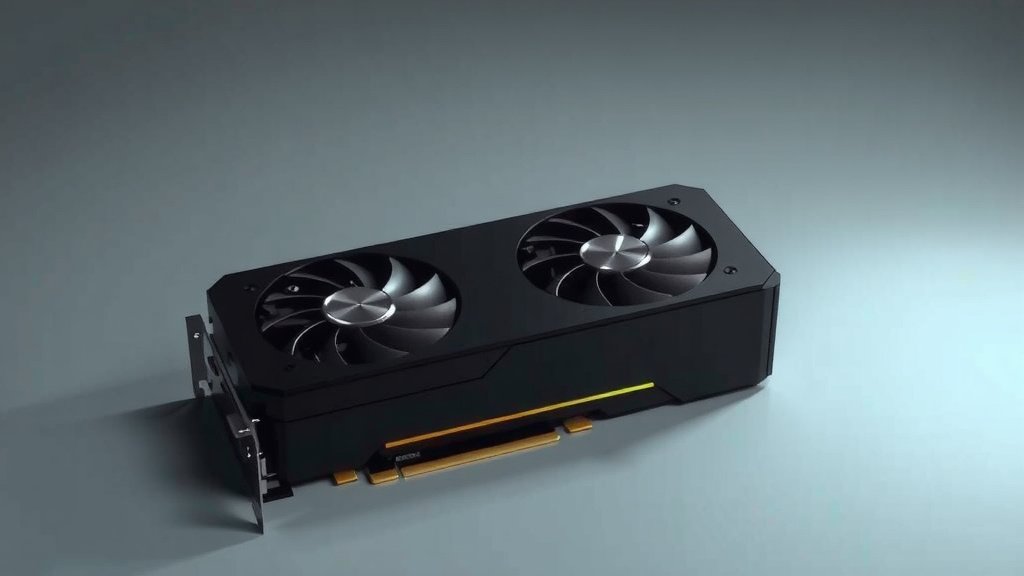
GPU Not Boosting? How to Fix It in November 2026
You can fix a GPU that isn’t boosting by turning off power-saving settings, updating your drivers, and making sure your power supply can handle the card. In most cases, the card is stuck in a low-power state because of software settings, not broken hardware. The good news? Most fixes take less than 15 minutes.
When a GPU won’t boost, it stays at low clock speeds even during games, so your frame rates drop for no obvious reason. We researched the most common causes and found that things like Windows power plans, thermal limits, and old drivers are usually to blame. Many experts say checking these basics first saves people from needless repairs.
- Set your Windows power plan to High Performance.
- Update your GPU drivers with a clean install.
- Check temperatures, since overheating blocks boosting.
- Make sure your PSU delivers enough wattage to the card.
- Use a monitoring tool to confirm boost clocks while gaming.
Below, we walk through each fix step by step so you can get your card running at full speed again. Let’s get into it.
Fixing a GPU That Won’t Boost to Full Speeds
Start with the software side before you panic about broken parts. Research on user forums and support threads shows that most boost problems come from settings, drivers, or power limits. We’ll walk through the fixes in order, from easiest to hardest.
Set Your Power Plan to High Performance
Windows loves to save energy, sometimes a little too much. If your PC thinks it’s on a coffee break, your GPU will clock down. Many experts say switching to High Performance is the fastest fix.
Here’s how to do it:
- Open the Control Panel and click Power Options.
- Select “High Performance.”
- If you don’t see it, click “Show additional plans.”
- On laptops, plug in the charger first. Battery mode limits boost behavior.
Sounds too simple, right? But we found that this single change solves a surprising number of “my GPU is slow” posts.
Update Your GPU Drivers the Clean Way
Old or broken drivers can confuse your card about when to boost. A clean install wipes out the leftovers that cause trouble.
How to Do a Clean Driver Install
Download the latest driver from NVIDIA, AMD, or Intel directly. Then use their official cleanup tool or Display Driver Uninstaller in Safe Mode. Reinstall fresh, restart, and test a game.
Think of old drivers like a translator who’s working from a ten-year-old dictionary. Your card and your games are speaking the same language, but the translations are way off.
Check Your Temperatures Before Anything Else
Heat is the number one boost killer. GPUs thermal throttle, meaning they slow themselves down to avoid damage. The CDC notes that electronics, like people, perform worse in extreme heat, and card makers build in these limits on purpose.
Grab a free tool like HWiNFO or MSI Afterburner and watch your temps while gaming. Most cards start pulling back clocks somewhere in the 80s Celsius. If you’re hitting those numbers in minutes, your cooling is the problem.
- Dust out your case and GPU fans with compressed air.
- Make sure intake fans actually have airflow, not a wall of cables.
- Consider repasting the card if it’s a few years old.
Verify Your Power Supply Is Up to the Job
Your GPU asks for short bursts of serious power when it boosts. If your PSU can’t deliver, the card drops clocks to protect itself. It’s like asking a garden hose to fill a swimming pool. It just can’t keep up.
Matching Wattage to Your Card
Check the recommended wattage on the GPU maker’s product page. Then compare it to your PSU label. We found that many people run cards on supplies that are one size too small, especially after upgrades. Our guide to picking the right PSU for your GPU explains the wattage math in detail.
| Card Class | Typical PSU Need | Common Symptom if Undersized |
|---|---|---|
| Entry level (e.g., RTX 3050, RX 6600) | 450-550W | Random clock drops under load |
| Mid range (e.g., RTX 4060 Ti, RX 6700 XT) | 550-650W | Crashes or no boost in heavy games |
| High end (e.g., RTX 4080, RX 7900 XT) | 750W+ | Shutdowns or persistent low clocks |
Also make sure the PCIe power cables are fully seated. A loose connector behaves just like a weak PSU.
Turn Off CPU and GPU Power Saving Features
Some saving features are helpful. Others are sneaky clock killers. Here are the usual suspects we found in troubleshooting guides:
- Disable PCIe Link State Power Management in your advanced power settings.
- Set your GPU’s power mode to “Prefer maximum performance” in NVIDIA Control Panel (or the AMD equivalent).
- Turn off “USB selective suspend” too, since it can wake-chain other power states.
Why does this matter? Because a GPU waiting for permission to boost will simply never ask. Give it permission, and clocks climb.
Rule Out Background Software Interference
Overlays, recorders, and “optimizer” apps can hold your card back more than they help. Some tuning tools also apply undervolts or clock caps you forgot about months ago.
Open Afterburner or your GPU software and reset everything to default. Then close overlays one at a time. Many experts say this step finds hidden culprits that drivers and temps miss.
Confirm Boost Clocks With Monitoring Tools
You can’t fix what you can’t measure. Use HWiNFO, Afterburner, or the Task Manager performance tab to watch GPU clock speed during a game.
Look up your card’s rated boost clock online. If your in-game numbers sit far below that, keep troubleshooting. If they hit it briefly and then drop, look at temps and power first. If they never move at all, revisit drivers and power plans.
Your Quick Fix Checklist
- Set Windows power plan to High Performance.
- Do a clean GPU driver install.
- Check in-game temps and clean out dust.
- Confirm PSU wattage and seat all power cables.
- Reset any custom clocks, voltages, or fan curves.
- Verify boost clocks with a monitoring tool while gaming.
When to Consider Hardware Problems
If every software fix fails, the card itself may be at fault. A failing fan, dried thermal paste, or a weak power delivery chip can all cap boost speeds. At that point, testing the card in another PC is the smartest move. We found that this simple swap test separates a bad card from a bad system faster than anything else.
One last thought: don’t chase factory boost numbers too hard. Real-world clocks dip and rise constantly, and that’s normal. What you’re looking for is a card that reaches its rated boost at least sometimes, holds it reasonably well, and doesn’t crash. Get those three things, and you’re in good shape.

Conclusion
Fixing a GPU that won’t boost usually comes down to patience, not parts. Start with the easy wins: set your power plan to High Performance, do a clean driver install, and watch your temps with a monitoring tool. From there, confirm your PSU wattage, disable the sneaky power-saving features, and reset any old overclocking profiles. We found that most people solve this without spending a dime. If your card still refuses to boost after all that, test it in another PC before buying anything new. Your next step? Pick one fix from the checklist above and try it today. Your frame rates will thank you.
Frequently Asked Questions
Is it normal for GPU boost clocks to fluctuate while gaming?
Yes, and it’s completely healthy. Modern GPUs jump between different clock speeds constantly to balance performance, heat, and power draw. What matters is that your card occasionally hits its rated boost clock, not that it stays pinned there forever.
Can a GPU not boosting actually damage my card?
No. In fact, low clocks are often a sign your card is protecting itself from heat or power issues. Your hardware isn’t at risk from running slow, but you should still track down the cause to get your full performance back.
Why is my GPU boosting fine in some games but not others?
Different games load your card differently, and some older titles barely push the GPU at all. If a game never demands full power, your card has no reason to boost. Test with a demanding, modern title before assuming something’s broken.
Should I use MSI Afterburner to force higher boost clocks?
You can try a small core clock offset to squeeze out extra performance, but it won’t fix an underlying problem. If your card is throttling from heat or a weak PSU, overclocking just masks the issue. Fix the root cause first, then tweak if you want more.
How long should a GPU hold its boost clock before dropping?
There’s no fixed rule, but most healthy cards hold boost for at least a few minutes in a well-cooled case. If yours drops within seconds of launching a game, look at temperatures and power delivery first. Both are cheap to check and easy to fix.