Monitor GPU Performance: A Complete Guide
Monitoring your GPU performance is straightforward when you know where to look. You can check your GPU’s speed, temperature, and memory use using built-in tools and free software. This helps you understand if your graphics card is working hard, running too hot, or if it’s the reason your games are slow. Keeping an eye on these stats helps you get the most from your PC, whether you’re gaming, editing video, or doing other demanding tasks.
Understanding your GPU’s health and workload is important for smooth operation. It’s like checking your car’s dashboard to see if everything’s running right. You’ll want to see how much your GPU is being used and its temperature to prevent overheating. This monitoring helps you spot performance bottlenecks and ensure your system is balanced.
- Check GPU usage and temperature regularly.
- Use free tools like Task Manager or GPU-Z.
- Understand what high usage and temperature mean.
- Ensure your GPU isn’t causing performance issues.
- Keep your GPU drivers up to date.
Let’s walk through exactly how you can start monitoring your GPU performance right now.
Keeping an Eye on Your GPU’s Health
You’ve probably heard people talk about their GPU working hard. But what does that really mean for you? Monitoring your graphics processing unit’s performance is key. It helps you understand how your PC handles demanding tasks. Think of it like a car’s dashboard for your graphics card. You want to see the speed, temperature, and how much it’s being asked to do. This information helps you spot slowdowns and make sure your computer is running smoothly.
Why You Should Care About GPU Monitoring
Your GPU is the powerhouse behind all the visuals on your screen. Whether you’re gaming, editing videos, or running complex design software, your GPU is working overtime. If it’s struggling, everything on your screen can stutter or freeze. Keeping tabs on its performance helps you diagnose issues quickly. It tells you if your card is capable of handling a new game or if it’s the bottleneck. This simple practice can save you a lot of frustration.
We found that understanding these numbers helps users optimize their systems. It’s not just for tech wizards. Anyone who uses a computer for more than basic web browsing can benefit. Knowing your GPU’s limits means you can set realistic expectations. You can also avoid pushing it too hard, which can sometimes lead to overheating. This is especially important for graphics cards, which can get quite hot under load.
What Key Metrics Should You Watch?
There are a few main things to keep an eye on. The most common metrics are GPU usage, GPU temperature, and GPU memory usage. These tell you the story of what your graphics card is doing right now.
GPU Usage
GPU usage shows you how much of your graphics card’s processing power is being used. It’s usually shown as a percentage. If a game or application is asking a lot from your GPU, you’ll see this number climb. When it’s near 100%, your GPU is working at its maximum capacity. If you see low GPU usage but your game is still slow, the problem might be elsewhere in your system, like your CPU or RAM. We found that high usage isn’t always bad. It often means your GPU is doing its job well.
GPU Temperature
Your GPU generates heat when it works. Monitoring its temperature is vital to prevent damage. Most graphics cards have a thermal limit. If they get too hot, they can slow themselves down to cool off. This is called thermal throttling, and it causes performance drops. We found that sustained temperatures above 80-85 degrees Celsius can be a concern (NVIDIA, AMD). Keeping your GPU cool ensures it runs at its best speed for longer.
GPU Memory Usage (VRAM)
Graphics cards have their own dedicated memory, called VRAM. This memory stores textures, frame buffers, and other data for what’s displayed on your screen. If a game or application needs more VRAM than your card has, it has to use system RAM, which is much slower. This can cause stuttering and very low frame rates. Checking VRAM usage helps you understand if you need to lower texture settings in games. We found that many modern games can use a lot of VRAM.
Simple Ways to Monitor Your GPU Performance
You don’t need fancy, expensive tools to start monitoring. Your operating system and a few free applications can give you all the important data you need. Let’s look at the easiest ways to check in on your GPU.
Using Windows Task Manager
Windows has a built-in tool that’s surprisingly capable. The Task Manager can show you basic GPU performance right away. It’s a great starting point if you just want a quick look.
How to Access Task Manager
You can open Task Manager in a few ways. Pressing Ctrl+Shift+Esc is the fastest. You can also right-click the taskbar and select “Task Manager.” Or, press Ctrl+Alt+Delete and choose Task Manager from the menu.
Finding GPU Stats
Once Task Manager is open, click on the “Performance” tab. You should see a list of components on the left. Look for “GPU 0” or similar. Clicking on it will show you graphs for GPU utilization, dedicated GPU memory usage, and temperature. This is a great, no-fuss way to see your GPU’s workload.
Dedicated GPU Monitoring Software
For more detailed information, there are excellent free programs designed specifically for monitoring. These often provide more data and customization than Task Manager.
Introducing GPU-Z
GPU-Z is a popular, lightweight, and free utility. It gives you a ton of information about your graphics card. You can see the GPU model, clock speeds, memory type and size, and much more. It also shows real-time sensor data like GPU temperature, fan speed, and usage. We found it to be very reliable for detailed checks.
Using NVIDIA GeForce Experience or AMD Radeon Software
If you have an NVIDIA or AMD graphics card, you likely already have their software installed. These applications offer performance overlays and monitoring tools. You can usually enable an in-game overlay that shows your FPS, GPU usage, and temperature while you play. This is incredibly useful for checking performance on the fly. Just be sure to check their settings to enable the performance monitoring features.
In-Game Performance Overlays
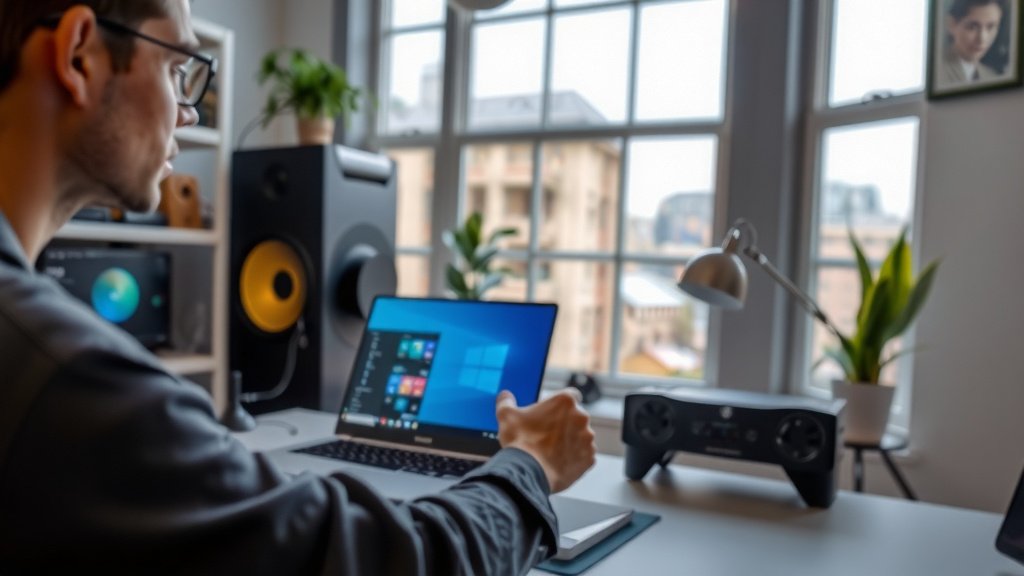
Many modern games have built-in performance monitoring tools. These can display your frames per second (FPS), GPU usage, and sometimes even temperature directly on your screen while you’re playing. This is super handy for seeing how your GPU handles different games or settings. Check the game’s graphics or display settings to find these options. They often let you customize what information is shown.
Interpreting Your GPU Data
Seeing the numbers is one thing, but knowing what they mean is another. Let’s break down what those readings suggest.
What Does High GPU Usage Mean?
If your GPU usage is consistently high (say, 90-100%) during gaming or demanding tasks, it generally means your graphics card is working hard to keep up. This is often expected. However, if you’re experiencing low frame rates or stuttering, and your GPU usage is maxed out, it indicates your GPU is the bottleneck. You might need to lower game settings or consider an upgrade. We found that sometimes, background processes can also increase GPU usage unexpectedly.
What Are Safe GPU Temperatures?
GPU temperatures can vary based on your card model, case cooling, and ambient room temperature. For most modern GPUs, sustained loads staying below 80-85°C are considered safe. Some cards are designed to run hotter, and others cooler. If your GPU frequently hits 90°C or higher under load, it’s a strong sign that it’s overheating. This can lead to performance throttling and potentially shorten the lifespan of your card. Keeping your PC clean and ensuring good airflow can help manage temperatures.
When VRAM is Running Low
If you notice your GPU memory usage is hitting the maximum capacity of your VRAM, especially in visually demanding games, you’re likely to experience performance issues. This can manifest as sudden frame drops, stuttering, or even the game crashing. The solution here is often to reduce texture quality, resolution, or other graphics settings that heavily impact VRAM usage. We found that checking reviews for games can give you an idea of VRAM requirements.
Your GPU Performance Checklist
- Check Task Manager: Open it with Ctrl+Shift+Esc and look at the Performance tab.
- Monitor Temperatures: Use GPU-Z or your graphics card software to track heat.
- Watch Usage Levels: See if your GPU is at 100% during demanding tasks.
- Track VRAM: Ensure your GPU memory isn’t constantly maxed out.
- Keep Drivers Updated: Outdated drivers can cause performance issues.
Conclusion
You’ve now learned how to effectively monitor your GPU’s performance. By checking usage, temperature, and memory, you can spot potential issues and ensure your system runs smoothly. Tools like Task Manager and free software like GPU-Z make this process simple. Understanding these metrics helps you optimize your gaming and creative workflows. So, the next step is clear: start monitoring your GPU today and take control of your PC’s visual power.
Frequently Asked Questions
How often should I check my GPU usage and temperature?
It’s a good idea to check your GPU’s stats periodically, especially when you’re running demanding applications like games or video editing software. Many experts recommend checking them whenever you notice a performance drop or unusual fan noise.
Can my GPU get too hot just from browsing the web?
Generally, no. Simple tasks like web browsing or word processing put very little strain on your GPU, so overheating is extremely unlikely. You’ll typically only see high temperatures and usage when running graphics-intensive programs or games.
What does it mean if my GPU usage is high but my game is still slow?
This often means your GPU is working as hard as it can, but it might not be powerful enough for the game’s settings. It could also point to a bottleneck elsewhere, like your CPU or RAM, which isn’t letting your GPU perform at its best.
Is it okay if my GPU temperature goes above 80 degrees Celsius sometimes?
For most modern GPUs, sustained temperatures above 80-85 degrees Celsius under load can be a concern. While momentary spikes might be okay, consistently high temperatures can lead to performance throttling and reduce your GPU’s lifespan. Good case airflow is key.
How can I check my GPU’s VRAM usage in a game?
Many games offer built-in performance overlays that show VRAM usage. If your game doesn’t, dedicated monitoring software like MSI Afterburner or HWMonitor can display this information. You can also check your graphics card manufacturer’s software (like NVIDIA GeForce Experience or AMD Radeon Software) for overlay options.

![10 Best Gpu For Dcs World [2026]](https://spsolutionscare.com/wp-content/uploads/2026/09/10-best-gpu-for-dcs-world-2026-featured-768x432.jpg)
![10 Best Brand For 7900 Xtx [2026]](https://spsolutionscare.com/wp-content/uploads/2026/08/10-best-brand-for-7900-xtx-2026-featured-768x432.jpg)