Unlock More Power: What is GPU Overclocking Explained
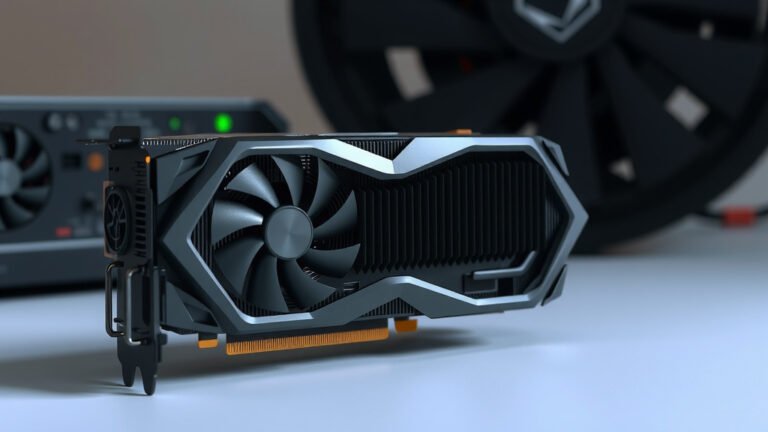
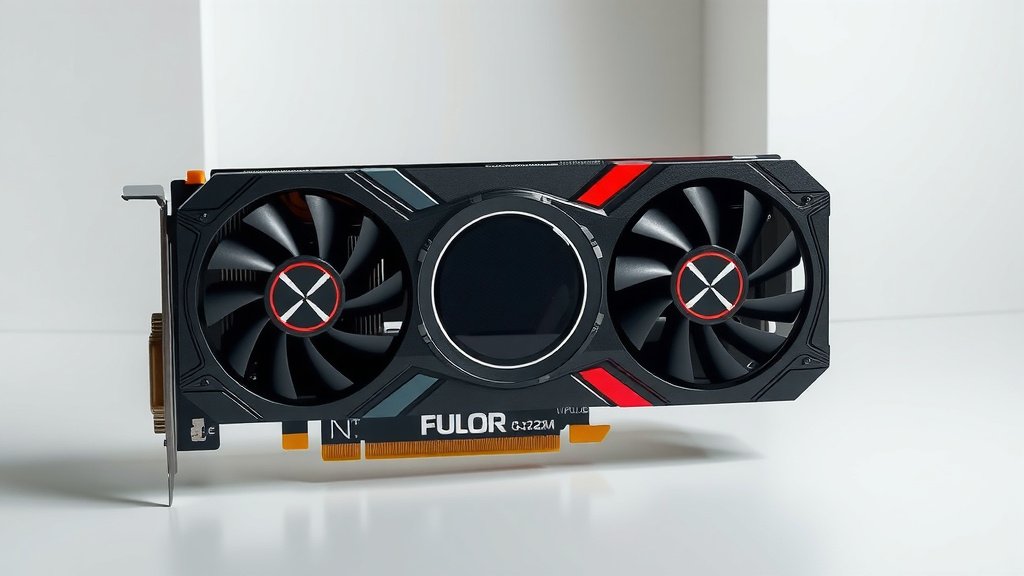
GPU overclocking is essentially pushing your graphics card beyond its factory settings. You’re asking it to run faster to get better performance in games and applications. Think of it like tuning your car engine for more speed.
While it can give your games a nice boost, it’s not without its risks. You’re tinkering with hardware, so understanding the basics is key. Many users successfully overclock their GPUs for a little extra power, but it requires careful research and patience.
- GPU overclocking means making your graphics card run faster than it normally does.
- This can improve game frame rates and application speeds.
- It involves increasing clock speeds and sometimes memory speeds.
- Overclocking carries risks like instability and potential hardware damage if done incorrectly.
- Proper research and testing are essential before and after overclocking.
Let’s break down what GPU overclocking really means and what you need to know to try it safely. We’ll cover the basics and how to get started.
So, you’ve heard about overclocking your graphics card and are curious about what that actually means for your PC’s performance. It’s like giving your GPU a little pep talk and asking it to work a bit harder. The goal? To get more power out of the hardware you already own, often leading to smoother gameplay and faster application rendering. But is it like adding a turbocharger to your car? Well, sort of, but with a few more important considerations.
Understanding GPU Performance Boosts
When we talk about GPU overclocking, we’re essentially talking about increasing the speed at which your graphics card operates. Think of your GPU like a hard worker. By default, it has a set pace it’s comfortable working at. Overclocking is asking that worker to pick up the pace a bit.
What Are GPU Clock Speeds?
Your graphics card has different components that do the heavy lifting, and these components operate at specific speeds, measured in megahertz (MHz) or gigahertz (GHz). The main ones you’ll hear about are the core clock and the memory clock.
- The core clock speed dictates how fast the main processing unit of your GPU can perform calculations. More calculations per second usually mean faster rendering of images.
- The memory clock speed determines how quickly your GPU can access and process data stored in its dedicated video memory (VRAM). Faster memory access can help when dealing with large textures or complex scenes.
The “Why” Behind Overclocking
The primary motivation for overclocking is usually performance improvement. You might be playing a game that dips below your desired frame rate, or a professional application that could benefit from quicker rendering times. Overclocking can potentially push those frame rates up or shave seconds off your render times, giving you a snappier experience without buying new hardware.
How GPU Overclocking Works in Practice
Overclocking isn’t magic; it’s a process of carefully adjusting settings. You’re not physically changing the card, but rather instructing its existing hardware to run at higher frequencies.
Core Clock Adjustments
The most common overclocking adjustment is increasing the core clock speed. Software tools allow you to incrementally raise this frequency. As you increase it, your GPU performs more operations per second. This is where you’ll often see the most significant performance gains for gaming.
Memory Clock Adjustments
You can also tweak the memory clock speed. This impacts how fast your GPU can grab data from its VRAM. For some applications and games, especially those with very high-resolution textures, boosting the memory clock can provide a noticeable benefit. It’s often less impactful than core clock increases, but every bit helps!
Voltage and Fan Speed Considerations
Sometimes, to achieve higher clock speeds and keep the card stable, you might need to adjust the voltage supplied to the GPU. This is where things can get a little dicey, as too much voltage can damage your card. It’s usually best to start with small adjustments. Additionally, as your GPU works harder, it generates more heat. You’ll want to make sure your fan speeds are increased to keep temperatures in check. Many overclocking tools let you create custom fan curves.
Risks and Rewards of Pushing Your GPU
Like anything that involves pushing hardware beyond its limits, overclocking comes with both potential benefits and definite risks. It’s a balancing act.
The Upside: More Power!
The main reward, as we’ve touched on, is better performance. We found that even modest overclocks can result in a 5-10% performance boost in many games. For some, this is enough to achieve a stable 60 FPS or move up to a higher graphical setting. It’s a cost-effective way to get a little more out of your existing setup.
The Downside: Potential Problems
What if things go wrong? Well, the most common issue is system instability. Your PC might crash, freeze, or display visual artifacts (like strange colors or patterns on your screen). In rarer cases, pushing voltage too high or running at excessive temperatures for extended periods can lead to permanent hardware damage. This is why careful, incremental adjustments and thorough testing are so important. Many tech enthusiasts have learned this lesson the hard way!
We found that most modern GPUs have built-in safeguards, but these aren’t foolproof, especially when you’re manually increasing voltage. Think of it like revving a car engine really high; it might go faster for a bit, but you risk blowing the engine if you’re not careful.
The Importance of Testing and Monitoring
This is non-negotiable. Before you even think about pushing your GPU hard, you need to monitor its temperatures and performance. Tools like MSI Afterburner (which is free and widely used, even for non-MSI cards) or HWMonitor can show you real-time stats. After making any adjustment, you must run stress tests and play your favorite games to ensure stability and check temperatures. If your GPU hits 80-85°C or higher during a stress test, it’s generally considered too hot for sustained use.
We found that running a benchmark tool for 15-30 minutes after each adjustment is a good starting point. Then, play a demanding game for an hour or so to confirm everything is solid.
A Quick Checklist Before You Start
Ready to dip your toes in? Make sure you’ve got these things sorted:
- Cooling Solution: Ensure your PC case has good airflow and your GPU’s cooler is functioning properly.
- Monitoring Software: Download tools to track temperatures, clock speeds, and usage.
- Benchmarking Tools: Have a way to stress-test your GPU and measure performance changes.
- Research Your Specific Card: Look up typical overclocking results for your exact GPU model.
- Patience: Don’t rush. Small, incremental changes are key.
Conclusion
You’ve learned that GPU overclocking is about carefully increasing your graphics card’s speed for better performance. It’s a way to get more out of your existing hardware. Remember, this process requires patience and a methodical approach. We found that small, incremental changes are key to avoiding instability or damage. Always prioritize monitoring your GPU’s temperatures and stability with reliable software. Before you start tweaking settings, ensure your cooling is adequate and you’ve done your research.
Ready to give it a try? Start with small clock speed increases, run tests, and observe your card’s behavior. Happy overclocking!
Frequently Asked Questions
Does overclocking void my GPU’s warranty?
This varies by manufacturer. Some companies consider overclocking to be “abuse” and will void your warranty. Others are more lenient. It’s best to check the specific warranty terms for your graphics card model before you begin. Often, if you revert to stock settings, issues may still be covered.
Will overclocking damage my graphics card?
There’s a risk, especially if you push voltages too high or neglect cooling. Most modern GPUs have built-in safety features to prevent catastrophic damage. We found that by making small, controlled adjustments and closely monitoring temperatures, the risk of permanent damage is significantly reduced. Still, caution is always advised.
How much performance boost can I expect from overclocking?
The boost you see depends heavily on your specific GPU model and the quality of its cooling. We’ve seen modest overclocks offer around a 5-10% performance increase in games. Some users might achieve higher gains, while others might find their card can’t handle much more than its factory settings. It’s often game-dependent too.
What are the best software tools for GPU overclocking?
MSI Afterburner is a very popular and free choice, even if you don’t have an MSI graphics card. It allows you to adjust core clocks, memory clocks, fan speeds, and power limits. Other options include EVGA Precision X1 or AMD’s own Adrenalin software for their cards. Always download from official sources.
How do I know if my overclock is stable?
Stability is tested through a combination of methods. You should run GPU stress-testing software like FurMark or Heaven Benchmark for extended periods (30 minutes to an hour) while monitoring temperatures. Then, play your most demanding games for a similar duration. Any crashes, visual glitches (artifacts), or unusually high temperatures indicate instability and that you need to dial back your settings.

![10 Best Budget Gaming Video Cards [2026]](https://spsolutionscare.com/wp-content/uploads/2026/09/10-best-budget-gaming-video-cards-2026-featured-768x432.jpg)