How to Reduce Coil Whine on Your PC: 7 Proven Fixes
The easiest way to reduce coil whine is to cap your frame rate so your GPU isn’t pushing more frames than your monitor can display. Coil whine is that annoying high-pitched buzz coming from your PC, and it usually gets louder when your graphics card is working hard for no reason. It’s harmless, but yes, it’s incredibly annoying.
We researched this topic and found that coil whine happens when electrical components vibrate inside parts like your GPU or power supply. Many experts say it’s completely normal and doesn’t damage anything. Still, nobody wants their gaming rig to sound like a mosquito convention, right?
- Cap your frame rate or enable V-Sync to calm things down.
- Undervolting your GPU can also quiet the buzz.
- Improve airflow and cable management to reduce stress on components.
- If all else fails, an RMA or replacement may be your best friend.
Below, we break down everything you need to know about reducing coil whine, step by step. Let’s get your PC quiet again.
Ways to Quiet Coil Whine in Your PC
Before you can fix the buzz, it helps to know why it happens. Coil whine comes from electrical coils vibrating inside parts like your GPU, PSU, or motherboard. When current rushes through them, they physically shake. That shake is the sound you hear.
The good news? Most cases are easy to manage at home. Let’s walk through the fixes, starting with the ones that work most often.
Why Does Coil Whine Get Louder During Games?
Your GPU works hardest when it renders frames at full speed. If your monitor can only show 60 frames per second, but your card pushes 200, that extra effort causes electrical strain. More strain means more vibration. More vibration means more noise.
Think of it like revving your car engine while parked in the driveway. Loud, pointless, and a little embarrassing.
Fix Your Frame Rate First
This is the single most effective fix we found. Cap your frame rate to match your monitor’s refresh rate.
- Use NVIDIA Control Panel and set Max Frame Rate.
- Try AMD Radeon Software and enable Radeon Chill or FRTC.
- Turn on V-Sync in your game settings as a quick option.
- Consider FreeSync or G-Sync if your monitor supports them.
Once your GPU stops rendering wasted frames, the high-pitched tone often drops immediately. Many users report near-silence after this one change.
Undervolt Your Graphics Card
Undervolting means giving your GPU slightly less voltage without hurting performance. Less voltage equals less current flowing through the coils, which means less vibration.
Tools like MSI Afterburner make this pretty painless. Start with small steps and test stability. We found that many modern cards run fine at lower voltage, and your electricity bill will thank you too.
Check Your Power Supply Next
Your PSU is a common coil whine culprit. Cheap or aging units vibrate more under load, especially during gaming sessions. If the noise follows heavy loads, your power supply may be the source.
Quick Tests to Find the Source
Not sure which part is singing? Try these simple checks:
- Listen closely with the case side panel off (carefully!).
- Run a stress test on the GPU alone, then the CPU alone.
- If the whine only appears during GPU tests, your card is likely the culprit.
- If it happens during heavy CPU loads too, look at the PSU or motherboard.
Pro tip: use the old “ear on a cardboard tube” trick to pinpoint the exact spot. Low tech, high accuracy.
Physical Fixes That Actually Help
Since coil whine is a vibration problem, damping vibration can quiet it down. You’re not fixing the electrical cause, but you can muffle the result.
| Fix | How It Helps | Difficulty |
|---|---|---|
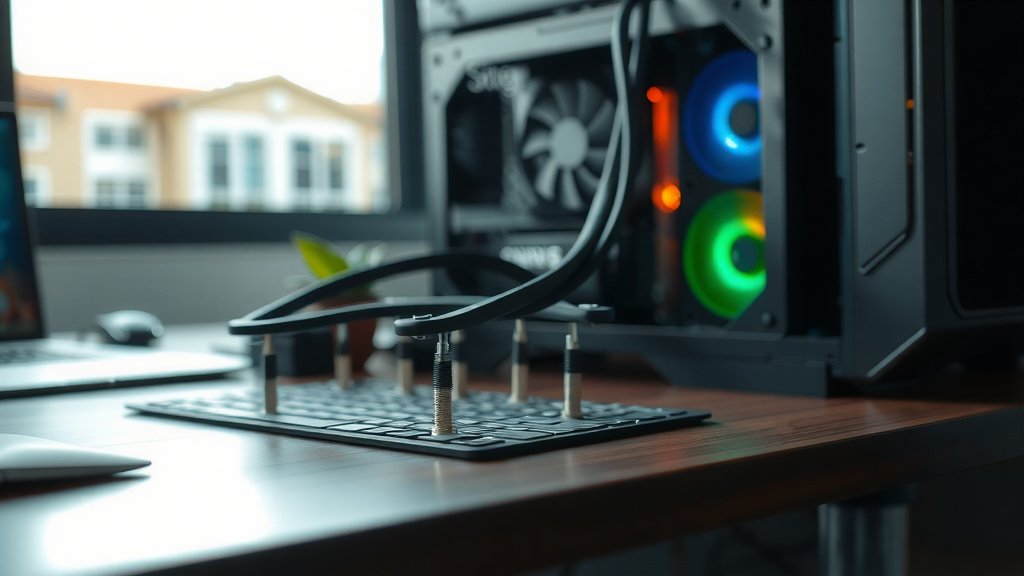
| Secure loose cables | Stops vibration transfer to the case | Easy |
| Add rubber case mounts | Reduces panel resonance | Easy |
| Improve airflow | Keeps components cooler under load | Moderate |
| Replace PSU with better unit | Higher-quality coils vibrate less | Moderate |
Is it a perfect cure? Not always. But every little bit of noise reduction adds up.
What About Software Volume and Sound Masking?
Some people just drown out the whine. Fan noise, music, or a headset can cover it well. That’s a legitimate strategy if the buzz is mild. Many experts say coil whine is harmless, so masking it is a valid choice, not a cop-out.
When Coil Whine Means Something Else
Here’s an important distinction: coil whine is normal, but electrical buzzing that crackles, pops, or smells like burning is not. If you notice heat, a burning odor, or the sound changes suddenly, unplug the system and investigate right away.
Electrical safety organizations, including the U.S. Consumer Product Safety Commission, warn that unusual burning smells or smoke from electronics should never be ignored. Trust your nose. It’s smarter than you think.
Your RMA and Warranty Options
If nothing helps, don’t suffer in silence. Most manufacturers accept RMA requests for excessive coil whine, especially within the return window. Policies vary, so check your card maker’s website.
We found that some brands are stricter than others. Be honest, describe the noise clearly, and mention which steps you already tried. A little effort here goes a long way.
Prevention Tips for Your Next Build
Buying new gear soon? Keep these points in mind:
- Choose a quality PSU with good reviews on noise.
- Read user reviews specifically mentioning coil whine.
- Avoid running components at maximum load constantly.
- Pick cases with good airflow and solid panel construction.
Your Coil Whine Checklist
Here’s a quick recap you can follow tonight:
- Cap your frame rate to match your monitor.
- Enable V-Sync or G-Sync/FreeSync.
- Try undervolting your GPU with Afterburner.
- Identify the noisy part with isolated stress tests.
- Tidy cables and improve airflow inside the case.
- Contact the manufacturer for an RMA if all else fails.
One or two of these usually does the trick. Start with the frame rate cap, work down the list, and enjoy your newly quiet machine.
Conclusion
Coil whine might sound scary, but it’s usually just a vibrating coil, not a dying PC. We researched the most effective fixes, and the winners are simple: cap your frame rate, try a gentle undervolt, and track down the noisy part with isolated stress tests. Physical fixes like cable management and better airflow help too. And remember, the buzz is harmless, so masking it with headphones is a perfectly fine choice. If the noise drives you crazy anyway, an RMA is always on the table. Start with that frame rate cap tonight. It takes two minutes, and it’s the fix most people swear by.
Frequently Asked Questions
Can coil whine get worse over time?
It can, but it’s not guaranteed. Some components settle in and get quieter after a few weeks of use, while others slowly whine more as they age. In our research, we found that a sudden change in volume is worth watching, but a steady hum usually stays harmless.
Does coil whine affect performance or lifespan?
No, it doesn’t. The noise is just vibration from electrical currents, not a sign of damage. Your GPU or PSU will perform normally, and most manufacturers don’t even consider light coil whine a defect.
Will a new power supply get rid of coil whine?
It depends on where the noise is coming from. If your stress tests point to the PSU, a higher-quality unit with better components often quiets things down. If the GPU is the real culprit, a new PSU won’t help at all.
Is coil whine normal in new graphics cards?
Yes, and it’s surprisingly common. Many brand-new cards whine under heavy load and calm down after a break-in period. If it stays loud after a few weeks, you have a solid case for an RMA.
Can headphones or speakers make coil whine noticeable?
They can, in a roundabout way. Sensitive audio equipment sometimes picks up electrical interference from your PC, which creates its own buzz. We found that moving your audio setup away from the tower, or using a different outlet, often cleans up the sound.