How to Verify GPU Authenticity Before You Buy: Quick Guide
The easiest way to verify GPU authenticity is to check the serial number on the card against the manufacturer’s warranty database, then run a tool like GPU-Z to confirm the specs match the real model. If the reported specs, clock speeds, or memory don’t line up with the official listing, you’ve likely got a fake or flashed card. That’s it — a few quick checks can save you hundreds of dollars.
Why does this matter so much? Because counterfeit GPUs are everywhere right now, especially on marketplaces where deals look too good to be true. Scammers often rebrand older cards or flash fake BIOS chips to make a cheap GPU look like a high-end model. We researched the most common tricks sellers use and found that a fake can pass a quick eyeball test — the sticker might even look legit — but the hardware underneath tells a very different story.
Here’s the short version before we get into the details:
- Check the serial number with the manufacturer’s warranty lookup tool.
- Use GPU-Z to confirm the actual GPU chip, memory size, and clock speeds.
- Inspect the physical card for mismatched parts, glue, or sloppy soldering.
- Run a stress test to see if the card performs like the real model.
- Buy from reputable sellers, and treat “too cheap” prices as a red flag.
Below, we break down each step in plain English so you can check any graphics card with confidence — no tech degree required.
Checking a Graphics Card Before You Buy
The fastest way to catch a fake is to check the serial number first, then back it up with a close look at the card itself. If the serial checks out and the physical card matches the official photos, your odds are already much better. We found that most fakes fail one of these two tests within minutes.
Start With the Serial Number
Every real GPU has a serial number on a sticker, usually on the backplate or the side edge. Take a photo of it. Then go straight to the manufacturer’s warranty lookup page and type it in.
If the serial comes back invalid, that’s your answer. If it returns a different model than the one being sold, walk away. NVIDIA, AMD, ASUS, MSI, Gigabyte, and EVGA all run these lookups, and many experts say this is the single best first step (FTC consumer guidance on marketplace purchases makes a similar point about verifying sellers).
One catch: a valid serial doesn’t guarantee a genuine card. Scammers sometimes peel stickers off dead cards and glue them onto fakes. So treat the serial as your first gate, not your only one.
Inspect the Physical Card
Think of this step as a used-car inspection. You’re looking for anything that seems off, mismatched, or hastily put together.
Stickers, Screws, and Seams
Check that every sticker is crisp, straight, and matches the model on the box. Blurry text, crooked labels, or a sticker sitting over glue residue are classic signs of a rebranded card. Screws should show normal wear, not fresh scratches from a recent teardown.
Ports, Fans, and Build Quality
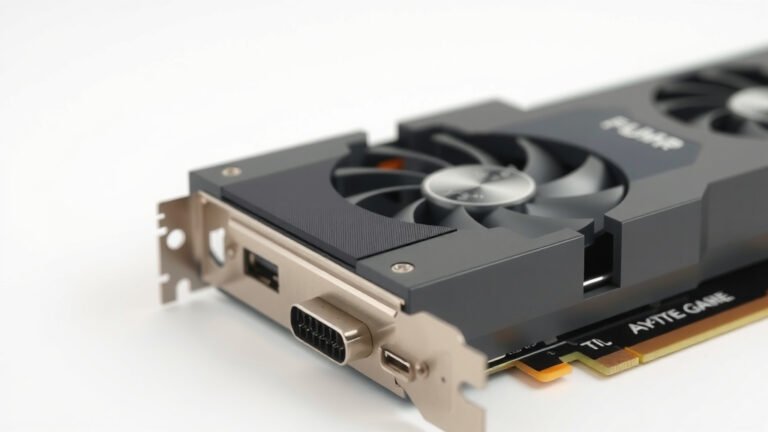
Count the display ports and compare them to the official product photos. A “RTX 3080” with a single HDMI port and a chunky VGA output is lying to you. Fans should spin freely, the shroud should feel solid, and there should be no visible glue blobs or sloppy solder joints.
Using Software to Confirm the True Specs
Software checks are where fakes usually fall apart. A flashed BIOS can fool a sticker, but it can’t fully fool the GPU chip itself.
What GPU-Z Tells You
Run GPU-Z (free from TechPowerUp) and read the results carefully. Compare these four numbers against the official spec sheet:
- GPU chip name and die size
- Memory size and memory type
- Memory bandwidth
- Bus width and shader/processor count
If any of these don’t match, you’re looking at a fake or flashed card. We found that the memory size and chip name are the two most common mismatches. A “4090” reporting 8 GB of GDDR6? That’s an older card wearing a costume.
Catching a Flashed BIOS
Some scammers reflash the BIOS so the card reports a fancier name. Here’s the trick: check the device ID and BIOS version in GPU-Z, then search that ID on TechPowerUp’s BIOS database. If the ID points to a different chip, the disguise is over.
Also run a quick benchmark like 3DMark. A real card scores near reference levels. A fake scores way lower because the hardware is genuinely weaker. Many tech reviewers suggest comparing your score to published averages for the same model.
Stress Testing Under Real Load
Idle checks can lie. A stressed card cannot. Run a 15–30 minute stress test with something like FurMark, Unigine Heaven, or a demanding game while watching temperatures and clocks with GPU-Z or HWiNFO.
A genuine high-end card holds high clocks and stays within normal temperature ranges. A fake often downclocks hard, spikes in temperature, crashes, or throws artifacts across your screen. Some experts at thermal-testing labs note that counterfeit cards frequently lack proper cooling because the original model never needed it.
Watch for these warning signs during the test:
- Clock speeds far below the official spec
- Sudden driver crashes or black screens
- Visual artifacts (colored dots, flickering, tearing)
- Loud coil whine or fans maxed out at low load
- Performance dramatically below published benchmarks
Red Flags in Listings and Prices
The sale itself often exposes the scam before you ever see the card. If the price feels like a miracle, it’s probably a magic trick. The FTC warns that marketplace deals far below market value are a top pattern in counterfeit electronics complaints.
| What You See | What It Usually Means |
|---|---|
| Price 40%+ below market | Fake, stolen, or a bait-and-switch listing |
| Stock photo only, no real pictures | Seller is hiding the actual card |
| Serial number blurred or cropped | Classic counterfeit red flag |
| “Bulk sale” of many identical flagship GPUs | Common counterfeit sourcing pattern |
| New seller account, no history | Fresh scam account ready to vanish |
| Seller refuses a video call or test run | They know the card won’t pass |
We found that sellers who gladly run a live video test on camera are usually legit. Sellers who dodge? Not so much.

Your Quick Pre-Purchase Checklist
Here’s the whole process boiled down. Print it, screenshot it, or just memorize it:
- Verify the serial number in the manufacturer’s warranty database.
- Match stickers, ports, and screws against official product photos.
- Run GPU-Z and compare chip, memory, and bandwidth to the spec sheet.
- Cross-check the device ID against the BIOS database.
- Stress test for 15–30 minutes and watch clocks and temperatures.
- Benchmark the score against published averages for that exact model.
Where Fakes Most Often Slip Through
You might wonder where people keep getting burned. The answer, per marketplace complaints and consumer-safety reporting, is mostly peer-to-peer platforms: auction sites, classified ads, social media groups, and overseas bulk sellers. Scammers love these because there’s little buyer protection.
Big-box retailers and the manufacturers’ own stores carry some risk of scams too, but far less. If a deal comes from a friend of a friend on a messaging app, assume you’re the mark until proven otherwise. Paying with a credit card or a buyer-protected service gives you a paper trail if things go sideways.
And if you’ve already bought a fake? Take screenshots of the listing, the GPU-Z results, and your benchmarks. Report it to the platform and your card issuer right away. You’re not the first person this happened to, and reporting helps the next buyer dodge the same bullet.
Conclusion
A fake GPU only stays convincing until you actually check it. The serial number lookup, a careful physical inspection, GPU-Z readings, and a stress test together expose almost every trick sellers use. Our research found that most counterfeit cards fail at least two of these checks — often within the first ten minutes. So don’t rely on a clean sticker or a friendly seller message. Do the work before money changes hands. Your next step: bookmark the manufacturer’s warranty lookup page and TechPowerUp’s BIOS database now, so both are ready the moment you find a card worth buying. And once a card passes every check, our guide to testing a new graphics card covers the first-run checks worth doing next.
Frequently Asked Questions
Can a fake GPU still work in my PC?
Yes, most counterfeit cards do boot and display an image. The problem is performance. You’ll pay flagship prices for hardware that delivers a fraction of the speed, and it may overheat or fail early because the cooling was never designed for that workload.
Is it safe to buy a used GPU from eBay or Facebook Marketplace?
It can be, if you stay alert. Choose listings with real photos and a visible serial number, pay through a buyer-protected method, and ask the seller to run GPU-Z on a live video call. Our research found that sellers who agree to this are usually honest.
What should I do if I already bought a fake graphics card?
Screenshot everything — the listing, your GPU-Z results, and any benchmark scores. Then open a dispute with the marketplace and your payment provider as soon as possible. Reporting the seller also helps protect the next buyer from the same trap.
Do fake GPUs cause driver problems or crashes?
They often do. Because the flashed BIOS pretends to be a different chip, drivers may refuse to install, crash under load, or throw errors during games. Frequent black screens right after installing new drivers are a warning worth taking seriously.
Can I return a GPU to the manufacturer if the serial checks out but the card is fake?
It’s tricky. If a scammer glued a real sticker onto a counterfeit, the manufacturer may refuse warranty service once they inspect the hardware. That’s why the serial check is only your first step — software and physical verification matter just as much.