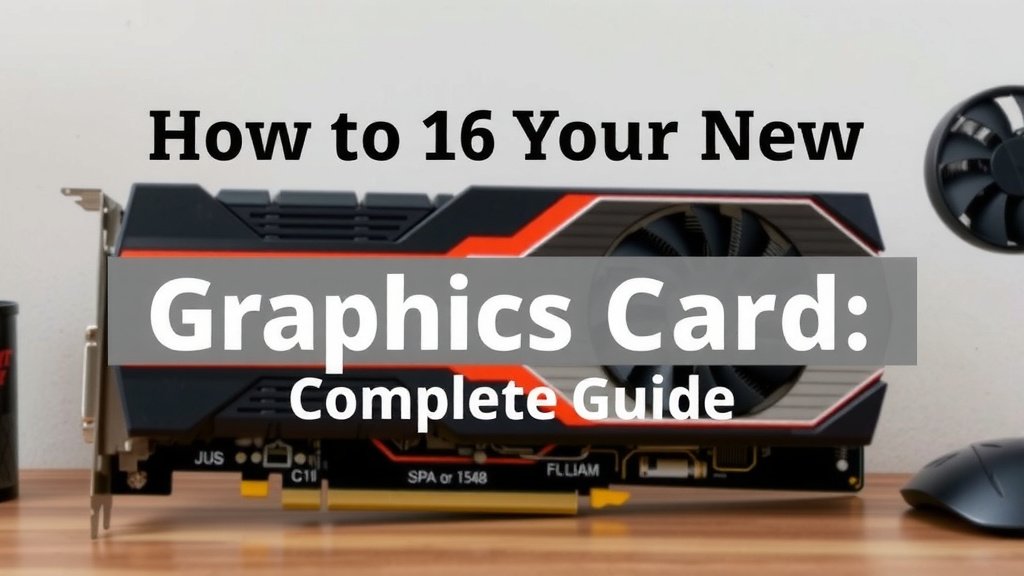
Test Your New Graphics Card: A Complete Guide
Testing a new graphics card is a smart move to ensure it works right and performs as expected. You can easily do this using free benchmarking software. This helps you confirm stability and catch any issues before they cause problems.
Before you start gaming, it’s wise to give your new GPU a good workout. This process checks for performance bottlenecks and overheating. It’s about making sure your investment delivers the best possible experience.
- Install the latest graphics drivers first.
- Run a stress test to check for stability.
- Use benchmarking tools for performance comparison.
- Monitor temperatures and clock speeds throughout.
- Compare results to expected benchmarks online.
Let’s walk through exactly how to test your new graphics card to get it ready for action.
“`htmlPutting Your New Graphics Card Through Its Paces
So, you’ve got a shiny new graphics card! That’s awesome. Before you dive into your favorite games, it’s a really smart idea to give it a good once-over. Think of it like breaking in a new pair of shoes; you want to make sure they fit right and won’t give you blisters. Testing your GPU ensures it’s running smoothly and at its best.
First Things First: Driver Installation is Key
You absolutely must start with the right drivers. These are like the instruction manual for your graphics card, telling your computer how to talk to it properly. Without the correct, up-to-date drivers, your card might not perform well, or it might not work at all!
Getting the Latest Drivers
You’ll want to download the newest drivers directly from the manufacturer’s website. Are you rocking an NVIDIA GeForce card? Head to NVIDIA’s site. Got an AMD Radeon? Go to AMD’s website. It’s best to do a clean installation. This means removing any old drivers before installing the new ones. Most driver installers offer this option, and it really helps prevent conflicts.
Stress Testing for Stability: The GPU Workout
Now that your drivers are good to go, it’s time for a stress test. This pushes your graphics card to its limits, making it work as hard as it would during intense gaming. This helps us check for stability issues, like crashes or visual glitches, that might only appear under heavy load.
What is a Stress Test?
A stress test is a benchmark tool designed to run your GPU at 100% utilization for an extended period. We’re talking 30 minutes to a few hours, depending on how thorough you want to be. It’s like having your GPU run a marathon to see if it can handle the distance without getting tired or falling over.
Recommended Stress Testing Software
There are some fantastic free tools out there for this. FurMark is a popular choice. It’s known for really pushing GPUs hard. Another option is Unigine Heaven or Superposition. These also provide beautiful visuals while stressing your card, which can be a nice bonus!
Running the Test
Once you’ve downloaded your chosen software, start the stress test. Keep an eye on a few things during the test. Are there any weird artifacts on your screen? Does the computer freeze or shut down? These are all signs of potential problems. Many experts recommend running a test for at least 30 minutes to an hour (PC Building Sim Guide).
Benchmarking: Measuring Performance
Stress testing checks for stability, but benchmarking shows you how fast your card is. This helps you see if your new GPU is performing as expected. It’s also great for comparing your results to other people with the same card.
What Benchmarks Tell You
Benchmarks run a specific scene or set of scenes and give you a score. This score is a number that represents your card’s performance. Higher scores generally mean better performance. You can then look up online reviews or forums for your specific graphics card model to see what scores others are getting.
Popular Benchmarking Tools
Many of the same tools used for stress testing can also provide benchmark scores. Unigine Heaven and Superposition are excellent for this. Another industry standard is 3DMark. While 3DMark has free versions with various tests, some of its more advanced features are paid. For a quick check, the free options are usually plenty.
Interpreting Your Scores
When you get your benchmark score, don’t panic if it’s not *exactly* the same as someone else’s. There are many factors that can influence results, like your CPU, RAM speed, and even the power supply you’re using.
What you’re looking for is a score that is within a reasonable range of what’s generally reported for your card. If your score is drastically lower, it might indicate a problem, or perhaps a bottleneck elsewhere in your system.
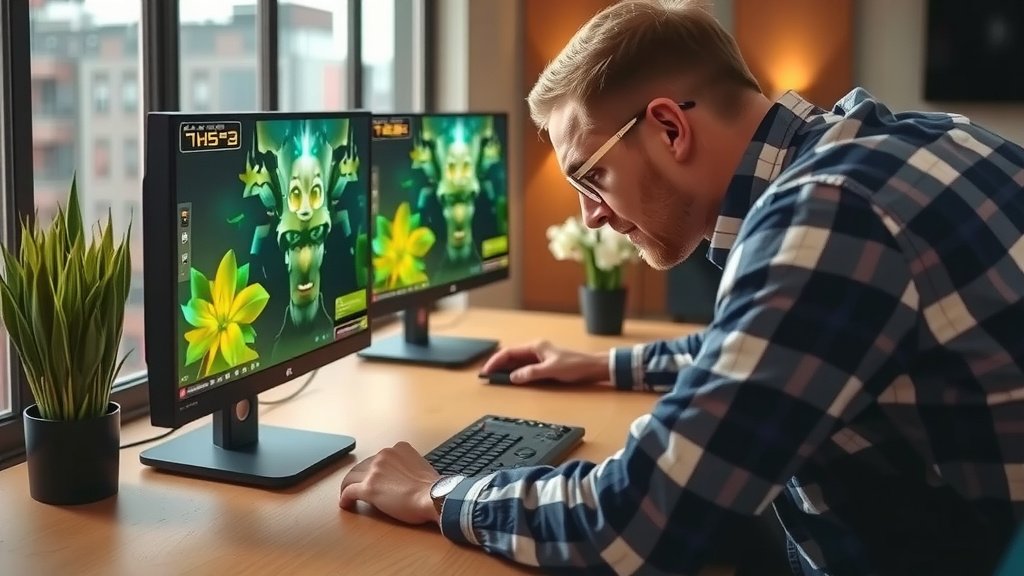
Monitoring Your Graphics Card During Tests
Throughout both stress tests and benchmarks, you need to be a detective and monitor your card’s vitals. You’re looking for signs of overheating or performance throttling.
Key Metrics to Watch
The two most important metrics are temperature and clock speed. High temperatures can damage your card over time and cause it to slow down to protect itself (thermal throttling).
Useful Monitoring Software
There are several free tools that make this easy. MSI Afterburner is a favorite among PC enthusiasts. It can display your GPU’s temperature, clock speed, fan speed, and more, right on your screen while the tests are running. Another great option is HWiNFO. It provides a vast amount of system information, including detailed GPU metrics.
What Are Good Temperatures?
Generally, for most modern graphics cards, you want to see temperatures stay below 80 degrees Celsius (176°F) during heavy load. Ideally, they’ll be in the 60s or 70s. If your card is consistently hitting 85°C or higher, you might have a cooling issue (Tom’s Hardware).
Understanding Clock Speeds
Your GPU’s clock speed is how fast its processing cores are running. During intensive tasks, you want to see the clock speed stay relatively consistent and near the advertised boost clock. If it’s constantly dropping significantly, it could be a sign of power delivery issues or overheating.
A Quick Checklist Before You Game
To recap, here’s your super-quick checklist:
- Install the absolute latest drivers from the manufacturer.
- Run a stress test (like FurMark) for at least 30 minutes.
- Watch for visual glitches, freezes, or shutdowns during the test.
- Run a benchmark (like Unigine Heaven) to get a performance score.
- Monitor temperatures, keeping them below 80°C if possible.
- Compare your benchmark score to online results for your card model.
Conclusion
You’ve now learned how to thoroughly test your new graphics card. By installing the latest drivers, running stress tests for stability, and benchmarking for performance, you’ve set yourself up for success. Monitoring temperatures and clock speeds ensures your GPU runs optimally and safely. This simple process helps confirm your investment is performing as it should. Your next step is to confidently install your favorite games and enjoy the improved experience!
Frequently Asked Questions
How long should I run a graphics card stress test?
We recommend running a stress test for at least 30 minutes to an hour. This duration is usually enough to reveal any stability issues that might occur under sustained heavy load. If your card remains stable throughout this period, it’s likely to perform well in gaming.
What if my graphics card runs too hot during testing?
If your card consistently goes above 80°C (176°F), it’s a sign of potential cooling problems. Ensure your PC case has good airflow, and check that the GPU fans are spinning correctly. You might need to clean dust from the heatsink or consider adjusting fan curves in monitoring software.
My benchmark score is lower than expected. What could be wrong?
Several factors can affect benchmark scores, including your CPU, RAM speed, and even your power supply. If your score is significantly lower than similar setups online, double-check that you have the latest drivers installed correctly and that no other programs are running in the background.
Can I just skip the stress test and go straight to benchmarking?
While benchmarking tells you about performance, it doesn’t always reveal stability issues. A stress test pushes your GPU to its absolute limits for an extended period, which is more likely to uncover problems like crashes or artifacts that you might miss with a quick benchmark. It’s a good idea to do both.
Is it okay if my GPU’s clock speed drops during a benchmark?
It’s normal for clock speeds to fluctuate slightly, especially if they are boosting. However, if you see the clock speed consistently and significantly dropping below the advertised boost clock, it could indicate thermal throttling (overheating) or a power limitation. This is something worth investigating with monitoring software.
“`
![10 Best Amd Video Card Brand [2026]](https://spsolutionscare.com/wp-content/uploads/2026/08/10-best-amd-video-card-brand-2026-featured-768x432.jpg)