Is Overclocking Your GPU Safe? The Facts Explained
Yes, overclocking your GPU can be entirely safe if done correctly. It’s a way to boost your graphics card’s performance by making it run at faster speeds. When done with care, it won’t damage your hardware.
Many gamers and PC enthusiasts turn to GPU overclocking for a performance upgrade. While it offers extra power, it’s wise to understand the risks involved. Proper settings and monitoring are key to keeping your GPU healthy and happy.
- Overclocking your GPU is generally safe.
- It can give you a noticeable performance boost.
- Risks increase with aggressive settings.
- Always monitor your GPU’s temperatures and stability.
- Start with small adjustments for the best results. You need to test it thoroughly to ensure it can handle demanding workloads; our guide on how to stress test a GPU provides methods.
Let’s walk through exactly how to approach overclocking safely and what you should look out for.
Can You Safely Push Your GPU Beyond Its Limits?
You’re probably wondering if overclocking your graphics card is like playing with fire. The short answer is: yes, you can do it safely. Think of it like tuning a car engine. With the right adjustments, you can get a bit more power without causing a breakdown. It’s all about understanding your hardware and making gradual changes.
When done correctly, overclocking your GPU can give you a nice performance boost. This means smoother frame rates in games or faster rendering times for creative tasks. We’ll walk you through how to do this without putting your precious hardware at risk.
Understanding What Overclocking Actually Is
At its core, overclocking means making your GPU run at higher clock speeds than it was set to from the factory. Your GPU has a core clock speed and a memory clock speed. Pushing these numbers up allows it to perform calculations faster. It’s like telling your brain to think a little quicker.
Clock Speeds Explained
Your GPU’s clock speed is measured in megahertz (MHz) or gigahertz (GHz). This number tells you how many cycles per second your GPU’s core can complete. A higher number means more operations per second. Think of it as the pace at which your GPU works.
The Role of Voltage
Sometimes, to reach higher clock speeds stably, you might need to slightly increase the voltage supplied to your GPU. This is where things can get a bit tricky. Too much voltage can be harmful, akin to giving a car engine too much fuel. We’ll focus on keeping voltage adjustments minimal and safe.
The Potential Benefits of Overclocking
So, why go through the trouble? The primary draw is increased performance. For gamers, this often translates to higher frames per second (FPS). This means a smoother, more responsive gaming experience. Creative professionals might see faster export times in video editing or quicker rendering in 3D modeling.
Getting More Out of Your Hardware
Overclocking can extend the life of your current hardware. Instead of buying a new, more expensive GPU, you can squeeze a bit more performance out of the one you already own. It’s a cost-effective way to get a performance upgrade. Many users find that a modest overclock is all they need.
A Noteworthy Performance Bump
Research shows that a well-executed overclock can yield performance gains of anywhere from 5% to 15%. For some applications, this difference is easily noticeable. It’s like finding a hidden gear in your PC. However, the exact gains depend heavily on your specific GPU model and cooling solution.
What Are the Risks of Overclocking?
While we’ve stressed safety, it’s important to acknowledge the potential downsides. The main risk is overheating. When components work harder and faster, they generate more heat. If your cooling can’t keep up, temperatures can rise to dangerous levels.
Heat is the Enemy
Excessive heat is the number one culprit when it comes to damaging GPU components. Prolonged exposure to high temperatures can degrade the GPU over time, leading to instability or even permanent damage. Keeping your GPU cool is paramount.
Instability and Crashes
An unstable overclock won’t necessarily fry your GPU, but it can be incredibly frustrating. You might experience game crashes, application errors, or even system lock-ups. If your GPU is unstable, it’s a clear sign that your overclock settings are too aggressive. This is a warning sign you shouldn’t ignore.
Reduced Lifespan
Even if you don’t cause immediate damage, running your GPU at higher voltages and temperatures than intended can, over the long term, potentially reduce its lifespan. Think of it like constantly running a marathon at top speed; eventually, your body will wear out faster. However, with moderate overclocks and good cooling, this effect is often minimal.
The Key to Safe Overclocking: Monitoring and Gradual Changes
The secret sauce to safe overclocking is monitoring your GPU’s health. You need to keep an eye on its temperature and stability. We found that using dedicated software is the easiest way to do this.
Essential Monitoring Tools
Software like MSI Afterburner, HWMonitor, or GPU-Z can be incredibly helpful. These tools allow you to see your GPU’s temperature, clock speeds, fan speeds, and power consumption in real-time. You can use them to track your GPU’s performance and temperatures during both idle and load.
Temperature Thresholds
Most GPU manufacturers have recommended temperature limits. Generally, you want to keep your GPU’s load temperature below 80°C (176°F). Some high-end cards can handle slightly more, but consistently exceeding 85°C (185°F) is asking for trouble. Always check your specific GPU model’s recommendations. Many experts suggest aiming for cooler temperatures, like below 75°C, for optimal longevity.
The Gradual Approach
Never jump straight to extreme overclock settings. Start with small, incremental increases. For example, boost your core clock by +25 MHz and test for stability. If it’s stable, try another +25 MHz. Do the same for memory clock speeds.
This method allows you to find the sweet spot for your specific card. It’s about patience. A stable, moderate overclock is far better than an unstable, extreme one. We found that this step-by-step process minimizes the risk of damaging your hardware.
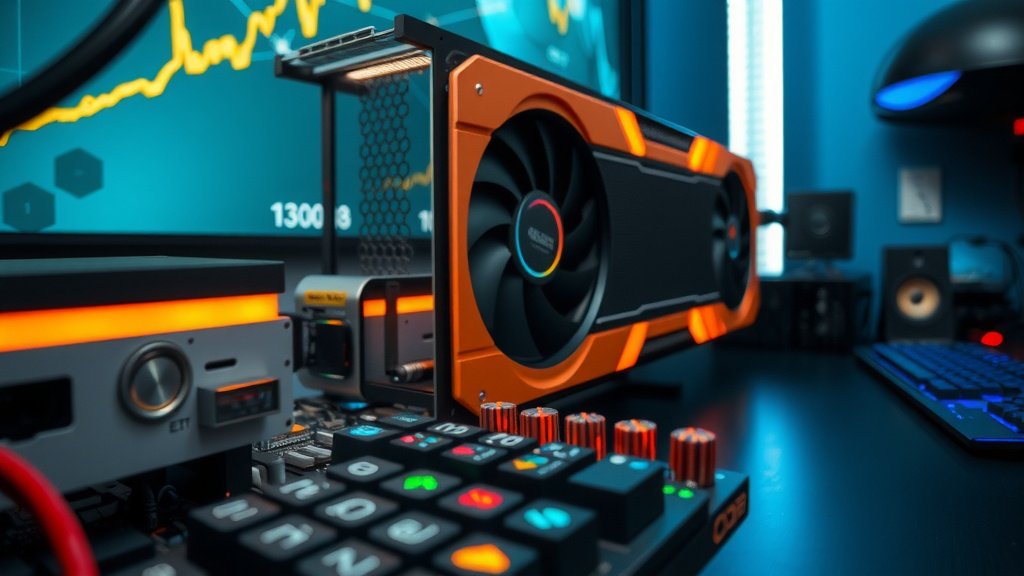
Benchmarking and Stability Testing
Once you’ve made a change, you need to test it thoroughly. Simply running a game for five minutes isn’t enough. You need to stress-test your GPU to ensure it can handle demanding workloads.
Using Benchmark Software
Programs like Unigine Heaven, Superposition, or 3DMark are excellent for this. Run these benchmarks for extended periods (30 minutes to an hour). If you encounter any errors, crashes, or significant temperature spikes, your overclock is too high. You’ll need to back off the settings.
Real-World Gaming Tests
After successful benchmarking, it’s also wise to test with your favorite demanding games. Play them for extended sessions to see if any issues arise. Sometimes, specific game engines can push hardware in ways that synthetic benchmarks don’t. This real-world testing is crucial.
When to Consider Stopping or Reversing
If you push your GPU and consistently see temperatures creeping up past your comfort zone, it’s time to dial it back. Also, if you experience frequent crashes or graphical glitches, that’s a clear sign that your settings are too unstable. Don’t be afraid to reset to default settings and start over. Your hardware’s health is more important than a few extra frames per second.
Overclocking Safely: A Checklist
- Research your specific GPU model’s limits and recommendations.
- Download reliable monitoring and benchmarking software.
- Start with tiny, incremental clock speed adjustments.
- Monitor temperatures closely during testing.
- Test for stability with benchmarks and demanding games.
- Be prepared to revert to default settings if issues arise.
Conclusion
You’ve learned that overclocking your GPU is a safe practice when approached thoughtfully. It’s not about reckless pushing, but about making smart, gradual adjustments. By monitoring temperatures and testing stability with the right tools, you can achieve a solid performance boost without risking your hardware. We found that patience and attention to detail are your best allies.
Ready to try it? Start by researching your specific GPU and downloading monitoring software. Make small changes, test, and enjoy the extra power you’ve safely unlocked!
Frequently Asked Questions
Will overclocking my GPU void my warranty?
Most GPU manufacturers state that overclocking can void your warranty. However, proving that an overclock caused a failure can be difficult for them. We recommend checking your specific card’s warranty terms. If you encounter issues, reverting to default settings before seeking support is often a good idea.
How much performance can I realistically expect from overclocking?
You can typically expect a performance gain of about 5% to 15%. This difference can translate to smoother gameplay or faster rendering times. The exact increase depends on your GPU model and cooling. Some cards overclock better than others, so research your specific model for realistic expectations.
Is it safe to increase voltage when overclocking my GPU?
Increasing voltage carries more risk than simply adjusting clock speeds. While a small voltage increase can help stabilize higher clock speeds, too much can quickly damage your GPU. We suggest only touching voltage if you’re experienced and understand the risks. Always stay within safe, recommended limits.
What’s the safest temperature range for an overclocked GPU?
Generally, you want to keep your GPU’s temperature under 80°C (176°F) when under load. Many enthusiasts aim for even lower temperatures, like below 75°C (167°F), for optimal longevity. If your GPU consistently runs hotter than 85°C (185°F), it’s a clear sign to reduce your overclock or improve your cooling.
Can I overclock my laptop’s GPU?
Yes, you can overclock laptop GPUs, but it’s often more challenging and riskier due to limited cooling. Laptops have less space for airflow and smaller heatsinks. If you choose to overclock your laptop GPU, be extremely cautious with temperatures and make very conservative adjustments. Better cooling is usually the primary bottleneck.
![10 Best Gaming Graphics Card Under $150 [2026]](https://spsolutionscare.com/wp-content/uploads/2026/09/10-best-gaming-graphics-card-under-150-2026-featured-768x432.jpg)
![10 Best Amd Card For The Money [2026]](https://spsolutionscare.com/wp-content/uploads/2026/08/10-best-amd-card-for-the-money-2026-featured-768x432.jpg)