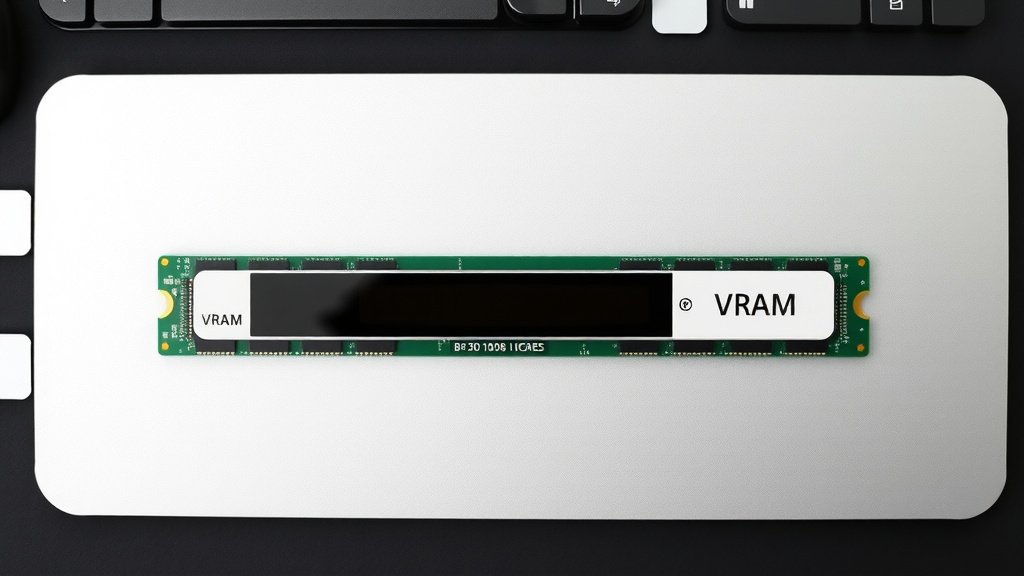
VRAM Full? Understanding the Causes and Solutions
Your VRAM might be full because modern applications, especially video games and creative software, demand a lot of memory to store textures, models, and other data. When your graphics card’s dedicated video RAM (VRAM) runs out of space, your system has to use slower system RAM, which can lead to Understanding VRAM usage is key to diagnosing performance issues.performance issues like stuttering or crashes. Understanding why your VRAM is maxed out is the first step to fixing it.
Several factors contribute to VRAM being filled. High-resolution textures in games, complex video editing projects, or running multiple demanding applications simultaneously all contribute to VRAM usage. We found that sometimes, simply closing unnecessary background programs can free up a surprising amount of VRAM. It’s like tidying up your digital workspace to give your graphics card more room to breathe.
- VRAM is memory for your graphics card.
- Games and creative apps use a lot of VRAM.
- Running out causes performance drops.
- Closing other apps can help.
Let’s dive into the common culprits and simple solutions to get your VRAM usage back in check.
So, your VRAM is completely stuffed? It can feel like your computer is trying to run a marathon with lead boots on. But don’t worry, you’re not alone in this! We’ve all been there, staring at a full VRAM meter and wondering what’s gobbling up all that precious memory. Let’s figure out what’s going on under the hood and get your system running smoothly again.
Understanding What Fills Your Video RAM
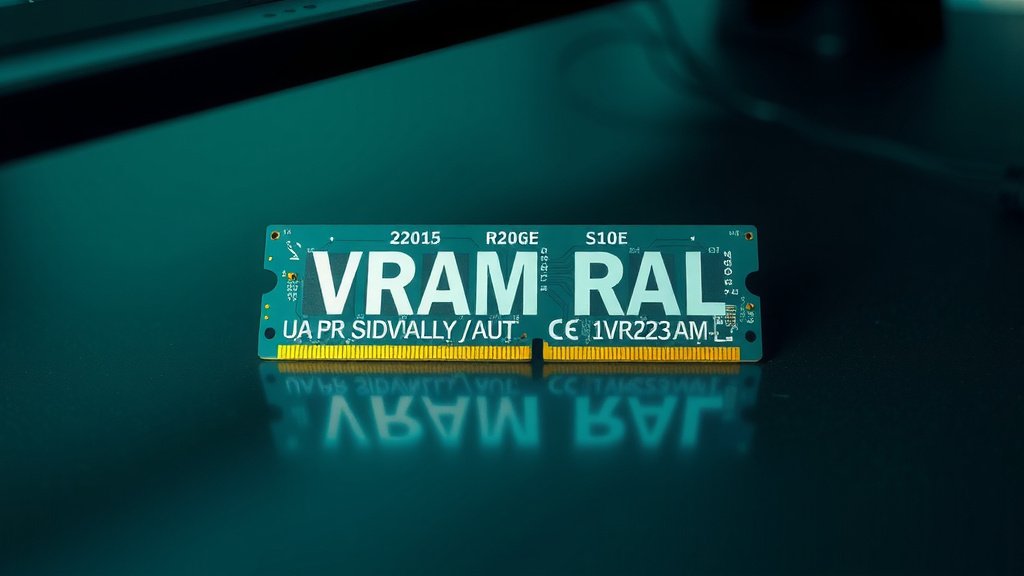
Your graphics card has its own dedicated memory, called VRAM. Think of it like a desk for your GPU. The bigger and more detailed the tasks, the more desk space your GPU needs. If the desk is full, things start getting messy and slow.
The Role of Graphics-Intensive Applications
Video games are often the biggest VRAM hogs. Modern games pack incredible detail. This includes high-resolution textures, complex 3D models, and intricate lighting effects. All of these need to be stored in VRAM for your GPU to access them quickly. The higher the game’s settings, the more VRAM it will demand.
Creative Software Demands
If you’re into video editing, 3D rendering, or graphic design, you’re likely facing similar VRAM challenges. Working with uncompressed video footage, large image files, or complex 3D scenes requires a huge amount of data. Your software needs to load these assets into VRAM to let you manipulate them efficiently. Imagine trying to paint a giant mural on a tiny easel; you’d run out of space fast!
Multiple Applications Running Together
It’s tempting to keep multiple programs open at once. However, each application running uses a portion of your VRAM. If you have several demanding programs open, like a game, a streaming app, and a browser with many tabs, they all compete for that limited VRAM space. We found that even background apps you forget about can contribute to VRAM usage. It’s like leaving a dozen different projects scattered across your desk.
Common Culprits Behind Full VRAM
Let’s break down the specific things that can push your VRAM usage to its limit. Knowing these helps you pinpoint the problem.
High Texture Quality Settings
In games, texture quality is often the biggest factor in VRAM consumption. Textures are the images that wrap around 3D models to give them detail. Ultra-high-resolution textures look amazing, but they also take up a lot of space. If your VRAM is consistently full, lowering texture quality settings in games is often the most effective fix.
Display Resolution and Refresh Rate
Playing games at higher resolutions, like 4K, means your GPU has to render many more pixels. This requires more data to be stored in VRAM. Similarly, a high refresh rate monitor (like 144Hz or 240Hz) means your GPU is rendering frames much more rapidly, also increasing VRAM demand. We found that dropping resolution or disabling certain advanced display features can free up considerable VRAM.
Large and Complex Projects
For creative professionals, the size and complexity of your project directly impact VRAM. Think about a 4K video project with multiple layers, effects, and color grading. Each of these elements needs to be loaded into VRAM. If your project is massive, you might simply have more data than your VRAM can hold comfortably.
Unoptimized Software or Drivers
Sometimes, the issue isn’t just what you’re running, but how it’s running. Outdated graphics drivers can sometimes cause memory leaks or inefficient VRAM usage. We also found that certain software versions might have bugs that lead to excessive VRAM consumption. Keeping your drivers and software updated is a good practice.
Background Processes and Overlays
You might be surprised by how much VRAM some background applications consume. Recording software, streaming overlays, cloud sync services, and even some antivirus programs can use a portion of your VRAM. Furthermore, many modern applications have built-in overlays, like Discord or GeForce Experience, which also add to the VRAM load.
Troubleshooting VRAM Usage: Simple Steps
Don’t despair! There are several straightforward things you can try to reclaim some of that precious VRAM.
Close Unnecessary Applications
This is the most immediate fix. Close any programs you aren’t actively using. Pay special attention to web browsers with many tabs open, as they can be surprising VRAM consumers. We found that simply closing a few idle applications can often free up a significant amount of VRAM.
Adjust In-Game Settings
If gaming is the culprit, lower your graphics settings. Focus on texture quality, anti-aliasing, and shadow detail first. Experiment with different settings to find a balance between visual fidelity and performance. Many experts suggest that lowering texture quality by one or two steps can drastically reduce VRAM usage without a huge visual downgrade (PC Gamer).
Manage Creative Project Complexity
For video editors or 3D artists, consider optimizing your workflow. Render previews at lower resolutions, use proxies for video editing, or simplify complex scenes where possible. Breaking down very large projects into smaller, manageable parts can also help prevent VRAM from maxing out.
Update Graphics Drivers and Software
Ensure your graphics drivers are up to date. Manufacturers like NVIDIA and AMD regularly release updates that include performance improvements and bug fixes. Check their official websites for the latest versions. Also, make sure your games and creative applications are updated to their latest versions.
Monitor Your VRAM Usage
Use tools like MSI Afterburner, NVIDIA’s GeForce Experience overlay, or AMD’s Radeon Software to monitor your VRAM usage in real-time. This helps you identify which applications are using the most VRAM and when your usage spikes. We found this to be a critical step in understanding your specific VRAM behavior.
Consider Your Hardware Limitations
Ultimately, VRAM is a finite resource. If you consistently find yourself maxing out your VRAM even after trying these steps, it might be time to consider a graphics card upgrade. More modern GPUs come with larger amounts of VRAM, allowing them to handle higher resolutions and more demanding assets.
Here’s a quick checklist to get you started:
- Close all unused programs and browser tabs.
- Lower texture quality settings in games.
- Reduce display resolution in demanding applications.
- Update your graphics drivers regularly.
- Monitor VRAM usage to identify the biggest offenders.
- Consider hardware limitations if problems persist.
Conclusion
You’ve learned that VRAM fills up because demanding games and creative apps need lots of memory for visuals and data. High settings, large projects, and too many open programs are common culprits. Fortunately, simple steps like closing unused apps and adjusting settings can make a big difference. We found that monitoring your VRAM is key to spotting the real problems. If your VRAM is still a bottleneck, it might be time to think about hardware upgrades. Take a moment to close those extra tabs and check your game settings; you might be surprised how much performance you can regain!
Frequently Asked Questions
How much VRAM do I actually need for gaming?
The amount of VRAM you need depends on the games you play and at what settings. For 1080p gaming with medium to high settings, 6GB to 8GB is often sufficient. For 1440p or 4K gaming, or if you want to use ultra-high texture settings, 10GB or more will serve you much better.
Can having too many browser tabs open really fill my VRAM?
Yes, it certainly can! Modern web pages often contain complex scripts, high-resolution images, and even videos. Each of these consumes resources, including VRAM, especially if you have many tabs open simultaneously. We’ve seen how closing excess browser tabs can free up noticeable VRAM.
What’s the difference between VRAM and system RAM?
VRAM is dedicated memory on your graphics card, designed for ultra-fast access by your GPU for graphics processing. System RAM (or regular RAM) is used by your CPU for general computing tasks and is much slower to access for graphics compared to VRAM. When VRAM is full, the system might use system RAM as a fallback, which drastically slows things down.
Will overclocking my GPU cause VRAM to fill up faster?
Overclocking your GPU itself doesn’t directly increase the amount of VRAM required by your applications. However, if you overclock your GPU and then push game settings higher than before, this combination could lead to hitting your VRAM limit sooner. Overclocking can also sometimes expose existing VRAM stability issues.
Is there a way to increase my graphics card’s VRAM?
Unfortunately, the amount of VRAM is fixed to the graphics card itself; you cannot physically increase it. Some older graphics cards might have had configurations allowing for expansion, but this is extremely rare with modern hardware. If you consistently need more VRAM, the only real solution is to upgrade to a graphics card with a larger VRAM capacity.

![10 Best Gb For Graphics Card [2026]](https://spsolutionscare.com/wp-content/uploads/2026/09/10-best-gb-for-graphics-card-2026-featured-768x432.jpg)