Understanding HDR on Your GPU: A Simple Guide
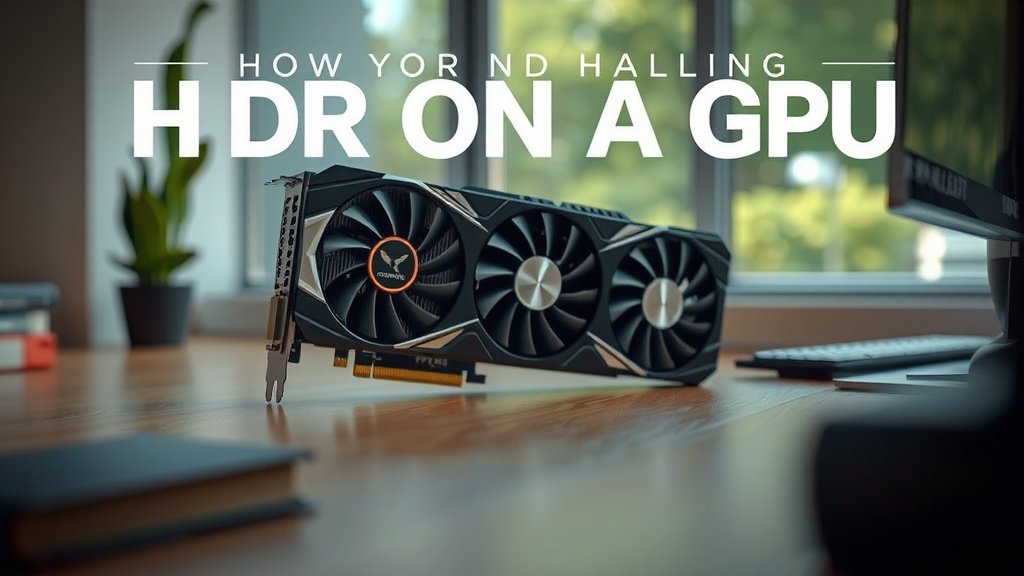
HDR on a GPU means your graphics card can process and display High Dynamic Range visuals. This technology lets you see a much wider range of colors and brightness. It makes your games and media look more realistic and vibrant. Your GPU is the powerhouse that handles these advanced graphics.
Basically, HDR aims to mimic what your eyes naturally see. It shows deeper blacks and brighter whites than standard displays. We found that having a GPU that supports HDR can dramatically improve your viewing experience. It’s becoming a standard feature on modern graphics cards.
- HDR on GPU means better visuals.
- It shows more colors and brightness.
- Your GPU is key to this technology.
- Experience more realistic images.
- It’s a big leap for gaming and media.
Ready to see what HDR can do for your setup? Let’s dive into how your GPU makes it all happen and what you need to get started.
How Your GPU Handles High Dynamic Range
So, you’ve heard about HDR, but how does your graphics card actually make those vibrant colors and deep blacks appear on your screen? Your GPU is the unsung hero behind this visual magic. It’s the component that processes all the extra data needed for HDR. This data tells your monitor how bright each pixel should be. It also dictates the specific color to display. Without a capable GPU, you simply can’t enjoy HDR content, no matter how fancy your monitor is. It’s a team effort, and your GPU is the star player.
The GPU’s Role in Color and Brightness
Think of your GPU as a super-fast calculator for images. For standard dynamic range (SDR) content, it sends standard color and brightness information. For HDR, it sends a much larger set of instructions. This allows for millions more shades of color. It also enables a far greater range of brightness levels. Your GPU has to manage all this extra information in real-time. It’s calculating and sending it to your display thousands of times per second. This is why a powerful GPU is so important for a great HDR experience. We found that even a mid-range modern GPU can handle HDR well for most content.
Bit Depth: More Colors to Play With
One of the key ways your GPU supports HDR is through increased bit depth. Standard displays often use 8-bit color. This gives you about 16.7 million colors. HDR content, processed by your GPU, typically uses 10-bit color. That’s over 1 billion colors! This massive increase means smoother color gradients. You’ll see fewer banding artifacts in skies or shadows. Your GPU decodes and prepares this rich color data for your display. It’s a big leap from what your eyes are used to seeing.
Managing Brightness Peaks
HDR also involves much higher peak brightness levels. Your GPU needs to understand and manage these bright highlights. It ensures they don’t get “clipped” or washed out. Instead, they appear brilliantly detailed. Deep blacks are also managed better. Your GPU works with the display to show true blacks. This contrast ratio is a hallmark of HDR. Many experts say the improved contrast is one of the most noticeable benefits of HDR (VESA DisplayHDR Standard). Your GPU is central to achieving this.
What Your GPU Needs to Support HDR
It’s not just about having an HDR-capable monitor. Your graphics card also needs to be up to the task. Thankfully, most modern GPUs from NVIDIA, AMD, and even Intel’s integrated graphics support HDR. The key is to ensure you have the right drivers and that your GPU supports the necessary video output standards. We’ve seen HDR support become a standard feature over the past few years. It’s rare to find a new gaming GPU that doesn’t handle it.
Driver Support is Key
Outdated graphics drivers can be a real party pooper for HDR. They might not contain the code needed to properly process HDR signals. Always keep your graphics card drivers updated. You can usually download the latest drivers directly from the manufacturer’s website. NVIDIA GeForce drivers, AMD Radeon Software – these are your go-to places. We found that updating drivers fixed HDR issues for many users. It’s a simple step with a big impact.
Connection Matters: DisplayPort and HDMI
How you connect your GPU to your monitor is also critical. For HDR, you’ll generally need to use either DisplayPort or HDMI. Not all versions of these cables and ports support the full bandwidth HDR requires. For example, older HDMI versions might not be able to push 4K resolution at 60Hz with HDR enabled. You’ll likely need at least HDMI 2.0 or DisplayPort 1.4. Check your monitor and GPU specifications. Using the right cable ensures your GPU can send the full HDR signal. Many guidelines suggest using the cable that came with your monitor if possible (HDMI Forum).
How to Tell if Your GPU is HDR-Ready
You might be wondering if your current GPU is ready for the HDR revolution. It’s pretty straightforward to check. Most GPUs released in the last 5-7 years are likely HDR-capable. You can usually find this information on the manufacturer’s product page for your specific graphics card model. Look for specifications related to HDR support or specific HDR certifications. We found that the official product pages are the most reliable source of information. You can also often tell by looking at your Windows display settings.
Checking Windows Display Settings
Windows has built-in support for HDR. You can easily check if your system is recognizing your HDR capabilities. Go to your Windows Settings, then select ‘Display’. Under the ‘Display settings’ for your monitor, you should see an option for ‘Windows HD Color settings’. If you see this, your system has detected HDR capabilities. You can then click into it to see if HDR is enabled. If your GPU and monitor both support HDR, and you’re using the right cables and drivers, you should see the option to turn on HDR. It’s a quick way to confirm compatibility.
Understanding GPU Specifications
When looking up your GPU’s specs, keep an eye out for terms like “HDR Support,” “HDR10,” “Dolby Vision,” or “VESA DisplayHDR certification.” These indicate that the GPU has been designed to handle the demands of HDR content. For instance, NVIDIA’s specifications often list HDR support clearly. AMD does the same for its Radeon cards. Intel’s integrated graphics also now widely support HDR. If your GPU is from a major manufacturer and is relatively recent, there’s a good chance it supports HDR. Always double-check the official specs to be sure.
Beyond the GPU: Other Factors for Great HDR
While your GPU is essential, it’s only one piece of the HDR puzzle. You also need a display that can actually show HDR content. This means a monitor or TV that supports HDR standards and has a good contrast ratio and brightness. The content you’re watching or playing also needs to be in HDR format. A GPU can process HDR, but if the video file or game isn’t HDR, you won’t see the benefit. Think of it like having a fantastic chef (your GPU) but only having basic ingredients (SDR content) to work with. You need the right ingredients for the chef to shine.
The Display Must Also Be HDR-Capable
This is perhaps the most obvious, but critical, point. Your monitor or TV needs to be HDR-certified. Look for labels like HDR10, HDR10+, Dolby Vision, or HLG. These indicate the display can handle a wider color gamut and higher brightness levels. Even with a powerful HDR-ready GPU, a standard SDR monitor will only show you SDR images. Many experts suggest looking for monitors with a VESA DisplayHDR certification level (e.g., DisplayHDR 400, 600, 1000) for a guaranteed minimum performance. The higher the number, the better the HDR experience typically is.
Content is King (Even in HDR)
Even the most capable GPU and HDR display can’t create HDR magic out of thin air. The video files, movies, or games you interact with must be encoded with HDR information. Many modern streaming services offer HDR content. PC games increasingly support HDR. If a movie is available in 4K HDR on a streaming platform, your GPU will process that HDR data. If a game supports HDR in its settings, your GPU will render it. We found that choosing HDR-enabled content is the final step to enjoying the full visual upgrade.
Here’s a quick checklist to ensure your setup is ready for HDR:
- Confirm your GPU supports HDR.
- Ensure your monitor or TV is HDR-certified.
- Use an HDMI 2.0+ or DisplayPort 1.4+ cable.
- Install the latest graphics drivers.
- Enable HDR in your operating system settings.
- Select HDR options within games or streaming apps.
Conclusion
You now understand that your GPU is the driving force behind HDR visuals. It’s responsible for rendering those incredibly vivid colors and stunning brightness ranges. We’ve seen how features like increased bit depth and better brightness management make HDR so impactful. For you to experience this, your GPU, drivers, connections, and display all need to be on the same page. Now that you know what makes your GPU HDR-ready, it’s time to check your setup. Go ahead and explore your Windows settings to see if you can enable HDR today!
Frequently Asked Questions
Will my older GPU support HDR?
Generally, GPUs released in the last 5-7 years are likely to support HDR. However, it’s best to check your specific GPU model’s specifications. You can usually find this information on the manufacturer’s official website. Older cards may not have the necessary processing power or video output standards.
Can I use any HDMI or DisplayPort cable for HDR?
No, not all cables will work for HDR. You typically need at least HDMI 2.0 or DisplayPort 1.4. These versions provide the bandwidth required for higher resolutions and refresh rates along with HDR data. Using an older or incompatible cable might prevent HDR from displaying correctly.
Is HDR support the same on NVIDIA, AMD, and Intel GPUs?
The core principle of HDR support is the same across NVIDIA, AMD, and Intel GPUs. They all process the extra color and brightness data. Differences might appear in specific HDR certifications or the performance at very high resolutions. Always check the specs for your particular card model.
Does HDR on my GPU make all my games look better?
Your GPU needs to be able to process HDR, but the game itself must also support HDR. If a game doesn’t have HDR enabled in its settings, your GPU will render it in standard dynamic range. Look for HDR options within the game’s graphics menu for the best results.
Do I need a special graphics driver for HDR?
While your GPU might be HDR-capable, you absolutely need up-to-date drivers. Outdated drivers might lack the proper support to send and process HDR signals. We found that keeping your drivers current is essential. You can download the latest drivers directly from the NVIDIA, AMD, or Intel website.

![10 Best Brand For 7900 Xtx [2026]](https://spsolutionscare.com/wp-content/uploads/2026/08/10-best-brand-for-7900-xtx-2026-featured-768x432.jpg)
![10 Best Budget Gaming Video Cards [2026]](https://spsolutionscare.com/wp-content/uploads/2026/09/10-best-budget-gaming-video-cards-2026-featured-768x432.jpg)
![10 Best Budget Gaming Pc Video Card [2026]](https://spsolutionscare.com/wp-content/uploads/2026/09/10-best-budget-gaming-pc-video-card-2026-featured-768x432.jpg)