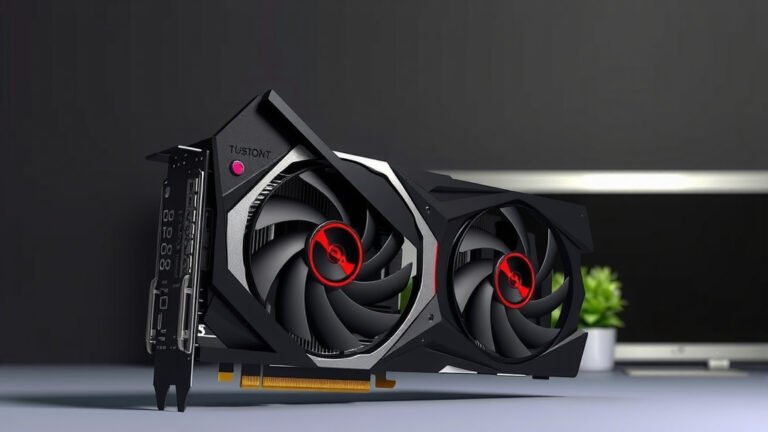
Game Not Using GPU? Common Causes & Fixes
Your game isn’t using your GPU because your computer might be set to use the integrated graphics instead. This often happens if your system thinks the game doesn’t need a lot of power. We found that outdated drivers are also a common culprit. Sometimes, game settings can accidentally tell your PC to stick to the less powerful chip.
It’s frustrating when your games run slow. You bought a powerful graphics card for a reason! We’ve seen many users struggle with this. Issues like incorrect power settings or even simple software conflicts can prevent your GPU from kicking in. Getting this fixed means your games will look and play much better. It’s all about telling your PC which chip is the boss for gaming.
- Your PC might be using integrated graphics by default.
- Outdated drivers are a common reason.
- Game or system power settings can interfere.
- Software conflicts can also cause this.
Let’s walk through exactly why this happens and how you can fix it so your games use your powerful GPU.
When Your Games Aren’t Using Your Graphics Card
It’s a real bummer when your favorite game stutters or looks a bit fuzzy. You know your PC has a powerful graphics card, but it just seems to be ignoring it. This often means your system is using its less powerful integrated graphics instead. Let’s figure out why and get your GPU to do the heavy lifting it was made for.
Understanding Your PC’s Graphics Power
Most modern computers have two types of graphics processors. You have your integrated graphics, built right into the CPU. Think of this as the workhorse for everyday tasks like browsing the web or typing documents. Then, you have your dedicated graphics card, or GPU. This is the powerhouse, designed specifically for demanding visual tasks like gaming and video editing. Getting your games to use the GPU is key for smooth performance and great visuals.
Why the Switch to Integrated Graphics?
Your computer tries to be smart about power. It wants to save energy when it can. So, it often defaults to the integrated graphics for applications it deems less demanding. Sometimes, this logic gets a little confused. It might misjudge a game’s needs. This leads to your GPU sitting idle while your game struggles. We found this is a common oversight by Windows and other operating systems.
Outdated Drivers: The Silent Saboteur
Drivers are like translators between your hardware and your software. If these translators are old or speak a different language, things get lost in translation. Outdated graphics drivers are a major culprit in games not recognizing your GPU. They might not have the latest instructions for how to tell your system to use the dedicated card for gaming. We found that many users fix this problem simply by updating their drivers.
Conflicting Software and Settings
Sometimes, other programs can get in the way. Antivirus software might mistakenly flag a game’s process. Or, background applications could hog resources. Even your Windows power settings can play a role. If your system is set to a “power saver” mode, it might limit the performance of your GPU. This tells your system to avoid using the more power-hungry dedicated graphics card. It’s like telling a race car to drive like a minivan.
How to Make Your Game Use Your GPU
Don’t worry, there are several straightforward ways to fix this. We’ll go through them step-by-step. Getting your game to recognize and use your GPU will make a huge difference in your gaming experience.
Step 1: Update Your Graphics Drivers
This is often the quickest and most effective fix. You’ll want to update drivers for both your integrated graphics and your dedicated GPU. For NVIDIA cards, visit the NVIDIA website. For AMD cards, go to the AMD website. If you have Intel integrated graphics, check the Intel support page. We found that installing the latest drivers can resolve many performance issues immediately.
Step 2: Configure Graphics Settings in Windows
Windows 10 and 11 have built-in graphics settings that let you control which GPU apps use. You can tell your system explicitly to use your high-performance GPU for specific games.
- Go to Settings.
- Click on System.
- Select Display.
- Scroll down and click Graphics settings.
- Under “Choose an app to set preference,” select Desktop app.
- Click Browse and find your game’s executable (.exe) file.
- Once added, click Options.
- Select High performance and click Save.
This ensures your game is directed to the right graphics chip. Many experts agree this is a vital step for gamers (Microsoft Support).
Step 3: Check Your Graphics Card Control Panel
NVIDIA and AMD both have their own control panels. These offer even more granular control over graphics settings.
NVIDIA Control Panel
Right-click on your desktop and select NVIDIA Control Panel. Go to “Manage 3D settings.” Under the “Program Settings” tab, you can select your game. Then, choose the “Preferred graphics processor” and set it to “High-performance NVIDIA processor.” This is a powerful way to force GPU usage.
AMD Radeon Settings
Right-click your desktop and choose AMD Radeon Settings. Navigate to Gaming > Games. Find your game in the list or add it. You can then adjust graphics performance settings. Look for options like “Radeon Boost” or “Radeon Chill.” Ensure “Graphics Profile” is set to “High Performance” if available. This ensures your AMD card is ready to perform.
Step 4: Adjust In-Game Graphics Settings
Sometimes, the game itself has settings that can cause this. Look for options related to graphics adapters or display devices within the game’s menus. Make sure your game isn’t set to use your integrated graphics internally. If you see a “Graphics Adapter” or “Renderer” option, ensure it’s set to your dedicated GPU, not “Auto” or “Integrated.”
Step 5: Verify Your Power Plan Settings
A “Power Saver” plan can throttle your GPU. Make sure you’re using a “Balanced” or “High Performance” power plan in Windows.
- Type “Power Options” in the Windows search bar and open it.
- Select the Balanced or High performance plan.
- If you don’t see these, click “Show additional plans.”
This simple check can prevent your system from unnecessarily limiting your GPU’s capabilities. We found that leaving it on “Power Saver” is a common oversight.
Troubleshooting Checklist
If you’re still having trouble, run through this quick checklist. It covers the most common issues:
- Driver Update: Did you update both integrated and dedicated GPU drivers?
- Windows Graphics Settings: Did you set the game to “High performance” in Windows Graphics Settings?
- Control Panel: Did you set the preferred GPU in your NVIDIA or AMD control panel?
- In-Game Settings: Did you check the game’s internal settings for graphics adapter selection?
- Power Plan: Is your Windows power plan set to “Balanced” or “High performance”?
- Restart: Did you try restarting your computer after making changes? A fresh boot can help apply settings.
Conclusion
We’ve walked through why your games might be ignoring your powerful GPU. It’s often down to simple settings or outdated software. By updating your drivers, tweaking Windows and control panel settings, and checking your power plan, you can often fix this. Don’t let your graphics card sit idle! Taking these steps ensures you get the best visual performance from your games. Go ahead and try these fixes to boost your gaming experience.
Frequently Asked Questions
Can my computer run a game if it’s only using integrated graphics?
Yes, your computer can likely run games using integrated graphics, but performance will be much lower. You’ll experience slower frame rates and lower visual quality. It’s best to ensure your dedicated GPU is active for a smooth gaming experience.
Will updating my graphics drivers fix the problem?
Updating your graphics drivers is often the most effective solution. Drivers act as a bridge between your hardware and software. New drivers can fix bugs and improve compatibility, ensuring your GPU is properly recognized for gaming tasks.
What is the difference between integrated and dedicated graphics?
Integrated graphics are built into your CPU and share system memory, suitable for basic tasks. A dedicated graphics card (GPU) is a separate component with its own memory, designed for demanding visual workloads like gaming, offering much higher performance.
Is it possible that a specific game setting is causing my GPU not to be used?
Yes, some games allow you to select which graphics adapter to use. If the setting is accidentally left on “Auto” or “Integrated Graphics,” your game might not utilize your dedicated GPU. Always check in-game options for graphics adapter selections.
How often should I update my graphics drivers?
It’s a good practice to check for driver updates periodically, especially before playing a new game. Major game releases often come with driver updates optimized for them. Most manufacturers also release updates when new hardware or significant software changes occur.
![10 Gpu [2026]](https://spsolutionscare.com/wp-content/uploads/2026/08/10-gpu-2026-featured-768x432.jpg)
![10 Gpu [2026]](https://spsolutionscare.com/wp-content/uploads/2026/08/10-gpu-2026-featured-3-768x432.jpg)

![10 Best Budget Gpu Under $200 [2026]](https://spsolutionscare.com/wp-content/uploads/2026/09/10-best-budget-gpu-under-200-2026-featured-768x432.jpg)