Graphics Card Cooling: Everything You Need to Know
Graphics card cooling explained: Your GPU needs to stay cool to perform its best. Proper cooling prevents overheating and protects your hardware. Without it, you risk performance throttling and even permanent damage. Understanding how your graphics card stays cool is key for gamers and creatives alike.
When your graphics card works hard, it generates a lot of heat. This heat needs to be dissipated effectively. Modern cooling solutions are designed to manage these temperatures efficiently. We found that consistent airflow and heat transfer are the most important factors for keeping your GPU happy.
- Graphics card cooling is essential for performance.
- It prevents overheating and hardware damage.
- Cooling solutions manage heat generated during heavy use.
- Airflow and heat transfer are vital for GPU health.
Let’s dive into the different ways your graphics card stays cool and what you can do to help. We’ll break down the technology and give you practical tips. Let’s dive into how your graphics card stays cool and what you can do to help.
Keeping Your Graphics Card Cool: A Deep Dive
Your graphics card (GPU) is the powerhouse behind all those stunning visuals. It works incredibly hard, especially when you’re gaming or running demanding creative software. All that hard work generates heat. If this heat isn’t managed, it can cause your GPU to slow down or even get damaged. Let’s talk about how your graphics card stays cool.
The Science of Heat and GPUs
Think of your GPU like an engine. When it runs at full throttle, it produces a lot of heat. This heat comes from the tiny electronic components doing all the heavy lifting. The faster and harder these components work, the more heat they create. It’s a fundamental law of physics; energy in equals energy out, and some of that energy becomes heat.
Why Heat is the Enemy of Your GPU
High temperatures are bad news for electronics. When your graphics card gets too hot, its performance suffers. It might start to throttle, meaning it intentionally slows itself down to prevent damage. This leads to choppy frame rates in games and longer processing times for your creative projects. Worse, prolonged overheating can permanently This is known as thermal throttling, a safety feature to prevent damage.damage the delicate components on the card. This can lead to costly repairs or the need for a replacement.
Understanding Thermal Throttling
Thermal throttling is your GPU’s built-in safety mechanism. When sensors detect that temperatures are reaching critical levels, the card automatically reduces its clock speed. This is like a car engine automatically limiting its RPMs to prevent seizing up. While it protects your hardware, it also means you’re not getting the performance you paid for. We’ve all experienced that frustrating moment when a game suddenly stutters – often, it’s throttling at work.
Cooling Methods: How GPUs Stay Chill
Graphics cards use several clever methods to get rid of that generated heat. Most modern cards rely on a combination of passive and active cooling components. These work together to draw heat away from the core processing units and expel it from your computer case.
Passive Cooling: The Silent Workhorse
Passive cooling uses components that don’t require power to function. The most common example is a heatsink. This is usually a block of metal, often aluminum or copper, with many fins. These fins greatly increase the surface area. This increased surface area allows heat to dissipate more efficiently into the surrounding air. It’s like how a radiator in your car works – the fins help release heat.
The Role of Thermal Paste
Between the GPU chip and the heatsink sits a thin layer of thermal paste. This isn’t just filler; it’s essential. Thermal paste fills in microscopic gaps between the two surfaces. These gaps would otherwise trap air, which is a poor conductor of heat. The paste ensures a solid thermal connection, allowing heat to transfer smoothly from the chip to the heatsink. Many experts recommend replacing thermal paste every few years to maintain optimal performance (TechRadar).
Active Cooling: Bringing in the Breeze
Active cooling involves components that use power to move heat away. The most obvious example is the fan. Most graphics cards have one or more fans mounted on top of the heatsink. These fans actively blow air across the heatsink fins. This forces the heated air away and draws cooler ambient air in. The more powerful the GPU, the larger and more numerous the fans tend to be.
Blower-Style vs. Open-Air Coolers
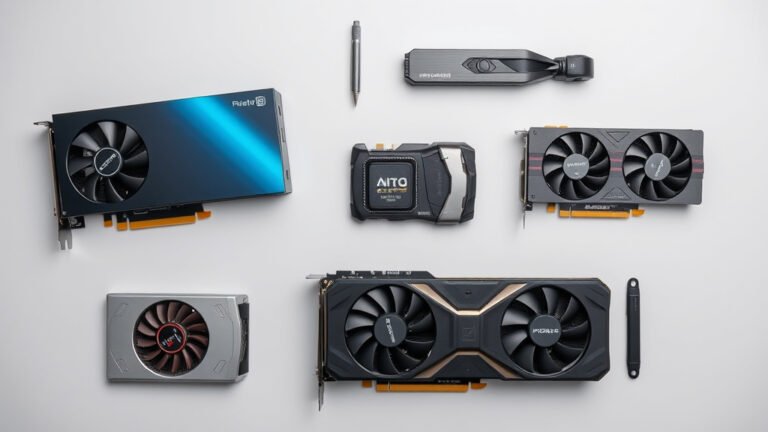
There are two main types of fan setups on graphics cards: blower-style and open-air.
- Blower-style coolers use a fan that pulls air in and pushes it directly out the back of the computer case. These can be good for smaller builds or for helping exhaust hot air from the entire system.
- Open-air coolers use fans that blow air downwards onto the heatsink and then out to the sides or top. These are generally quieter and more effective at cooling the GPU itself, but they recirculate more heat within your PC case.
Liquid Cooling: The High-Performance Option
For enthusiasts seeking the absolute best in cooling, liquid cooling is an option. This typically involves a water block that attaches to the GPU, connected via tubes to a radiator and pump. Liquid circulates through the system, absorbing heat from the GPU and dissipating it through the radiator. While highly effective, it’s more expensive and complex than air cooling. Many top-tier cards come with integrated AIO (All-In-One) liquid coolers, simplifying the setup.

Your Role in GPU Cooling
While your graphics card comes with its own cooling system, you play a vital role in ensuring it performs at its best. Proper case airflow and regular maintenance make a big difference.
Ensuring Good Case Airflow
Your GPU’s fans need access to cool air to do their job effectively. This means your computer case needs good airflow.
- Intake fans should bring cool air into the case.
- Exhaust fans should push hot air out.
Keeping Things Clean: A Simple Checklist
Dust is the enemy of good cooling. It acts like an insulator, trapping heat. Regularly cleaning your GPU and PC components is essential. Here’s a quick rundown:
- Turn off and unplug your PC.
- Open your computer case.
- Use compressed air to blow dust off the GPU heatsink and fans.
- Pay attention to case fans and other components too.
- Consider cleaning every 3-6 months, depending on your environment.
Monitoring Your GPU Temperatures
You can keep an eye on your GPU’s temperature using various software tools. Programs like MSI Afterburner or HWMonitor can display real-time temperature readings. Most experts suggest keeping your GPU temperature below 80°C (176°F) during heavy load. If you’re consistently seeing higher temperatures, it might be time to investigate your cooling setup or clean your card.
| Temperature Range (°C) | Performance Impact | Action Recommended |
|---|---|---|
| Below 60°C | Excellent; GPU is cool. | No immediate action needed. |
| 60°C – 75°C | Good; GPU is performing well. | Monitor occasionally. |
| 75°C – 85°C | Warm; Approaching throttling. | Check case airflow; consider cleaning. |
| Above 85°C | Too hot; Risk of throttling & damage. | Immediate investigation needed; clean GPU, improve case airflow. |
Conclusion
You’ve learned how vital graphics card cooling is for peak performance and hardware longevity. Understanding the science behind heat generation and the different cooling methods—from passive heatsinks to active fans and liquid solutions—puts you in control. Remember that good airflow within your PC case and regular dust cleaning are just as important as the card’s built-in cooler. By monitoring your GPU’s temperature and performing simple maintenance, you can prevent throttling and keep your rig running smoothly. Take a moment today to check your GPU temperatures using a monitoring tool; it’s your first step to a cooler, happier system.
Frequently Asked Questions
How often should I clean my graphics card’s fans?
It’s a good idea to clean your graphics card’s fans and heatsink every 3 to 6 months. Dust buildup acts like insulation, trapping heat. Depending on how dusty your environment is, you might need to clean it more or less often. A quick blast of compressed air can make a big difference.
What’s the ideal temperature for my GPU under load?
Generally, you want to keep your graphics card’s temperature below 80°C (176°F) during heavy use. Temperatures between 60°C and 75°C are considered good. If your card consistently runs hotter, especially above 80°C, it’s a sign you should check your case airflow or clean the card.
Can I replace the thermal paste on my graphics card myself?
Yes, you can replace the thermal paste, but it requires careful handling. You’ll need to remove the cooler from your GPU, clean off the old paste, and apply a new, thin layer before reassembling. If you’re not comfortable disassembling hardware, it might be best to seek professional help.
Will upgrading my PC case fans help my GPU stay cooler?
Absolutely. Your graphics card relies on fresh, cool air entering your case to dissipate heat. Improving your overall case airflow with better intake and exhaust fans ensures your GPU’s cooler has access to cooler air, which can significantly lower its operating temperature.
What’s the difference between a blower-style and an open-air GPU cooler?
Blower-style coolers capture air and exhaust it directly out the back of your PC case, which is great for system-wide airflow. Open-air coolers blow air onto the heatsink and exhaust it within the case, often cooling the GPU more effectively but potentially increasing overall case temperature.