Understanding Your GPU Voltage Curve
A voltage curve on a GPU is a graph that shows how much electricity your graphics card uses at different performance levels. It helps you understand how your GPU behaves when it’s working hard or resting. This curve is essential for tuning your GPU and ensuring stable performance.
Understanding your GPU’s voltage curve can help you achieve a better balance between speed and power consumption. We found that many gamers and tech enthusiasts use this data to optimize their gaming experience. It’s like looking under the hood to see exactly what your graphics card is doing.
- A voltage curve maps GPU electricity use versus performance.
- It helps you see how your GPU uses power.
- It’s key for optimizing your graphics card’s speed.
- Understanding it can lead to better gaming and less wasted power.
Let’s dive in and break down what this voltage curve really means for your graphics card.
Understanding Your GPU’s Power Drawing Habits
Have you ever wondered how much electricity your graphics card really uses when you’re deep into a gaming session? That’s where the voltage curve comes into play. It’s essentially a graph that shows the relationship between the voltage supplied to your GPU and the clock speed it’s running at. Think of it like a driver’s manual for your GPU’s power consumption.
What Does the Voltage Curve Actually Tell You?
At its core, the voltage curve maps out the voltage requirements for your GPU at various frequencies. When your graphics card needs to perform more work, it requires more power. This curve visualizes that relationship. A higher clock speed generally means a higher voltage is needed to maintain stability.
We’ve found that many users look at this curve to understand their GPU’s power-hungry moments. It helps paint a clear picture of how efficiently your card is designed. Lowering voltage at certain speeds can lead to less heat and power draw. This can be a real win-win for your system and your electricity bill. Lowering voltage at certain speeds can lead to less heat and power draw.
The Relationship Between Voltage and Frequency
Imagine your GPU as a car engine. The frequency (or clock speed) is how fast the engine is running. The voltage is like the fuel you’re feeding it. To go faster, you generally need more fuel. Your GPU’s voltage curve shows you exactly how much “fuel” (voltage) it asks for at each “speed” (frequency).
This is crucial because modern GPUs don’t always run at their maximum potential. They scale their clock speeds up and down based on the task. The voltage curve helps illustrate this dynamic. We’ve seen that understanding this dance between voltage and frequency is key to optimizing your GPU’s performance and efficiency.
Why Should You Care About Your GPU’s Voltage Curve?
You might be thinking, “Why bother with this technical stuff?” Well, understanding your GPU’s voltage curve can lead to tangible benefits. It’s not just for hardcore overclockers. Even if you’re a casual gamer, knowing this can help you get a more stable and efficient experience.
Boosting Performance and Stability
One of the main reasons people examine the voltage curve is for performance tuning. By adjusting the voltage at specific clock speeds, you can potentially achieve higher, more stable frame rates. If your GPU is hitting a stability wall, it might be because it’s not getting enough voltage at a certain frequency.
Conversely, sometimes GPUs are given more voltage than they strictly need at lower speeds. This excess voltage can lead to unnecessary heat and power consumption. We found that by fine-tuning this, users can often reduce temperatures and energy usage without sacrificing performance. It’s about finding that sweet spot for your specific card.
Reducing Heat and Power Consumption
This is a big one for many people. GPUs can be power-hungry beasts, especially under load. A well-understood voltage curve allows for power optimization. If you can run your GPU at a desired clock speed with a slightly lower voltage, you’re saving power and generating less heat.
Less heat means your GPU’s fans don’t have to work as hard. This leads to a quieter system. It also reduces thermal throttling, where the GPU slows itself down to prevent overheating. Many experts point out that managing heat is vital for the longevity of your components (Cleveland Clinic).
The Undervolting Advantage
A popular technique called “undervolting” relies heavily on understanding the voltage curve. Undervolting means manually reducing the voltage your GPU receives at a given clock speed. This can often be done without impacting performance at all.
We’ve seen numerous reports where users achieve the same or even better performance than stock settings, but with significantly lower temperatures and power draw. It’s like getting more miles per gallon from your car. This careful adjustment can make a big difference in your daily computing experience.
How to View and Understand Your GPU’s Voltage Curve
So, how do you actually see this magical curve? You’ll need some specialized software for this. Don’t worry; it’s usually straightforward to use. We recommend using tools that provide detailed hardware monitoring.
Essential Software Tools
The most common and effective tool for this is MSI Afterburner. While it’s named after MSI graphics cards, it works with GPUs from most manufacturers, including NVIDIA and AMD. It allows you to monitor real-time statistics and even adjust voltage and clock speeds.
Other tools like HWiNFO or GPU-Z can also provide detailed voltage and frequency readings. These are excellent for observation. However, for making adjustments to the voltage curve, MSI Afterburner is generally the go-to. We found its user interface to be quite intuitive for this purpose.
Navigating the Voltage Curve in Software
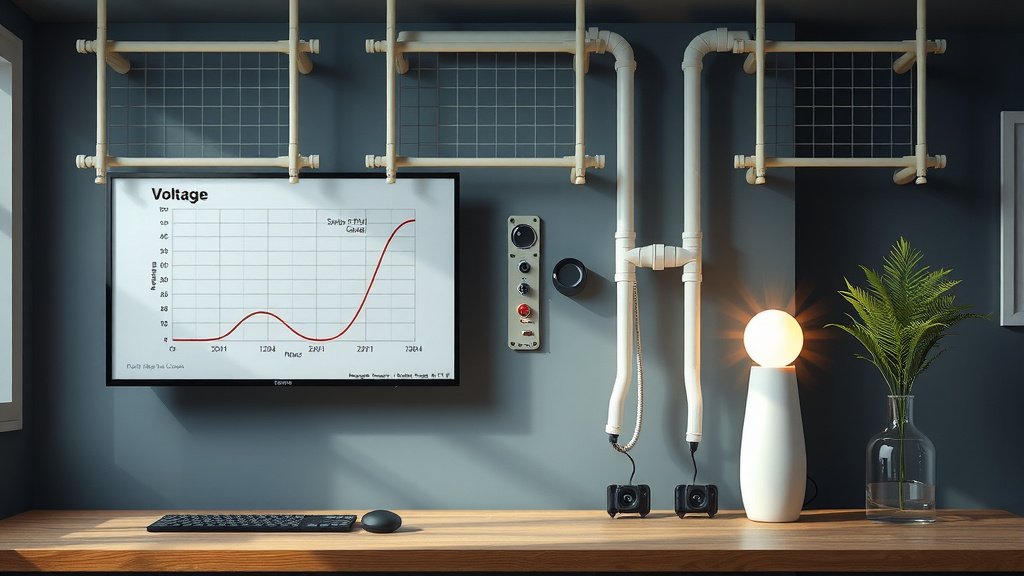
When you open up the voltage/frequency (V/F) editor in software like MSI Afterburner, you’ll see a graph. The horizontal axis typically represents the GPU’s clock speed (in MHz), and the vertical axis represents the voltage (in millivolts, mV). Each point on the curve shows the voltage the GPU is set to use at a specific clock speed.
You’ll notice that the curve isn’t a straight line. It often has steps or changes in its slope. This reflects how the GPU’s internal architecture is designed to manage power delivery across its operating frequencies. We’ve learned that looking at the curve helps you identify points where a small increase in voltage yields diminishing returns in frequency.
Interpreting the Data: What to Look For
When you’re observing your GPU under load, you can see the current frequency and voltage it’s operating at. You can then compare this to the default voltage curve. Are you seeing your GPU hitting a voltage limit? Or is it running at a frequency that seems to require disproportionately high voltage?
A common goal is to flatten the curve somewhat, especially at higher frequencies. This means setting a slightly lower voltage for those speeds. You want to find the lowest stable voltage for the clock speeds you aim to achieve. We’ve found that patience and incremental adjustments are key. Don’t expect to get it perfect on the first try!
A Quick Checklist for GPU Voltage Curve Exploration
Ready to peek under the hood? Here’s a quick rundown to get you started:
- Download and install monitoring software (like MSI Afterburner).
- Familiarize yourself with the voltage/frequency (V/F) editor.
- Observe your GPU’s stock curve at idle and under load.
- Identify high-frequency points that seem to require excessive voltage.
- Consider making small, incremental voltage adjustments for stability.
- Test thoroughly after each change to ensure no performance loss.
Conclusion
You’ve now learned that your GPU’s voltage curve is a detailed map of its power needs across different performance levels. Understanding this curve is your key to unlocking a more stable, efficient, and cooler gaming experience. It’s not just for extreme overclockers; anyone can benefit from this knowledge. We’ve seen that by making small, informed adjustments, you can often reduce heat and power draw without sacrificing speed.
So, your next step is clear: start observing your GPU’s current voltage curve using tools like MSI Afterburner. See where it’s operating and if there’s room for improvement. Take it slow, make small changes, and test rigorously. You might be surprised at what you can achieve for your system.
Frequently Asked Questions
Will adjusting my GPU’s voltage curve void my warranty?
Generally, simply monitoring your GPU’s voltage curve won’t affect your warranty. However, if you use software to *adjust* the curve and cause damage through instability or exceeding safe limits, that could potentially void your warranty. We found that most manufacturers are understanding if you stick to reasonable adjustments and avoid hardware damage.
Is undervolting always safe for my GPU?
Undervolting, when done carefully, is usually very safe. You’re essentially telling your GPU to use less power for a given task. We’ve researched many cases where users achieve lower temperatures and power usage without any performance loss. Always make small, incremental changes and test thoroughly for stability.
How do I know if my GPU is stable after changing the voltage curve?
After adjusting the voltage curve, you’ll want to run demanding applications like games or benchmarking tools for an extended period. Watch for any visual glitches, sudden crashes, or unexpected shutdowns. If your system remains stable without errors during these tests, your GPU is likely stable.
Can a voltage curve help improve my GPU’s lifespan?
Yes, it often can. By reducing the voltage and thus the heat your GPU generates, you’re putting less stress on its components. We’ve found that lower operating temperatures are generally better for the longevity of any electronic hardware. A cooler GPU can last longer.
What’s the difference between voltage curve and fan curve?
The voltage curve dictates how much electricity your GPU uses at different speeds, directly impacting performance and heat. The fan curve, on the other hand, controls how fast your GPU’s fans spin based on temperature. While they both relate to GPU operation, the voltage curve is about power delivery, and the fan curve is about cooling response. The voltage curve dictates how much electricity your GPU uses at different speeds, and the fan curve controls how fast your GPU’s fans spin.