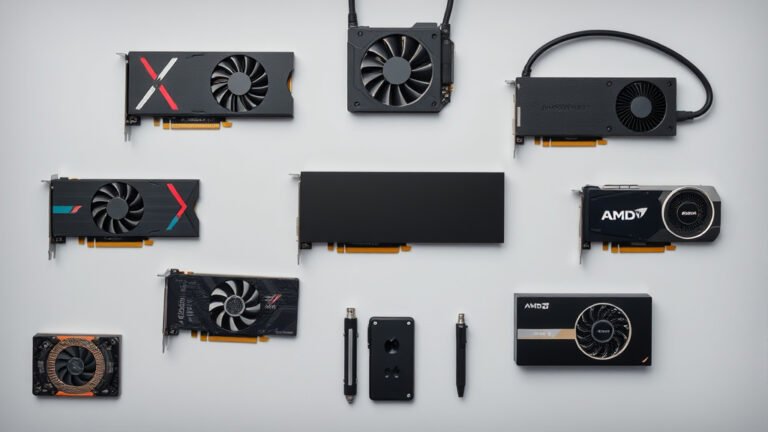
How Often Should You Clean Your Graphics Card? A Simple Guide
You should clean your graphics card every 6 to 12 months for normal use. If you have pets, smoke indoors, or game hard every day, aim for every 3 to 4 months. A dusty card runs hotter, gets louder, and can even throttle your performance.
Wondering why the timing varies so much? It comes down to your environment and airflow. We researched what PC builders and cooling experts recommend, and they all agree: dust buildup is the number one enemy of your GPU. Your fans pull in air (and all the floating dust with it) every single time you play.
Here’s the quick version before we get into the details:
- Normal use: clean your GPU every 6 to 12 months.
- Dusty homes or pet owners: clean every 3 to 4 months.
- Signs you’re late: loud fans, hot air, or dropping frame rates.
- Best tools: compressed air and a soft brush. No vacuum inside the case.
- Safety first: power down, unplug, and ground yourself before you start.
Below, we break down everything you need to know about cleaning schedules, warning signs, and how to do it safely. Your GPU will thank you (probably with quieter fans).
Setting Up the Right Cleaning Schedule for Your GPU
Your cleaning schedule depends on three things: your home environment, your gaming habits, and your PC’s case. A card in a carpeted bedroom with a golden retriever needs more attention than one in a clean office.
Think of dust like a slow leak in a tire. It doesn’t stop your car today. But ignore it long enough, and you’ve got a real problem. Dust works the same way on your graphics card.
We found that most PC builders treat the 6-to-12-month rule as a starting point, not a law. You should adjust it based on what your card is telling you.
Use This Table to Pick Your Cleaning Frequency
| Your Situation | How Often to Clean | Why |
|---|---|---|
| Clean home, casual gaming | Every 12 months | Low dust levels, light fan use |
| Normal home, regular gaming | Every 6 months | Standard dust buildup over time |
| Pets, smokers, or carpet | Every 3 to 4 months | Pet hair and smoke clog fans fast |
| Daily heavy gaming sessions | Every 3 to 4 months | Fans pull more air (and dust) in |
| Positive-pressure case setup | Every 12 months | Filtered intake slows dust buildup |
Why Your Environment Matters More Than You Think
Ever noticed how fast your TV stand collects dust? Your PC case pulls in that same air, just faster and more often. Dust mites and household debris are constant indoors, and research on indoor air quality shows that dust levels vary a lot from home to home (NIH).
If you have a long-haired pet, double your cleaning frequency. Pet hair wraps around fan blades like spaghetti around a fork. It’s stubborn and blocks airflow in a way plain dust doesn’t.
Smoke is another big one. Cigarette smoke leaves a sticky film on components. That film traps dust and is much harder to blow out with compressed air.
Signs Your Graphics Card Needs Cleaning Now
Loud fans are your first clue. When dust coats the heatsink, fans spin harder and faster to keep temperatures down. If your GPU sounds like a jet taking off during a match, it’s asking for help.
Watch for these warning signs:
- Loud fan noise during games that used to run quiet.
- Hot air pouring out of the case when you touch near the GPU.
- Dropping frame rates in games that used to run smoothly.
- Visible dust peeking through the fan blades or vents.
- Sudden shutdowns during long gaming sessions.
That last one is serious. When a GPU gets hot enough, it protects itself by shutting down. Many experts say this thermal throttling kicks in long before shutdown, so don’t wait for a full crash to act.
How to Check Your GPU Temperature the Easy Way
You don’t need to open the case to spy on your card. Free tools like MSI Afterburner or HWMonitor show your GPU temperature while you play. Most modern cards run safe below about 85 degrees Celsius under load (NVIDIA).
If your idle temperature climbs into the 60s or 70s, dust is likely the culprit. A clean card idles cool. A dirty one runs warm even when you’re just browsing the web.
We found that checking temps once a month takes about two minutes. It’s the cheapest insurance you can buy for a card that costs hundreds of dollars.
What Numbers Should You Actually Watch?
Keep it simple. Idle temps between 30 and 50 degrees Celsius are healthy. Gaming temps up to the low 80s are fine for most cards. Anything past that on a clean, well-ventilated rig means something else is wrong.
The Right Tools for Cleaning a Graphics Card
You only need a few things, and most cost less than a pizza. Here’s your shopping list:
- Canned compressed air for blasting dust off the heatsink and fans.
- A soft paintbrush or makeup brush for stubborn clumps.
- Isopropyl alcohol (90% or higher) for sticky residue.
- Microfiber cloths for wiping down the shroud.
- An anti-static wrist strap to protect against static discharge.
One big warning: never use a vacuum inside your case. Vacuum nozzles generate static electricity. That static can fry sensitive components in a split second. Stick to compressed air and gentle brushes.
Also, hold the fan blades still while you spray. Spinning the fan with forced air can overspin the bearing and damage it. A gentle thumb on the blade does the trick. Our step-by-step guide to cleaning GPU fans covers the blade-holding technique in detail.
Quick Pre-Cleaning Checklist
Run through this before you touch anything:
- Shut down the PC and flip the power supply switch off.
- Unplug the power cable from the wall.
- Press the power button once to drain leftover charge.
- Ground yourself or strap on your anti-static wristband.
- Work in a well-lit spot with room to move.
- Take a photo of the card and cables first, just in case.
That last tip sounds silly until you’re staring at three identical cables wondering where they went. Ask us how we know.
Should You Take the Card Out of the Case?
Not always. If you’re just blowing out dust, you can clean the card while it’s mounted. Angle the case so dust falls out, not deeper in.
But if the dust is caked on or you want to reach the fins between the heatsink, removing the card makes the job easier. Unscrew the bracket, release the PCIe latch, and pull gently. Just remember to ground yourself first.
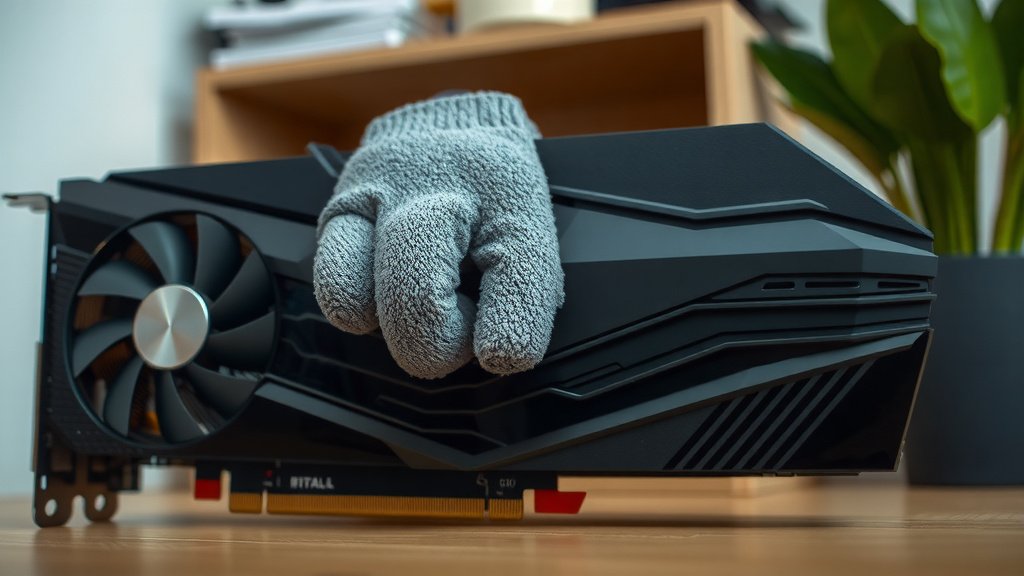
Extra Habits That Keep Dust Away Longer
Cleaning less often starts with letting in less dust. A few small changes stretch the time between cleanings.
First, add dust filters to your intake fans. Most cases sell magnetic filters for a few dollars. They catch the bulk of debris before it reaches your GPU.
Second, create positive pressure inside the case. That means your intake fans push more air in than your exhaust fans pull out. The extra air escapes through every gap, taking dust with it instead of sucking it in.
Third, get your PC off the carpet. Even a few inches of elevation cuts the dust it breathes in. A simple stand or a spot on a desk works wonders.
Finally, clean your case filters monthly. It takes 60 seconds and keeps the whole system breathing easy. A little upkeep now beats a deep clean later, every time.
Conclusion
Keeping your graphics card clean isn’t hard, and it doesn’t take long. For most of you, a quick blast of compressed air every 6 to 12 months does the job. If you have pets, smoke, or game daily, bump that up to every 3 to 4 months. Watch for the warning signs too — loud fans, warm air, and dropping frame rates all point to a dust problem. We found that the cards that last longest belong to people who pay attention, not people who clean obsessively.
So here’s your next step: check your GPU temperatures today with a free tool like MSI Afterburner. If your idle temps are creeping past 60 degrees, pull out the compressed air and give your card the cleaning it’s been asking for.
Frequently Asked Questions
Can I clean my graphics card without removing it from the case?
Yes, you can. For light dust, keep the card mounted and just angle the case so dust falls outward. Only remove it if the buildup is heavy or you need to reach between the heatsink fins.
Is it safe to use canned air on my GPU fans?
It’s safe as long as you hold the fan blades still while spraying. Forcing the fans to spin with compressed air can overspin the bearings and cause damage over time. A gentle thumb on the blade keeps everything safe.
Can dust actually damage my graphics card permanently?
Absolutely. Thick dust acts like a blanket, trapping heat against the components. Over time, that constant heat stress shortens the lifespan of your card and can lead to fan failure or thermal shutdowns.
How do I know if my GPU is thermal throttling?
Watch your frame rates and temperatures at the same time using MSI Afterburner or HWMonitor. If your temps hit the mid-80s and your frame rates suddenly drop during a game, your card is likely throttling itself to stay cool.
Should I reapply thermal paste when I clean my GPU?
Not necessarily. Thermal paste can last several years, so only replace it if your temperatures stay high after a thorough cleaning. If you do replace it, make sure you’re comfortable disassembling the card, since opening the cooler can affect your warranty.