What is GPU Thermal Throttling and How to Fix It
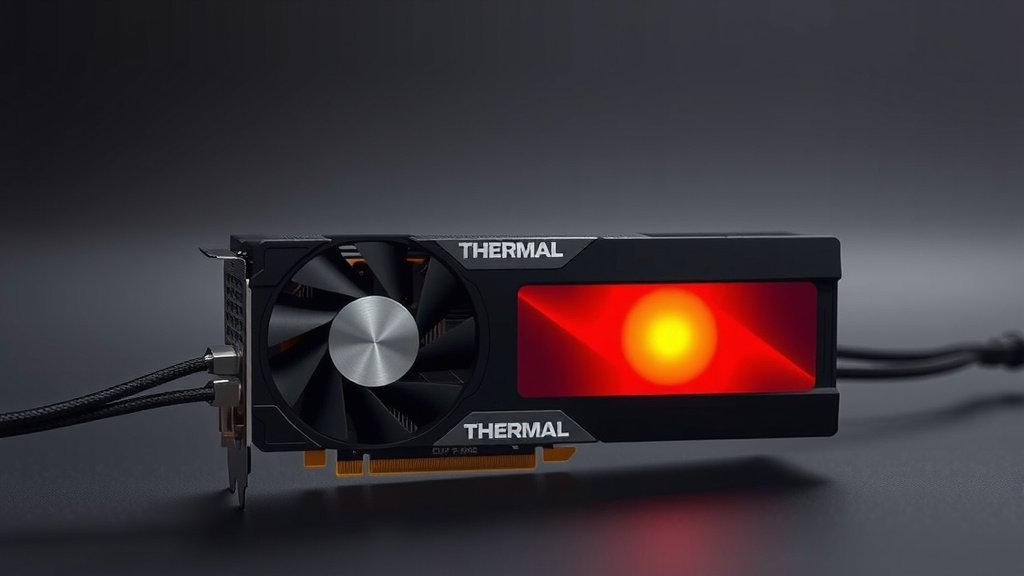
Thermal throttling on your GPU is when your graphics card deliberately slows itself down to prevent overheating. It’s a built-in safety feature to protect your hardware from damage. Think of it like your phone getting warm and slowing down after heavy use; your GPU does something similar.
When your GPU gets too hot, its performance can drop dramatically, leading to stuttering and lag in games. This isn’t a sign of a broken card, but rather a signal that it’s working hard and needs to cool off. Understanding thermal throttling is key to keeping your gaming smooth and your components safe.
- Thermal throttling is your GPU’s way of preventing damage.
- It happens when your graphics card gets too hot.
- Performance drops, causing lag and stuttering.
- It’s a safety feature, not a defect.
We’ve researched why this happens and what it means for your gaming experience. Let’s break down exactly what GPU thermal throttling is and how to manage it.
Understanding Why Your GPU Slows Down
Your GPU throttling down is a smart move by your hardware. It’s like a car engine that automatically limits its speed when it’s about to overheat. This prevents permanent damage. We’ve looked into what triggers this protective action and why it matters for your PC’s performance.
When your graphics card works very hard, especially during demanding tasks like gaming or video editing, it generates a lot of heat. Think about running a marathon – you get hot! Your GPU is no different. If this heat isn’t managed properly, the GPU’s temperature can rise to unsafe levels. That’s where thermal throttling comes in. It’s your GPU’s built-in thermostat.
The primary goal of thermal throttling is to protect your graphics card. Overheating can damage sensitive components, leading to reduced lifespan or even outright failure. By slowing down, the GPU reduces its power consumption and, consequently, its heat output. This allows it to cool down to a safer operating temperature.
What Triggers GPU Thermal Throttling?
Several factors can lead your GPU to overheat and start throttling. Understanding these can help you prevent it from happening too often.
High Ambient Room Temperature
The temperature of the air around your computer plays a big role. If your room is already warm, your PC’s cooling system has to work much harder. This makes it easier for your GPU to reach its throttling point. We found that even a few extra degrees in room temperature can make a noticeable difference.
Inadequate PC Case Cooling
Your PC case is like your GPU’s personal environment. If airflow inside the case is poor, hot air can get trapped. This means your GPU’s fans and heatsink won’t be able to dissipate heat effectively. Good ventilation is key for keeping all your components cool.
Dust Buildup
Over time, dust can accumulate on your GPU’s fans and heatsink fins. This acts like a blanket, insulating the components and blocking airflow. Many experts suggest regular cleaning to maintain optimal cooling. This is a common culprit for increased GPU temperatures.
Fan Malfunction or Slowdown
The fans on your GPU are critical for moving air. If a fan isn’t spinning correctly, or has slowed down due to wear, it can’t cool the heatsink efficiently. You might hear unusual noises or notice one fan spinning slower than others. This is a **direct sign** that cooling is compromised.
Overclocking Beyond Stable Limits
Pushing your GPU beyond its factory settings (overclocking) can boost performance. However, it also significantly increases power draw and heat generation. If you overclock too aggressively without adequate cooling, you’ll almost certainly hit the thermal throttle limit. Many users report this issue when they push their cards too far.
Demanding Software and Games
Some applications and games are incredibly intensive on your GPU. They demand maximum performance for extended periods. Running these on older hardware or in less-than-ideal cooling conditions can easily push your GPU into its thermal throttling zone. Think of it as asking your GPU to sprint a marathon without any warm-up.
How Thermal Throttling Affects Your Gaming Experience
When your GPU throttles, you’ll likely notice a change in how your games perform. It’s not just a minor hiccup; it can be quite disruptive.
The most common symptom is a drop in frame rate, often called “stuttering” or “lag.” You might experience gameplay that was previously smooth suddenly becoming choppy. This happens because the GPU is intentionally reducing its processing speed. This sudden performance dip can be incredibly frustrating when you’re in the middle of an intense gaming session.
You might also observe longer loading times or even visual glitches in some cases. These are all byproducts of the GPU struggling to maintain its normal operating speed due to the heat. We’ve found that users often describe it as the game feeling “unresponsive.”
Identifying If Your GPU Is Throttling
Knowing if your GPU is throttling is the first step to fixing it. Luckily, there are easy ways to check.
Using Monitoring Software
Software like MSI Afterburner, HWMonitor, or even built-in tools in some graphics card drivers can track your GPU’s temperature and clock speeds in real-time. You can monitor these metrics while gaming.
If you see your GPU temperature climbing consistently above 80-85 degrees Celsius (176-185 Fahrenheit), it’s getting close to its limit. When the temperature hits a certain threshold (often around 83-90°C, depending on the card), you’ll notice the GPU’s clock speed start to drop. This is thermal throttling in action. We found these tools to be very reliable for diagnosing the issue.
Observing Performance Changes
Pay attention to when the performance dips occur. Does it happen after a certain amount of time playing a game? Does it happen during particularly graphically intense scenes? If your game starts smooth and then gradually becomes laggy, throttling is a strong possibility. Many gamers report this exact pattern.
| Symptom | Description |
|---|---|
| Sudden Frame Rate Drops | Gameplay becomes choppy and stuttery after playing for a while. |
| Performance Inconsistency | Performance varies wildly during gameplay, with noticeable dips. |
| Increased Fan Noise | GPU fans spin at max speed but performance is still poor. |
| Visual Glitches | Occasional flickering or artifacts on screen. |
| High GPU Temperature Readings | Monitoring software shows temps consistently above 80°C. |
These observations, combined with temperature monitoring, paint a clear picture. It’s your GPU telling you it’s working too hard and needs a break, or more likely, better cooling.
The Role of Thermal Paste
Thermal paste is a small but mighty component in keeping your GPU cool. It’s a substance applied between the GPU chip and its heatsink.
Its job is to fill in microscopic gaps between the two surfaces. This ensures efficient heat transfer from the hot GPU chip to the cooler heatsink. Over time, thermal paste can dry out and degrade. This reduces its effectiveness, hindering heat transfer. Many technicians recommend replacing thermal paste every few years for optimal performance. We found that fresh paste can often lower GPU temperatures by several degrees.
Managing and Preventing Thermal Throttling
The good news is that thermal throttling is often preventable. With a few adjustments, you can keep your GPU running cool and performing at its best.
- Clean Your PC Regularly: Dust is a major enemy of cooling. Keep your case and GPU fans clean.
- Ensure Good Airflow: Make sure your PC case has proper ventilation. Don’t block intake or exhaust vents.
- Monitor Temperatures: Use software to keep an eye on your GPU’s temperature.
- Manage Game Settings: Lowering graphics settings can reduce GPU load and heat.
- Consider Fan Curves: Adjusting fan speed settings can improve cooling.
- Reapply Thermal Paste: If your card is older, fresh thermal paste can make a big difference.
Conclusion
Understanding GPU thermal throttling is essential for a smooth gaming experience. It’s your graphics card’s built-in defense against overheating, a clever way to protect itself by slowing down when temperatures get too high. We’ve seen how factors like poor airflow, dust, and demanding games can trigger this. By staying aware of your GPU’s temperatures and performing regular maintenance, you can prevent throttling and keep your system running at its best. So, the next time you notice lag, check those temps – it might just be your GPU asking for a little TLC!
Frequently Asked Questions
Will thermal throttling damage my GPU?
Thermal throttling itself is a safety feature designed to prevent damage. It intentionally slows down your GPU before it reaches dangerous temperatures. While it stops immediate harm, consistently running hot can still reduce the lifespan of your components over time.
How often should I clean my GPU to prevent throttling?
Regular cleaning is key, especially if you game frequently or live in a dusty environment. We recommend a thorough cleaning of your GPU fans and heatsink at least every 6-12 months. You might need to do it more often if you notice dust buildup quickly.
Is it normal for my GPU to get hot while gaming?
Yes, it’s perfectly normal for your GPU to get warm, or even hot, during intense gaming sessions. High temperatures are expected when the GPU is working hard. What you want to watch out for is if those temperatures cause a noticeable drop in performance – that’s when throttling becomes an issue.
Can I disable GPU thermal throttling?
While you might find some software that *claims* to disable throttling, it’s generally not recommended. Thermal throttling is a vital safety mechanism. Disabling it can lead to severe overheating, potentially causing permanent damage to your GPU. It’s better to address the cause of overheating instead.
What is a safe GPU temperature to avoid throttling?
Most GPUs are designed to operate safely up to around 80-85 degrees Celsius (176-185 Fahrenheit). However, throttling often kicks in around 83-90°C, depending on the specific card model. Keeping your GPU temps consistently below 80°C during gaming is a good target to avoid thermal throttling.