Understanding Your Graphics Card’s VBIOS
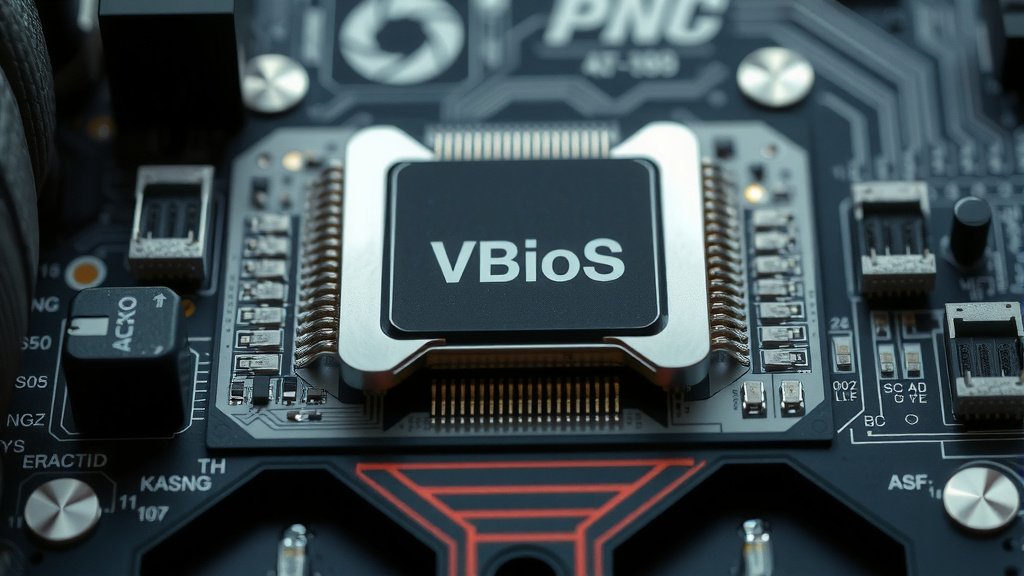
A vBIOS, or video BIOS, is essentially a small firmware chip on your graphics card. It holds important instructions for your GPU to initialize and communicate with your motherboard. Think of it as the graphics card’s startup guide. This little chip ensures your card can start up properly and work with the rest of your computer. It’s pretty neat how much power is packed into such a tiny component!
The vBIOS contains critical information like clock speeds, fan control settings, and display output configurations. It’s what allows your system to recognize the graphics card and begin the boot process. Without a functional vBIOS, your computer wouldn’t know how to use your graphics card, leading to a blank screen. Many computer enthusiasts and gamers might encounter the term when tweaking their hardware.
- A vBIOS is firmware on your graphics card.
- It helps your GPU initialize and start up.
- It contains settings like clock speeds and fan control.
- A working vBIOS is essential for your graphics card to function.
We found that understanding your vBIOS can be super helpful for troubleshooting. Let’s dive into what a vBIOS really is and why it matters for your PC!
Understanding Your Graphics Card’s Startup Chip
So, you’ve heard about the vBIOS, right? It’s the tiny firmware brain tucked away on your graphics card. This little chip is more important than you might think. It’s the first thing your graphics card does when you power on your PC. It tells your GPU how to get ready for action. Think of it like the ignition key for your car, but for your graphics card. Without it, your GPU just wouldn’t know what to do.
The vBIOS holds the essential instructions for initializing your graphics processing unit (GPU). It’s responsible for waking up the graphics card and making sure it can talk to your motherboard. This handshake is what allows your computer to even see the graphics card. If this process fails, you’re likely to end up with a black screen. We’ve all been there, staring at a blank monitor, hoping something will appear.
What Exactly Does the vBIOS Control?
This small piece of firmware packs a punch. It contains key settings and configurations that dictate how your graphics card operates. These aren’t just random numbers; they are carefully tuned parameters. They ensure your card works smoothly and efficiently with your system. Many of these settings affect performance and fan behavior.
Clock Speeds and Performance
One of the most talked-about aspects of a vBIOS is its control over clock speeds. These speeds determine how fast your GPU’s core and memory run. The vBIOS sets the default frequencies. Higher clock speeds generally mean better performance. You might see this mentioned when people discuss overclocking their graphics cards. Modifying these can boost your frame rates, but it requires caution.
Fan Control and Cooling
Your graphics card needs to stay cool, especially under heavy load. The vBIOS includes logic for fan control. It tells the fans when to spin up and how fast to go based on the GPU’s temperature. This is a delicate balancing act. The goal is to keep the card cool without making too much noise. Some vBIOS versions have more aggressive fan curves than others.
Display Output and Initialization
Ever wondered how your PC knows which monitor to use first? The vBIOS handles this too. It dictates which display outputs are active and the initial display mode. This is vital for the boot process. It ensures that your system can output a signal to your monitor before the operating system even loads. This is why a corrupted vBIOS can lead to no display at all.
The Role of vBIOS in Your PC’s Boot Process
When you hit the power button, your computer goes through a sequence of startup steps. The vBIOS plays a starring role in this initial phase for your graphics card. It’s like the prologue to a movie, setting the scene for what’s to come. Without this prologue, the main story can’t unfold properly.
Initial Hardware Detection
The Power-On Self-Test (POST) is the first thing your computer does. During POST, the system checks if all hardware components are present and functional. The vBIOS is crucial here. It allows the motherboard to detect and communicate with the graphics card. It reports back its identity and capabilities to the system. This immediate recognition is essential.
Setting Up the Display
Once detected, the vBIOS takes over the display. It initializes the graphics hardware and outputs a basic display signal. This is what you see as the BIOS screen or the Windows loading logo. It’s a very low-level driver. It doesn’t need your operating system to function. This ensures you have visual feedback from the very start of the boot sequence. This is why you can often see your BIOS settings even if your Windows installation is corrupted.
Can You Modify or Update Your vBIOS?
Yes, you can! For many users, the vBIOS just works, and they never think about it. But for enthusiasts and troubleshooters, the ability to modify or update the vBIOS can be very interesting. It opens up possibilities for customization and problem-solving. However, it’s important to approach this with care.
Why Would You Want to Update or Modify?
- Performance Tweaks: Some users modify clock speeds or power limits. This can lead to better performance.
- Cooling Improvements: Adjusting fan curves can create a quieter or cooler system.
- Compatibility: Occasionally, a vBIOS update might improve compatibility with certain motherboards or systems.
- Enabling Features: In rare cases, it might unlock hidden features on the card.
Risks and Considerations
While tempting, flashing a new vBIOS is not without risk. If done incorrectly, it can render your graphics card unusable. This is often referred to as “bricking” the card. It’s like trying to reprogram your car’s computer and accidentally disabling the engine. We found that many users proceed with caution.
Always ensure you download a vBIOS file specifically for your exact graphics card model. Using a vBIOS from a different card can cause serious problems. Also, make sure you have a reliable power source during the flashing process. A power outage mid-flash is a recipe for disaster. We recommend thoroughly researching the process and potential outcomes before proceeding.
Finding and Flashing a New vBIOS
You can often find vBIOS files on the manufacturer’s website or specialized hardware forums. There are also tools available to extract your current vBIOS. This is a good first step, so you have a backup. Flashing tools vary by manufacturer and card type. We found that using the official tools provided by the GPU vendor is generally the safest bet.
Here’s a quick rundown of the general steps often involved:
- Back up your current vBIOS.
- Download the correct vBIOS for your specific card.
- Use the appropriate flashing utility.
- Run the flash utility and follow its instructions carefully.
- Reboot your system once the process is complete.
Remember, this process should only be undertaken if you understand the risks and have a clear reason for doing so. For most users, the original vBIOS will work perfectly fine without any need for modification.
Conclusion
You’ve learned that your graphics card’s vBIOS is a small but mighty firmware chip. It’s the essential startup guide for your GPU. It handles everything from initial detection to setting clock speeds and fan control. Without a healthy vBIOS, your graphics card simply can’t get to work. For most users, this chip just works, letting you game and create without a second thought. If you’re an enthusiast or facing a tricky issue, understanding your vBIOS is key.
Consider this your foundation for further exploration. If you’re thinking about tweaking your system, remember to research thoroughly. Always back up your current vBIOS before attempting any changes. Your graphics card performance and stability are worth the extra caution!
Frequently Asked Questions
What happens if my vBIOS gets corrupted?
If your vBIOS becomes corrupted, your graphics card likely won’t initialize correctly. This usually results in a blank screen when you try to boot your computer. You might also experience graphical glitches or system instability. It essentially prevents your GPU from communicating with the rest of your PC.
Can a vBIOS update improve my graphics card’s performance?
Sometimes, a vBIOS update or modification can improve performance. This often involves adjusting clock speeds, power limits, or fan curves. However, it’s not guaranteed and depends heavily on the specific card and the changes made. Always proceed with caution and ensure the update is for your exact model.
Is it safe to flash a new vBIOS onto my graphics card?
Flashing a new vBIOS carries some risk. If done incorrectly or with an incompatible file, you could “brick” your graphics card, making it unusable. We found that users should always back up their original vBIOS first. Using official tools and following instructions precisely is critical for safety.
How can I tell if my graphics card needs a vBIOS update?
Generally, you don’t need to update your vBIOS unless you’re experiencing specific issues. These could include problems with display output, fan behavior, or compatibility. Sometimes, manufacturers release updates to fix bugs or enable minor features. Check your GPU manufacturer’s support page for any available updates for your model.
Where can I find a vBIOS file for my graphics card?
You can often find vBIOS files on the official website of your graphics card’s manufacturer. Specialized hardware forums are another good resource, but exercise caution. Always make sure the file is specifically designed for your exact graphics card model and revision. Using a file meant for a different card can cause severe damage.
![10 Slot Gpu [2026]](https://spsolutionscare.com/wp-content/uploads/2026/08/10-slot-gpu-2026-featured-768x432.jpg)
![10 Best Budget Nvidia Gpu [2026]](https://spsolutionscare.com/wp-content/uploads/2026/09/10-best-budget-nvidia-gpu-2026-featured-768x432.jpg)