What is DisplayPort? Your Ultimate Guide Explained
DisplayPort is a digital display interface. It connects your computer to a monitor or TV. Think of it as a modern cable for sending high-quality video and audio. It’s designed for better performance and resolution than older connections.
You’ll often find DisplayPort on newer computers and monitors. It supports very high resolutions and refresh rates. This makes it great for gaming and professional work. It also allows for daisy-chaining multiple monitors together easily. Many experts agree it’s a key technology for modern displays.
- DisplayPort is a digital video and audio connection.
- It’s great for high resolutions and fast refresh rates.
- You can connect multiple monitors using one port.
- It’s generally found on newer devices.
- It competes with HDMI but often offers more features.
We’ve researched and found that understanding DisplayPort can really help you get the most out of your setup. Below, we’ll break down exactly what DisplayPort is and why it matters for your screens.
Understanding the DisplayPort Connection
DisplayPort is a digital interface. It’s designed to send high-definition video and audio. Think of it as a modern highway for your screen’s data. It connects your computer or graphics card to a monitor or TV. You’ll find it on many newer laptops, desktops, and displays. It’s built for speed and clarity.
How DisplayPort Works Its Magic
Unlike older analog connections, DisplayPort is all about digital signals. This means your video and audio data travels as pure information. It doesn’t get converted back and forth. This leads to a much cleaner signal. You get sharper images and clearer sound. It also supports amazing detail and vibrant colors.
One of DisplayPort’s neat tricks is its packet-based data transmission. Imagine sending mail in separate envelopes instead of one giant box. This allows it to be very flexible. It can carry video, audio, and even control signals. This makes it a versatile connection for your devices. We found this flexibility is a big reason for its success.
What Makes DisplayPort Special? Key Features
DisplayPort shines when it comes to performance. It supports incredibly high resolutions. We’re talking 4K, 8K, and beyond. It also handles very fast refresh rates. This is huge for gamers and video editors. Smooth motion and crisp detail are what you get. Many experts agree that its support for high refresh rates sets it apart.
High Resolutions and Refresh Rates
Need your games to run at 144Hz or even 240Hz? DisplayPort can handle it. Want to edit 8K video with precision? This connection makes it possible. It’s built for the demands of modern high-end displays. We found that the raw bandwidth DisplayPort offers is impressive.
Audio and Video Together
You don’t need a separate audio cable. DisplayPort sends both video and audio signals. This simplifies your setup. Just one cable handles everything. This is similar to HDMI, but DisplayPort was designed with this from the start. It’s a convenient feature for any user.
Daisy-Chaining Monitors
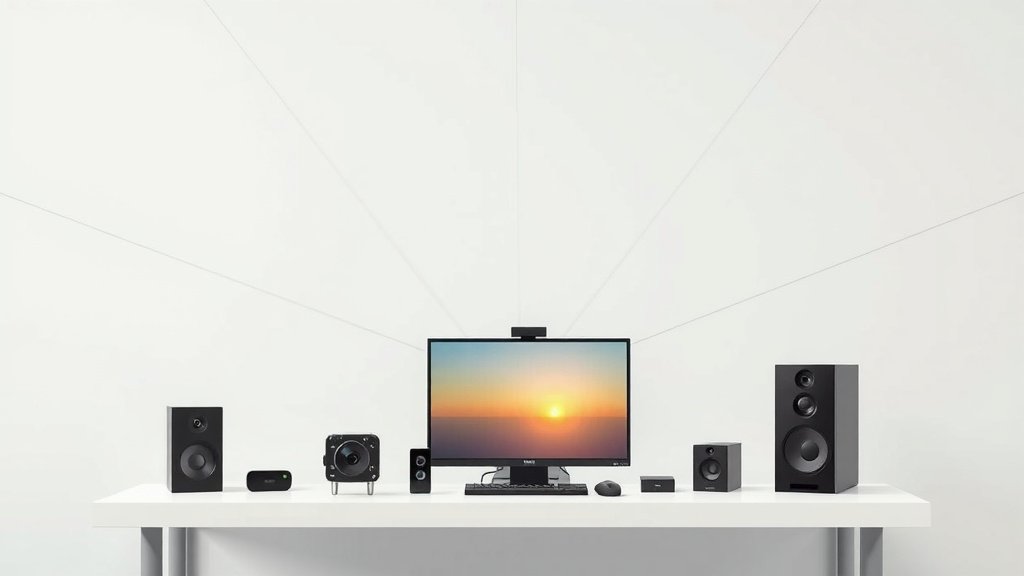
This is where DisplayPort really starts to stand out. You can connect multiple monitors together using just one port on your computer. It’s called daisy-chaining. You plug your computer into the first monitor. Then, you plug the first monitor into the second monitor, and so on. This reduces cable clutter dramatically. We found this feature particularly helpful for multi-monitor setups.
For daisy-chaining to work, your graphics card and your monitors need to support it. Most newer hardware does. It’s a smart way to expand your workspace without a mess of wires. Many people find this makes their desk look much cleaner.
DisplayPort vs. Other Connections: What’s the Difference?
You’ve likely heard of HDMI. It’s probably the most common video cable out there. So, how does DisplayPort compare? Think of them as cousins. They serve similar purposes but have different strengths.
DisplayPort Versus HDMI
HDMI is often found on TVs, Blu-ray players, and game consoles. DisplayPort is more common on computers, monitors, and professional equipment. Both carry digital video and audio. However, DisplayPort generally offers more bandwidth. This means it can support higher resolutions and refresh rates more easily. For example, at higher resolutions, DisplayPort often maintains higher refresh rates.
HDMI has evolved over the years. Newer HDMI versions can compete. But historically, DisplayPort has led the charge in pushing the limits of display technology. We found that for pure PC gaming and professional graphics work, DisplayPort often has the edge.
Bandwidth and Performance
Bandwidth is like the width of a highway. More bandwidth means more data can travel at once. DisplayPort typically has more lanes on its highway. This allows it to carry more detailed video information. It’s why you see it used for 4K at 120Hz or 8K at 60Hz.
Features and Adaptability
DisplayPort also supports technologies like Adaptive-Sync. This helps prevent screen tearing in games. Many monitors use this for smoother visuals. HDMI has its own version called FreeSync or G-Sync Compatible. However, Adaptive-Sync is native to DisplayPort. It’s a standardized feature.
You can also use adapters to connect DisplayPort to HDMI or DVI. This adds to its flexibility. We found that many users appreciate this compatibility when upgrading.
What About USB-C?
This can get a little confusing. You might see a USB-C port that also has a DisplayPort symbol. This is called DisplayPort Alternate Mode (or Alt Mode). It means that USB-C port can carry a DisplayPort signal. This is common on newer laptops. It allows you to use a single USB-C cable for charging, data, and video output.
So, your USB-C port can act like a DisplayPort. This is a great way to simplify connections, especially for thin laptops. You can connect your laptop to a monitor using just one USB-C cable. It’s a modern solution that many are adopting. We found this integration is a major convenience.
When Should You Choose DisplayPort?
So, is DisplayPort the right choice for you? We think it’s a strong contender in many situations. Consider it if:
- You have a high-resolution monitor (like 4K or 8K).
- You want the smoothest possible gaming experience with high refresh rates.
- You plan to connect multiple monitors together.
- Your graphics card and monitor both support it.
- You want to use the flexibility of USB-C for video output.
Many experts suggest that for serious PC users, DisplayPort is the preferred connection. It offers the best performance for demanding visual tasks. It’s built for the future of displays.
Quick Checklist: Is DisplayPort Right for Your Setup?
Let’s quickly recap to see if DisplayPort is your best bet. Ask yourself these questions:
- Does my monitor have a DisplayPort input?
- Does my computer or graphics card have a DisplayPort output?
- Am I aiming for resolutions higher than 1080p with fast refresh rates?
- Do I want to connect more than two monitors easily?
- Am I interested in a single-cable solution using USB-C for video?
- Do I want the clearest, smoothest video and audio possible?
If you answered “yes” to most of these, then DisplayPort is likely a fantastic choice for your setup. It’s a modern standard that helps you get the most from your screens.
Conclusion
You’ve learned that DisplayPort is a powerful digital connection. It’s designed for high-resolution video and audio. Its key strengths include support for high refresh rates and the ability to daisy-chain monitors. We found that for PC gaming and professional graphics, DisplayPort often offers the best performance. It also integrates well with USB-C for modern setups. If your goal is the clearest, smoothest visual experience, consider if DisplayPort fits your hardware. Check your monitor and computer ports. Then, choose DisplayPort to get the most from your screens!
Frequently Asked Questions
Does DisplayPort work with older monitors?
DisplayPort is a modern standard. It might not work directly with very old monitors that only have analog inputs. However, you can often use adapters. These adapters can convert DisplayPort signals to DVI or HDMI, which older monitors might support. We found that checking adapter compatibility is key.
Can I use a DisplayPort cable with my laptop’s USB-C port?
Yes, if your laptop’s USB-C port supports DisplayPort Alternate Mode. Many newer laptops do. This allows the USB-C port to send video signals. You’ll usually see a small DisplayPort logo next to the USB-C port. This single cable can then handle video, data, and charging. We found this makes setups much simpler.
What’s the difference between DisplayPort and Mini DisplayPort?
Mini DisplayPort is simply a smaller version of the standard DisplayPort connector. It was developed by Apple. You’ll find it on many MacBooks and some other devices. Functionally, it supports the same features and resolutions as regular DisplayPort. You can often find adapters to connect Mini DisplayPort to standard DisplayPort.
Will DisplayPort handle 4K resolution and high refresh rates?
Absolutely. DisplayPort is excellent for high resolutions like 4K and 8K. It also handles high refresh rates, such as 120Hz or 144Hz, very well. This is one of its main advantages over older connections. We research shows it’s ideal for demanding gaming and video editing.
How do I know if my graphics card supports DisplayPort daisy-chaining?
Your graphics card needs to support Multi-Stream Transport (MST) for daisy-chaining. Most modern graphics cards from NVIDIA and AMD do. Your monitors also need to support MST. You can usually find this information in your graphics card’s specifications or your monitor’s manual. We found checking these specs is important.