
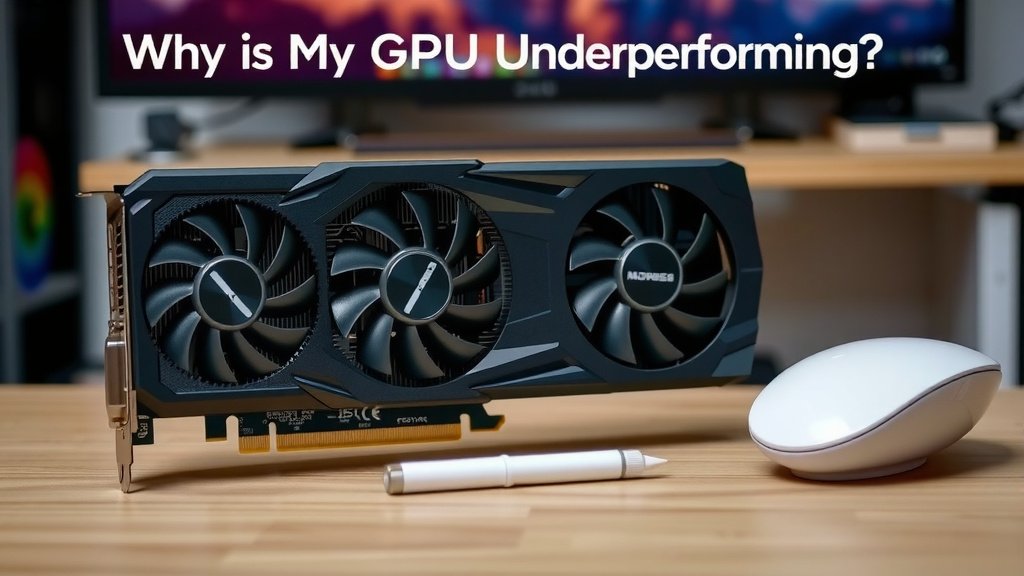
Why Is My GPU Underperforming? Troubleshooting Guide
Your GPU might be underperforming because of overheating, outdated drivers, or your game settings being too high. Many people experience a drop in performance when their graphics card can’t keep up. This often happens when games demand more power than your hardware can smoothly provide. Don’t worry, we can help you figure out why.
It’s frustrating when your graphics card doesn’t deliver the smooth experience you expect. Sometimes, a simple software update can fix things right up. Other times, it might be a sign that your hardware needs a closer look or that your expectations need a little adjustment for your current setup.
- GPU overheating is a common culprit.
- Outdated graphics drivers can cause serious slowdowns.
- Game settings often need to be dialed back for smooth play.
- Background applications can steal precious GPU resources.
- Ensure your GPU is getting enough power from your PSU.
Let’s dive into the common reasons why your GPU might be struggling and what you can do about it.
“`htmlTroubleshooting Your GPU’s Sluggish Performance
It can be super frustrating when your graphics card, the heart of your gaming experience, starts acting up. You expect smooth frame rates and crisp visuals, but instead, you’re getting stuttering and lag. We get it. This often happens when your system isn’t quite prepared for what the latest games are throwing at it. Let’s walk through some common reasons why your GPU might be underperforming and how you can fix it.
Checking for Overheating Issues
One of the most frequent culprits behind a slow GPU is overheating. When your graphics card gets too hot, it automatically slows itself down to prevent damage. Think of it like your phone getting warm and becoming sluggish – same principle, just a lot more powerful hardware involved.
How to Monitor Your GPU Temperature
You can easily check your GPU’s temperature using free software. Tools like MSI Afterburner or HWMonitor are excellent choices. Just download one, run it, and start a game. Keep an eye on the temperature readings.
- If your GPU is consistently hitting above 80-85 degrees Celsius while gaming, it’s likely overheating.
- Higher temperatures mean performance throttling.
- This can lead to sudden FPS drops and choppy gameplay.
Solutions for Overheating
If your GPU is running too hot, there are several things you can do to cool it down. Good airflow in your PC case is the first step. Make sure your case fans are working correctly and are set to intake fresh air and exhaust hot air.
Cleaning out dust is also incredibly important. Dust acts like an insulator, trapping heat. Regularly clean your GPU fans and heatsink, as well as the rest of your PC’s components. A can of compressed air is your best friend here.
For more persistent heat issues, you might consider reapplying thermal paste to your GPU’s processor. This is a more advanced step, so if you’re not comfortable, it might be best to seek professional help. Sometimes, a better cooling solution, like an aftermarket GPU cooler, can make a huge difference.
The Importance of Up-to-Date Graphics Drivers
Your graphics drivers are like the translators between your GPU and your games. If these translators are old or glitchy, they won’t communicate effectively, leading to poor performance. Keeping them updated is essential for optimal gaming.
Why Drivers Matter So Much
GPU manufacturers, like NVIDIA, AMD, and Intel, release driver updates regularly. These updates often include performance optimizations for new games and bug fixes that can resolve stuttering or graphical issues. Skipping these updates can mean leaving performance on the table.
How to Update Your Graphics Drivers
Updating your drivers is usually straightforward. You can download the latest drivers directly from the manufacturer’s website:
- For NVIDIA cards, visit the NVIDIA driver download page.
- For AMD cards, check the AMD driver support section.
- For Intel integrated graphics, you’ll find drivers on the Intel support site.
Alternatively, most driver suites (like GeForce Experience for NVIDIA) have built-in update checkers that can automatically detect and install the latest drivers for you. It’s often a good idea to perform a It’s often a good idea to perform a “clean install” when updating drivers, and our guide explains how to do it.“clean install” when updating, which removes old driver files before installing the new ones. This helps prevent conflicts.
Optimizing In-Game Settings
Sometimes, the issue isn’t with your GPU itself but with how you’re asking it to perform. Pushing your graphics settings too high for your hardware is a sure way to experience a slowdown. It’s like asking a marathon runner to sprint a hundred meters – they can do it, but not for long!
Finding the Right Balance
Most games offer a wide range of graphical settings. The key is to find a balance between visual quality and smooth performance. Start by lowering settings that have a big impact on performance but a small impact on visual fidelity.
Settings like shadow quality, anti-aliasing, and ambient occlusion can be very demanding. Try lowering these first. Resolution is another major factor; running games at a lower resolution can significantly boost frame rates.
Using Performance Benchmarking Tools
Many games have built-in benchmarking tools. These tools run a pre-recorded sequence from the game and give you a report on your average frame rate (FPS). Use these to test different settings and see what works best for your system.
If a game doesn’t have a benchmark, you can use external tools like MSI Afterburner to monitor your FPS in real-time while playing. Aim for a consistent frame rate that feels smooth to you. For most players, this is around 60 FPS, but some prefer higher.
Understanding Your Power Supply Unit (PSU)
Your GPU needs a steady supply of power to perform at its best. If your Power Supply Unit (PSU) isn’t powerful enough or is failing, your GPU might not be getting the energy it needs, leading to underperformance.
Does Your PSU Have Enough Wattage?
Check the recommended PSU wattage for your specific GPU model. This information is usually on the manufacturer’s website or the GPU’s product page. Running a high-end GPU on an underpowered PSU is a recipe for disaster. Not only will it perform poorly, but it can also be unstable.
For example, a card that requires a 650W PSU shouldn’t be paired with a 450W unit. Always aim for a PSU that meets or exceeds the recommended wattage, giving you some headroom.
PSU Age and Quality
PSUs can degrade over time. An older PSU might not be delivering its full rated wattage. Also, the quality of the PSU matters. Cheaper, unrated PSUs are less efficient and can be unreliable. Investing in a reputable brand with a good efficiency rating (like 80 Plus Bronze, Gold, or Platinum) is wise for system stability and performance.
Background Applications Stealing Resources
It’s easy to forget about all the programs running in the background. Things like web browsers with many tabs open, cloud storage syncing services, or even antivirus software can consume CPU, RAM, and GPU resources that your game could be using.
Identifying Resource Hogs
Open your Task Manager (Ctrl+Shift+Esc) and go to the “Processes” tab. You can sort by CPU, Memory, or Disk usage to see what’s consuming the most resources. While the GPU column might not be visible by default, high CPU or RAM usage from non-game applications can indirectly impact your GPU’s performance.
Look for applications you don’t actively need while gaming. Some applications might show up as using GPU resources, especially if they are rendering something or performing background updates.
Closing Unnecessary Programs
Before launching your game, take a moment to close any applications you don’t need. This includes closing unnecessary browser tabs, pausing downloads, and disabling any software that isn’t essential for your gaming session. This simple step can free up valuable resources for your game and lead to a smoother experience.
Quick GPU Performance Checklist:
- Check Temperatures: Monitor your GPU while gaming. Is it above 85°C?
- Update Drivers: Ensure you have the latest graphics drivers installed.
- Review Game Settings: Lower demanding graphical options like shadows and anti-aliasing.
- Check PSU: Verify your power supply meets your GPU’s wattage requirements.
- Close Background Apps: Shut down unnecessary programs before gaming.
- Clean Your PC: Remove dust from fans and heatsinks for better airflow.
Conclusion
It’s clear that a variety of factors can cause your GPU to underperform. We’ve covered common issues like overheating, outdated drivers, and demanding game settings. You also learned about the importance of your power supply and closing background applications. Don’t let a sluggish GPU ruin your gaming experience. Start by running a quick check on your temperatures and drivers. If those are good, adjust your in-game settings. Taking these steps will help you get back to smooth, enjoyable gameplay.
Frequently Asked Questions
How often should I update my GPU drivers?
It’s generally a good idea to update your graphics drivers whenever a new version is released, especially if it’s optimized for a game you play. Most manufacturers, like NVIDIA and AMD, release updates monthly or as needed to fix bugs and improve performance.
Can cleaning my PC help my GPU perform better?
Absolutely! Dust buildup is a major cause of overheating. Regularly cleaning your GPU fans and heatsink, along with the rest of your PC’s components, ensures better airflow and allows your GPU to maintain optimal temperatures and performance.
What’s the difference between GPU overheating and a bad GPU?
Overheating is usually a symptom of poor cooling or dust, causing your GPU to intentionally slow down to protect itself. A “bad GPU” might refer to a hardware defect that causes graphical glitches, crashes, or complete failure, regardless of temperature.
Is it okay to run games at lower resolutions to improve FPS?
Yes, lowering your game’s resolution is a very effective way to increase frame rates and improve performance. It reduces the number of pixels your GPU needs to render, making the task much easier for your hardware. This is often a necessary trade-off for smoother gameplay on less powerful systems.
My GPU is still underperforming after trying these tips. What else could it be?
If you’ve addressed overheating, drivers, game settings, power, and background apps, it might be time to consider if your expectations are realistic for your hardware. Your GPU might simply not be powerful enough for the most demanding modern games at your desired settings. You could also consider a more thorough check of your hardware components or consulting a professional.
“`
![10 Best Affordable Video Card For Gaming [2026]](https://spsolutionscare.com/wp-content/uploads/2026/08/10-best-affordable-video-card-for-gaming-2026-featured-768x432.jpg)
![10 Best Brand For Rx 6700 Xt [2026]](https://spsolutionscare.com/wp-content/uploads/2026/08/10-best-brand-for-rx-6700-xt-2026-featured-768x432.jpg)