GPU Usage 100 Percent? Here’s Why
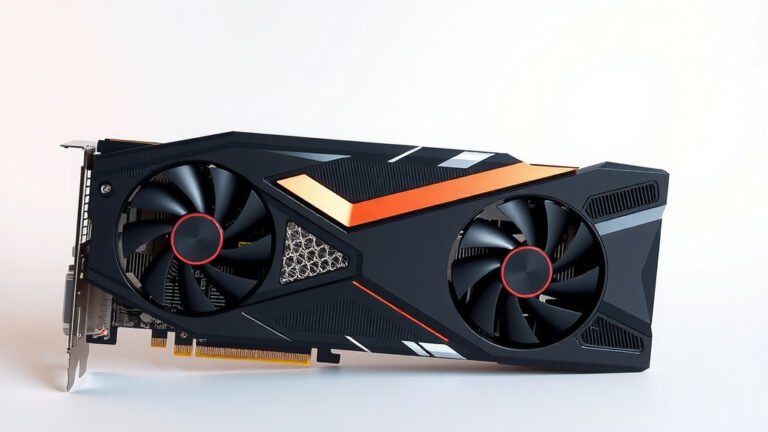
Your GPU usage hitting 100 percent often means it’s working as hard as it can, which is usually a good sign during demanding tasks like gaming or video editing. However, if it happens unexpectedly or causes performance issues, it’s a sign something needs attention. This high usage is your graphics card giving its all for the task at hand, but it can also point to bottlenecks or other problems.
Seeing your GPU maxed out might feel concerning, but it’s a common occurrence. It means your system is trying to keep up with what you’re asking it to do. Sometimes, this peak performance is exactly what you want. Other times, it can lead to frustrating stutters or slowdowns if other components can’t keep pace.
- High GPU usage is normal for demanding tasks.
- It means your graphics card is working at full capacity.
- Unexpected 100% usage can indicate performance issues.
- It might be a sign of bottlenecks or outdated drivers.
- This article helps you understand and fix the problem.
Let’s dive into why your GPU might be running at full tilt and what you can do about it.
Understanding Why Your GPU Usage is at 100%
Seeing your GPU usage hit 100 percent might seem alarming, but it often just means your graphics card is performing its job perfectly. It’s working as hard as it can to deliver smooth visuals for whatever you’re doing. Think of it like a race car engine hitting its maximum RPMs – it’s supposed to do that when you push it hard. This peak performance is what you want for demanding tasks. However, if it leads to stuttering or freezing, there’s likely something else going on.
Normal High GPU Usage Scenarios
When you’re diving into a visually stunning new video game or editing a high-resolution video, your GPU is going to get a serious workout. These activities demand immense processing power to render all those textures, shadows, and effects. If your GPU usage is consistently at 100% during these times, and your game or application runs smoothly, that’s usually a positive sign. It means your hardware is capable and is being fully utilized to give you the best possible experience. You paid for that power, and it’s being put to good use!
When 100% Usage Becomes a Problem
The trouble starts when 100% GPU usage happens when it shouldn’t. Are you just browsing the web or checking email, and your GPU is still maxed out? That’s a clear sign something is wrong. This constant, unexplained high usage can lead to performance drops. You might experience choppy frame rates, lag, or even crashes. When your GPU is always at its limit, it has no headroom for sudden demands. This can turn a simple task into a frustrating experience, leaving you wondering what’s eating up all that power.
Common Culprits Behind Maxed-Out GPU Usage
Several factors can push your GPU to its absolute limit. Let’s break down the most common reasons you might see that 100% usage warning.
Demanding Software and Games
This is the most straightforward reason. Modern games and professional applications like video editors, 3D rendering software, and complex design tools are incredibly GPU-intensive. They ask your graphics card to perform billions of calculations per second. If you’re playing the latest AAA game on high settings, or rendering a complex 4K video, seeing 100% GPU usage is often expected behavior. Your card is simply doing its best to keep up with the visual demands.
Background Processes Hogging Resources
You might be surprised what’s running in the background. Sometimes, hidden applications or even malware can consume a significant amount of your GPU’s power. These processes might be updating software, running anti-virus scans, or, in the worst case, cryptomining (using your GPU to mine cryptocurrency without your knowledge). You can check your Task Manager (or Activity Monitor on Mac) to see which applications are using your GPU. If you see something unexpected using a large percentage, it’s a red flag.
Outdated or Corrupted Graphics Drivers
Your graphics drivers are like the translators between your operating system and your GPU. If these drivers are old, buggy, or corrupted, they can’t communicate efficiently. This inefficiency can cause performance issues and lead to your GPU working harder than it needs to. Many people report a massive improvement in performance and stability simply by updating their graphics drivers. It’s a quick fix that often resolves 100% usage problems. Nvidia, AMD, and Intel all provide regular driver updates on their websites. Many people report a massive improvement in performance and stability simply by updating their graphics drivers.
Hardware Bottlenecks: The Unsung Hero’s Struggle
Sometimes, your GPU isn’t the problem; it’s the rest of your system holding it back. This is known as a hardware bottleneck. Imagine having a super-fast sports car (your GPU) but only being able to drive it on a slow, winding country road (your CPU or RAM). The car can go faster, but the road limits its potential. If your CPU can’t process game logic or prepare data fast enough for your GPU, your GPU will end up waiting, leading to inconsistent usage patterns or, paradoxically, sometimes staying at 100% because it’s trying to compensate or is stuck waiting for data. Finding this balance is key to optimal performance.
Overheating: The GPU’s Cry for Help
When a component gets too hot, it can start to malfunction or throttle its own performance to prevent damage. If your GPU overheats, it might slow down, leading to stuttering. In some cases, to try and keep up with the demand despite thermal throttling, it might still appear to be working hard, or the system might try to push it, causing a cycle of overheating and performance dips. Ensuring your PC has good airflow and that your GPU’s fans are clean and working is vital. You can monitor your GPU temperatures using software like MSI Afterburner or HWMonitor.

Troubleshooting Steps to Reduce GPU Usage
So, your GPU is maxed out, and it’s causing issues. What can you do? Let’s look at some practical steps you can take.
1. Check Your Task Manager First
Before anything else, open your Task Manager (Ctrl+Shift+Esc on Windows) and go to the “Performance” tab. Select your GPU. This will show you its current usage. Then, go to the “Processes” tab and sort by GPU usage. This will reveal exactly which application or process is consuming the most power. If it’s a game or application you’re actively using, this is normal. If it’s something you don’t recognize, you may have found your culprit.
2. Update Your Graphics Drivers
This is often the easiest and most effective solution. Visit the website of your GPU manufacturer (Nvidia, AMD, or Intel) and download the latest drivers for your specific model. Installing clean drivers can resolve many performance bugs and inefficiencies. Many experts recommend performing a “clean installation” which removes old driver files before installing the new ones. This usually an option during the driver installation process.
3. Close Unnecessary Background Applications
Go back to your Task Manager and close any programs you aren’t actively using. This includes browser tabs (especially those with videos or ads), streaming apps, or any other software that might be running in the background and consuming GPU resources. Freeing up these resources can give your main application the breathing room it needs.
4. Adjust In-Game or Application Settings
If the high GPU usage is happening in a specific game or application, you can often reduce it by lowering the graphics settings. Things like texture quality, anti-aliasing, shadow detail, and resolution have a huge impact on GPU load. Experiment with lowering these settings one by one to see what makes the biggest difference without sacrificing too much visual quality. Many games have built-in benchmarks that can help you test settings changes.
5. Monitor and Improve Cooling
If you suspect overheating, clean the dust out of your computer. Ensure fans are spinning freely and not obstructed. You might consider a more aggressive fan curve in your GPU’s software or even improving your PC case’s overall airflow with additional fans. Keeping your GPU within safe temperature limits (generally below 80°C or 176°F) is essential for its longevity and performance.
Quick Checklist for High GPU Usage:
- Verify if 100% usage is normal for your task.
- Check Task Manager for resource-hungry background apps.
- Update your graphics drivers to the latest version.
- Close any unnecessary programs running alongside your main application.
- Lower graphics settings in demanding games or software.
- Ensure your GPU is properly cooled and not overheating.
Conclusion
Seeing your GPU usage at 100 percent can be a double-edged sword. It’s often a sign your hardware is working hard to deliver the performance you expect for demanding tasks. But when it happens unexpectedly or causes stuttering, it’s time to investigate. We’ve covered how to identify normal vs. problematic usage, common culprits like background apps and outdated drivers, and practical troubleshooting steps. If your GPU is consistently maxed out and impacting your experience, start by checking your Task Manager and updating your drivers. Then, consider adjusting settings or improving cooling.
Frequently Asked Questions
Can 100% GPU usage permanently damage my graphics card?
Generally, no. Modern GPUs have built-in safeguards to prevent permanent damage from sustained 100% usage due to overheating. They will typically throttle performance or shut down the system to protect themselves. However, consistently pushing your GPU to its absolute limits can reduce its lifespan over time.
What’s the difference between 100% GPU usage in a game versus a random application?
In a demanding game, 100% GPU usage often means your card is performing as intended to render complex graphics smoothly. If a background application, like your web browser or a simple utility, is causing 100% usage, it’s a strong indicator of an issue, such as malware, a bug, or inefficient coding.
How often should I update my graphics drivers?
It’s a good practice to check for driver updates regularly, especially before playing new games or using updated creative software. Manufacturers like Nvidia, AMD, and Intel release new drivers frequently to improve performance, fix bugs, and add support for new titles. Most users find updating drivers quarterly or when experiencing issues to be sufficient.
Is it normal for my GPU usage to spike to 100% briefly and then drop?
Yes, brief spikes to 100% GPU usage are quite normal, especially when loading new areas in games or opening demanding applications. It shows your GPU is quickly ramping up to meet the immediate demand. If these spikes are followed by smooth performance, it’s usually not a cause for concern.
My GPU usage is 100% but my game is still lagging. What gives?
This scenario often points to a bottleneck elsewhere, likely your CPU, or potentially insufficient RAM. Your GPU might be ready to render frames quickly, but if the CPU can’t prepare the data fast enough, or if you don’t have enough RAM to hold game assets, the GPU will end up waiting, leading to lag despite its high usage.