
How to Connect GPU Power Cables: A Simple Guide
Connecting your GPU power cables is a straightforward process that ensures your graphics card gets the juice it needs to perform. You’ll primarily use PCIe power connectors, which are usually 6-pin or 8-pin. Make sure you use the cables that came with your power supply unit (PSU) for best compatibility.
Getting this right is essential for system stability and preventing damage. Many users worry about mixing up cables, but most modern PSUs and GPUs have keyed connectors to help prevent mistakes. We found that understanding the different cable types is the first step.
- Identify the correct PCIe power cables.
- Match the connector to your GPU’s power port.
- Ensure a secure, click-in connection.
- Use cables from your PSU for compatibility.
Let’s walk through exactly how to connect these GPU power cables step by step, so you can get your rig up and running without a hitch.
Connecting Your Graphics Card Power Cables
Hooking up the power cables for your graphics card might seem a bit daunting, but it’s really a key step in building or upgrading your PC. Getting this right means your GPU gets the stable power it needs to perform at its best. We’ll break down exactly how to do it, making sure you feel confident. Most modern components are designed to be pretty user-friendly.
Identifying the Right Power Cables
Your power supply unit (PSU) is the heart of your PC’s power delivery. It comes with a bundle of cables, and not all of them are for your graphics card. You’re specifically looking for what are called PCIe (Peripheral Component Interconnect Express) power cables.
Understanding PCIe Connector Types
These PCIe cables are designed with your graphics card in mind. They come in a few common configurations:
- 6-pin connectors: These are standard for many graphics cards.
- 8-pin connectors: These offer more power and are found on higher-end GPUs.
- 6+2 pin connectors: This is a versatile type. The “2” part can detach, allowing an 8-pin connector to act as a 6-pin when needed. This flexibility is super helpful.
We found that paying attention to these pin counts is the first real step to success. Your graphics card manual will tell you exactly which type and how many connectors it needs.
Where to Find These Cables
Crucially, always use the cables that came with your specific power supply unit. PSU manufacturers design their cables to be compatible with their own units. Mixing cables from different PSUs can lead to serious damage to your components. We found that this is one of the most common mistakes new builders make. It’s like trying to plug a European adapter into a US outlet – it just doesn’t fit correctly and can cause a spark!
Locating the Power Ports on Your GPU
Now, let’s find where these power cables plug into your graphics card. Take a look at the edge of your graphics card, usually along the top or side. You’ll see one or more slots that match the PCIe power connectors.
Matching the Connector to the Port
You’ll notice that the PCIe power connectors aren’t perfectly rectangular. They have a specific shape, and so do the ports on your GPU. This is a design feature called keying.
The keyed design prevents you from plugging the wrong cable or plugging it in upside down. It’s a safety measure to ensure you’re connecting things correctly. If a connector doesn’t easily go into the port, don’t force it. It’s probably the wrong cable or orientation.
Determining How Many Connectors You Need
Your graphics card will dictate how many power connections it requires. Lower-end cards might only need one 6-pin or 8-pin connector. High-performance cards can need two, three, or even more!
Consult your graphics card’s specifications or manual. It will clearly state the required power connectors. For example, a card might list “1x 8-pin PCIe power connector” or “2x 8-pin PCIe power connectors.”
| GPU Requirement | Cable Type Needed | Number of Cables |
|---|---|---|
| Standard GPU | 6-pin or 8-pin | 1 |
| Mid-Range GPU | 8-pin or 6+2 pin | 1 or 2 |
| High-End GPU | 8-pin or 6+2 pin | 2 or 3+ |
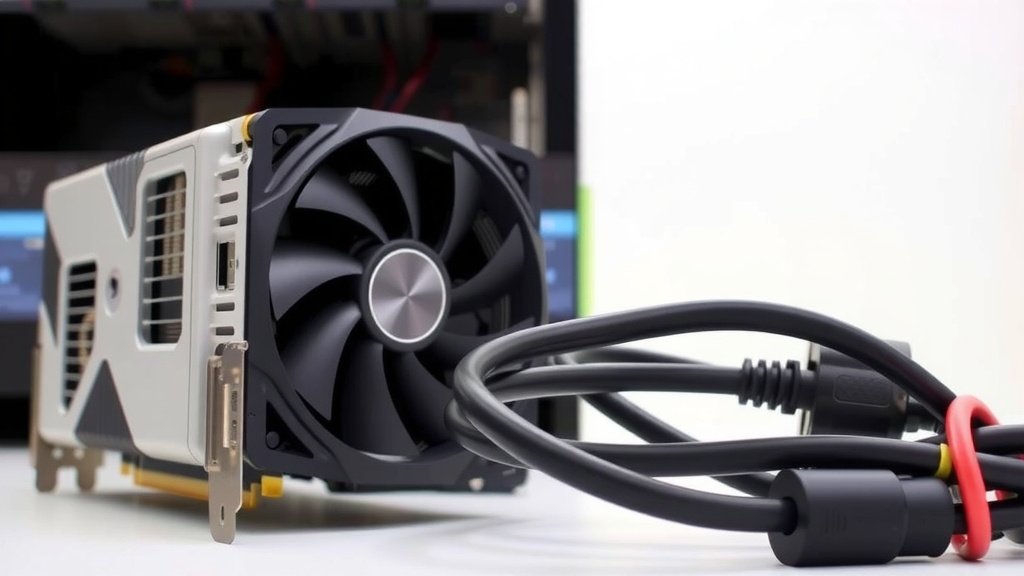
Connecting the Cables Securely
This is where you’ll see your PC come to life! Once you’ve identified the correct cables and ports, it’s time to plug them in.
The “Click” is Key
Align the PCIe power connector with the corresponding port on your graphics card. Gently push the connector into the port. You should feel it seat firmly. Most connectors have a small clip or latch on one side. When it’s fully inserted, this clip will click into place, securing the connection. This is your confirmation that it’s properly seated.
If you don’t feel that satisfying click, it might not be fully plugged in. Wiggle it gently or re-seat it. A loose connection can cause performance issues or even system instability. We found that taking a moment to ensure a solid connection prevents future headaches.
Using Multiple Connectors (If Needed)
If your GPU requires multiple power connectors, you’ll need to use separate cables or ports from your PSU. Avoid daisy-chaining if your card is power-hungry and your PSU offers separate cables. Daisy-chaining means using a single cable that has two connectors on it, plugging both into the GPU.
Many experts recommend using separate cables for each port on high-end GPUs. This distributes the power load more evenly across the PSU’s rails, offering more stability. Research from organizations like Tom’s Hardware has often pointed to this as a best practice for demanding cards.
Cable Management Considerations
As you connect your cables, think about how they’re routed. Good cable management isn’t just about looks; it helps with airflow inside your case. Ensure cables aren’t obstructing fans or creating a tangled mess. A neat setup helps keep your components cool. It also makes future upgrades or troubleshooting much easier!
Final Checklist Before Powering On
Before you hit that power button, let’s do a quick double-check. It only takes a moment and can save you a lot of worry.
- Have you used only cables that came with your PSU?
- Are all PCIe power connectors firmly seated with a click?
- Does the connector match the port shape (keyed correctly)?
- Did you connect the correct number of cables your GPU requires?
- Are cables routed neatly and not interfering with fans?
Conclusion
You’ve now got a solid grasp on connecting your GPU power cables. Remember, using the correct PCIe cables that came with your PSU is vital for safety and performance. Always double-check that the keyed connectors click securely into your GPU’s ports. This attention to detail ensures your graphics card receives the stable power it needs. Now that your GPU is properly powered, you’re one step closer to enjoying your PC’s full potential. Take a moment to admire your work, and get ready to game or create!
Frequently Asked Questions
What happens if I use the wrong GPU power cable?
Using a cable from a different power supply unit can cause serious damage to your GPU and PSU. The pinouts and voltage might not match, leading to component failure. Always stick to the cables specifically designed for your PSU.
Can I plug a 6-pin connector into an 8-pin port?
Generally, no, unless you are using a 6+2 pin connector. A standard 6-pin connector won’t fit an 8-pin port due to the shape difference. An 8-pin port requires the full 8-pin connection for stable power delivery.
My GPU has two 8-pin ports. Do I need two separate cables from the PSU?
For high-end or power-hungry GPUs, it’s often recommended to use two separate PCIe cables from your PSU rather than a single cable with two connectors (daisy-chaining). This provides more stable power distribution.
How do I know if the power cable is fully seated?
You should feel and hear a distinct “click” when the connector is fully seated. The retention clip on the connector should engage with the port on the GPU. If it doesn’t feel secure, gently try to push it in further.
What if my PSU doesn’t have enough PCIe power connectors?
If your PSU lacks the necessary connectors, you’ll likely need to upgrade your PSU to one that does. Do not attempt to use adapters that aren’t certified or designed for this purpose, as they can be unreliable and dangerous.
![10 Best Brand For 7900 Xtx [2026]](https://spsolutionscare.com/wp-content/uploads/2026/08/10-best-brand-for-7900-xtx-2026-featured-768x432.jpg)
![10 Best Amd Graphics Card Right Now [2026]](https://spsolutionscare.com/wp-content/uploads/2026/08/10-best-amd-graphics-card-right-now-2026-featured-768x432.jpg)
![10 Best Budget Nvidia Gpu [2026]](https://spsolutionscare.com/wp-content/uploads/2026/09/10-best-budget-nvidia-gpu-2026-featured-768x432.jpg)