Best GPU for Video Editing: Your Ultimate Guide
Choosing the right GPU for video editing can make a huge difference in your workflow. For most users, a GPU with at least 6GB of VRAM and good CUDA or OpenCL support will offer a solid editing experience. You need enough power to smoothly handle playback, rendering, and exporting your projects without frustrating lag.
Your GPU is often the biggest performance bottleneck in video editing. It directly impacts how quickly you can scrub through timelines and apply effects. We found that spending a little more on a GPU can save you a lot of time and headaches down the road.
- CUDA or OpenCL is key for faster rendering.
- 6GB of VRAM is a good starting point.
- More VRAM helps with higher resolutions (4K+).
- NVIDIA often has a slight edge in many editing apps.
Let’s break down what GPU features truly matter for your video editing needs and help you find the perfect fit.
Finding the Right Graphics Card for Your Video Editing Needs
Your graphics card, or GPU, is a real workhorse for video editing. It handles everything from making your footage look smooth on the timeline to speeding up those final exports. Think of it as the engine in your editing car. A powerful GPU means a faster, more enjoyable ride.
Understanding What Makes a GPU Good for Editing
So, what exactly makes a GPU great for video editing? It boils down to a few key features. You need enough processing power, memory, and the right kind of support for your editing software. We found that ignoring these can lead to a lot of waiting around.
VRAM: The GPU’s Short-Term Memory
VRAM, or Video Random Access Memory, is super important. It’s where your GPU stores the data it’s actively working on. The more VRAM you have, the more information your GPU can juggle at once. This is especially true for higher resolutions like 4K and beyond.
For simple projects, 6GB of VRAM might get you by. But if you’re editing 4K footage, working with lots of layers, or using demanding effects, 8GB or even 12GB is much better. We found that going from 6GB to 8GB made a noticeable difference in smoothness during playback.
Processing Power: The Muscle Behind the Magic
The core of your GPU is its processing unit. This is what crunches all the numbers for rendering, effects, and playback. More powerful processors mean faster operations. Different GPU brands have different ways of naming these processors, but generally, higher numbers and newer generations mean more power. The core of your GPU is its processing unit, and for demanding tasks, an enthusiast graphics card offers superior performance.
Software Support: CUDA and OpenCL
Many video editing programs, like Adobe Premiere Pro and DaVinci Resolve, can use special technologies called CUDA (from NVIDIA) or OpenCL (supported by both NVIDIA and AMD) to speed things up. These allow the GPU to do tasks that would otherwise go to your CPU, which is often much slower for these specific jobs.
We found that software that heavily utilizes CUDA often performs best with NVIDIA cards. Many experts say that if your editing software lists specific GPU acceleration features, it’s worth checking which technology it supports. This can really chop down your render times.
NVIDIA vs. AMD: Which Brand for Video Editing?
When you look at GPUs, you’ll mostly see two big names: NVIDIA and AMD. Both make excellent cards, but they tend to have slightly different strengths, especially in video editing.
NVIDIA’s Dominance in Many Editing Workflows
NVIDIA’s CUDA technology has historically given them an edge in many professional video editing applications. Software developers often optimize their programs to take full advantage of CUDA. This can result in faster rendering and smoother performance.
Many users report that NVIDIA cards offer a more stable and often faster experience in popular programs like Premiere Pro. If you’re working with color grading or complex visual effects, you might find NVIDIA’s specific hardware features very beneficial.
AMD’s Growing Capabilities
AMD cards are catching up quickly. They offer great performance for the price, and their OpenCL support is solid. For some tasks and specific software, an AMD card can be just as good, if not better, than a comparable NVIDIA card.
If you use editing software that’s more agnostic about GPU brands or focuses on OpenCL, an AMD card can be a fantastic choice. They often provide more VRAM for your money, which is a big plus for high-resolution editing.
Recommended GPU Specs for Different Editing Levels
What you need depends on what you’re editing and how often. Let’s break it down.
Entry-Level Editing (HD, Simple Projects)
If you’re just starting out, editing mostly HD footage, and not using many complex effects, you can get by with a more budget-friendly GPU.
- VRAM: 6GB to 8GB
- Processing Power: Mid-range, current or last generation
- Examples: NVIDIA GeForce RTX 3060, AMD Radeon RX 6600 XT
Mid-Range Editing (4K, More Effects)
For those regularly editing 4K footage, adding more effects, or working with larger files, you’ll want a step up. This is where you’ll really feel the difference.
- VRAM: 8GB to 12GB
- Processing Power: High-end, current generation
- Examples: NVIDIA GeForce RTX 4070, AMD Radeon RX 6800 XT
Professional Editing (High-Res, Complex Workflows)
If you edit professional content, work with multiple 8K streams, or use very demanding visual effects, you need top-tier hardware. This is an investment in your speed and productivity.
- VRAM: 16GB+
- Processing Power: Enthusiast-level, latest generation
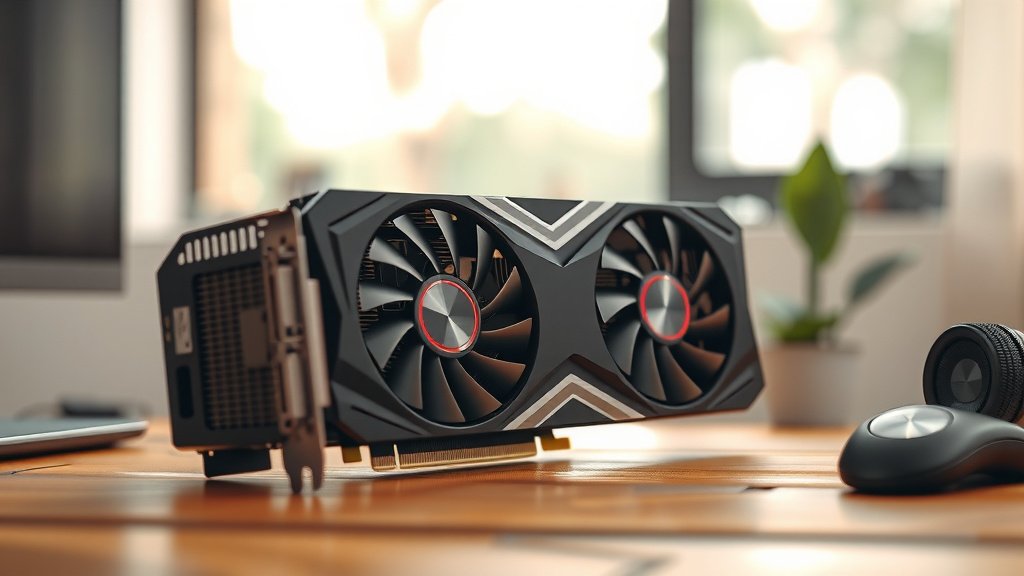
- Examples: NVIDIA GeForce RTX 4080/4090, AMD Radeon RX 7900 XTX
What About Mac Users?
If you’re working on a Mac, the GPU situation is a bit different. Most Macs use integrated graphics or GPUs built directly into the Apple Silicon chip (like M1, M2, M3). These are designed to be very efficient and powerful for their specific tasks.
For M-series Macs, the more “cores” you have in the GPU part of the chip, the better performance you’ll see in editing. If you’re using an older Mac Pro, you might have more flexibility to choose a discrete GPU. Many experts say that Apple’s integrated solutions are excellent for general editing tasks. However, for extremely demanding professional workflows, some users still find dedicated workstation cards in PCs to be more robust. For extremely demanding professional workflows, some users still find dedicated workstation cards in PCs to be more robust.
A Quick Checklist for Your GPU Hunt
Here’s a simple way to remember the key points when you’re shopping:
- Check your editing software’s recommendations.
- Prioritize VRAM for higher resolutions.
- Consider CUDA for NVIDIA or OpenCL for broader support.
- Don’t skimp if you edit 4K or more.
- Balance your budget with your performance needs.
- Read recent reviews for real-world performance data.
Conclusion
You’ve learned that your GPU is a primary driver of your video editing speed. Prioritizing VRAM, processing power, and software support like CUDA or OpenCL will greatly improve your workflow. We found that balancing these factors with your specific editing needs and budget is key. For smoother playback and faster renders, selecting the right GPU makes a real difference. Now, take this knowledge and compare it with your editing software’s recommendations to choose the perfect graphics card for your projects.
Frequently Asked Questions
Do I really need a dedicated GPU for video editing?
Yes, a dedicated GPU is highly recommended for video editing, especially if you work with HD or 4K footage. While your CPU can handle some tasks, a dedicated GPU significantly speeds up rendering, playback, and applying effects, making your editing process much smoother.
How much VRAM is enough for 4K video editing?
For 4K video editing, we found that 8GB of VRAM is a good starting point, but 12GB or more is ideal for complex projects with many effects. More VRAM allows your GPU to handle larger datasets required for high-resolution footage without slowing down.
Is NVIDIA or AMD better for video editing software like Premiere Pro?
Historically, NVIDIA has often held an edge due to its CUDA technology, which many editing applications are optimized for. However, AMD cards with strong OpenCL support can also perform very well. It’s best to check your specific software’s recommendations.
Will an older, high-end GPU be better than a new, mid-range one for editing?
It often depends on the specific generation and architecture. While newer mid-range cards might have better efficiency, an older, higher-tier card might still offer more raw processing power and VRAM. We suggest comparing benchmarks for your specific editing tasks.
Does the GPU affect my editing software’s interface and timeline scrubbing?
Absolutely. Your GPU plays a major role in how smoothly your editing software’s interface responds. A more powerful GPU will lead to faster timeline scrubbing, quicker loading of effects previews, and a generally more responsive editing experience.

![10 Best 12gb Gpu [2026]](https://spsolutionscare.com/wp-content/uploads/2026/08/10-best-12gb-gpu-2026-featured-768x432.jpg)