Why Is My GPU Fan So Loud? Troubleshooting Tips
Your GPU fan is likely loud because it’s working hard to keep your graphics card cool. When your GPU is under heavy load, like during gaming or video editing, it generates a lot of heat. The fan spins faster to dissipate this heat, causing it to make more noise. This is a normal function, but it can be concerning if it’s suddenly much louder than usual.
Several factors can contribute to a loud GPU fan. Dust buildup is a common culprit, blocking airflow and forcing the fan to spin faster. An outdated graphics driver or an overclocked GPU can also push the fan to its limits. Sometimes, it’s simply a sign that your graphics card is performing as intended under demanding tasks, but it’s wise to investigate if the noise is persistent or sudden.
- Your GPU fan spins faster to cool the card when it gets hot.
- Heavy tasks like gaming make your GPU work harder.
- Dust buildup can make fans louder and less efficient.
- Drivers and overclocking settings also impact fan noise.
- It’s usually normal, but sudden loud noises warrant checking.
Let’s break down why your GPU fan might be making all that racket and what you can do about it.
Why Your Graphics Card Fan is Making Noise
So, your GPU fan has decided to audition for a starring role in a heavy metal concert. It’s a common issue, and usually, it’s not a sign of impending doom for your beloved graphics card. Let’s figure out what’s going on and how to quiet things down.
Understanding How Your GPU Fan Works
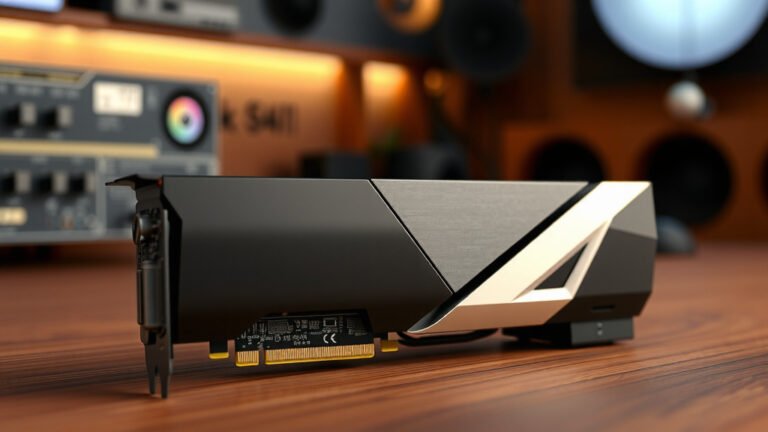
Your graphics card, or GPU, is the powerhouse behind all those pretty visuals on your screen. When it’s working hard, like when you’re gaming, editing videos, or running demanding software, it generates a lot of heat. Think of it like your brain working extra hard – it gets warm!
To keep your GPU from overheating, it has fans. These fans spin at different speeds depending on how much heat your GPU is producing. When you’re playing a graphically intense game, the GPU works overtime, and the fans spin faster to push that hot air away. This increased speed is what causes the **louder noise** you’re hearing. It’s a good thing, really – it means your GPU is doing its job to protect itself.
Normal Fan Noise vs. Problematic Noise
A little bit of fan noise is completely normal, especially during demanding tasks. If you notice the noise increases when you start a game and decreases when you close it, that’s often just your GPU doing its thing. The sound should also typically go back to a quiet hum when your computer is idle.
However, if the noise is **sudden, extremely loud, or sounds like grinding or clicking**, that could indicate a more serious issue. Persistent, very loud noise even when your computer isn’t doing much is also a red flag. We’ll get into those potential problems shortly.
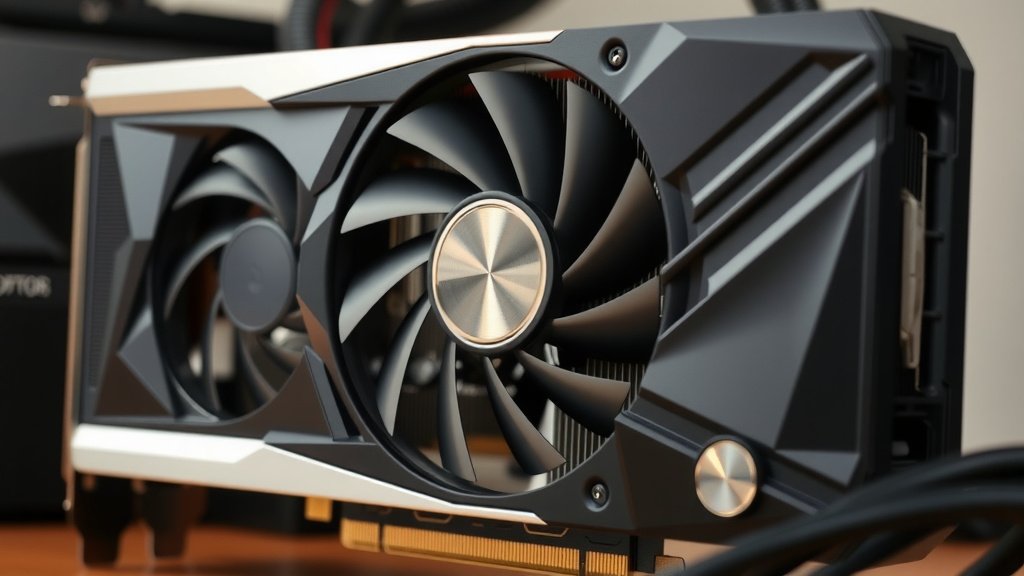
Common Culprits Behind a Loud GPU Fan
Let’s dive into the most frequent reasons your GPU fan might be sounding like a jet engine preparing for takeoff.
1. Dust Buildup: The Silent (Until Now) Killer of Airflow
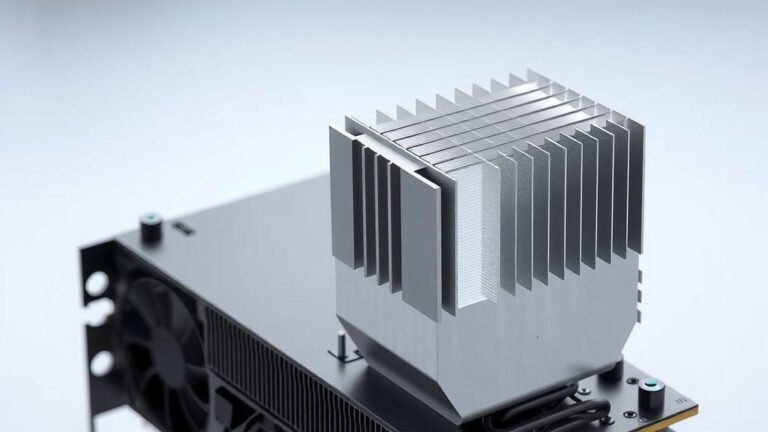
This is probably the most common culprit. Over time, dust accumulates on your GPU’s heatsink and fan blades. Imagine trying to breathe through a thick blanket – it’s hard work! Dust acts like that blanket, blocking air from flowing freely. When airflow is restricted, the GPU heats up more. To compensate, the fan has to spin **much faster** to try and keep things cool, making a lot more noise.
How Dust Affects Your GPU
A thick layer of dust doesn’t just make the fan work harder; it can actually **reduce cooling efficiency**. This means your GPU might run hotter even with the fan at full speed. In extreme cases, prolonged overheating can shorten the lifespan of your graphics card.
What You Can Do About Dust
Cleaning is key! You’ll need a can of compressed air. Make sure your computer is turned off and unplugged. You might want to ground yourself to avoid static discharge, which can damage components. Gently spray the compressed air onto the fan and heatsink in short bursts. You can often use a soft brush (like a clean paintbrush) to dislodge stubborn dust, but be very **gentle**.
2. Increased Workload and Heat Generation
Sometimes, your GPU fan is loud because your GPU is simply working harder than usual. This happens naturally during demanding tasks.
Gaming and Creative Software
Modern games push GPUs to their limits with detailed graphics and complex physics. Similarly, video editing, 3D rendering, and running virtual machines all require significant processing power, leading to **increased heat output**. If you’ve recently started playing a new, graphically demanding game or using more intensive software, a louder fan is often just a sign of your GPU performing as intended.
Overclocking Your GPU
Did you or someone else tweak your GPU’s settings to run faster than its factory defaults? That’s called overclocking. While it can boost performance, it also makes your GPU generate **more heat**. This extra heat means your fan will spin faster and louder to keep the card cool. If you’ve recently overclocked, consider rolling back the settings or increasing the fan speed curve manually to manage the noise.
3. Software and Driver Issues
Believe it or not, software can play a big role in how your GPU fan behaves.
Outdated or Corrupt Graphics Drivers
Your graphics drivers are like the communication bridge between your operating system and your GPU. If these drivers are outdated or have become corrupted, they might not be telling the fan the correct information about temperature. This can cause the fan to spin at an unnecessarily high speed, even when it’s not that hot. Updating your drivers from the manufacturer’s website (NVIDIA, AMD, or Intel) is a **relatively easy fix**.
Fan Control Software Settings
Many GPUs come with their own software that allows you to customize fan speeds. If you or someone else has set a very aggressive fan curve (meaning the fan spins up quickly at lower temperatures), it will be louder. You might have accidentally set this, or it could be a default profile. Check the software that came with your GPU (like NVIDIA GeForce Experience, AMD Radeon Software, or MSI Afterburner) to see your current fan settings.
4. Hardware Issues: When Things Get Grindy
While less common than dust or workload, actual hardware problems can cause loud fan noise.
Worn-Out Fan Bearings
Like any mechanical part, GPU fans have bearings that can wear out over time. When they do, they can start making **grinding, rattling, or clicking noises**. This is a sign that the fan itself might be failing and will likely need to be replaced.
Obstructions Near the Fan
Sometimes, a stray wire, a loose component, or even a bit of debris can get caught in the fan blades. This can cause a **rubbing or ticking sound**. If you see anything obvious, carefully remove it. If it’s internal and you’re not comfortable taking things apart, it’s best to seek professional help.
Quick Fan Noise Troubleshooting Checklist
Here’s a quick way to figure out what might be causing that racket:
- Is the noise only happening when you’re gaming or running demanding apps? (Likely normal workload)
- Have you checked for dust buildup on your GPU heatsink and fans? (Clean it if needed)
- Are your graphics drivers up-to-date? (Update them if not)
- Have you checked your GPU’s fan control software settings? (Adjust the curve if too aggressive)
- Does the noise sound like grinding or clicking? (Could be a failing fan bearing)
- Is anything visibly obstructing the fan? (Remove it carefully)
Conclusion
Your GPU fan’s noise is usually a sign it’s working hard to keep your system cool. We’ve seen that dust, heavy workloads, outdated drivers, and sometimes even hardware issues can cause it to ramp up. Remember, a louder fan during gaming is often normal, but grinding or clicking noises warrant immediate attention. By performing regular cleaning and keeping your drivers updated, you can help ensure your GPU stays cool and quiet.
Your next step? Take a moment to check for dust buildup and ensure your drivers are current. A little maintenance goes a long way in keeping your PC happy and quiet!
Frequently Asked Questions
Why is my GPU fan always loud, even when my PC isn’t doing much?
This could point to a few things. Your fan settings in GPU software might be too aggressive, causing it to spin faster than necessary. Alternatively, there might be dust buildup restricting airflow, forcing the fan to work harder. It’s also possible that background processes are using more GPU resources than you realize, generating extra heat.
Can I manually control my GPU fan speed to reduce noise?
Yes, you absolutely can! Most GPU manufacturers provide software, like NVIDIA GeForce Experience or AMD Radeon Software, that allows you to create custom fan curves. You can set the fan to spin slower at lower temperatures. Be careful, though; setting it too low could lead to overheating.
Does overclocking my GPU always make the fan louder?
Generally, yes. Overclocking pushes your GPU beyond its default specifications to perform faster. This increased performance generates more heat, which in turn forces the GPU fan to spin at higher speeds to compensate. You’ll likely notice a corresponding increase in fan noise.
What kind of noise indicates a serious problem with my GPU fan?
If you hear grinding, clicking, rattling, or scraping sounds, these often indicate a failing fan bearing or an obstruction. These noises are not typical for normal operation and suggest that the fan itself might be damaged and needs attention or replacement.
How often should I clean dust from my GPU fan?
It’s a good idea to clean your GPU fan at least once every 3-6 months, depending on your environment. If you live in a dusty area or have pets, you might need to clean it more frequently. Regular cleaning prevents dust buildup, which is a primary cause of loud fans and reduced cooling efficiency.
![10 Best Gpu Brand For Amd [2026]](https://spsolutionscare.com/wp-content/uploads/2026/09/10-best-gpu-brand-for-amd-2026-featured-768x432.jpg)